


SharePoint Mentor Curated Articles

INDEXED COLUMNS - Why they matter, when to use them, and how to configure them
A practical administrator and site-owner guide for large SharePoint lists and document libraries.
1. What is an indexed column?
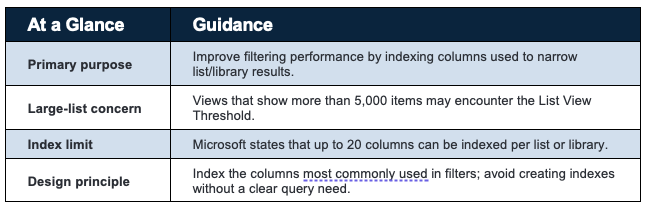
An indexed column is a SharePoint list or library column for which SharePoint maintains an index that can be used to make filtering more efficient. The practical goal is not to make every operation “fast”; it is to help SharePoint identify a smaller subset of rows when a view or query filters on an indexed field.
Key idea: Indexes work best as part of a filtering strategy. Creating an index by itself does not change what a view displays.
2. Why do we need indexed columns?
SharePoint can hold very large lists and libraries, but large queries are governed by resource-throttling behavior. Microsoft documents a List View Threshold (LVT) of 5,000 items and explains that the threshold helps protect consistent back-end performance. A list or library can contain many more items than the threshold; the important design question is how many items a view or operation needs to process.
- Improve filter performance. Microsoft states that adding an index to a column increases performance when that column is used for filtering.
- Support large-list views. Indexed columns used with appropriately selective filters can reduce the result set that SharePoint must process.
- Design predictable views. A well-chosen first indexed filter can narrow the working set before additional conditions are evaluated.
- Reduce avoidable query pressure. Index only commonly filtered columns because indexes add data overhead.
3. The List View Threshold and indexes
The LVT is not the maximum number of items a list or library may store. Microsoft notes that a list or library can store up to 30 million items or files, while views that show more than 5,000 items may encounter a threshold error. Indexes and filtered views are key tools for keeping queries manageable.
4. Choosing which columns to index
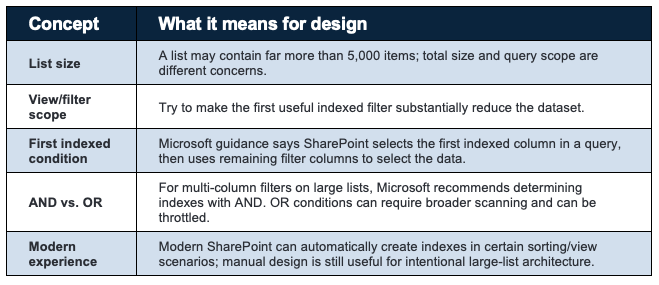
Start with actual user behavior. Review the public views and the columns people routinely use to filter. Good candidates are fields that repeatedly narrow the dataset to a relatively small group of items.

Practical rule: Prefer a column that is both frequently filtered and selective. If 15,000 items exist, Microsoft’s filtering guidance gives the example goal that the first indexed filter should return fewer than 5,000 items.
5. Simple vs. compound indexes
SharePoint supports simple and compound indexes. A simple index uses one column. A compound index uses a primary and a secondary column. Use the simplest index that matches the filtering pattern, and avoid creating indexes merely “just in case.”

6. How to manually create an index
The following procedure follows Microsoft Support guidance for SharePoint in Microsoft 365 and SharePoint 2019. Menu labels can vary slightly by experience or version.
- Open the SharePoint list or document library.
- Select Settings, then select List settings or Library settings.
- Scroll to the Columns section and select Indexed columns.
- On the Indexed Columns page, select Create a new index.
- Choose the primary column. If your design requires a compound index, choose a secondary column when the page offers that option.
- Create/save the index, then return to the list or library and configure a view whose filter uses the indexed column.
Important: Microsoft notes that creating an index requires access to all items. In some SharePoint Server scenarios, creating an index can be blocked when the list already exceeds the threshold. SharePoint in Microsoft 365 documentation states that an index can be manually added to a list of any size.
7. Build the filtered view after indexing
Indexing and filtering are complementary. After creating the index, edit or create a view so that its filter starts with the indexed column that best reduces the number of candidate items.
- Open the view you want to optimize or create a new view.
- Apply a filter using the indexed column as the first selective condition.
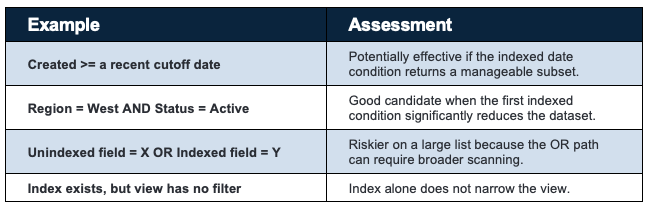
- Add additional conditions only as needed. For multi-column filters on large lists, favor AND-based filtering patterns that preserve a selective indexed condition.
- Save the view and test it with realistic data volumes and common user filters.
8. Automatic indexing
- Microsoft states that indexes are created automatically in certain situations, including when saved views have columns used for sorting or filtering and when sorting in the modern experience. Microsoft also notes special behavior around 20,000 items: automatic index creation from modern sorting is limited below that size, while for larger lists the index is created in the background and the Indexed Columns page can show “Indexing in progress.”
9. Common mistakes and troubleshooting
10. Recommended design workflow
- Estimate list/library growth and identify the views that users will rely on most.
- List the columns used repeatedly in filters and sort/group scenarios.
- Choose the most selective, frequently filtered columns first.
- Create only the indexes that support those real query patterns.
- Create filtered views that begin with an effective indexed condition.
- Test with production-like volumes; revisit the design when usage patterns or data distribution change.
11. Quick-reference checklist
- Identify common filters before creating indexes.
- Index columns that substantially narrow results.
- Remember: 5,000 is a view/query threshold concern, not the maximum storage capacity of a list.
- Use the indexed column in the view filter after creating the index.
- Prefer AND-based multi-column filtering patterns for large lists.
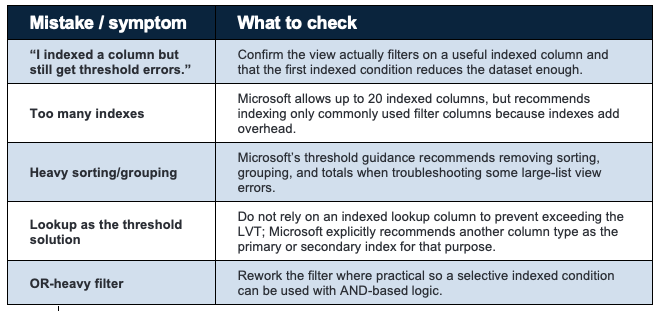
- Avoid relying on indexed lookup columns as the LVT workaround.
- Keep the number of indexes purposeful even though up to 20 indexed columns are supported.
- If a view still fails, simplify sorting, grouping, totals, and expensive column combinations, then retest.
12. Sources and further reading
Microsoft Support resources used for this guide:
- Add an index to a list or library column: https://support.microsoft.com/en-us/sharepoint/data-and-lists/add-an-index-to-a-list-or-library-column
- Working with the List View Threshold limit for all versions of SharePoint: https://support.microsoft.com/en-us/sharepoint/data-and-lists/working-with-the-list-view-threshold-limit-for-all-versions-of-sharepoint
- List View Threshold for large lists and libraries: https://support.microsoft.com/en-us/sharepoint/lists/data-and-lists/list-view-threshold-for-large-lists-and-libraries
- Use filtering to modify a SharePoint view: https://support.microsoft.com/en-us/sharepoint/data-and-lists/use-filtering-to-modify-a-sharepoint-view