


SharePoint Mentor Curated Articles
SHAREPOINT ONLINE List Views in Lists and Libraries
1. Executive summary
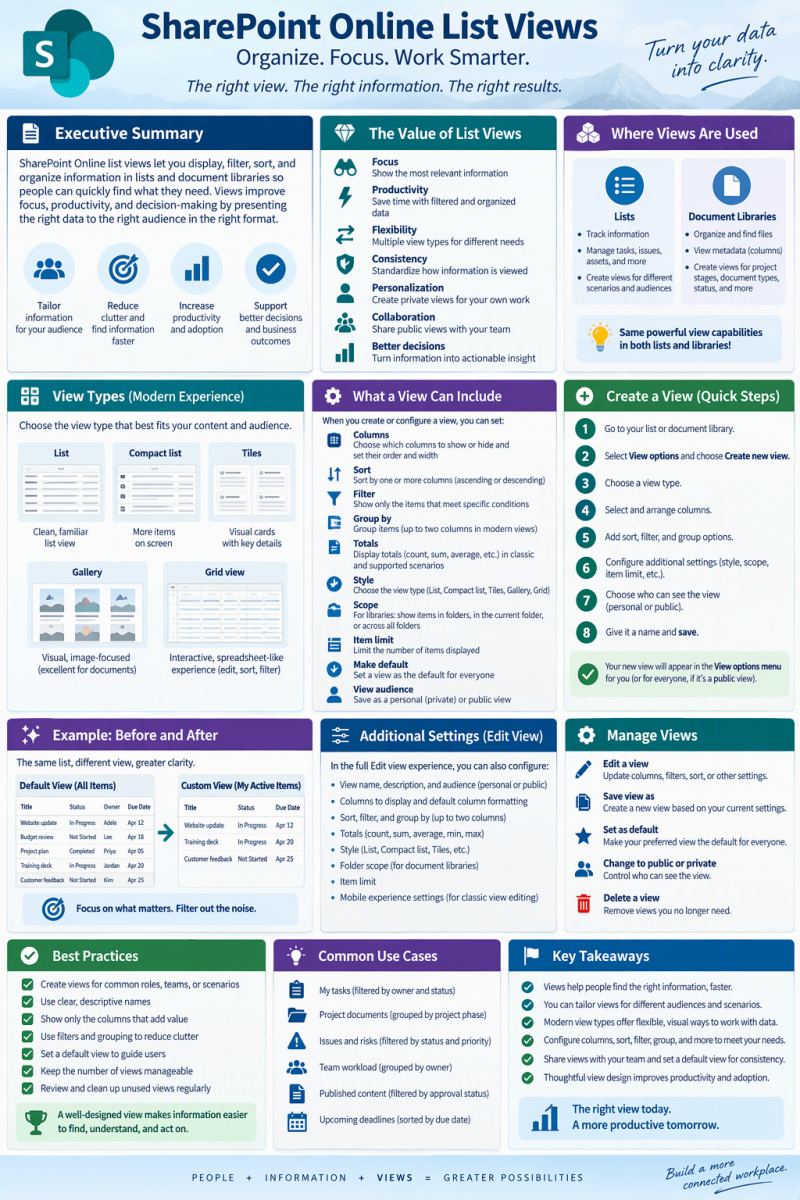
SharePoint Online list views provide a flexible way to organize and present the same list or library content for different users and tasks without changing the underlying information. A saved view can preserve choices such as visible columns, column order and width, sorting, filtering, grouping, and presentation style, helping users focus on the information most relevant to their work. Views can be designed for shared scenarios or individual working preferences, while an intentional default view gives users a consistent starting point. Effective view design emphasizes clear names, purposeful columns, focused filters, sensible sorting, and grouping only when it improves comprehension. Because SharePoint Online evolves continuously and available settings can vary by experience, permissions, and list or library configuration, view designs and training materials should be validated against the current tenant interface.
2. Why list views matter
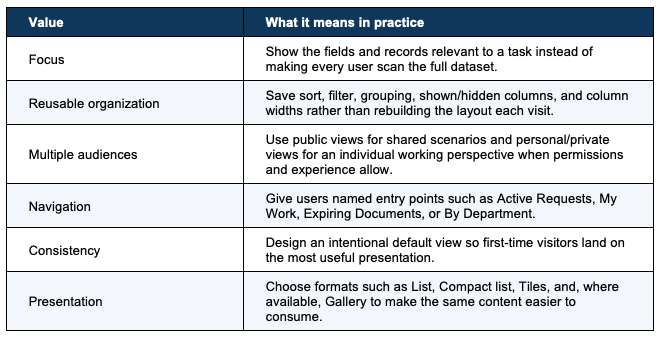
Important distinction A view changes the presentation of content. For example, grouping organizes similar items by a column value; it does not add or remove the underlying content.
3. View anatomy: what is saved
- View name and, depending on the creation path and permissions, whether the view is public or personal/private.
- Which columns are shown or hidden, their order, and saved column widths.
- Sort choices.
- Filter criteria.
- Grouping choices.
- The selected view/display type.
- Additional classic Edit View settings where exposed, including totals, item limits, folders/scope, styles, and other list-specific options.
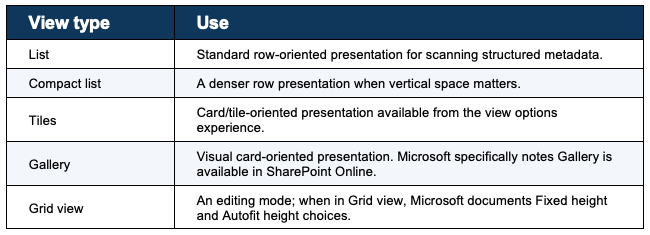
4. Modern view types
5. Create a view: modern experience
Microsoft documents two common modern patterns: create a new view directly, or configure the current display and save it as a view.
Method A: Create new view
- Open the target list or library.
- On the command bar, open View options. In Microsoft examples the current view can appear as All documents or All items.
- Select Create new view.
- Choose the desired view type and supply the view details presented by the interface, including the name and visibility choice when offered.
- Create/save the view, then refine columns, sorting, filtering, grouping, and presentation as needed.
Method B: Configure first, then Save view as
- Use column headers and/or the filters pane to establish the sort, filter, and grouping you want.
- Use Add column > Show or hide columns to control visibility and reorder columns.
- Adjust column widths as needed.
- Open View options and select Save view as.
- Enter the view name, choose public or private when that option is available to you, and save.
If View options is missing Microsoft advises confirming that you are not editing the list and have not selected one or more items. Permissions can also be the reason the command is unavailable.
6. Configure columns
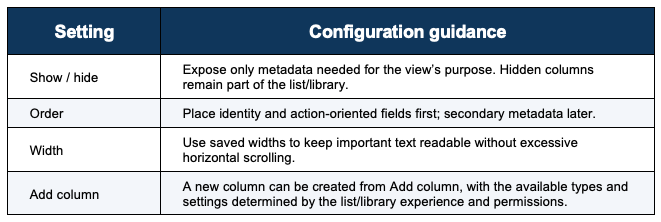
Columns are the structural backbone of a view. In a document library, Microsoft documents Add column > Show or hide columns as the route to choose visible fields. In the Edit view columns pane, columns can be reordered by drag-and-drop or the up/down controls, then applied. Views can also remember column widths.
7. Sorting
For a quick sort, select a column heading and choose the sort order. A saved view can preserve sorting. In the classic Edit View page, sorting is configured explicitly and can include a primary and secondary sort field when those controls are presented.
- Use sorting when sequence is the main question: newest, oldest, highest priority, alphabetical, or a secondary tie-breaker.
- Be deliberate about blank values because they can affect where records appear.
8. Filtering
Microsoft documents quick filtering from a column heading: choose Filter by, select values, and Apply. Filters can also be established through the filters pane and saved in the view. To clear a quick filter, use Filter by > Clear all > Apply.
- Use filters to create task-oriented subsets such as active, assigned, category-specific, or date-oriented working sets.
- Treat filtered views as presentation, not security. Permissions, not views, determine access to content.
9. Grouping
- Grouping clusters items or documents by a column value. A quick group can be applied from a column header. For persistent grouping, Microsoft documents View options > Edit current view > Group By. The Edit View page can specify a first grouping column, ascending or descending order, and a second grouping column with its own direction.
- Microsoft lists column types that cannot be grouped: Multiple lines of text; Choice when multiple selections are allowed; Hyperlink; and Image. Microsoft also cautions that grouping by more than one Managed Metadata field is likely to affect page-load performance.
10. The classic Edit View configuration surface
- The Edit View page remains important because it exposes a broader set of view controls than the quick modern menus. Exact sections vary by list/library configuration and experience. The following checklist covers the settings commonly exposed when creating or editing a standard SharePoint view; use the page shown in your tenant as the authoritative set for that specific list or library.
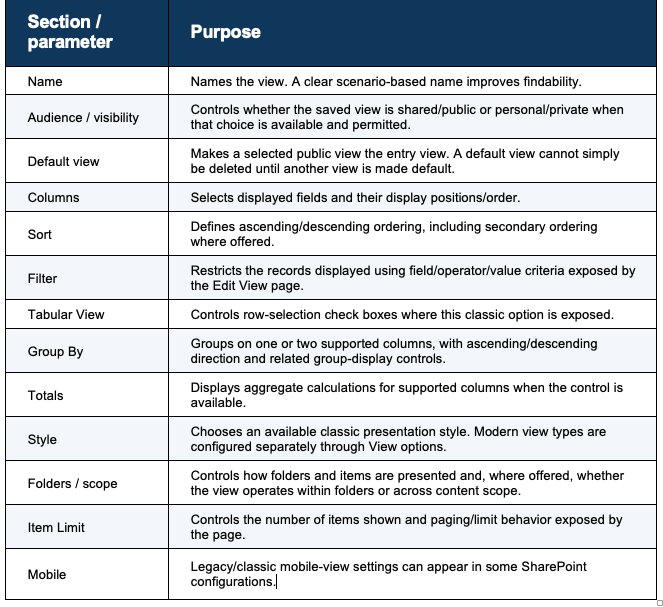
Parameter availability Not every list, library, view type, tenant, or modern/classic experience presents identical controls. Microsoft explicitly says View options are continually being updated and visual updates may be rolling out, so validate the actual UI before publishing tenant-specific training screenshots.
11. Change, rename, and save an existing view
- Switch to the view you want to work with from View options.
- Apply column, sort, filter, or group changes.
- Use Save view as when you want a new named view instead of replacing the existing scenario.
- Use Edit current view when you need the full configuration page for the selected view.
12. Delete a view
- Microsoft states that Edit permission level or higher is required to delete a view. Switch to the view, open View options, choose Edit current view, and select Delete on the Edit View page. If Delete is unavailable because the view is the list’s default, create or modify another view and make it the default first; then delete the old view.
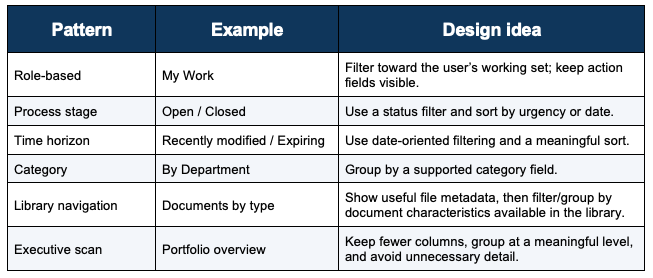
13. Design patterns
14. Governance and usability best practices
- Start with the question the view must answer, then choose columns, filter, sort, and grouping.
- Prefer a small, purposeful set of shared views over a long menu of near-duplicates.
- Use plain-language names that describe an audience, task, state, or time horizon.
- Keep the default view broadly useful and understandable to a first-time visitor.
- Use personal views for individual working preferences rather than proliferating public views.
- Document any view whose filter logic or grouping is important to a business process.
- Test view behavior with realistic volumes and with the permissions of the intended audience.
- Remember that a view is not a security boundary.
15. Troubleshooting quick reference

16. Build checklist for a production view
- Define the audience and decision/task.
- Choose the minimum useful columns.
- Order and size columns.
- Set sort order.
- Set filters.
- Add grouping only when it improves comprehension.
- Select the most useful display type.
- Choose a clear name and appropriate visibility.
- Decide whether it should be the default.
- Save, test, and verify with the intended user permissions.
- Review the view menu periodically and retire obsolete views.
17. Sources and verification notes
This guide was grounded primarily in current Microsoft Support documentation located during preparation. Because SharePoint Online evolves continuously, use the live Microsoft documentation and your tenant UI to validate labels and options before issuing step-by-step screenshots.
- Create, change, or delete a view of a list or library: https://support.microsoft.com/en-us/sharepoint/lists/data-and-lists/create-change-or-delete-a-view-of-a-list-or-library
- Create or change the view of a list: https://support.microsoft.com/en-us/sharepoint/lists/create-or-change-the-view-of-a-list
- Create a custom view of a document library: https://support.microsoft.com/en-us/sharepoint/libraries/create-a-custom-view-of-a-document-library
- Delete a list view: https://support.microsoft.com/en-us/sharepoint/lists/data-and-lists/delete-a-list-view
- Use grouping to modify a list or library view: https://support.microsoft.com/en-us/sharepoint/lists/use-grouping-to-modify-a-list-or-library-view