


SharePoint Mentor Curated Articles
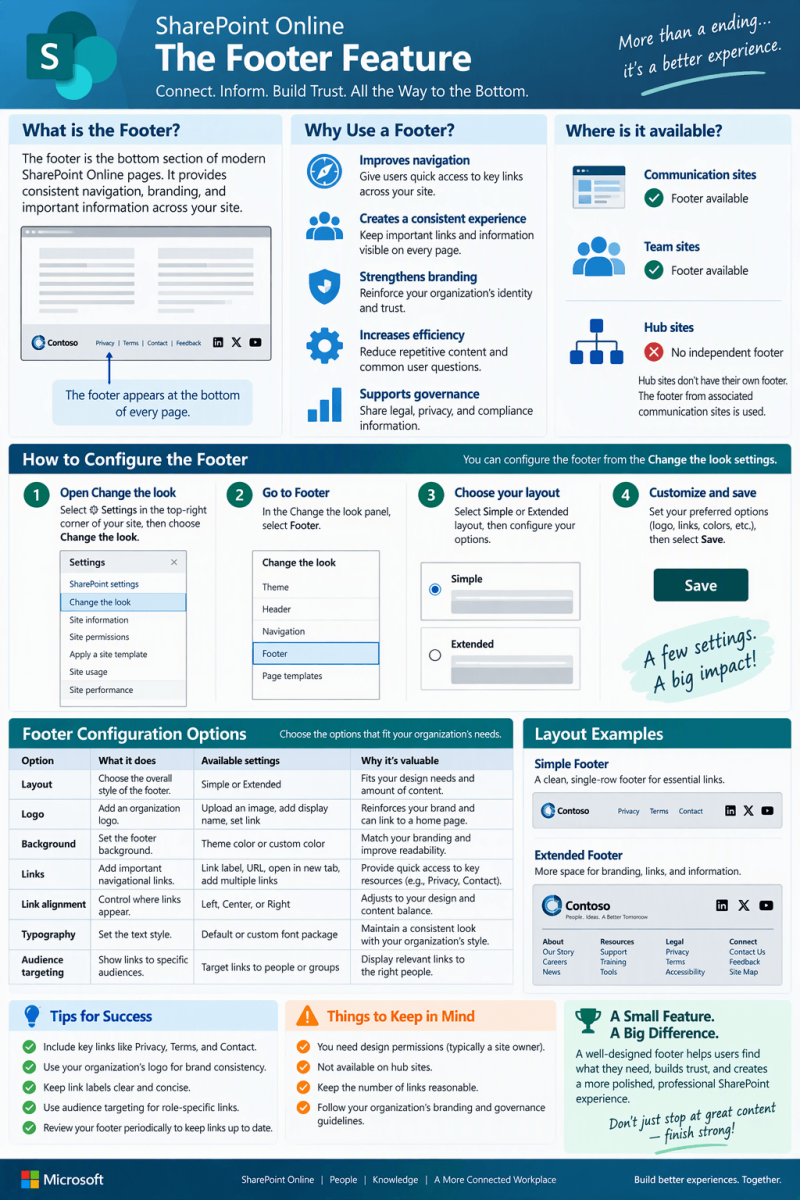
SharePoint Online Footer - A practical reference for site owners and content authors
At a glance
- The footer is a site-level navigation and branding area displayed at the bottom of modern SharePoint communication site pages. It can provide persistent links, labels, a display name, logo, and coordinated styling without adding content separately to every page.
What the Footer feature is
- The SharePoint Online site footer gives communication sites a consistent area at the bottom of modern site pages. Microsoft documents the footer as part of Change the look and as a navigation surface that can contain links and labels. The feature is available on communication site pages, but not on list pages, library pages, or other site pages outside that scope.
How to configure the footer
Open the Footer settings
-
From the communication site, select Settings > Change the look > Footer. If Change the look is unavailable, you may not have the required permission.
Turn the footer on
-
Set Footer visibility to On.
Choose the layout
-
Select Simple or Extended, depending on the amount and hierarchy of navigation you need.
Set alignment and identity
-
Choose the link alignment. Optionally upload a logo and enter a Display name.
Apply the visual design
-
On the Design tab, select a background color or add a background image. In Typography, choose available font packages for the footer name and links.
Save the footer design
-
Select Save to apply the configuration.
Add or maintain navigation
-
In the footer itself, select Edit. Add links or labels, change their order, edit them, or remove them. Save the navigation changes when finished.
Configuration options

Why the footer is valuable
- Consistent access to important destinations: a footer gives visitors another predictable navigation point after they reach the bottom of a page.
- Better information organization: links and labels can group recurring resources without crowding the page body.
- Stronger visual continuity: logo, display name, background, and typography let the footer participate in the site’s brand experience.
- Reduced page-by-page maintenance: because the footer is configured at the site level for supported communication site pages, common navigation does not need to be recreated as page content on each page.
- More relevant navigation when needed: audience-targeted navigation can help present appropriate footer choices to specified groups when the feature is enabled.
Recommended approach
- Treat the footer as secondary, persistent navigation rather than a replacement for the site’s primary navigation. Keep the most useful destinations easy to scan, use labels only when they improve grouping, and choose Simple when a single hierarchy is enough. Move to Extended when the information architecture genuinely benefits from a second level. Review footer links periodically so this highly visible navigation area stays useful.
Important limitations and permissions
- The site footer is available on communication site pages. Microsoft states that it is not available for list pages, library pages, or other pages on the site.
- If Change the look or Edit is not visible, permissions may be the reason. Microsoft notes that site owners manage navigation, and Change the look also depends on appropriate site permissions.
- Microsoft 365 features can roll out gradually, so the interface may differ from published help in some organizations.
Sources
Microsoft Support: “Change the look of your SharePoint site”
Microsoft Support: “Customize the navigation on your SharePoint site”
- https://support.microsoft.com/en-us/sharepoint/sites-in-sharepoint/customize-the-navigation-on-your-sharepoint-site