

SharePoint Mentor Curated Articles
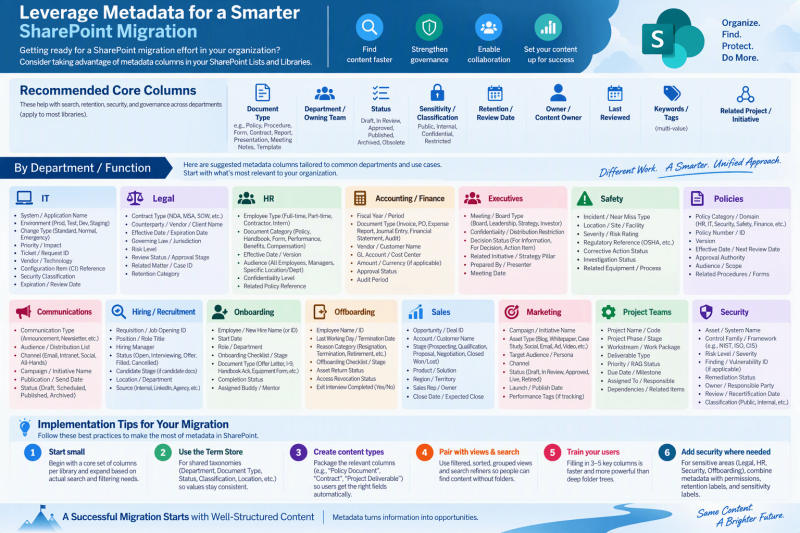
Example metadata columns for SharePoint Online libraries and lists
Getting ready for a SharePoint migration effort in your organization? Consider taking advantage of metadate columns in your SharePoint Lists and Libraries.
Cross-cutting / Recommended Core Columns (apply to most libraries)
These help with search, retention, security, and governance across departments:
- Document Type (Managed Metadata or Choice) – e.g., Policy, Procedure, Form, Contract, Report, Presentation, Meeting Notes, Template
- Department / Owning Team (Managed Metadata)
- Status (Choice) – Draft, In Review, Approved, Published, Archived, Obsolete
- Sensitivity / Classification (Choice or Managed Metadata) – Public, Internal, Confidential, Restricted
- Retention / Review Date (Date)
- Owner / Content Owner (Person/Group)
- Last Reviewed (Date)
- Keywords / Tags (Managed Metadata – multi-value)
- Related Project / Initiative (Managed Metadata or Lookup)
By Department / Function
IT
- System / Application Name
- Environment (Prod, Test, Dev, Staging)
- Change Type (Standard, Normal, Emergency)
- Priority / Impact
- Ticket / Request ID
- Vendor / Technology
- Configuration Item (CI) Reference
- Security Classification
- Expiration / Review Date
Legal
- Contract Type (NDA, MSA, SOW, Amendment, etc.)
- Counterparty / Vendor / Client Name
- Effective Date / Expiration Date
- Governing Law / Jurisdiction
- Risk Level
- Review Status / Approval Stage
- Related Matter / Case ID
- Retention Category
HR
- Employee Type (Full-time, Part-time, Contractor, Intern)
- Document Category (Policy, Handbook, Form, Performance, Benefits, Compensation)
- Effective Date / Version
- Audience (All Employees, Managers, Specific Location/Dept)
- Confidentiality Level
- Related Policy Reference
Accounting / Finance
- Fiscal Year / Period
- Document Type (Invoice, PO, Expense Report, Journal Entry, Financial Statement, Audit)
- Vendor / Customer Name
- GL Account / Cost Center
- Amount / Currency (if applicable)
- Approval Status
- Audit Period
Executives
- Meeting / Board Type (Board, Leadership, Strategy, Investor)
- Confidentiality / Distribution Restriction
- Decision Status (For Information, For Decision, Action Item)
- Related Initiative / Strategy Pillar
- Prepared By / Presenter
- Meeting Date
Safety
- Incident / Near Miss Type
- Location / Site / Facility
- Severity / Risk Rating
- Regulatory Reference (OSHA, etc.)
- Corrective Action Status
- Investigation Status
- Related Equipment / Process
Policies (company-wide policy library)
- Policy Category / Domain (HR, IT, Security, Safety, Finance, Legal, etc.)
- Policy Number / ID
- Version
- Effective Date / Next Review Date
- Approval Authority
- Audience / Scope
- Related Procedures / Forms
Communications
- Communication Type (Announcement, Newsletter, Press Release, Internal Memo, Campaign)
- Audience / Distribution List
- Channel (Email, Intranet, Social, All-Hands)
- Campaign / Initiative Name
- Publication / Send Date
- Status (Draft, Scheduled, Published, Archived)
Hiring / Recruitment
- Requisition / Job Opening ID
- Position / Role Title
- Hiring Manager
- Status (Open, Interviewing, Offer, Filled, Cancelled)
- Candidate Stage (if candidate documents)
- Location / Department
- Source (Internal, LinkedIn, Agency, etc.)
Onboarding
- Employee / New Hire Name (or ID)
- Start Date
- Role / Department
- Onboarding Checklist / Stage
- Document Type (Offer Letter, I-9, Handbook Ack, Equipment Form, etc.)
- Completion Status
- Assigned Buddy / Mentor
Offboarding
- Employee Name / ID
- Last Working Day / Termination Date
- Reason Category (Resignation, Termination, Retirement, etc.) – use carefully for privacy
- Offboarding Checklist / Stage
- Asset Return Status
- Access Revocation Status
- Exit Interview Completed (Yes/No)
Sales
- Opportunity / Deal ID
- Account / Customer Name
- Stage (Prospecting, Qualification, Proposal, Negotiation, Closed Won/Lost)
- Product / Solution
- Region / Territory
- Sales Rep / Owner
- Close Date / Expected Close
Marketing
- Campaign / Initiative Name
- Asset Type (Blog, Whitepaper, Case Study, Social, Email, Ad, Video, Landing Page)
- Target Audience / Persona
- Channel
- Status (Draft, In Review, Approved, Live, Retired)
- Launch / Publish Date
- Performance Tags (if tracking)
Project Teams
- Project Name / Code
- Project Phase / Stage
- Workstream / Work Package
- Deliverable Type
- Priority / RAG Status
- Due Date / Milestone
- Assigned To / Responsible
- Dependencies / Related Items
Security
- Asset / System Name
- Control Family / Framework (e.g., NIST, ISO, CIS)
- Risk Level / Severity
- Finding / Vulnerability ID (if applicable)
- Remediation Status
- Owner / Responsible Party
- Review / Recertification Date
- Classification (Public, Internal, Confidential, Restricted)
Implementation Tips for Your Migration
- Start with a small core set of columns per library and expand based on actual search and filtering needs.
- Use the Term Store for shared taxonomies (Department, Document Type, Status, Classification, Location, etc.) so values stay consistent.
- Create content types that package the relevant columns (e.g., “Policy Document”, “Contract”, “Project Deliverable”) so users get the right fields automatically.
- Pair metadata with views (filtered, sorted, grouped) and search refiners so people can find content without folders.
- Train users that filling in 3–5 key columns is faster and more powerful than deep folder trees.
- For highly sensitive areas (Legal, HR, Security, Offboarding), combine metadata with proper permissions, retention labels, and sensitivity labels.