

SharePoint Mentor Curated Articles
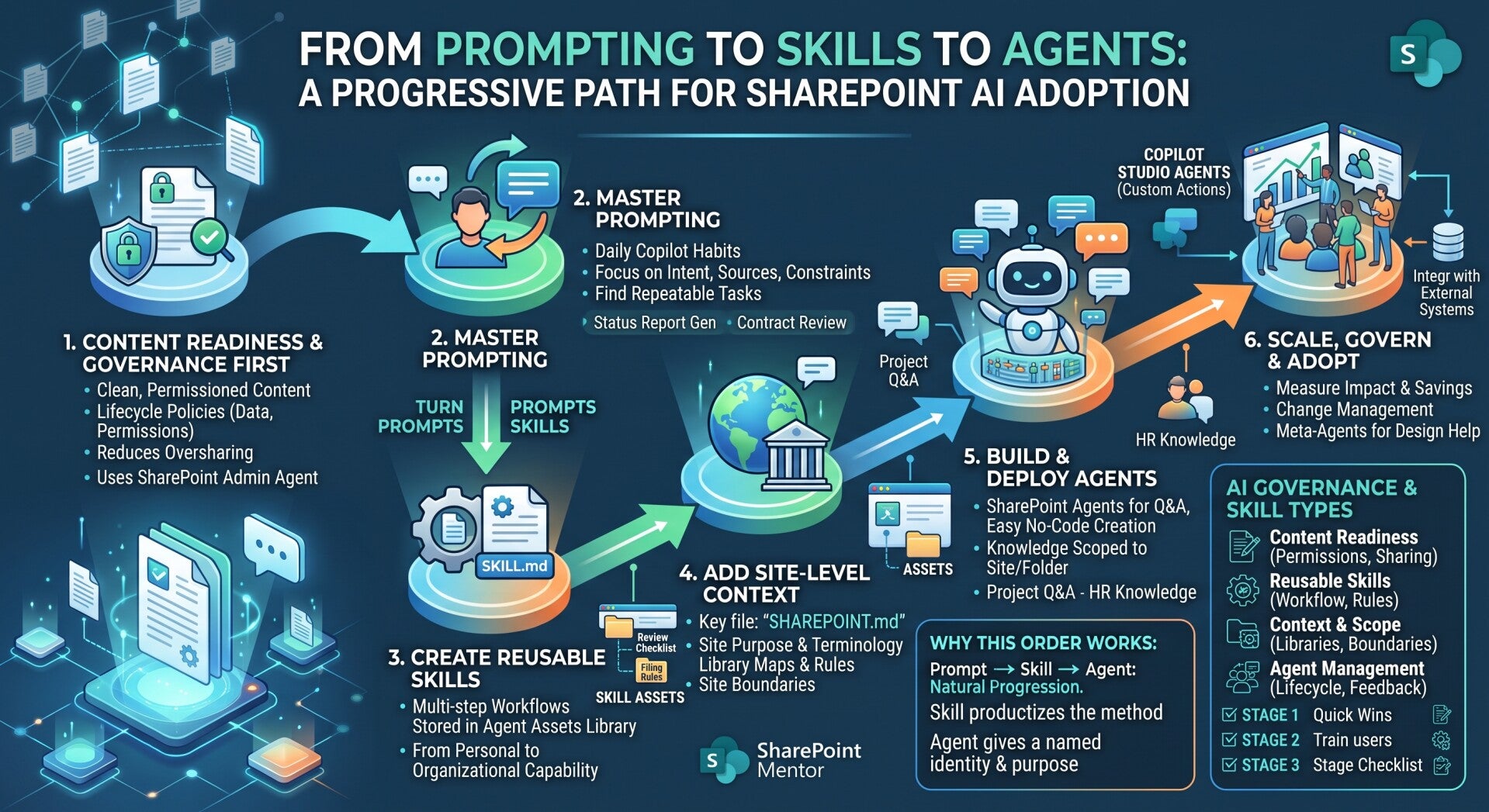
Planning to deploy AI in SharePoint Online? There is a specific order to follow related to prompting, skills, and agents.
There is a progressive order for the AI journey focused on SharePoint Online. It moves from foundational readiness and simple prompting to reusable Skills, then to Agents (and more advanced options when needed).
Recommended Order
1. Content readiness + governance first
- Make SharePoint AI-ready before heavy prompting or agent work. Clean, well-structured, permissioned content (clear metadata, ownership, reduced oversharing, lifecycle policies) dramatically improves grounding quality for everything that follows. Tools like the SharePoint Admin Agent and Knowledge Agent / AI in SharePoint help here. Without this, prompts and agents produce inconsistent or low-trust results.
2. Master prompting
- Start here with everyday use of Copilot in SharePoint (or Microsoft 365 Copilot grounded on SharePoint). Focus on clear, structured natural-language prompts that specify intent, sources, constraints, output format, and edge cases.
- Good prompting is the foundation — many organizations discover their highest-value repeatable processes simply by observing what people already ask repeatedly.
3. Turn successful prompts into Skills
- Once a prompt reliably works for a multi-step task (e.g., contract review checklist, status report generation, compliance check, document filing rules), convert it into a Skill.
- Skills are reusable, multi-step workflows stored as Markdown (SKILL.md) in the site’s Agent Assets library.
- Anyone with appropriate permissions can create them via natural language in the Copilot chat; the AI drafts the skill, you review/refine, then save.
- Copilot can auto-load relevant skills or you can invoke them by name.
- Skills capture how your organization wants a process done (rules, steps, outputs, guardrails). They stay scoped to the site and reuse native SharePoint capabilities (no external systems or custom code).
This is the key step that moves knowledge out of personal chat history into shared, governable organizational capability.
4. Add site-level context (SHAREPOINT.md or equivalent)
- Create a shared context file (often SHAREPOINT.md at the root of the Agent Assets library). Copilot loads this automatically for chats on the site. Use it for site purpose, terminology, library maps, naming conventions, ownership rules, preferred Skills, and “never do this” constraints. Skills supply the method; site context supplies the local environment.
5. Build and deploy Agents
- SharePoint agents / Copilot in SharePoint agents — Best for knowledge/Q&A scoped to a site, library, folder, or specific files. They act as subject-matter experts grounded on your content. Easy no-code creation; site owners manage approval and default agents.
- Agents provide purpose, behavior, and knowledge sources (“what we know”). Skills provide the reusable methods (“how we do this”). Combining them is powerful.
- Escalate only when needed to Copilot Studio agents (or Agent Builder / declarative agents) for cross-site needs, external connectors, actions beyond SharePoint, or more complex orchestration.
6. Scale, govern, and adopt
- Measure real workflow impact, provide instruction-design help (some orgs deploy meta-agents that help people write better instructions), manage agents at scale (Agent 365-style governance), and drive change management so people incorporate agents/skills into daily work.
Why this order works
- Prompt → Skill → Agent is the natural progression Microsoft describes and that practitioners observe: a good prompt solves a one-off need; a Skill productizes the method; an Agent gives it a persistent identity, knowledge scope, and behavioral guardrails.
- Skills are lighter-weight and site-scoped; they are ideal for repeatable processes inside one SharePoint site. Agents are better when the primary need is consistent Q&A or a named assistant.
- Jumping straight to complex agents without solid prompting skills, clean content, or reusable Skills usually leads to brittle results and slower adoption.
Practical starting tips
- Pick one high-value, repeated process on one well-governed site.
- Craft and refine the prompt in chat until it works reliably.
- Ask Copilot to turn it into a Skill, review the draft carefully, test it, then surface it (via buttons, homepage links, or auto-loading).
- Maintain Skills and context files as living business documents (owner, review cadence).
- Skills cannot call external systems or run arbitrary code — use Power Automate or Copilot Studio when those are required.
This sequence keeps risk low, builds organizational capability quickly, and aligns with Microsoft’s current SharePoint AI / Copilot in SharePoint capabilities (including the Agent Assets library and custom skills). As the platform continues to evolve, the same foundational order (readiness → prompt quality → reusable Skills → Agents) remains the most effective path.
Step-by-Step Implementation Checklist
Stage 0: Foundations & Governance (Do this first)
- Assess current SharePoint content quality (outdated pages, broken links, poor metadata, oversharing).
- Assign clear site owners and content owners for target sites.
- Reduce oversharing and set appropriate default sharing settings.
- Implement basic content lifecycle policies (inactive sites, retention, review dates).
- Enable Copilot / AI in SharePoint for the tenant or specific pilot sites (requires Microsoft 365 Copilot licenses).
- Enable the Agent Assets site collection feature on pilot sites (creates the library where Skills and context files live).
- Identify 1–3 pilot sites with high-value, repeatable work and relatively clean content.
Stage 1: Prompting Mastery
- Train pilot users on effective prompting (clear intent, sources, constraints, output format, edge cases).
- Encourage users to work in Copilot in SharePoint chat on real tasks.
- Capture and share high-performing prompts (team channel, OneNote, or shared library).
- Identify the 3–5 most frequently repeated multi-step requests (these become Skill candidates).
- Document what “good” looks like for each common task (inputs, steps, required output format, things to avoid).
Stage 2: Create & Deploy Skills
- For each high-value repeated process, open Copilot in SharePoint and ask it to create a Skill using natural language (describe the full workflow).
- Review the drafted Skill carefully — adjust steps, inputs, outputs, and guardrails.
- Save the Skill (it lands as a SKILL.md file under /Agent Assets/Skills//).
- Test the Skill thoroughly with real files and edge cases.
- Improve the Skill based on test results (iterate in chat or edit the Markdown).
- Make Skills discoverable: add homepage buttons, suggested prompts, or instruct users how to invoke them by name.
- Assign an owner and review cadence for each Skill.
- Create a site-level context file (SHAREPOINT.md or equivalent) in the root of the Agent Assets library covering site purpose, terminology, library maps, naming rules, preferred Skills, and “never do” rules.
Stage 3: Build Agents
- Create focused SharePoint agents (or use the built-in site agent) scoped to the relevant site, libraries, folders, or files.
- Write clear agent instructions (role, tone, scope, how to handle out-of-scope questions).
- Add 3–5 strong starter prompts.
- Configure knowledge sources carefully (only what the agent needs).
- Test the agent with real user questions.
- Site owners approve and feature useful agents; set a default agent if desired.
- Link or reference relevant Skills inside agent behavior or site context so the agent can use them.
Stage 4: Expand & Integrate (Only when needed)
- Evaluate whether any processes require external systems, cross-site knowledge, scheduled/automated runs, or complex orchestration → move those to Copilot Studio agents or Power Automate.
- For more advanced needs, explore Agent Builder, declarative agents, or Copilot Studio while keeping SharePoint as a primary knowledge source.
- Maintain clear boundaries: Skills for site-scoped repeatable methods; SharePoint agents for knowledge/Q&A; Copilot Studio for broader or action-oriented scenarios.
Stage 5: Adoption, Measurement & Continuous Improvement
- Provide short enablement sessions focused on “how we use Skills and agents here.”
- Create or deploy a simple “Instruction Wizard” style helper (meta-agent or documented guidance) so users improve their prompts and Skills.
- Measure usage and impact (time saved, quality of outputs, reduction in repeated questions, user feedback).
- Establish lightweight governance: Skill/agent ownership, review dates, approval process for new Skills, retirement criteria.
- Collect feedback monthly and iterate on Skills, context files, and agents.
- Expand successful patterns from pilot sites to additional sites or hubs.
- Monitor Microsoft roadmap updates (Skills, AI in SharePoint, Agent 365 governance, etc.) and incorporate new capabilities.
Quick Wins to Start This Week
- Enable Agent Assets on one pilot site.
- Create a basic SHAREPOINT.md context file.
- Convert your single best existing prompt into a Skill.
- Test it with 2–3 real users and refine.
- Surface the Skill with a button or clear instructions on the site homepage.
This checklist keeps risk low, builds reusable organizational capability, and follows the natural progression: readiness → prompting → Skills → Agents → scale. Treat Skills and context files as living business documents rather than one-time technical artifacts.