

SharePoint Mentor Curated Articles
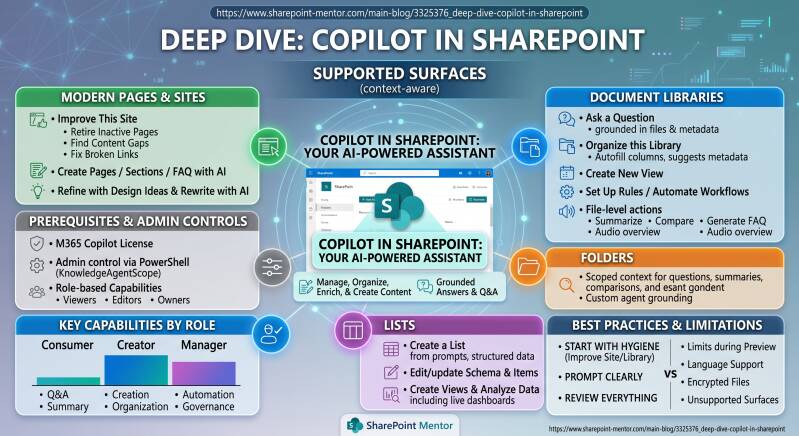
Copilot in SharePoint (previously called Knowledge Agent or AI in SharePoint) is an AI-powered assistant built into SharePoint Online.
Copilot in SharePoint helps manage, organize, enrich, and create content so sites, pages, libraries, folders, and lists become more useful for people and for Microsoft 365 Copilot / agents.
It appears as a floating action button (FAB) in the lower-right corner of supported SharePoint surfaces (context-aware menu based on your location, role/permissions, and selections). Additional entry points include the Agents icon in the suite navigation and AI actions on selected files. It is not available on the SharePoint start page, Viva Connections, or SharePoint sites inside Teams in the same way.
Prerequisites:
Microsoft 365 Copilot license. Availability is controlled by SharePoint admins via PowerShell (KnowledgeAgentScope and related parameters on Set-SPOTenant: AllSites, IncludeSelectedSites, ExcludeSelectedSites, or NoSites). During preview periods it has moved between opt-in and opt-out models. Restricted Content Discovery on a site disables the features. Role-based capabilities apply (Content Consumer / Viewer, Content Creator, Content Manager, Site Manager/Owner).
The feature set is role- and context-aware. Below is a guide organized by the surfaces you asked about (pages, libraries, folders, lists), covering the main capabilities.
Accessing and General Interaction
- Navigate to a modern SharePoint site where the feature is enabled.
- Click the floating button (teal SharePoint-style icon) in the lower-right.
- The menu shows relevant quick actions or opens a chat pane for natural-language prompts.
- You can also select files/folders first (for file-specific actions) or use the top-right Agents/Copilot entry points.
- Chat supports multi-turn refinement. Always review AI suggestions before applying (especially metadata, rules, page content, or site changes).
Capabilities scale with permissions: viewers mainly get Q&A and summaries; members/editors get creation and organization tools; owners get site hygiene tools.
Working with Pages
Key capabilities:
- Ask a question / Summarize this page — Grounded answers or summaries based on page content (available to most users with read access).
- Improve this site (Site Managers/Owners and members with edit rights) — Analyzes the site for:
- Retire inactive pages: Surfaces pages with low/no recent views or edits (configurable inactivity window). Retiring deprioritizes the page in search and agent/Copilot results, keeps the URL live, and adds a banner indicating it is not actively maintained. You can review suggestions (often shown in batches) and retire individually or in bulk.
- Find content gaps: Uses search behavior data to identify terms users search for but get poor/no results. Suggests creating new pages or sections (with pre-filled prompts to speed authoring).
- Fix broken links: Detects 404s / dead links on the site and suggests replacements or redirects. You can browse for a new target or enter one manually.
- Create a Page / Section / FAQ web part with AI (Content Creators/editors) — Use natural language prompts (e.g., “Create a news post announcing the Q3 product launch with sections for key features, timeline, and next steps”). Supports templates, grounding in existing site/Microsoft 365 content, and iterative refinement.
- Refine pages with Design Ideas and Write/Rewrite with AI — Layout suggestions, tone/style changes, summarization, reorganization, or polishing of text while editing a page. The AI authoring pane often opens automatically when you enter edit mode (if licensed). You can switch between AI chat and classic editing.
- Generate FAQ from content or create sections grounded in files/documents.
How to use (example – Improve this site):
- On a page or site home, open the floating button → Improve this site.
- Review the categories (inactive pages, content gaps, broken links).
- Act on suggestions (retire, create content, fix links). Changes are reviewed before final application.
Tips: Retiring is reversible in practice (page remains accessible); always validate AI-generated page content for accuracy and branding before publishing. Design Ideas and rewrite tools work best with clear prompts describing audience, tone, and structure.
Working with Document Libraries
Key capabilities (strongest area for content managers):
- Ask a question — Natural-language queries grounded in the library’s files and metadata (much more precise after metadata enrichment).
- Organize this library / Create autofill columns — AI analyzes file contents (not just names) and suggests metadata columns (typically starts with ~3 suggestions). Columns are autofilled by extracting values from documents. You can accept, reject, request more/different columns via prompts, preview, then apply. Processing can take time depending on library size; status is checkable. Supported for many common column types. Encrypted files are limited.
- Create new view — Describe the desired view in natural language (show/hide columns, sort, filter, group). Examples: “Show past-due invoices grouped by vendor and sorted by amount,” “Group project plans by phase and sort by start date, show Owner, hide Location.” Views created this way are public. First use may auto-suggest helpful columns.
- Set up rules / Automate workflows — Describe triggers and actions in plain language. Supported triggers include item created/modified/deleted. Actions include email notifications, move/copy files, set column values. Limited number of rules per library (historically ~15). Useful for “Notify owner 30 days before review date” or “When status = Approved, move to Archive folder.”
- File-level actions (select one or more files first): Summarize, Compare (up to a small number of files), Generate FAQ, Audio overview, Ask a question about the file(s).
How to use (example – Organize library):
- Open the document library.
- Floating button → Organize this library (or Create autofill columns).
- Review AI-suggested columns based on content analysis.
- Refine via chat if needed → Apply. Autofill runs in the background.
- Follow up with Create new view or Set up rules using the new metadata.
Tips: Good metadata dramatically improves later Copilot/agent accuracy. Start with a representative sample of files. Rules are simpler than full Power Automate but more limited. Views are public—plan naming and permissions accordingly.
Working with Folders
Folders inherit library context. Selecting a folder (or files inside it) enables the same file-oriented and library-organization skills scoped more tightly. You can ask questions about folder content, summarize/compare files within it, or use organize/views/rules that apply to the parent library (with folder-aware filtering if metadata supports it). Custom agents can also be grounded on specific folders.
Use the floating button or AI actions after selecting content inside the folder. Breadcrumb navigation and library-level tools remain the primary entry points.
Working with Lists
Lists support natural-language creation, editing, querying, and analysis (capabilities expanded significantly with Copilot in SharePoint):
- Create a list — Describe the purpose, columns, types, defaults, and views (e.g., “Create a project tracker list with columns for Task, Owner, Due Date, Status (Not Started/In Progress/Complete), Priority, and views for items due soon and grouped by owner”). AI proposes schema, can import/convert structured data (tables, spreadsheets), and creates the list on a site or in OneDrive. You can refine iteratively.
- Edit/update — Add/update columns or items, bulk changes, or evolve schema via conversation (“Add a Compliance Review Date column and set default to 30 days from Created”).
- Create views and analyze — Filtered/grouped views, insights, reports, or live interactive HTML dashboards/reports that stay connected to the list data.
- Ask questions and generate content based on list data.
How to use:
- From a page or list, open Copilot / floating button (or use the dedicated list agent experience in supported Copilot surfaces).
- Describe what you need or paste structured content.
- Review the proposed structure/items → Create or apply refinements.
- Continue chatting to query data, add views, or generate dashboards.
Tips: Provide sample data or clear column requirements for best schema inference. Lists work well for trackers, inventories, requests, etc. Larger lists (>~20k–35k items in some agent contexts) can affect performance/quality. Permissions and authentication are respected.
Additional Cross-Cutting Features
- Create sites with AI — From the SharePoint start page or creation flows, describe the site purpose. AI proposes a plan (pages, navigation, lists, libraries, columns, sample content). Review/edit the plan in chat, then approve for provisioning (can take up to ~30 minutes).
- Create document libraries with AI — Similar natural-language flow (+ optional sample file) that produces a named library with relevant metadata columns already configured.
- Custom agents / “See more agents” — Access or create agents grounded on the site, specific libraries, folders, or files. The built-in site agent is available by default.
- Skills and context files (advanced/evolving) — Some implementations support site-level Markdown context files or reusable Skills for repeated workflows.
- Audio overviews, FAQ generation, file comparison, and grounded Q&A work across many surfaces.
Best Practices and Limitations
- Start with content hygiene: Use Improve this site and Organize library first so metadata and freshness improve all downstream AI answers.
- Prompt clearly: Specify audience, desired columns/views, filters, tone, or outcomes. Iterate in multi-turn chat.
- Review everything: AI suggestions (especially extracted metadata, page text, or rules) need human validation for accuracy, compliance, and sensitivity.
- Permissions matter: Features respect SharePoint permissions and sensitivity labels. Viewers get limited actions.
- Limitations (as of recent documentation): Daily/weekly usage limits during preview; language support aligned with Copilot + SharePoint; encrypted files limited for analysis; rules/views have supported column types and quantity caps; some surfaces (classic experiences, certain Teams-embedded views) unsupported; processing time scales with content volume.
- Admin notes: Use PowerShell for scope control; Site AI settings let owners choose default agents or hide buttons for visitors; monitor for Restricted Content Discovery.
This feature set continues to evolve (rebranding, expanded creation/editing, live dashboards, etc.). For the most current steps and screenshots, check Microsoft Learn / Support pages for “Copilot in SharePoint” and the specific capability names (e.g., create autofill columns, improve your SharePoint site, create views). Test in a non-production site first when rolling out broadly.