

SharePoint Mentor Curated Articles
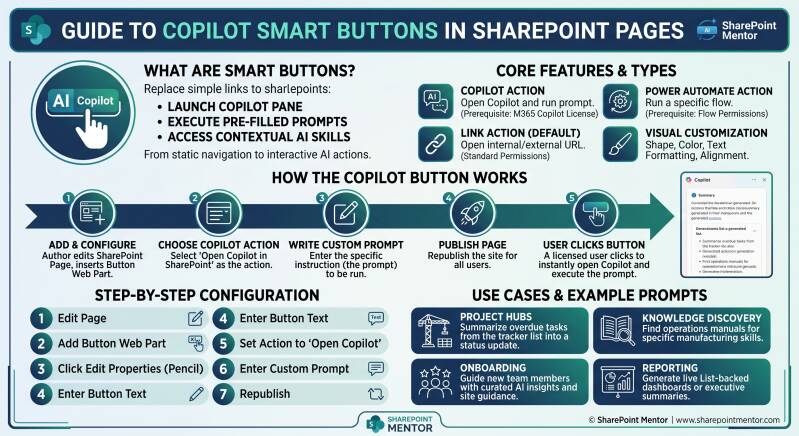
New Button web part features in SharePoint Online let page authors configure buttons that open the Copilot in SharePoint pane and automatically run a pre-populated (custom) prompt.
This turns the classic Button web part from a simple hyperlink into a discovery and invocation mechanism for AI experiences grounded in the site’s content and context.
Prerequisites and licensing
- Page authors/editors need edit permissions on the SharePoint page/site.
- Users who see and click the button need a valid Microsoft 365 Copilot license (specifically for Copilot in SharePoint). Unlicensed users do not see the Copilot-configured button.
- The experience respects existing permissions, site content access, and any organizational Copilot controls.
- Related (but separate) capability: buttons can also launch a Power Automate flow by Flow ID (available to authorized users regardless of Copilot licensing).
How the feature works
- A page author adds or edits a Button web part.
- In the web part properties, they choose the action Open Copilot in SharePoint.
- They enter a custom prompt (the text that will be pre-filled and executed).
- They publish the page.
- A licensed user clicks the button → the Copilot pane slides open (typically from the right) and the prompt runs immediately in the current site/page context.
This is especially powerful when combined with other recent Copilot in SharePoint capabilities (Skills/Agent Assets, live-linked HTML dashboards from Lists, site-level guidance files such as SHAREPOINT.md, and comment-driven iteration). Buttons act as the “discovery” surface so users do not have to remember prompts or type /Skills.
Step-by-step: Configure a Copilot prompt button
- Open the modern SharePoint page and click Edit.
- Hover where you want the button and click the + icon (or use an existing Button web part).
- Search for and select Button.
- Click Edit properties (pencil icon) on the web part.
- Enter the Button text (the visible label, e.g., “Draft this week’s status update” or “Generate my overdue high-priority items”).
- In the action dropdown, select Open Copilot in SharePoint (other options: Open link [default], Run Power Automate flow).
- Enter your custom prompt in the prompt field. This is the exact text that will run when the button is clicked.
- Optionally set alignment (left / center / right).
- Customize appearance if desired (fill color, hover effect, border shape/weight/style/color, text formatting).
- Save and Publish (or Republish) the page.
When a licensed user clicks the button, the Copilot pane opens and executes the prompt in context.
Example prompts and use cases
Microsoft and community examples include:
- “Review the tracker list, filter for items assigned to me, summarize the items that are overdue or high risk, and turn that into a live interactive dashboard.”
- “Draft this week’s status update” (summarizing recent changes on a project hub).
- “Generate my overdue high-priority items.”
- “Find the operations manual for X” or “Find manufacturing manuals.”
- “Review deal pipeline list and filter for deals assigned to me, summarize the items closed this week into a live interactive dashboard.”
Common scenarios:
- Project/team hubs: one-click consistent status updates or risk summaries.
- Knowledge/discovery pages: buttons that surface specific manuals, policies, or Skills without users searching.
- Reporting: buttons that generate live List-backed dashboards or executive summaries.
- Onboarding or process pages: guided AI actions that enforce team standards (especially when Skills and site guidance files are also in place).
You can place multiple buttons on a page, each wired to a different prompt or Skill-style instruction.
Additional button capabilities and customization
- Power Automate flow action: Select “Run Power Automate flow,” paste the Flow ID. Clicking opens a side panel for connection checks and confirmation. Permissions are not automatically shared—users still need rights to run the flow.
- Visual customization: Fill color (theme/standard/custom), hover (lighten/darken), border (shape: rounded/rectangular/pill/circular; weight; style; color). Text formatting (size, bold, italic, underline, color). “Clear all formatting” resets to defaults.
- The button respects the site theme.
Best practices and tips
- Write clear, action-oriented button labels so the purpose is obvious.
- Craft high-quality, specific prompts that leverage site context (Lists, libraries, pages, Skills). Test them in the normal Copilot pane first.
- Combine with Skills: a good prompt can later be saved as a Skill (SKILL.md in Agent Assets) for broader reuse; the button remains a convenient one-click launcher.
- Place buttons where users already work (homepage, project hubs, process pages) rather than relying on the floating Copilot button or /Skills discovery.
- Remember licensing: unlicensed users simply do not see the Copilot buttons.
- Governance: page authors control which prompts appear. Align prompts with any site-level guidance (e.g., SHAREPOINT.md) for consistent behavior.
- Existing link buttons are unaffected; you can mix link, Copilot, and Flow buttons on the same page.
- No migration is needed. The feature is on by default after rollout.
Limitations and notes
- Copilot buttons are invisible to users without a Microsoft 365 Copilot license.
- The prompt runs in the clicking user’s context and permissions.
- Availability can vary slightly by release ring or environment (Targeted Release vs. Standard, commercial vs. GCC).
- For the latest official steps, refer to Microsoft’s “Use the Button web part” support article, which documents the Open Copilot in SharePoint action.
This feature meaningfully improves discoverability and consistency of AI assistance inside SharePoint sites, turning pages into active work surfaces rather than static content repositories.