

SharePoint Mentor Curated Articles
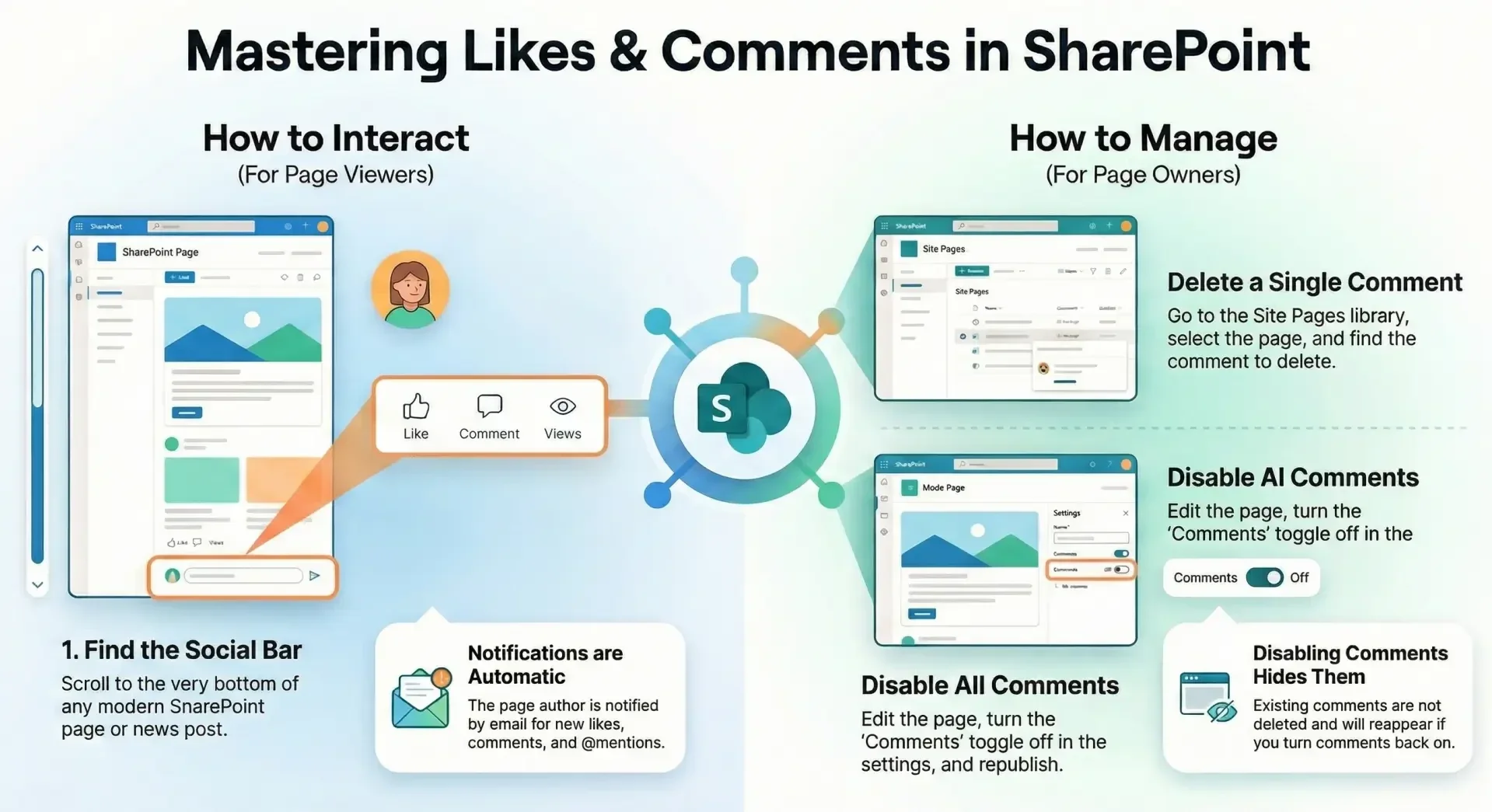
In SharePoint Online, modern site pages (including news posts) support likes and comments by default, provided comments are enabled (they are on by default when creating or publishing a page).
How to Like or Add a Comment
- Open the modern SharePoint page (site page or news post).
- Scroll to the bottom of the page — you'll see a social bar with options for Likes, Comments, views, and sometimes "Saved for later."
- To like the page: Click the Like button (thumbs up icon). It will update the like count, and you can unlike it by clicking again.
- To add a comment: Click the Comments section (or the speech bubble icon), type your comment in the text box, and press Enter or click Post. You can also @mention users (if they have access to the site) or reply to existing comments (single-level threading only).
- Note: Comments must be enabled on the page for this section to appear. Users need at least Read permissions to view the page and interact (like/comment). Notifications are sent via email to the page author for new likes, comments, or @mentions
How to Remove a Comment as a Page Owner
Page owners (or users with Edit or higher permissions on the Site Pages library) can delete individual comments. There is no direct "moderation" view on the page itself, but follow these steps:
- Go to the site's Site contents (via the gear icon > Site contents).
- Open the Site Pages library.
- Find and click the specific page file (it will have a .aspx extension).
- In the details pane (on the right; click the info icon if it's not open), scroll down to the Comments section.
- Hover over or click the comment you want to remove — an ellipsis (...) appears.
- Click the ellipsis > Delete.
This removes the individual comment (or reply). Users can also delete their own comments this way, and in some cases, anyone with Contribute-level permissions might delete others' comments (behavior can vary).
Alternative options:
- To remove all comments on a page: In the details pane, there may be an option under the comments section ellipsis to delete all.
- To prevent future comments: Edit the page > In the page settings (bottom or right pane), turn Comments off > Republish.
- Existing comments are hidden (but not deleted) and reappear if turned back on.
- Likes cannot be individually removed or moderated; they are anonymous in count but visible in details if needed.