

SharePoint Mentor Curated Articles
Audience Targeting in SharePoint Online
Introduction
Audience targeting in SharePoint Online is a functionality designed to deliver personalized content experiences to users within an organization. This document provides a comprehensive explanation of audience targeting features, including their purpose, enabling process, applicable areas, supported audience types, limitations, examples, and best practices. The information is derived from official Microsoft documentation to ensure.
What is Audience Targeting?
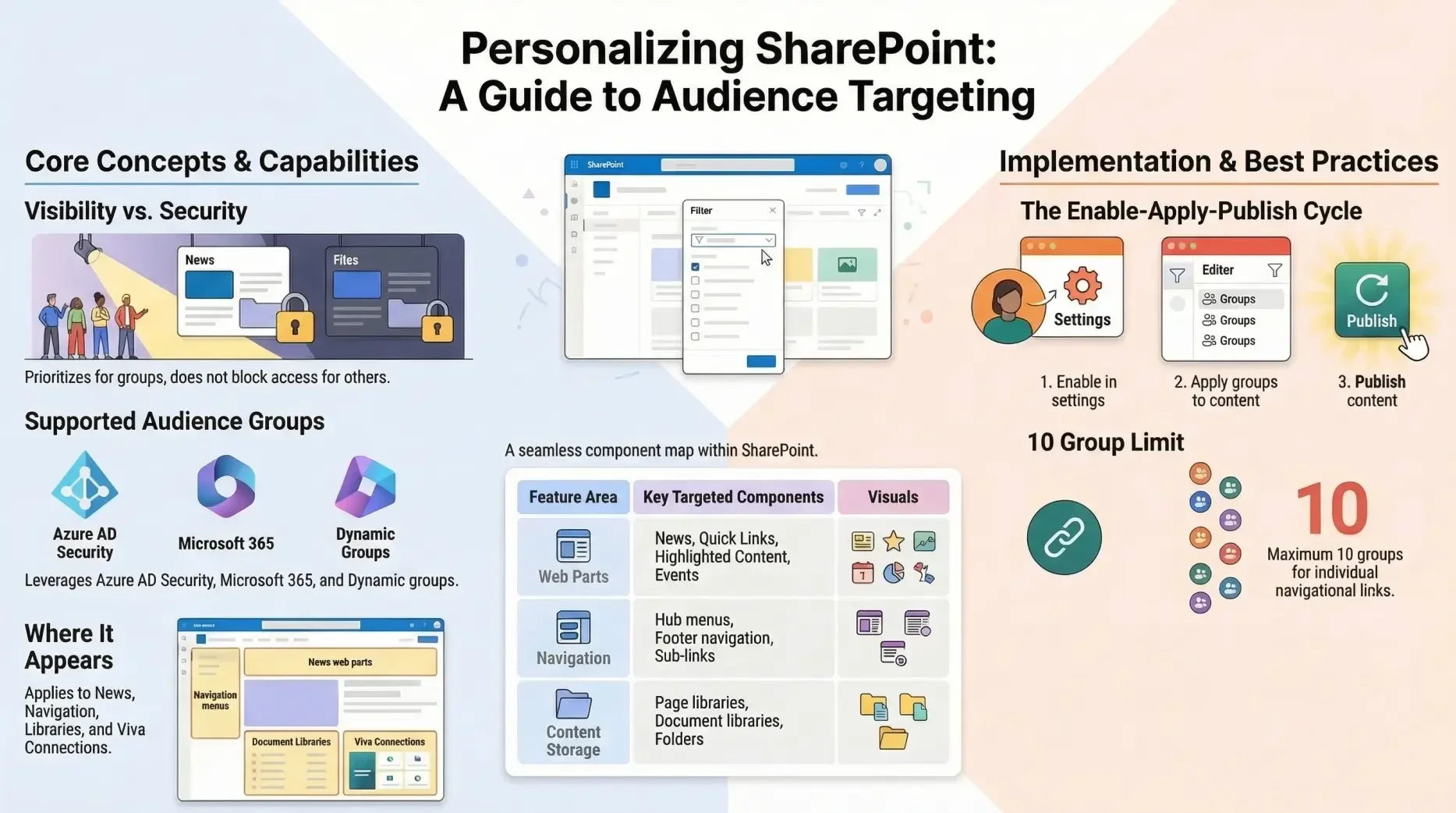
Audience targeting is a mechanism that prioritizes and displays specific content to designated user groups within SharePoint Online. It enhances user engagement by ensuring that relevant information, such as news, pages, files, and navigational elements, is prominently featured for the intended audiences while remaining accessible to others if not explicitly restricted. This feature operates in the modern SharePoint experience and integrates with various components to create tailored site interactions.
It is important to note that audience targeting is not a security measure; it does not prevent unauthorized access to content but rather optimizes visibility and prioritization for efficiency.
Key Features
The primary features of audience targeting include:
- Prioritization of content in web parts, libraries, and navigation menus.
- Application to news posts on the SharePoint start page, mobile app, and within specific web parts.
- Support for targeting individual items such as pages, files, folders, and dashboard cards.
- Requirement for publishing or republishing content to activate targeting changes.
- Delayed application for newly created or modified audience groups due to synchronization processes.
These features enable organizations to curate personalized experiences without altering underlying permissions.
How to Enable Audience Targeting
Enabling audience targeting varies by component but generally requires site owner permissions for initial setup. The steps are as follows:
- For Navigational Links: The site owner edits the menu (e.g., hub or footer navigation), enables the "Enable site navigation audience targeting" option at the bottom, and saves changes. Editors can then target individual links to up to 10 groups via the link's edit menu.
- For Libraries, Pages, or Folders: Navigate to Site Contents, select the library (e.g., Site Pages), access Settings, and enable audience targeting. Target specific items via the Details pane by editing the Audience property, followed by republishing.
- For Web Parts: In page edit mode, select the web part (e.g., News or Highlighted Content) and toggle audience targeting on in its settings.
- For Viva Connections Dashboard Cards: Follow dashboard-specific guidelines to apply targeting to cards.
Once enabled, targeting can be applied by site editors, with changes taking effect upon publication.
Where Audience Targeting Can Be Used
Audience targeting is applicable in several areas of SharePoint Online to enhance content delivery:
- Web Parts: Includes News (for targeting posts), Quick Links (for specific links), Highlighted Content (for content from lists or libraries), Events (for spotlighting events), Feed, and Dashboard web parts.
- Libraries and Files: Applicable to page libraries (e.g., Site Pages), document libraries, folders, and individual files or documents.
- Navigation: Targets links in hub menus, footer navigation, and sub-links (where parent targeting affects children).
- Viva Connections: Targets dashboard cards and news posts in the news reader.
It is not available for SharePoint list views in the modern experience, though it can be enabled on lists themselves for item targeting.
Supported Audience Types
Audience targeting supports Azure Active Directory (Azure AD) groups, which include:
- Security groups.
- Microsoft 365 groups.
- Azure AD dynamic groups (with partial support in some tenants).
Mail-enabled security groups may also be utilized in certain scenarios.
These groups allow for flexible audience definition based on organizational structure or dynamic criteria.
Limitations
While versatile, audience targeting has the following constraints:
- Initial enabling requires site owner access for navigation and libraries.
- Targeting parent navigation links restricts visibility of sub-links to the specified audiences.
- Editors see all links during editing, but only targeted content displays post-save.
- Delays may occur with new or modified groups.
- It is limited to modern web parts and does not extend to classic sites without additional configuration.
- Non-targeted content remains visible to all users.
Examples
Consider an organization with departments such as marketing, HR, and engineering, each associated with Microsoft 365 groups:
- A site owner targets news posts and navigational links to these groups.
- A marketing user views marketing-specific news and links, excluding those for HR or engineering.
- An HR user sees HR-targeted content only.
- Users not in any group view general, non-targeted content.
Another example involves targeting a document in a library to a security group, ensuring it is prioritized in Highlighted Content web parts for that audience.
Best Practices
To maximize the effectiveness of audience targeting:
- Identify key audiences and create appropriate Microsoft 365 or security groups in advance.
- Determine high-value content for each audience prior to implementation.
- Combine targeting across navigation, news, files, and web parts for a cohesive experience.
- Always republish content after applying targeting to ensure immediate effect.
- Regularly verify group memberships and targeting settings for accuracy.
- Use dynamic groups where possible for automated audience management.
Conclusion
Audience targeting in SharePoint Online facilitates efficient content delivery, improving user productivity and relevance. By adhering to the outlined processes and best practices, organizations can implement this feature to create customized environments while maintaining broad accessibility. For further details, consult the Microsoft SharePoint documentation.