

SharePoint Mentor Curated Articles
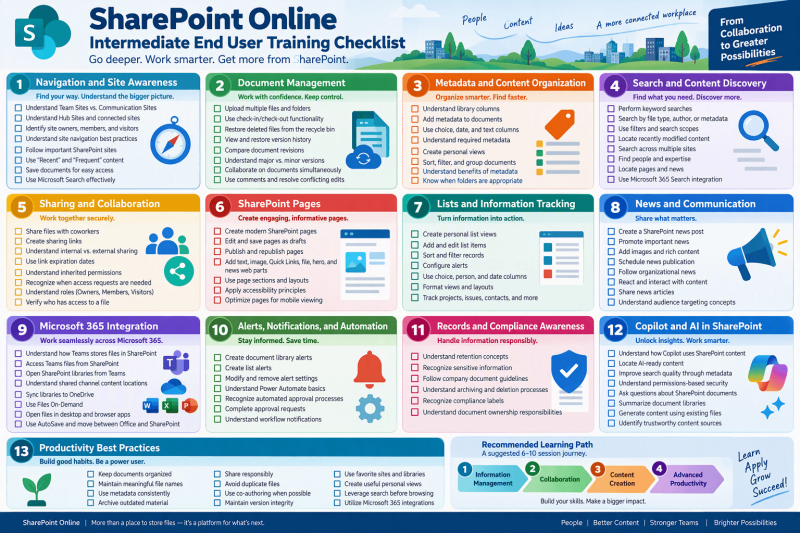
Below is a structured Intermediate SharePoint Online End User Training Checklist designed for users who already understand basic navigation, document libraries, and collaboration but want to become more efficient and knowledgeable about deeper SharePoint Online capabilities.
SharePoint Online Intermediate End User Training Checklist
1. Navigation and Site Awareness
Understanding Site Types
- Understand Team Sites versus Communication Sites
- Understand Hub Sites and connected sites
- Identify site owners, members, and visitors
- Understand site navigation best practices
Personal Productivity
- Follow important SharePoint sites
- Use "Recent" and "Frequent" content
- Save documents for easy access
- Use Microsoft Search effectively
2. Document Management
Advanced Document Library Skills
Working with Files
- Upload multiple files and folders
- Drag-and-drop content into libraries
- Use check-in/check-out functionality
- Restore deleted files from the recycle bin
Version Management
- View version history
- Restore previous document versions
- Compare document revisions
- Understand major versus minor versions
Co-Authoring
- Collaborate on documents simultaneously
- See who is editing documents
- Use comments inside Office documents
- Resolve conflicting edits
3. Metadata and Content Organization
Content Classification
Columns and Metadata
- Understand library columns
- Add metadata to documents
- Use choice, date, and text columns
- Understand required metadata
Views
- Create personal views
- Sort documents by metadata
- Filter content efficiently
- Group documents by categories
Folder vs Metadata Concepts
- Understand benefits of metadata
- Know when folders are appropriate
- Navigate hybrid folder/metadata approaches
4. Search and Content Discovery
Advanced Search Skills
Finding Information
- Perform keyword searches
- Search by file type
- Search by author
- Search using metadata
Search Refinement
- Use filters effectively
- Understand search scopes
- Locate recently modified content
- Search across multiple sites
Search Productivity
- Find people and expertise
- Locate pages and news
- Use Microsoft 365 Search integration
5. Sharing and Collaboration
Managing Access
Sharing Content
- Share files with coworkers
- Create sharing links
- Understand internal versus external sharing
- Understand expiration dates on links
Permission Awareness
- Understand inherited permissions
- Recognize when access requests are needed
- Understand the roles of Site Owners, Members, and Visitors
- Verify who has access to a file
6. SharePoint Pages
Creating Rich Content
Basic Page Authoring
- Create modern SharePoint pages
- Edit existing pages
- Save pages as drafts
- Publish and republish pages
Web Parts
- Add Text web parts
- Add Image web parts
- Add Quick Links web parts
- Add File and Document web parts
- Add Hero web parts
- Add News web parts
Page Design
- Use page sections and layouts
- Build user-friendly pages
- Apply accessibility principles
- Optimize pages for mobile viewing
7. Lists and Information Tracking
Working with SharePoint Lists
List Fundamentals
- Create personal list views
- Add and edit list items
- Sort and filter records
- Configure alerts
Advanced List Features
- Use choice columns
- Use person columns
- Use date columns
- Format views and layouts
Practical Applications
- Track projects
- Manage issue logs
- Maintain contact lists
- Create departmental trackers
8. News and Communication
Staying Informed
News Features
- Create a SharePoint news post
- Promote important news
- Add images and rich content
- Schedule news publication
Audience Engagement
- Follow organizational news
- React and interact with content
- Share news articles
- Understand audience targeting concepts
9. Microsoft 365 Integration
Working Across Microsoft 365
SharePoint and Teams
- Understand how Teams stores files in SharePoint
- Access Teams files from SharePoint
- Open SharePoint libraries from Teams
- Understand shared channel content locations
SharePoint and OneDrive
- Sync libraries to OneDrive
- Use Files On-Demand
- Understand shortcuts to libraries
- Manage synchronized content
Office Applications
- Open files in desktop apps
- Open files in browser apps
- Use AutoSave effectively
- Move between Office and SharePoint seamlessly
10. Alerts, Notifications, and Automation
Staying Updated
Alerts
- Create document library alerts
- Create list alerts
- Modify alert settings
- Remove outdated alerts
Automation Awareness
- Understand Power Automate basics
- Recognize automated approval processes
- Complete approval requests
- Understand workflow notifications
11. Records and Compliance Awareness
Information Governance
Content Responsibilities
- Understand retention concepts
- Recognize sensitive information
- Follow company document guidelines
- Practice secure document handling
Lifecycle Awareness
- Understand document archiving
- Understand document deletion processes
- Recognize compliance labels
- Understand document ownership responsibilities
12. Copilot and AI in SharePoint
Modern Productivity Features
Finding Information Faster
- Understand how Copilot uses SharePoint content
- Locate AI-ready content
- Improve search quality through metadata
- Understand permissions-based AI security
Working with Copilot
- Ask questions about SharePoint documents
- Summarize document libraries
- Generate content using existing files
- Identify trustworthy content sources
13. Productivity Best Practices
Becoming a Power User
Content Management
- Keep documents organized
- Maintain meaningful file names
- Use metadata consistently
- Archive outdated material
Collaboration
- Share responsibly
- Avoid duplicate files
- Use co-authoring when possible
- Maintain version integrity
Efficiency
- Use favorite sites and libraries
- Create useful personal views
- Leverage search before browsing
- Utilize Microsoft 365 integrations
Recommended Intermediate Learning Path
Phase 1: Information Management
- Metadata
- Views
- Search
- Version History
Phase 2: Collaboration
- Sharing
- Permissions Awareness
- Co-Authoring
- Teams Integration
Phase 3: Content Creation
- Pages
- News Posts
- Lists
- Web Parts
Phase 4: Advanced Productivity
- Automation
- Compliance Awareness
- Copilot
- Cross-Microsoft 365 Integration
This checklist works well as a 6- to 10-session intermediate SharePoint Online training program and prepares users to become power users, content contributors, and future site owners.