

SharePoint Mentor Curated Articles
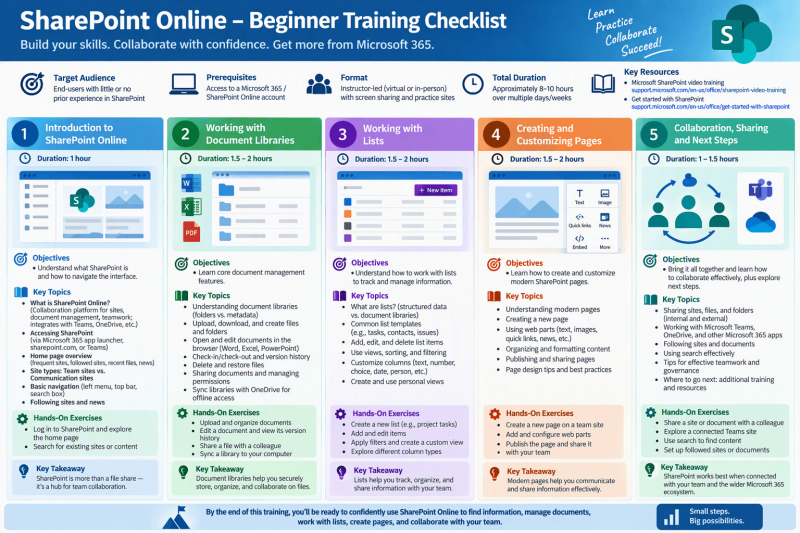
SharePoint Online Beginner Training Checklist
Target Audience: New SharePoint Online users with little or no previous experience
Estimated Completion Time: 8-10 Hours
Module 1: Introduction to SharePoint Online
Learning Objectives
- Understand what SharePoint Online is
- Understand how SharePoint fits into Microsoft 365
- Learn the difference between Team Sites and Communication Sites
- Navigate the SharePoint Online interface
Topics Covered
- What is SharePoint Online?
- Collaboration and teamwork concepts
- Relationship between SharePoint, Teams, OneDrive, and Microsoft 365
- Home page overview
- Navigation menus
- Search functionality
- Following sites and news
Hands-On Activities
- Log in to SharePoint Online
- Explore the SharePoint start page
- Locate a team site
- Follow a site
- Search for content
Knowledge Check
- Can explain the purpose of SharePoint Online
- Can locate and navigate sites independently
Module 2: Working with Document Libraries
Learning Objectives
- Understand document libraries
- Learn file management basics
- Collaborate on documents
Topics Covered
- What a document library is
- Library folders and metadata
- Uploading files
- Downloading files
- Creating new documents
- Editing documents in browser and desktop apps
- Version history
- File deletion and restoration
- Sharing documents
- Permissions basics
- OneDrive synchronization
Hands-On Activities
- Upload a document
- Create a folder
- Edit a document online
- View document version history
- Share a file with another user
- Sync a library to a computer
Knowledge Check
- Can manage documents confidently
- Can recover older versions of files
- Can share files appropriately
Module 3: Working with Lists
Learning Objectives
- Understand SharePoint Lists
- Track and organize business information
Topics Covered
- What a SharePoint List is
- Common list use cases
- Task tracking
- Contacts
- Issues
- Asset management
- Creating list items
- Editing list items
- Deleting list items
- Views and filtering
- Sorting information
- Column types
- Text
- Choice
- Number
- Date
- Person
Hands-On Activities
- Create a new list
- Add multiple items
- Modify list items
- Create a filtered view
- Create a custom column
Knowledge Check
- Understands structured data management
- Can create and use custom views
- Can organize information using list columns
Module 4: Creating and Customizing Pages
Learning Objectives
- Create modern SharePoint pages
- Add content using web parts
- Publish information effectively
Topics Covered
- Modern SharePoint pages
- Creating pages
- Page layouts
- Page formatting
- Web Parts
- Text
- Images
- Quick Links
- News
- Embed
- Publishing pages
- Sharing pages
- Page design best practices
Hands-On Activities
- Create a page
- Add a banner image
- Insert text content
- Add Quick Links
- Add images
- Publish a page
- Share the page with coworkers
Knowledge Check
- Can create a professional SharePoint page
- Understands basic page design principles
- Can publish and maintain content
Module 5: Collaboration and Sharing
Learning Objectives
- Use SharePoint for team collaboration
- Share content securely
- Connect SharePoint with Microsoft 365 services
Topics Covered
- Site sharing
- Document sharing
- Internal versus external sharing
- Microsoft Teams integration
- OneDrive integration
- Microsoft 365 collaboration tools
- Search best practices
- Teamwork and governance fundamentals
- Following sites and documents
- Additional learning resources
Hands-On Activities
- Share a site with a coworker
- Share a document
- Locate a Teams-connected SharePoint site
- Search for content
- Follow a document
- Follow a site
Knowledge Check
- Understands collaboration workflows
- Uses sharing appropriately
- Can locate content using search
Final Skills Assessment
A user completing this training should be able to:
SharePoint Foundation Skills
- Explain what SharePoint Online is
- Navigate sites effectively
- Locate content using search
Content Management Skills
- Upload and download files
- Create folders
- Edit documents
- Manage version history
- Restore deleted files
Lists Skills
- Create lists
- Add and edit items
- Create views
- Filter and sort information
Page Author Skills
- Create pages
- Add web parts
- Publish content
- Design user-friendly pages
Collaboration Skills
- Share content securely
- Work within Teams-connected sites
- Follow sites and documents
- Collaborate using Microsoft 365 tools
Training Completion Certificate Criteria
Award completion when the learner has:
- Completed all five modules
- Finished all hands-on exercises
- Passed all knowledge checks
- Created a SharePoint page
- Uploaded and shared documents
- Created and managed a SharePoint list
- Demonstrated successful collaboration using SharePoint Online
Expected Outcome: By the end of this training, learners can confidently navigate SharePoint Online, manage documents, work with lists, create pages, and collaborate effectively with their teams using Microsoft 365.