


SharePoint Mentor Curated Articles
I’m leaving the company soon - what will happen to my OneDrive content?
Your work OneDrive is owned and managed by your employer, so you should assume you will lose access when your company disables or deletes your account. Microsoft’s default process preserves the OneDrive for 30 days after account deletion, but administrators can configure a different retention period, and compliance policies or legal holds can override the normal process.
What generally happens
- Your access ends: Once your work account is disabled, you may no longer be able to sign in, synchronize files, or use existing sharing links.
- Your manager may receive access: If automatic access delegation is configured, your manager or a designated secondary owner receives access and a notification explaining the retention period.+1
- Business files can be transferred: Your manager or an administrator can move files into another OneDrive or a SharePoint shared library. Microsoft’s newer transfer process can preserve existing sharing permissions.
- The OneDrive is eventually deleted: After the organization’s retention period, it moves to the site collection recycle bin for 93 more days. At that point, existing shared content is no longer accessible normally.
What to do before leaving
- Identify business-critical content you own, especially files linked from Teams, SharePoint pages, emails, documentation, or recurring processes.
- Move team-owned content to the appropriate SharePoint or Teams library, rather than simply sharing it from your OneDrive. OneDrive is intended for individually owned work, while shared libraries are better for ongoing team content.
- Tell your manager which folders and files need to be retained, including any important sharing relationships.
- Review existing sharing links, because links pointing to your OneDrive may eventually stop working even if colleagues currently have access.
- Copy only permitted personal files to a personal OneDrive before access ends. Microsoft specifically cautions that confidential information and employer intellectual property must not be copied unless company policy or applicable law explicitly permits it.
- Confirm your company’s retention and offboarding policy with IT or HR. I searched your available Microsoft 365 files but did not find an internal policy specifying your organization’s retention period.
The safest rule is: move ongoing company material into a company-owned shared location, copy only genuinely personal and permitted items, and complete both before your final day. Since your biggest risk is losing access to individually owned content and breaking links other people rely on, consider organizing your offboarding around ownership, continuity, and personal cleanup.
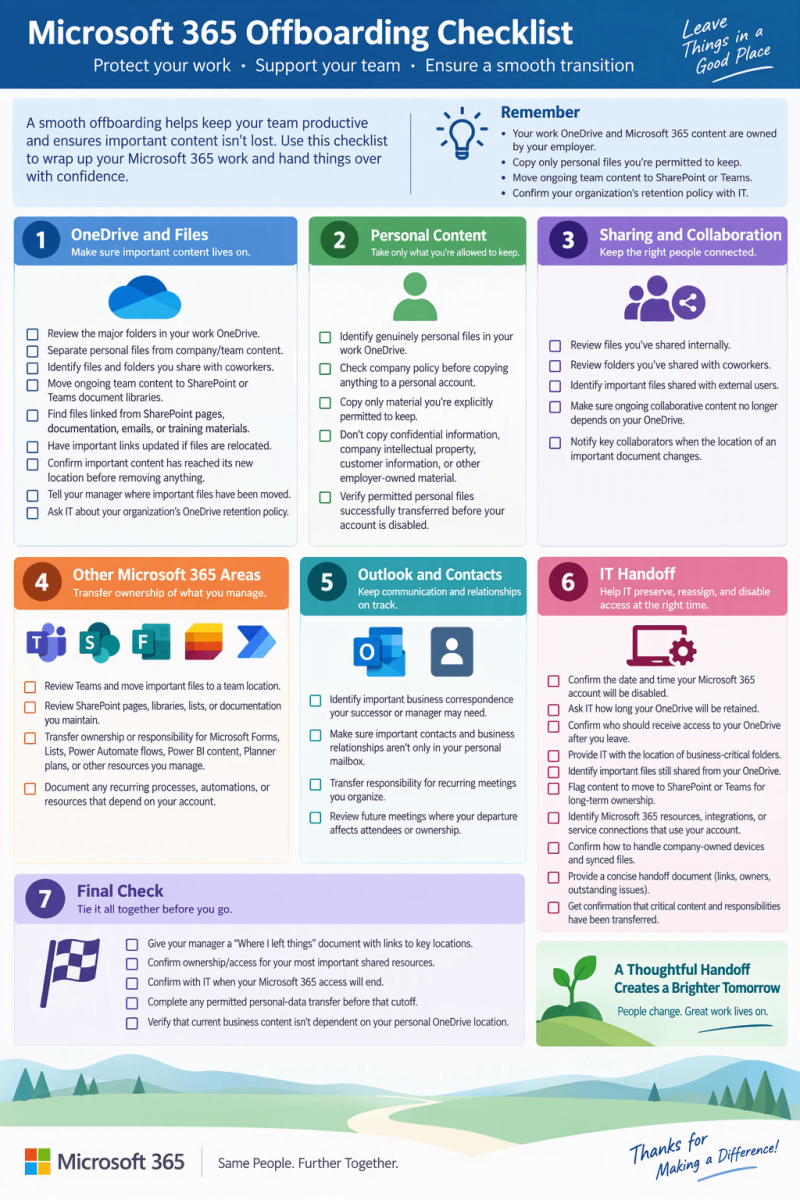
Microsoft 365 Off-Boarding Checklist
OneDrive and files
- Review the major folders in your work OneDrive.
- Separate personal working files from company/team content.
- Identify files and folders you currently share with coworkers.
- Move ongoing team-owned content to the appropriate SharePoint or Teams document library.
- Identify documents that other resources link to, such as SharePoint pages, documentation, emails, or training materials.
- Have important links updated if files are being relocated.
- Confirm important content has reached its new company-owned location before removing anything.
- Tell your manager where important files have been moved.
- Ask IT what your organization's retention policy is for a departing employee's OneDrive.
Personal content
- Identify genuinely personal files stored in your work OneDrive.
- Check company policy before copying anything to a personal account.
- Copy only material you're explicitly permitted to keep.
- Don't copy confidential information, company intellectual property, customer information, or other employer-owned material without permission.
- Verify permitted personal files successfully transferred before your company account is disabled.
Sharing and collaboration
- Review files you've shared internally.
- Review folders you've shared with coworkers.
- Identify important files shared with external users.
- Make sure ongoing collaborative content no longer depends on your OneDrive.
- Notify key collaborators when the location of an important document changes.
Other Microsoft 365 areas
- Review Teams and move any important individually owned files to an appropriate team location.
- Review important SharePoint pages, libraries, lists, or documentation you maintain.
- Transfer ownership or responsibility for Microsoft Forms, Lists, Power Automate flows, Power BI content, Planner plans, shared mailboxes, or other resources you manage, where applicable.
- Document any recurring processes, automations, or resources that depend upon your account.
Outlook and contacts
- Identify important business correspondence your successor or manager may need.
- Make sure important contacts and business relationships aren't documented only in your personal mailbox.
- Transfer responsibility for recurring meetings you organize.
- Review future meetings where your departure affects attendees or ownership.
Final check
- Give your manager a short "Where I left things" document with links to key locations.
- Confirm ownership/access for your most important, shared resources.
- Confirm with IT when your Microsoft 365 access will end.
- Complete any permitted personal-data transfer before that cutoff.
- On your final day, verify that current business content isn't dependent on your personal OneDrive location.
Useful approach: Because you create documentation and SharePoint content, consider finding anything that is linked from a SharePoint page but actually stored in your OneDrive. Those dependencies are easy to overlook during offboarding.
IT handoff
- Confirm the date and time your Microsoft 365 account will be disabled.
- Ask IT how long your OneDrive will be retained after departure.
- Confirm who should receive access to your OneDrive after you leave.
- Provide IT with the location of business-critical OneDrive folders that may need to be preserved.
- Identify important files currently shared from your OneDrive that coworkers still need.
- Flag content that should be moved to a SharePoint or Teams document library for long-term ownership.
- Identify Microsoft 365 resources dependent on your account, such as Forms, Lists, Power Automate flows, Power BI content, Planner resources, or recurring processes.
- Confirm responsibility for any SharePoint sites, libraries, pages, permissions, or other resources you administer.
- Identify any integrations, applications, automations, or service connections that use your work account.
- Confirm how IT wants you to handle company-owned devices and locally synchronized OneDrive files.
- Provide your manager and IT with a concise handoff document containing links, locations, owners, and outstanding issues.
- Get confirmation that critical content and responsibilities have been transferred before your account is disabled.