


SharePoint Mentor Curated Articles

Display a Specific SharePoint Folder with the Library Web Part
Step-by-step guide for modern SharePoint Online pages
Outcome A modern page displays the contents of one folder, including a nested folder, from a document library.
Before you begin
- Confirm that the target folder already exists and contains the files you want to display.
- Note the document library name and the folder path. For nested folders, record each folder name in order, for example: Projects/Presentations.
- Confirm that you can edit the modern SharePoint page and can access the source library and folder.
- Optional: Create a library view first if the web part should use particular columns, sorting, grouping, or filtering.
Procedure
- Open the destination page
Go to the modern SharePoint Online page where the folder contents should appear. - Enter edit mode
Select Edit in the upper-right corner of the page. - Choose the placement
Move to the page section where the library should appear. Add a section first if the page does not have a suitable placement area. - Add the web part
Open the Toolbox or select the plus (+) icon. Select See all web parts if needed, then select or drag the Document library web part onto the page. In some interfaces, users may informally call this the Library web part. - Select the document library
When prompted, choose the document library that contains the target folder. - Open web part properties
Select the web part, then select Edit properties (the pencil icon). - Set the folder path
In the Folder field, enter the folder name. For a nested folder, separate folder names with a forward slash, such as Projects/Presentations. Enter the path relative to the selected library, not the full SharePoint URL. - Select the view
If needed, choose the library view that controls the displayed columns and organization. - Set the size
Choose the web part size or number of visible items, if that option is available in your SharePoint experience. - Apply the configuration
Select Apply. Confirm that the web part now opens directly to the intended folder and displays its contents. - Save and publish
Select Save and close or Republish/Publish so visitors can see the updated page. - Validate as a visitor
Open the published page, preferably in a private browser window or with a test account. Verify that the correct folder appears, files open as expected, and the viewer has the required permissions.
Example folder paths
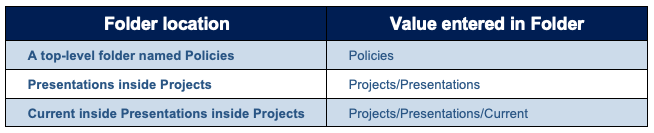
Troubleshooting checks
- The folder does not appear: Confirm the selected library, spelling, spacing, and slash-separated folder path. Avoid a leading slash and do not paste the complete URL.
- The web part is empty: Confirm that the folder contains items and that the selected view does not filter them out.
- Some users cannot see files: Check permissions on the site, library, folder, and files. The web part does not bypass SharePoint permissions.
- The Folder option is missing: Features can roll out gradually and the interface may differ. Confirm that you added the Document library web part to a modern page and review your tenant release status.
- The layout is not ideal: Adjust the selected library view, columns, and web part size, then republish the page.
Completion checklist
- Correct library selected
- Folder path entered correctly
- Desired view selected
- Web part applied and tested
- Page published or republished
- Visitor permissions validated