

SharePoint Mentor Curated Articles

The Site Settings Page
(/_layouts/15/settings.aspx) in SharePoint Online serves as the central administrative hub for configuring site architecture, permissions, branding, search behavior, metadata, and site-collection-level governance.
Note on Visibility & Permissions: The exact links visible on this page depend on two factors: your permission level (e.g., Site Owner vs. Site Collection Administrator) and whether legacy publishing or enterprise features have been activated. In modern SharePoint Online sites, access this page via Settings (Gear Icon) > Site information > View all site settings.
1. Users and Permissions
Controls access governance, security groups, and administrative delegation for the site.
-
People and groups: Displays and manages the SharePoint security groups (such as Owners, Members, and Visitors) associated with the site, allowing you to add or remove users and view group membership.
-
Site permissions: Opens the classic permissions matrix where you can view permission inheritance status (whether the site inherits permissions from a parent site or uses unique permissions), grant/revoke access, create custom permission levels, and manage access requests.
-
Site collection administrators: (Visible only at the root site of a site collection to existing Site Collection Admins) Allows you to designate users who hold unrestricted Full Control across the entire site collection, including all subsites and the second-stage Recycle Bin.
2. Web Designer Galleries
Provides centralized repositories for reusable structural components, schemas, and visual assets shared across the site collection.
-
Site columns: Create and manage reusable metadata fields (e.g., Department, Project Status, Document Owner) that can be attached to multiple lists, document libraries, or content types to ensure consistent data entry and search indexing.
-
Site content types: Define reusable templates that bundle specific metadata columns, document templates (Word, Excel, PowerPoint), workflows, and retention policies into a single assignable object (e.g., Invoice, Contract, SOP).
-
Web parts: Stores classic Web Part definitions (.webpart or .dwp files) available for insertion on classic pages.
-
List templates: Stores saved custom list structures (.stp files) that can be reused to instantiate identical lists elsewhere (note: custom scripts must be enabled at the tenant level for this gallery to appear).
-
Master pages and page layouts: Houses the .master and .aspx layout files that govern the structural framing of classic SharePoint pages.
-
Themes: Stores color palette (.spcolor) and font scheme (.spfont) files used by classic theming engines.
-
Solutions: Manages sandboxed user solutions (.wsp packages) uploaded to the site collection (largely deprecated in favor of the SharePoint Framework / SPFx and the App Catalog).
-
Composed looks: Combines a master page, theme, background image, and font scheme into a selectable visual preset for classic sites.
3. Site Administration
Governs day-to-day operational behavior, localization, content organization, and metadata for the specific subsite or root site.
-
Regional settings: Configures the site's time zone, locale (date/time/currency formatting), sort order, calendar type, work week days, and default working hours.
-
Language settings: Enables Multilingual User Interface (MUI) support by selecting which alternate languages are available for site menus, navigation, and page translations.
-
Site libraries and lists: Displays a flat directory of every list and document library on the site, providing direct links to each container's individual settings page.
-
User alerts: Allows administrators to view and delete email or SMS notification alerts configured by users across lists and libraries on the site.
-
RSS: Enables or disables RSS syndication feeds for the site and configures feed copyright, managing editor, and time-to-live (TTL) metadata.
-
Search and offline availability: Controls whether the site's content appears in search results, how ASPX pages with Web Parts are indexed, and whether users can sync libraries offline to desktop clients.
-
Sites and workspaces: Lists all subsites created beneath the current site and provides an interface to provision new subsites (if subsite creation is permitted in the tenant).
-
Workflow settings: Manages legacy SharePoint 2010/2013 workflow associations, task lists, and history lists (note: legacy workflows are deprecated in favor of Microsoft Power Automate).
-
Term store management: Opens the Managed Metadata Term Store interface to create and govern hierarchical enterprise taxonomies, term sets, and synonyms.
-
Content and structure / Content and structure logs: (Appears when Publishing features are active) Provides a split-pane tree view for bulk moving, copying, and deleting items or subsites while preserving version history.
-
Content Organizer Settings / Rules: (Appears when the Content Organizer feature is active) Configures automated document routing drop-off libraries that file incoming documents into specific folders or libraries based on metadata rules.
4. Look and Feel
Controls visual branding, site identity, and navigation menus. (Note: On modern sites, many of these settings are superseded by the Change the look panel accessible from the Settings gear.)
-
Title, description, and logo: Updates the site's display title, search description, and classic site logo URL.
-
Change the look: Launches the visual theme picker to adjust site colors, header layout, navigation style, and footer.
-
Navigation / Quick launch / Top link bar: Configures the structural links appearing in the left-hand navigation (Quick Launch) or horizontal top bar, including link ordering and audience targeting.
-
Navigation Elements: Toggles the visibility of the Quick Launch menu and the Tree View hierarchy pane on classic pages.
-
Master page / Page layouts and site templates / Design Manager: (Visible only when Publishing Infrastructure is enabled) Controls custom classic master pages, restricts which page layouts or subsite templates authors can create, and manages HTML-to-master-page conversions.
5. Site Actions
Executes high-impact lifecycle and feature-toggle operations scoped strictly to the current site.
-
Manage site features: Activates or deactivates modular capabilities at the individual site level (e.g., Following Content, Metadata Navigation and Filtering, SharePoint Server Publishing, Wiki Page Home Page).
-
Save site as template: (Available on classic non-publishing sites with custom scripts enabled) Packages the site's lists, libraries, views, and structure into a reusable .wsp template in the Solutions Gallery.
-
Reset to site definition: Reverts customized classic pages (pages "unghosted" via SharePoint Designer) back to their original default site definition files.
-
Delete this site: Permanently deletes the current site (or subsite) and sends it to the Site Collection Recycle Bin (for group-connected team sites, deleting the site also deletes the underlying Microsoft 365 Group, Planner, and shared mailbox).
6. Search
Configures how Microsoft Search indexes and presents results within the scope of the current site.
-
Result Sources: Defines scoped search providers (e.g., restricting results to Local SharePoint Results, Pages, Videos, or an external OpenSearch source).
-
Result Types: Maps specific content properties (such as file extension or content type) to custom display templates in classic search results.
-
Query Rules: Creates conditional logic that promotes specific results ("Best Bets"), changes result ranking, or displays custom blocks when users search for targeted keywords.
-
Schema: Manages crawled properties (automatically extracted from document metadata) and maps them to Managed Properties so users can search, sort, and filter by custom columns.
-
Search Settings: Specifies a custom Search Center URL and determines whether search boxes inherit parent search behavior or point to a dedicated results page.
-
Searchable columns: Allows site owners to exclude specific site columns from being indexed by the search crawler.
-
Configuration Import / Export: Exports custom search configurations (query rules, result sources, schema mappings) as an .xml file to migrate them across sites or environments.
7. Site Collection Administration
(Visible only on the root site of a site collection and only to Site Collection Administrators.) Governs overarching policies, storage, auditing, and features across the entire site collection.

8. Site Collection Health Checks & Upgrades
(Appears conditionally on upgraded or classic site collections)
-
Site collection health checks: Runs automated diagnostic rules to detect broken references, missing galleries, conflicting content types, or unsupported customizations before a platform upgrade.
-
Site collection upgrade: Displays upgrade status notifications and allows administrators to upgrade classic site collections to newer UI versions when available.
The Library Settings Page In SharePoint Online
The Library Settings page (accessed via the Settings gear > Library settings > More library settings) serves as the central administrative console for configuring behavior, security, metadata architecture, and views for an individual document library.
(Note: Clicking Library settings first opens a modern slide-out flyout panel containing basic options—Name, Description, Sensitivity labels, and AI Document Processing settings—with a More library settings link at the bottom that opens the comprehensive classic administrative settings page detailed below.)
1. General Settings
This section controls the core identity, lifecycle behavior, and operational rules of the document library.
-
List name, description and navigation
-
Name & Description: Modifies the display title of the library and the explanatory text shown to users.(Note: Changing the display name here updates the UI title, not the underlying URL path).
-
Navigation: Controls whether a link to this library appears on the site’s left-hand Quick Launch navigation bar.
-
-
Versioning settings
-
Content Approval: Requires newly uploaded or modified documents to remain in a Pending state until approved by someone with the Approve permission level.
-
Document Version History: Configures whether SharePoint tracks No versioning, Create major versions (1, 2, 3), or Create major and minor (draft) versions (1.0, 1.1, 1.2). Allows administrators to cap the maximum number of major versions retained and the number of major versions that retain minor drafts.
-
Draft Item Security: Determines who can view minor/draft versions before publication: Any user who can read items, Only users who can edit items, or Only users who can approve items.
-
Require Check Out: Enforces exclusive file locking (Yes/No), forcing users to check out a document before editing and check it back in when finished. (Note: Enabling this disables real-time co-authoring).
-
-
Advanced settings
-
Content Types: Enables or disables the ability to manage multiple Content Types within the library (Yes/No).
-
Document Template: Defines the default file template (e.g., .docx, .xlsx, .pptx) created when a user clicks + New in a library where custom content types are disabled.
-
Opening Documents in the Browser: Specifies whether files open in the browser web app, open in the client desktop application, or follow the site collection default.
-
Custom Send To Destination: Configures a custom URL destination name and path that appears under the file context menu’s "Send To" options.
-
Folders: Controls whether the New Folder command is available to users (Yes/No).
-
Search: Controls whether items in the library are indexed and surfaced in Microsoft Search results (Yes/No), whether non-default views are indexed, and provides a Reindex Document Library button to force a full search re-crawl during the next scheduled crawl.
-
Offline Client Availability: Determines whether users can sync the library locally using the OneDrive sync client (Yes/No).
-
Site Assets Library: Designates whether the library acts as a designated repository for media files (images, audio, video) used across site pages.
-
Quick property editing: Enables or disables inline bulk metadata editing in Edit in grid view (Yes/No).
-
Dialogs: Controls whether classic forms open in a modal pop-up dialog or navigate to a full page.
-
Automatic Index Management: Allows SharePoint to automatically create and optimize column indexes when views approach or exceed the 5,000-item List View Threshold.
-
List experience: Allows overriding the tenant/site default UI to force the New experience (Modern) or Classic experience.
-
-
Validation settings
-
Allows administrators to define a spreadsheet-style formula (e.g., =[Review Date]>[Created]) that validates data across multiple columns before a file's properties can be saved, along with a custom user error message.
-
-
Rating settings
-
Enables social engagement features on library items, allowing users to rate documents using either Likes (thumbs-up count) or Star Ratings (1 to 5 stars).
-
-
Audience targeting settings
-
Enables classic Audience Targeting, adding an Audience column to the library so specific files can be surfaced dynamically to targeted Microsoft 365/Security groups in web parts.
-
-
Form settings
-
Allows administrators to switch the library's metadata entry form between the default SharePoint form, a custom Power Apps form, or legacy InfoPath forms.
-
-
Metadata navigation settings (Visible when the "Metadata Navigation and Filtering" site feature is active)
-
Configures hierarchical navigation trees and key filter controls in the classic left-hand navigation pane based on folders, content types, or managed metadata columns.
-
2. Permissions and Management
This section governs security boundaries, compliance policies, data portability, and lifecycle actions.
-
Delete this document library
-
Permanently deletes the library and all its contents, sending the library to the site’s Recycle Bin.
-
-
Save document library as template (Only visible in classic sites or tenants where custom scripting is enabled)
-
Packages the library’s column schema, views, and settings (with an option to include file content) into an .stp template file stored in the site collection's List Templates gallery.
-
-
Permissions for this document library
-
Displays whether the library inherits permissions from its parent site or has unique permissions. Allows owners to Stop Inheriting Permissions, grant/revoke access for specific users or SharePoint/Entra ID groups, modify permission levels (Full Control, Edit, Contribute, Read, View Only), and run Check Permissions to audit a specific user’s effective access.
-
-
Manage files which have no checked in version
-
Allows library administrators to view and Take Ownership of files uploaded by other users that were never checked in for the first time (which otherwise remain invisible to everyone except the uploader).
-
-
Workflow settings
-
Displays legacy SharePoint 2010/2013 workflows associated with the library and allows starting, removing, or blocking them. (Note: Modern automation is managed via Integrate > Power Automate in the library command bar).
-
-
Information Rights Management (IRM)
-
Applies persistent file-level encryption and rights restrictions to supported Office and PDF files downloaded from the library—such as blocking printing, copying text, taking screenshots, or enforcing credential expiration intervals.
-
-
Apply label to items in this list or library
-
Configures a default Microsoft Purview Retention Label that is automatically applied to every file uploaded or created in the library to enforce retention schedules or disposition reviews.
-
-
Enterprise Metadata and Keywords Settings
-
Adds an Enterprise Keywords folksonomy tagging column to the library and enables synchronization between SharePoint metadata properties and native Office document properties.
-
-
Generate file plan report
-
Exports an Excel report summarizing the library's content types, retention policies, folder structures, and item counts for records management auditing.
-
3. Communications
This section controls outbound syndication feeds for the library.
-
RSS settings
-
Enables or disables an RSS feed for the library, configures feed title/description/image, selects which metadata columns appear in the feed body, and sets limits on the maximum number of items and days included in the feed.
-
4. Content Types (Visible when "Allow management of content types" is enabled in Advanced Settings)
When enabled, this section appears directly above Columns and allows the library to act as a multi-schema repository.

5. Columns
This section defines the metadata schema for the library.
-
Column Directory Table: Lists every column in the library, its data type (e.g., Single line of text, Choice, Date and Time, Person or Group, Lookup, Managed Metadata, Calculated), whether it is marked Required, and which Content Types use it. Clicking any column opens its edit screen to adjust validation, default values, formatting, or deletion.
-
Create column: Builds a new local library-level column using standard SharePoint data types.
-
Add from existing site columns: Imports reusable Site Columns defined at the site or hub level to ensure consistent metadata taxonomy across libraries.
-
Column ordering: Sets the vertical sequence in which metadata fields appear on the classic View, Edit, and Upload property forms.
-
Indexed columns: Allows administrators to manually create database indexes on up to 20 columns per library. Indexing is essential for filtering, sorting, and grouping views efficiently when a library exceeds the 5,000-item List View Threshold.
6. Views
Views control how files and metadata are displayed, filtered, sorted, and grouped without altering the underlying files.
-
View Directory Table: Lists all public views configured for the library, highlights which view is set as the Default View, and indicates whether a view is optimized for mobile devices.
-
Create view: Allows building new views from scratch or based on an existing view using several layout formats:
-
Standard View: Tabular row-and-column display with customizable sorting, filtering, grouping, totals, and item limits.
-
Datasheet View: Opens directly in Grid View for rapid spreadsheet-style bulk editing.
-
Calendar View: Plots documents onto a daily, weekly, or monthly calendar based on date columns (e.g., Expiration Date or Review Date).
-
Gantt View: Visualizes documents with start and due dates along a timeline bar chart.
-
7. Modern Flyout Panel Settings (Accessed prior to clicking "More library settings")
When you first click Settings gear > Library settings, SharePoint Online presents a modern right-hand flyout panel containing settings not present on the classic settings page:
-
Library Name & Description: Quick-edit fields for basic library identity.
-
Default Sensitivity Labels: Assigns a Microsoft Purview Sensitivity Label (e.g., Confidential, Internal Only) that automatically encrypts and labels supported files upon upload or creation.
-
Automatic Classification and Extraction (SharePoint Premium / Syntex): Configures whether document processing AI models run on New and updated files or New files only when files are added or edited in the library.
The List Settings Page
1. Overview & Architecture of List Settings
- The List Settings page (listedit.aspx) serves as the core administrative dashboard and schema definition hub for Microsoft Lists and SharePoint Online lists. While modern web parts and Microsoft Lists interfaces handle day-to-day item creation and operational data entry, listedit.aspx provides back-end governance, schema manipulation, access boundary configuration, and lifecycle management controls.
Accessing the Interface
The administrative interface can be accessed via two primary routes:
- Graphical User Interface: Within a modern list view, click the Settings (gear) icon in the top navigation suite bar and select List settings.
- Direct Application URL Pattern: Append the layout path and target list Globally Unique Identifier (GUID) to the host site collection URL:
https://{tenant}.sharepoint.com/sites/{site}/_layouts/15/listedit.aspx?List={LIST_GUID}
Summary Header Metadata
At the top of the List Settings page, SharePoint renders an immutable administrative summary block:
- List Name: The current functional display name of the list.
- Web Address: The absolute server-relative URL path to the default list view (e.g., /sites/HR/Lists/Onboarding). This path reflects the original folder name established at list creation and remains static even when the display name is updated.
- Description: Descriptive text visible to site members on the list landing page, searching interfaces, and site contents pages.
System Architecture & Governance Role
List Settings operates directly on the underlying SharePoint database architecture. Configurations defined here dictate object inheritance, indexing behavior, concurrency controls, security descriptors, and content lifecycle engines. Changes made in this portal bypass front-end view restrictions and enforce backend logic across all API calls, Power Platform integrations, Microsoft Graph queries, and CSOM/REST endpoints.
2. General Settings
List Name, Description and Navigation
This administrative configuration page allows site administrators to adjust fundamental list metadata without breaking existing URL paths or service integrations.
- Name: Changes the visual display name across navigation menus, web parts, and breadcrumbs. Updating this value does not change the underlying URL path structure, ensuring that hardcoded links, Power Automate flows, and API queries referencing the relative path remain intact.
- Description: Modifies the descriptive help text shown to end users.
- Navigation: A binary choice (Yes/No) dictating whether a link to this list is automatically provisioned and updated in the site's Quick Launch (left-hand navigation bar).
Versioning Settings - Versioning settings control item history retention, concurrency control, and content publication governance.
Item Version History
Unlike SharePoint Document Libraries, which support both Major (1.0) and Minor/Draft (1.1) versions, SharePoint Online Lists natively support Major versions only.
- Create a version each time you edit an item in this list: Enforces sequential tracking (1.0, 2.0, 3.0) for every update action.
- Keep the following number of major versions: Establishes a hard retention cap for historical versions (e.g., 50, 100, 500). Once the threshold is breached, the oldest version is permanently pruned via background garbage collection to mitigate storage expansion.
Content Approval
- Require content approval for submitted items: When set to Yes, newly created items and edits to existing items remain in a Pending state until an authorized user manually approves or rejects them.
- Draft Item Security: Dictates visibility for items that have not yet reached an Approved state:
- Any user who can read items: Disables privacy; all users see pending changes.
- Only users who can edit items: Restricts visibility to users possessing edit level rights or higher.
- Only users who can approve items and the author of the item: Maximum security posture; hides pending submissions from general readers and editors, exposing them exclusively to designated Approvers and the original Item Author.
Advanced Settings
Advanced Settings contains granular operational controls that govern list architecture, rendering, and interaction logic.

Validation Settings
Validation Settings enforces complex cross-column data validation using formula logic evaluated at the time of item persistence.
- Formula: Boolean expressions referencing internal column static names. For example, to enforce that an end date must occur after a start date:
=[End Date] >= [Start Date] - User Message: Plain text error message displayed to the end-user within the form UI when the formula evaluates to FALSE.
Audience Targeting Settings
Enabling Audience Targeting adds a specialized hidden column (_ModernAudienceTargetUserValidation) to the list schema. This allows list items to be filtered dynamically based on the current user's membership in Azure Active Directory (Microsoft 365) Groups or Security Groups when rendered via the Highlighted Content or News web parts.
Rating Settings
Allows administrators to enable item evaluation metrics. Setting ratings to Yes exposes two experience choices:
- Likes: Provides a binary "Like" mechanism on items.
- Star Ratings: Provides a 1-to-5 star scale.
Architectural Impact: Enabling ratings provisions system columns into the list schema (RatingCount, AverageRating, LikedBy), which are managed automatically via background timer jobs.
Form Settings
Provides control over the rendering engine utilized when users invoke Create, Display, or Edit actions:
- Use the default SharePoint form: Renders standard modern dynamic panels or classic forms.
- Use a custom form created in Power Apps: Redirects form instantiation to a linked custom canvas app interface.
- Delete / Revert custom form: Removes Power Apps associations and forces the list back to default rendering.
- Legacy InfoPath forms: Displays historical settings if the site was migrated from older on-premises deployments.
3. Permissions and Management
The Permissions and Management section governs list deletion, schema extraction, security boundaries, and lifecycle management features.
Site Collection (Inherited Permissions)
- Site (Inherited Permissions)
- List Settings (listedit.aspx)
- Action: "Stop Inheriting Permissions"
- Creates Unique List Security Descriptor (ACL)
- Action: "Grant / Remove Permissions"
- Assigns explicit Roles (Full Control, Edit, Read)
- Action: "Stop Inheriting Permissions"
- List Settings (listedit.aspx)
Delete This List
Executes a soft-delete operation on the target list. The list schema, along with all constituent items, views, and column definitions, is moved to the site collection's First-Stage Recycle Bin. Items remain retrievable by Site Administrators for a default retention period of 93 days prior to final purging from the Second-Stage Recycle Bin.
Save List as Template
Generates a re-usable SharePoint List Template (.stp) file capturing the complete XML schema of the list (columns, content types, views, and form bindings).
- Include Content: Allows administrators to package list data within the template, up to a strict package limit of 50 MB.
- Governance Note: This legacy feature is disabled by default in SharePoint Online. It requires Custom Scripting (NoScript) to be explicitly disabled via PowerShell on the parent site collection:
Set-SPOSite -Identity <SiteURL> -DenyAddAndCustomizePages $false
Permissions for This List
Accesses user.aspx, exposing the Access Control List (ACL) governing the list object.
- Inheritance State: By default, lists inherit permissions directly from their parent site.
- Stop Inheriting Permissions: Breaks object inheritance, copying parent permissions into a unique, editable security descriptor specific to the list.
- Re-inherit Permissions: Re-establishes explicit permission inheritance, deleting any unique list-level security assignments.
- Grant / Remove Permissions: Assigns direct permissions or Microsoft 365 group access to the list.
- Check Permissions: Audits a specified target user or group to determine their resolved effective permission level (e.g., Edit, Read, Contribute) based on group memberships and direct grants.
Manage Files Which Have No Checked In Version
This administrative view appears under specific library and integration configurations. It displays orphaned records or uploaded documents that lack a initial checked-in version. Site administrators can select these files and forcibly take ownership to publish or clear them from system storage.
Workflow Settings
Provides administrative screens for viewing, executing, and decommissioning legacy SharePoint 2010 and SharePoint 2013 workflow engines.
- Governance Status: Legacy SharePoint workflows are fully deprecated and blocked in modern SharePoint Online tenants.
- Modern Alternative: Business process management must be executed via Microsoft Power Automate cloud flows integrated through the Microsoft Graph API.
Enterprise Metadata and Keywords Settings
- Enterprise Keywords: When enabled, provisions a single-valued Managed Metadata column named TaxonomyCatchAll linked to the central Term Store. This allows users to apply unstructured metadata keywords to items.
- Metadata Synchronization: Syncs keyword values across searching indexes for enterprise-wide discovery.
Information Management Policy Settings
Provides legacy content lifecycle policies configured directly on list items or content types:
- Retention Stages: Triggers automated events (e.g., move to Recycle Bin, permanently delete, or execute custom code) based on date criteria (such as Created + 3 years).
- Modern Standard: Enterprise retention compliance should be configured via Microsoft Purview (Compliance Center) Retention Labels rather than legacy Information Management Policies.
Generate File Plan Report
- Generates an Excel (.xls) report detailing administrative metadata across the list. The output includes security access control matrices, active content type definitions, applied retention policies, and total item count metrics.
4. Communications
RSS Settings
Configures the Syndication Feed engine for the list, allowing external feed readers to consume updates when changes occur within the dataset.
- Allow RSS: Toggles global RSS XML feed generation for the specific list (Yes/No).
- Channel Information: Allows custom overrides for the RSS Feed Title, Description, and Image URL.
- Columns: Checkboxes allowing administrators to specify exactly which data fields are included inside the RSS feed item payload.
- Item Limits: Restricts the payload volume by defining maximum item count thresholds (e.g., 25 items) and age limits (e.g., items modified in the last 7 days).
5. Content Types
Note: This section appears conditionally on listedit.aspx only when "Allow management of content types" is set to Yes in Advanced Settings. Content types allow a single list to host multiple distinct data schemas, each with dedicated columns, default values, and validation policies.
- List (Content Type Enabled)
- Content Type A (e.g., Hardware Request)
- Column 1 (Required)
- Column 2 (Optional)
- Content Type B (e.g., Software Request)
- Column 1 (Hidden)
- Column 3 (Required)
- Content Type A (e.g., Hardware Request)
- Add from existing site content types: Pulls pre-defined Site Content Types managed at the Site Collection or Tenant Term Store level directly into the list schema.
- Change new button order and default content type: Alters the visual sequence of options presented when a user clicks the + New button, and establishes the default content type assigned to newly created items.
- Individual Content Type Management: Clicking an assigned content type allows administrators to:
- Adjust field requirements (Required, Optional, or Hidden) specifically for that content type.
- Re-order field form display sequences.
- Modify custom display, edit, and new form URL bindings.
6. Columns
The Columns section details every individual data field bound to the list schema. It provides tools for extending data capture capabilities, managing indexes, and enforcing integrity rules.
Column Data Type Matrix
SharePoint Online supports a wide array of specialized column types:

Column Operations
- Create Column: Opens FieldNew.aspx to build a new list-specific column.
- Add from Existing Site Columns: Imports modular, reusable Site Columns created at the site level, standardizing naming conventions and data types across lists.
- Column Ordering: Controls the display sequence of input controls on default system forms (NewForm.aspx and EditForm.aspx).
- Enforce Unique Values: Rejects duplicate entries for a specific column, effectively enforcing primary key uniqueness on the field. Note: Enforcing unique values requires indexing the column.
Indexed Columns
Indexed columns are critical for scaling lists past the 5,000-item List View Threshold.
- List Query Execution
- 5,000 Total List Items
- Query Filter Column = INDEXED
- Query Executes Successfully (Returns filtered result set)
- Query Filter Column = UNINDEXED
- SQL Exception: List View Threshold Exception (5000 Limit Block)
- Query Filter Column = INDEXED
- 5,000 Total List Items
- Capacity: A list supports up to 20 indexed columns.
- Index Types: Single-column indexes or compound indexes (two-column combinations).
- Threshold Bypass: Views filtering by indexed columns can evaluate datasets exceeding 5,000 total items, provided the returned query payload remains below the threshold limit.
7. Views - Views allow users to render list data through custom layouts, conditional formatting, and targeted data filters.
View Creation Formats
When administrators select Create view (ViewType.aspx), SharePoint offers several foundational visual structures:
- Standard View: Traditional row-and-column tabular data presentation.
- Calendar View: Renders items into daily, weekly, or monthly calendar grids based on date columns.
- Datasheet / Grid View: Opens an interactive spreadsheet-style grid tailored for high-volume inline data entry.
- Gantt View: Renders timeline visualization components based on start date, duration, and task dependencies.
- Custom Views in SharePoint Designer: Legacy option for advanced XML/XSLT transformations (deprecated in favor of modern JSON view formatting).
View Configuration Mechanics
When editing a view configuration screen, administrators control the following parameters:
View Settings Configuration
- Display Columns (Checkboxes & Left-to-Right Ordering)
- Sort Hierarchy (Primary, Secondary criteria - Ascending/Descending)
- Filter Logic (AND/OR conditional statements with system variables [Me], [Today])
- Group By (Up to 2 levels of collapsible field grouping)
- Totals (Sum, Count, Average, Std Deviation aggregations in footer)
- Item Limit (Batch sizing, e.g., 30 items per page vs. absolute limits)
- Mobile Visibility (Toggles view availability on small viewport devices)
Dynamic Filter Tokens
- [Me] — Dynamically filters records where a Person/Group column matches the current authenticated viewer.
- [Today] — Dynamically filters records relative to the execution system date (supports offset calculations, e.g., [Today] - 7).
8. Governance & Administration Best Practices Summary
The following matrix provides high-impact administrative recommendations for configuring production SharePoint Online lists:

The Site Pages Library Settings Page
The Site Pages library (historically referred to as the Pages library in classic publishing sites, and accessed via /SitePages/Forms/AllPages.aspx in modern SharePoint Online sites) is the foundational content repository that stores every modern site page, news post, news link, page template, and multilingual translation file within a SharePoint Online site.
While its underlying architecture shares the classic listedit.aspx configuration framework used by standard document libraries, the Site Pages library includes specialized content types, system-managed columns, publishing workflows, and strict governance guardrails that distinguish it from general-purpose document storage.
1. Accessing the Site Pages Library Settings
Site Owners and Site Collection Administrators can access the configuration page for the Site Pages library using either the modern user interface or direct URL navigation:
- Via Site Contents: Select the Settings gear icon in the top-right navigation bar, choose Site contents, open the Site Pages library, select the Settings gear icon again, and choose Library settings > More library settings.
- Via Left Navigation: If Pages is pinned to the site navigation menu, select Pages, open the Settings gear icon, and navigate to Library settings > More library settings.
- Direct Administrative URL: Append /_layouts/15/listedit.aspx?List={Library-GUID} to the site collection URL to bypass the modern flyout panel and load the full classic administrative settings hub directly.
2. Library Information and Architectural Overview
At the top of the Library Settings page, SharePoint displays core diagnostic metadata for the Site Pages library:
- Name: Displays the internal and display title (default: Site Pages).
- Web Address: Displays the canonical URL path (https://<tenant>.sharepoint.com/sites/<sitename>/SitePages/Forms/AllPages.aspx).
- Description: Summarizes the library's purpose as the system repository for site pages and news articles.
3. General Settings
The General Settings column controls foundational library behavior, page lifecycle rules, versioning, metadata validation, and audience targeting.
3.1 List Name, Description and Navigation
- Name and Description: Modifies the library display title and description. Renaming the display title does not alter the underlying /SitePages URL path, preserving existing page hyperlinks.
- Navigation (Quick Launch): Determines whether a shortcut to the Site Pages library appears in the site's left-hand navigation menu (Team sites) or top navigation bar.
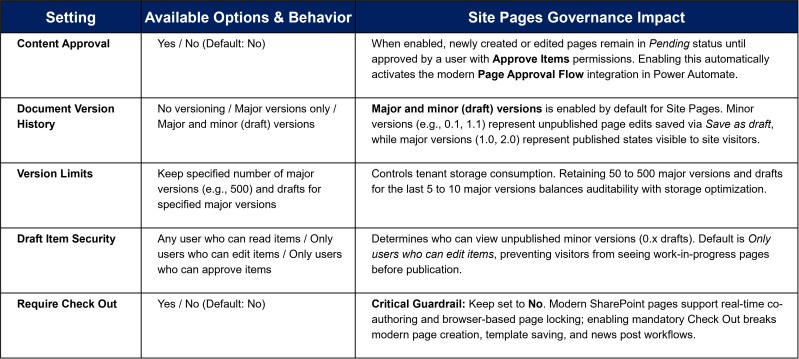
3.2 Versioning Settings
Modern SharePoint pages rely heavily on versioning to support collaborative authoring, scheduled publishing, and rollback recovery.
3.3 Advanced Settings
Advanced Settings governs content type management, search indexing, folder structures, and browser rendering behavior for .aspx page files.
- Allow Management of Content Types: Enables or disables multi-content-type administration (default: Yes in modern Site Pages libraries to support Site Pages and Repost Pages).
- Document Template: Specifies the default template URL (typically /SitePages/Forms/template.aspx or managed via the modern SitePages/Templates system folder).
- Opening Documents in the Browser: Controls client vs. browser behavior. Modern .aspx pages always render natively in the browser.
- Custom Send To Destination: Configures legacy archival routing URLs (rarely used in modern SharePoint Online).
- Folders: Controls whether the New Folder command is available. Note that SharePoint automatically generates hidden/system folders inside Site Pages—such as Templates (for saved page templates) and two-letter ISO language folders (e.g., es, fr, de) when multilingual page translation is enabled.
- Search: Includes Allow items from this document library to appear in search results (must remain Yes for News web parts, Highlighted Content web parts, and Microsoft Search to surface pages) and Index Non-Default Views.
- Reindex Document Library: Flags the entire Site Pages library for full re-crawling during the next search index cycle—essential after adding custom site columns or managed metadata properties to pages.
- Offline Client Availability: Controls whether files can be synced offline. Note: SharePoint Online blocks OneDrive desktop sync for the Site Pages library regardless of this toggle to prevent local corruption of .aspx canvas files.
- Site Assets Library: Indicates whether this library acts as the default asset repository (always No for Site Pages; assets reside in the separate Site Assets library).
- Quick Property Editing: Enables inline bulk metadata editing via Edit in grid view on library views—useful for bulk-tagging News posts or updating custom page categories.
- Dialogs: Controls whether classic property forms open in modal popups or full-page frames.
- Automatic Index Management: Allows SharePoint Online to automatically create column indexes when views approach the 5,000-item List View Threshold.
- List Experience: Forces New experience, Classic experience, or Default experience for the site. Must remain on New experience (or site default) to preserve modern page editing, scheduling, and page details panes.
3.4 Validation Settings
- Defines list-level formula rules (e.g., =[Expiration Date]>[Publish Date]) evaluated whenever page metadata properties are saved. If a formula evaluates to FALSE, SharePoint blocks saving and displays a custom user error message.
3.5 Audience Targeting Settings
- Enables the Enable audience targeting checkbox. When activated, SharePoint adds an Audience column to the Site Pages library, allowing page authors to target specific Microsoft 365 Groups or Azure AD/Entra ID security groups in the Page details pane. Targeted pages and news posts dynamically filter inside News, Highlighted Content, and Events web parts based on the viewer's group membership.
3.6 Rating Settings
- Configures user engagement controls at the library level (No, Likes, or Star Ratings). Note that modern Site Pages also feature a native page-level social bar (Likes, Comments, Views) managed via site/tenant settings, while this library setting exposes classic rating columns inside library views.
3.7 Form Settings
- Allows administrators to switch between the default SharePoint page property form and a custom Power Apps metadata form (used in the Page details pane) or delete custom forms to revert to default behavior.
4. Permissions and Management
This column provides tools for access governance, retention, workflow automation, and library lifecycle management.
- Delete this document library: Permanently removes the library. Warning: Deleting the Site Pages library destroys the site's home page (Home.aspx) and renders the entire SharePoint site inaccessible with a 404 Not Found error.
- Permissions for this document library: Displays whether the library inherits permissions from the parent site (default) or uses unique permissions. Breaking inheritance allows administrators to restrict page creation/editing to specific communication teams while keeping the rest of the site collaborative.
- Manage files which have no checked in version: Allows administrators to take ownership of and check in orphaned files uploaded or created by users who never checked in an initial version.
- Workflow Settings: Manages classic SharePoint 2010/2013 workflows (deprecated in SharePoint Online) and links to modern Power Automate approval flows.
- Information Rights Management (IRM): Configures document-level encryption and rights restrictions. Not applicable to browser-rendered .aspx modern pages.
- Enterprise Metadata and Keywords Settings: Adds an Enterprise Keywords managed metadata column to tag pages with folksonomy terms from the Term Store, and optionally synchronizes keywords with legacy social tags.
- Save document library as template: Legacy classic feature (disabled by default on modern sites with custom scripting turned off). Modern site designs and PnP provisioning templates replace this capability.
- Generate file plan report: Exports an Excel workbook detailing content types, permissions, retention schedules, and item counts across the Site Pages library for compliance audits.
5. Communications
- RSS Settings: Enables or disables RSS syndication for the Site Pages library, allowing users to subscribe to newly published pages or news posts via RSS readers. Administrators can configure feed title, description, image URL, multiline text truncation, included metadata columns, and maximum item/day limits.
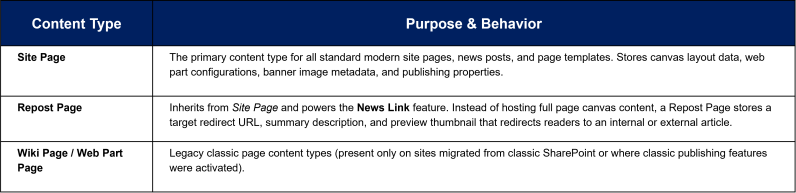
6. Content Types
- When Allow management of content types is enabled, the Content Types section displays the specialized schemas that power modern pages and news links:
7. Columns (System & Custom Metadata)
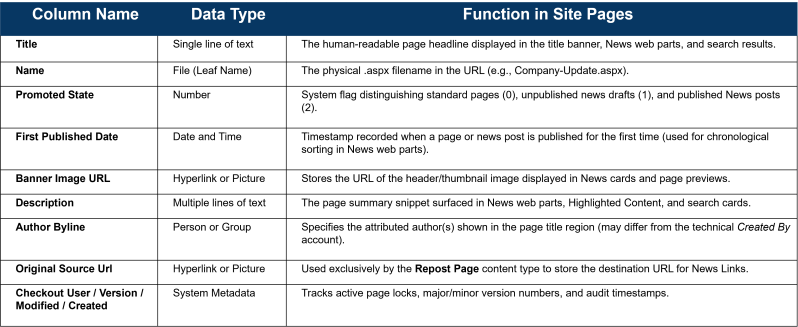
The Columns section lists every system-managed and custom metadata field stored on pages within the library. Unlike standard document libraries, the Site Pages library contains numerous hidden and read-only system columns generated by SharePoint's modern publishing engine.
7.1 Core System & Modern Page Columns
7.2 Column Management Actions
- Create column: Adds custom metadata fields (Choice, Managed Metadata, Person, Date, Yes/No, Lookup) that automatically appear inside the modern Page details pane for authors to populate.
- Add from existing site columns: Attaches reusable tenant or site-collection columns (such as Department, Region, or Content Owner) for standardized filtering across Highlighted Content web parts.
- Column ordering: Defines the sequence in which custom fields appear in classic edit forms and the modern Page details property pane.
- Indexed columns: Allows indexing up to 20 columns to prevent throttling in large intranet sites exceeding 5,000 pages.
8. Views
Views control how pages, news posts, templates, and translations are filtered, sorted, and grouped when browsing the Site Pages library.
- All Pages (Default): Displays all pages and news posts across the library, typically sorted by Modified descending.
- By Author / By Editor / Recent Changes: System-generated views organizing pages by ownership or recent activity.
- Create view: Enables administrators to build custom governance views—for example, filtering where Promoted State = 2 to audit all News posts, filtering by custom expiration dates to identify stale pages, or flattening folders (Show all items without folders) to inspect multilingual translations and templates in one list.
9. Administrative Best Practices & Governance Guardrails
- Never Delete or Rename Home.aspx Without Reassigning the Homepage: Always designate a new published page via Make homepage before archiving or deleting the existing landing page.
- Avoid Enabling Mandatory Check Out: Leave Require documents to be checked out set to No so modern co-authoring, page scheduling, and template creation work reliably.
- Do Not Delete System Columns: Removing or altering system fields such as Promoted State, First Published Date, or Banner Image URL can break News rollups and trigger "This page is missing required info" errors during publishing.
- Leverage Custom Site Columns for Intranet Rollups: Add Managed Metadata or Choice columns to the Site Pages library so Highlighted Content and News web parts can dynamically filter pages by department, topic, or audience without manual curation.