

SharePoint Mentor Curated Articles
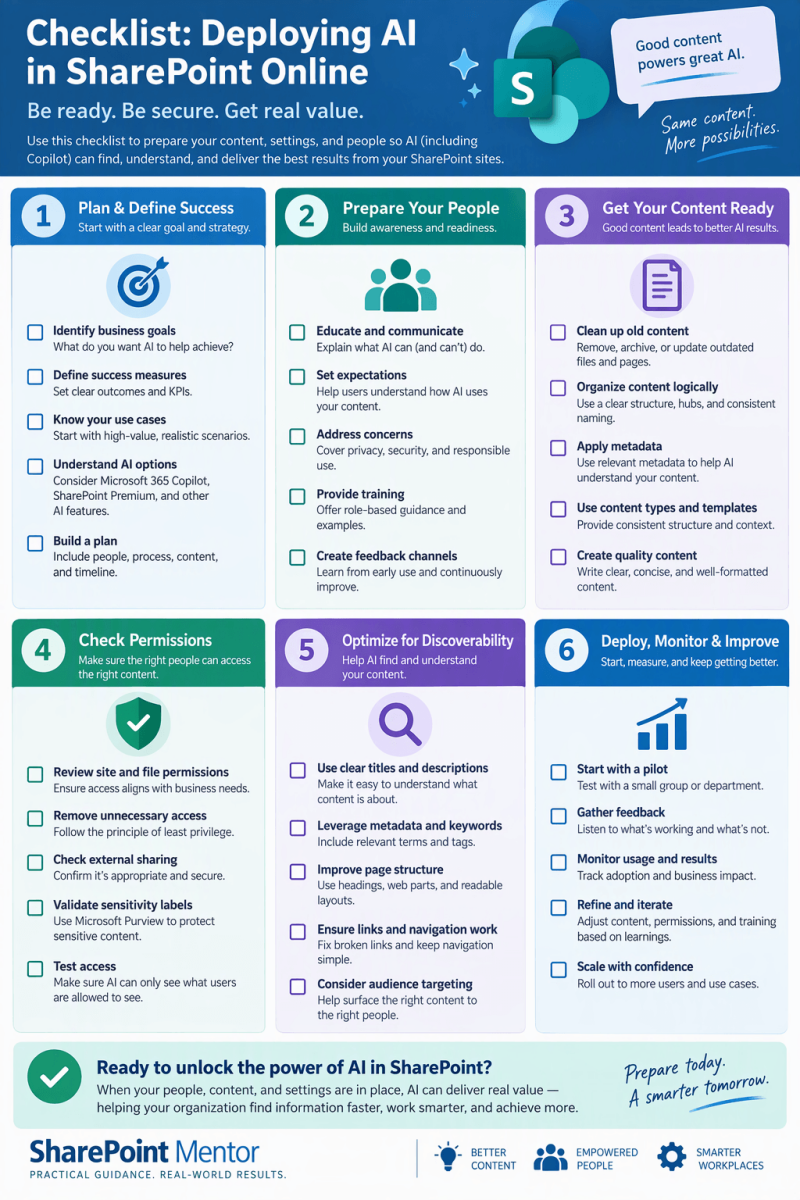
Deploying Microsoft AI in SharePoint Online
This checklist is sequenced for a typical enterprise deployment. Complete earlier phases before moving to later ones. Adjust timelines based on your organization’s size, risk tolerance, and existing Microsoft 365 maturity.
Phase 1: Foundations & Prerequisites (Weeks 1–3)
Confirm licensing and entitlements
-
- Verify Microsoft 365 Copilot licenses (or relevant AI add-ons) are assigned or planned.
- Confirm SharePoint Online + Microsoft 365 E3/E5 (or equivalent) baseline.
- Check availability of SharePoint agents, Knowledge Agent / Copilot in SharePoint, and any preview features you intend to use.
- Document license assignment strategy (pilot group first, then phased rollout).
Establish executive sponsorship and AI governance team
-
- Identify executive sponsor.
- Form a cross-functional AI/SharePoint steering group (IT, Security/Compliance, Legal, HR/Change, business stakeholders).
- Define decision rights and escalation paths.
Review and update data classification & retention policies
-
- Ensure sensitivity labels, retention labels, and DLP policies are current.
- Confirm which SharePoint sites/libraries will be in scope for AI (and which must be excluded).
Assess current SharePoint Online health & information architecture
-
- Inventory sites, hubs, libraries, and content types.
- Identify high-value content vs. ROT (redundant, obsolete, trivial).
- Note sites with poor permissions hygiene, broken inheritance, or excessive external sharing.
Phase 2: Security, Compliance & Risk (Weeks 2–5)
Complete AI risk & compliance assessment
-
- Map data that will be accessible to Copilot / SharePoint AI.
- Evaluate risks around oversharing, sensitive data exposure, and hallucinated outputs.
- Align with existing Microsoft Purview policies.
Harden permissions and sharing
-
- Review and remediate excessive permissions (especially “Everyone” or large groups).
- Enable or tighten Restricted Content Discovery / Restricted SharePoint Search if needed.
- Configure external sharing controls and guest access policies for AI-scoped sites.
Configure Microsoft Purview for AI
-
- Enable and tune Data Loss Prevention (DLP) policies that apply to Copilot interactions.
- Set up audit logging and retention for AI activities.
- Configure sensitivity label inheritance and auto-labeling where appropriate.
Define AI usage policies and acceptable use guidelines
-
- Draft or update organizational AI policy covering SharePoint Copilot, agents, and content generation.
- Address data privacy, intellectual property, citation requirements, and human review expectations.
- Get legal/compliance sign-off.
Phase 3: Technical Enablement & Configuration (Weeks 4–7)
Enable and configure Microsoft 365 Copilot / SharePoint AI features
-
- Turn on Copilot in SharePoint (and related agents) via the Microsoft 365 admin center / SharePoint admin center.
- Configure tenant-level settings (e.g., Copilot availability, web grounding options if applicable).
- Set up any required service principals or Graph permissions.
Prepare high-value content for AI
-
- Improve metadata, content types, and column consistency on priority libraries.
- Clean up or archive low-value content that should not influence AI responses.
- Ensure key documents have clear titles, headings, and structure (helps grounding quality).
Configure site-level AI experiences
-
- Decide which hub sites / department sites will surface Copilot / agents prominently.
- Configure Knowledge Agent or custom SharePoint agents where relevant.
- Set up any required web parts, pages, or agent entry points.
Test core scenarios in a controlled environment
-
- Validate search + Copilot grounding on sample content.
- Test permissions boundaries (user A should not see content user B cannot access).
- Verify DLP and sensitivity label behavior with AI prompts.
Phase 4: Pilot & Change Management (Weeks 6–10)
Select and prepare pilot group
-
- Choose a representative pilot (mixed roles, departments, technical comfort levels).
- Assign licenses and grant access.
- Define success metrics (adoption, time saved, quality of responses, risk incidents).
Develop training and support materials
-
- Create role-based training (end users, site owners, content creators, power users).
- Produce prompt libraries / “top prompts for SharePoint” tailored to your organization.
- Build support processes (help desk scripts, escalation to AI champions).
Run the pilot
-
- Launch with clear communication of goals, guardrails, and feedback channels.
- Collect usage data, user feedback, and any policy or technical issues.
- Iterate on configuration, prompts, and governance based on findings.
Measure pilot outcomes and decide on broader rollout
-
- Review metrics against success criteria.
- Document lessons learned and required remediations.
- Obtain go/no-go decision from steering group.
Phase 5: Organization-Wide Rollout & Ongoing Operations (Weeks 9+)
Execute phased production rollout
-
- Roll out by department, geography, or site collection in waves.
- Continue license assignment and communications in parallel.
- Monitor for permission or oversharing issues as more content becomes AI-accessible.
Complete user enablement at scale
-
- Deliver training and communications to remaining users.
- Appoint and support AI champions / site owners.
- Publish ongoing prompt guidance and best practices.
Establish ongoing monitoring & optimization
-
- Review Copilot / SharePoint AI usage reports and audit logs regularly.
- Monitor for new oversharing or policy violations.
- Continuously improve content quality, metadata, and agent configurations.
- Plan for feature updates (Microsoft releases AI capabilities frequently).
Document and hand over to business-as-usual
-
- Finalize runbooks for license management, incident response, and content readiness.
- Schedule periodic governance reviews (e.g., quarterly).
- Capture ROI and success stories for leadership.
Quick Reference – Critical Path Dependencies
- Licensing + sponsorship (1–2) must precede almost everything.
- Permissions hardening + Purview (6–7) should be solid before broad content exposure to AI.
- Content readiness (10) and pilot testing (12–15) are the highest-leverage activities for quality results.
- Do not skip the pilot measurement step (16) before full rollout.
Top 3 AI Risks in SharePoint Online
Here are the three highest-impact risks organizations face when enabling Microsoft AI (Copilot, Knowledge Agent, SharePoint agents, etc.) in SharePoint:
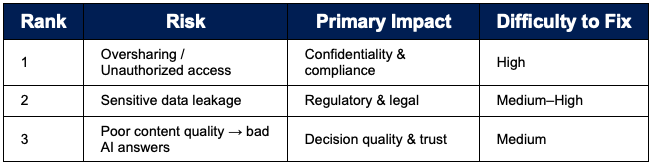
Oversharing & Unauthorized Data Exposure
This is consistently the #1 risk.
- SharePoint’s permission model is complex (broken inheritance, unique permissions, nested groups, “Everyone except external users,” etc.). When AI is enabled, Copilot and agents can surface content a user has technical access to — even if that access was never intentional or appropriate.
- Why it matters: AI dramatically increases the discoverability of poorly permissioned content. A document that sat unnoticed for years can suddenly appear in summaries, chat responses, or agent answers.
Common triggers:
- Excessive “Edit” or “Full Control” granted years ago
- Sites with broken inheritance and orphaned unique permissions
- Content shared broadly during projects that was never cleaned up
Sensitive or Regulated Data Leakage
Even when permissions are correct, AI can still create compliance problems by summarizing, extracting, or rephrasing sensitive information.
Examples include:
- PII, financial data, health information, or intellectual property appearing in AI-generated summaries
- Content that is technically accessible but should not be synthesized or re-shared in AI responses
- Outputs that bypass traditional DLP controls if policies are not tuned for AI interactions
Why it matters: Traditional DLP and sensitivity labels were designed for human sharing behavior. AI changes the volume, format, and speed of data movement, increasing the chance of policy gaps.
Low-Quality or Outdated Content Leading to Unreliable AI Outputs
AI is only as good as the content it can ground on. SharePoint environments frequently contain large volumes of ROT (Redundant, Obsolete, Trivial) content, inconsistent metadata, and poorly structured documents.
Resulting problems:
- Hallucinated or partially correct answers grounded in outdated documents
- Conflicting information from multiple versions of the “same” content
- Reduced user trust when the AI confidently presents inaccurate or incomplete information
Why it matters: Users tend to trust AI responses more than traditional search results. Poor content quality turns a productivity tool into a source of decision risk.
Risk Ranking Summary
The Top 3 AI Risks in SharePoint
When a company turns on AI tools inside SharePoint (like Microsoft Copilot), three main problems often appear. Here’s what they mean in everyday language:
The AI might show people information they shouldn’t see
- SharePoint is full of files and folders that are supposed to be private to certain teams or individuals. Over time, permission settings often get messy — people get access they no longer need, or files are shared too widely.
- When AI is turned on, it becomes very good at finding and summarizing information. So a document that was quietly sitting in the wrong place can suddenly appear in someone’s AI answers — even if that person was never meant to see it.
- Simple example:
A confidential salary spreadsheet that only HR should access accidentally becomes visible to the AI for someone in sales.
Sensitive information can leak out more easily
- Even when the right people have access, AI can still create problems by pulling sensitive details into summaries or answers. This includes private employee information, financial data, customer details, or company secrets.
- Traditional security tools were built for people emailing or sharing files. AI works differently and faster, so it can sometimes move sensitive information in ways the old rules didn’t fully cover.
- Simple example:
Someone asks the AI a general question and gets a response that includes private customer or employee details that shouldn’t have been repeated.
The AI can give wrong or outdated answers
- AI tools in SharePoint only know what is already stored there. Many SharePoint sites contain old, incomplete, or conflicting documents. When the AI uses this messy information, it can confidently give answers that are wrong or out of date.
- Simple example:
Someone asks “What is our current remote work policy?” and the AI answers based on a policy document from three years ago that is no longer correct.
Bottom line
- These three risks are the main reasons companies need to clean up permissions, protect sensitive content, and improve the quality of their files before fully rolling out AI in SharePoint.
- Explain AI permission leaks
- AI Permission Leaks Explained
- An AI permission leak happens when an AI tool (like Microsoft Copilot in SharePoint) shows a person information they were never supposed to see.
How it works
- SharePoint controls access through permissions — rules that say who can view or edit each file, folder, or site. In theory, the AI only looks at content the current user already has permission to access.
- In reality, many SharePoint environments have messy or outdated permissions. People often have access they no longer need, or files were shared too widely years ago and never cleaned up. The AI doesn’t create new permissions — it simply becomes very good at finding and summarizing content that already exists under those imperfect rules.
The result: information that was previously hard to discover suddenly appears in AI answers, summaries, or chat responses.
Why this is different from normal file sharing
- Traditional problem: Someone has to actively search for a file or receive a direct link. Many sensitive documents stay buried and unnoticed.
- AI problem: The AI actively surfaces relevant content. A document that sat quietly for years can now show up in response to a casual question.
Simple example
- A manager asks Copilot: “Summarize the latest feedback on the marketing team’s performance.”
- Because of old permission settings, the AI also pulls in a confidential performance review or salary discussion that the manager technically has access to — but was never intended to see in this context.
Why these leaks are hard to catch
- The AI usually follows the technical permission rules correctly.
- The problem is rarely a pure “hack” — it’s the combination of overly broad access + AI’s strong search and summarization ability.
- Many organizations only discover the issue after employees start seeing unexpected content in their AI responses.
In short: AI permission leaks occur when existing weak or outdated access controls meet an AI that is excellent at finding and presenting information. The AI doesn’t break the rules — it just makes the consequences of those rules much more visible.
Identify Permission Leaks
Start by finding where access is too broad or outdated.
Quick Wins:
- Review sites and libraries that contain sensitive content (HR, Finance, Legal, executive folders).
- Look for these common red flags:
-
- “Everyone” or “Everyone except external users” has access
- Large groups (entire departments or “All Staff”) have Edit or higher permissions
- Files or folders with unique permissions that no one remembers setting
- Old project sites that were never locked down after the project ended
Better Detection Methods
- SharePoint Admin Center → Active sites - Sort by storage or last activity. Prioritize high-value or high-sensitivity sites.
- Permission reports - Use the built-in “Site permissions” or “Check permissions” tools on individual sites. For larger scale, run permission inventory reports via PowerShell or Microsoft Graph.
- Microsoft Purview / Compliance tools - Look at content explorer and activity explorer for unusual access patterns. Review sensitivity labels and DLP alerts.
- Access Reviews (Microsoft Entra ID) - Run periodic access reviews on major SharePoint groups and Microsoft 365 Groups. This is one of the most effective ways to catch stale access.
- AI-specific testing - Have a few trusted users ask Copilot questions that should not return sensitive results. If unexpected content appears, you have a live permission leak.
Prioritize what to check first
- Sites with confidential or regulated data
- Sites with the most users
- Sites that haven’t been reviewed in the last 12–18 months
Fix the Permission Leaks - Once you find problems, clean them up systematically.
Immediate Fixes
- Remove “Everyone” / “Everyone except external users” wherever it appears on sensitive content.
- Replace broad group access with smaller, role-based groups.
- Delete or archive old project sites that no longer need to be active.
- Break inheritance only when truly necessary, and document why.
Stronger Remediation Steps
- Convert unique permissions back to inherited permissions where possible (this dramatically reduces complexity).
- Move sensitive content into dedicated sites with tighter controls instead of scattering it across many libraries.
- Apply sensitivity labels that enforce encryption or access restrictions.
- Use Restricted Content Discovery or Restricted SharePoint Search (when appropriate) so certain content stays hidden from AI and search even if a user has technical access.
Recommended Cleanup Process
- Inventory the worst offenders first.
- Decide the correct access model (who should have access).
- Update groups and permissions.
- Test with AI prompts again to confirm the leak is closed.
- Document the change.
Prevent New Leaks Going Forward
Fixing existing problems is only half the battle.
- Require site owners to complete a short permissions review every 6–12 months.
- Limit who can create new sites or break inheritance.
- Use Microsoft 365 Groups / Teams as the primary way to manage membership instead of adding individuals directly to SharePoint.
- Train site owners on the principle of least privilege (“only give the access people actually need”).
- Turn on access reviews for key groups so stale membership is automatically flagged.
Practical Tip for Smaller Organizations (~100 users)
You don’t need complex tooling. Focus on:
- The 10–20 most important sites
- Removing “Everyone” access
- Running one or two rounds of access reviews
- Testing key AI prompts after changes