

SharePoint Mentor Curated Articles
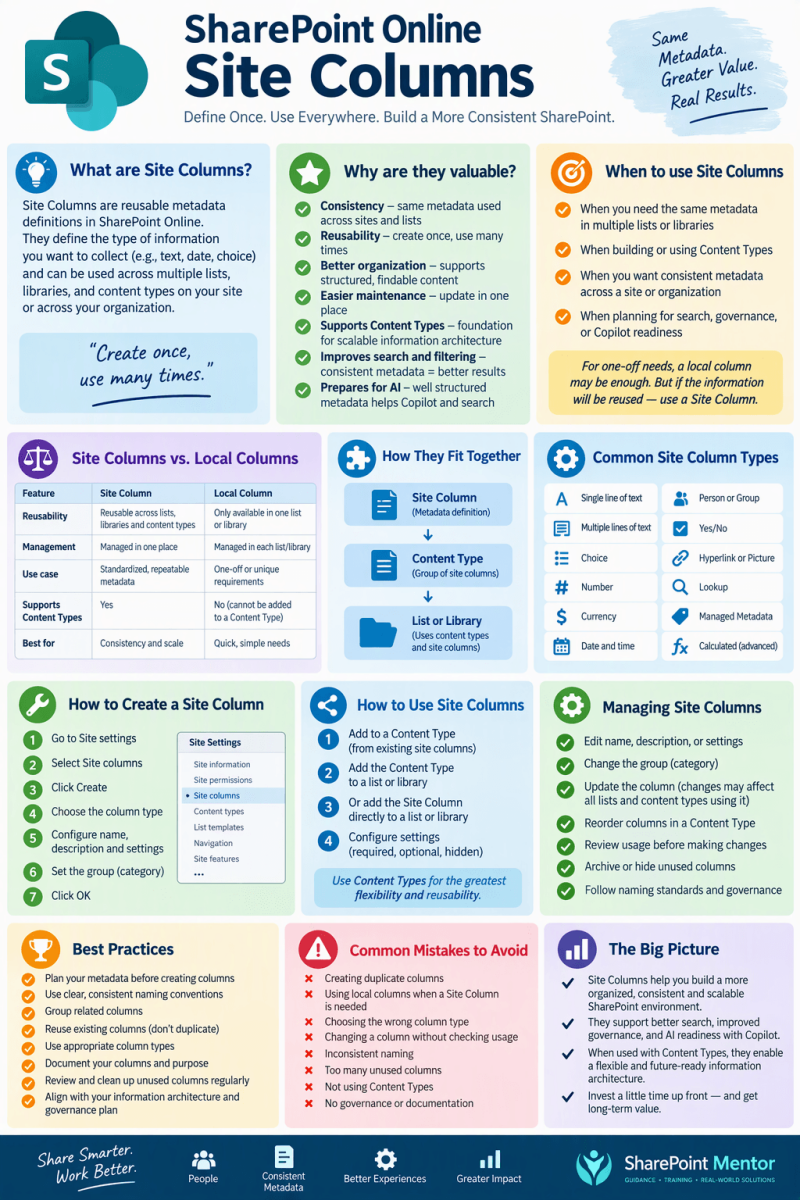
SITE COLUMNS - DEEP DIVE GUIDE
- Design reusable metadata that stays consistent across lists, libraries, and content types
- Site columns turn metadata definitions into reusable building blocks. They are especially valuable when the same business concept must be represented consistently in more than one list, library, or content type.
Practical guidance for Site Owners, Information Architects, and SharePoint support professionals
Executive Summary
- A Site Column is a reusable SharePoint column definition created at the site level rather than only inside one list or library. Microsoft describes a site column as representing a type of data, such as a telephone number, comment, or city. Site columns can also be incorporated into content types, which lets the same metadata definition participate in repeatable information structures.
- For site owners, the key value is standardization. Instead of separately creating a “Department,” “Project Number,” or “Document Status” column in several libraries, create the definition once as a Site Column and reuse it. This reduces accidental differences in naming, data type, choice values, required settings, and business meaning.
- Site Columns become most powerful when combined with Content Types. A content type can define a repeatable category of content together with its metadata and other characteristics. Microsoft’s current SharePoint in Microsoft 365 guidance supports adding existing site columns to content types and configuring column order and whether columns are required, optional, or hidden.
What you will learn
- What Site Columns are and how they differ from ordinary list/library columns.
- Why reusable metadata improves governance, consistency, searchability, automation readiness, and user experience.
- How to plan, create, group, reuse, and test Site Columns.
- How Site Columns work with Lists, Document Libraries, Content Types, views, filters, and forms.
- How to manage change safely, including naming, ownership, lifecycle, and deletion considerations.
- Common mistakes, troubleshooting techniques, and a practical governance checklist.
1. Site Columns: The Core Concept
1.1 Definition
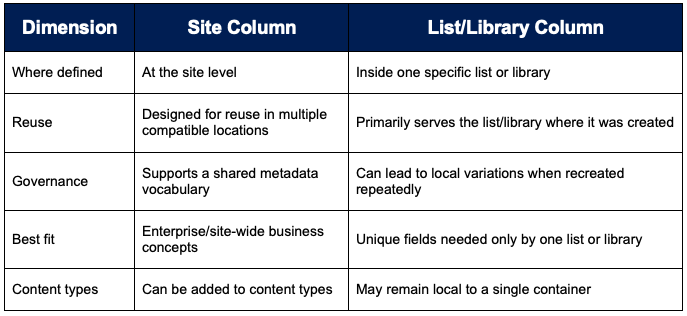
A Site Column is a reusable column or field definition scoped to a SharePoint site. It defines how a particular piece of metadata should be represented. A Site Column typically has a display name, data type, settings appropriate to that data type, and a group/category that helps administrators locate it.
Think of the Site Column as the definition of a business attribute, not as the data itself. “Project Manager” is the definition; “Alex Rivera” is a value stored for a particular item or document.
1.2 Site Column vs. List or Library Column
1.3 A simple mental model
Use three layers to understand the relationship:
- Site Column = reusable metadata definition, such as Client, Fiscal Year, Document Status, or Department.
- Content Type = reusable content definition that assembles relevant Site Columns and other characteristics for a business object, such as Contract or Policy.
- List/Library = the working container where users create items or store documents and supply metadata values.
This separation is useful because definitions can be intentionally designed before they are deployed to working libraries.
2. Why Site Columns Are Valuable
2.1 Consistency across information containers
- If multiple libraries need the same business concept, Site Columns provide a common definition. This helps prevent one library from using “Dept,” another “Department Name,” and another “Business Unit” when all three actually mean the same thing.
2.2 Better metadata governance
- Site Columns encourage metadata to be treated as a managed information asset. A site owner can establish approved names, descriptions, data types, value choices, defaults, and groupings before the field is reused. This creates guard rails without forcing every library to be identical.
2.3 Reusable building blocks for Content Types
- Microsoft documents that columns on a content type represent metadata and that administrators can add existing site columns to a content type. The content type can then be used with lists and libraries, creating a repeatable metadata package rather than rebuilding fields for every location.
2.4 More predictable views, filters, forms, and automation
- Consistent metadata makes downstream experiences easier to design. When the same concepts use the same field definitions, owners can build views and filtering patterns more predictably and can design automation against clearly defined business fields. Treat this as an architectural benefit rather than a guarantee that all configurations propagate automatically.
2.5 Improved findability and AI readiness
- Well-designed metadata provides meaningful labels that can help people organize, filter, and discover content. As SharePoint adds AI-assisted metadata capabilities such as autofill columns, deliberate metadata design remains important: AI-generated or automatically populated values are most useful when the underlying information model is understandable and governed.
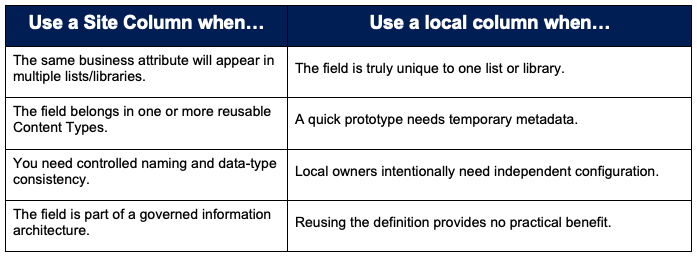
3 When to Use a Site Column
A decision test
- Before creating the field, ask: “If another list or library needs this same concept next month, should it use exactly the same definition?” If yes, a Site Column is usually the better design choice.
4. Planning Site Columns Before You Create Them
4.1 Define the business meaning first
- Write a one-sentence definition for each field. Avoid creating two columns that overlap semantically. For example, clarify whether “Owner” means content owner, process owner, document author, or accountable business manager.
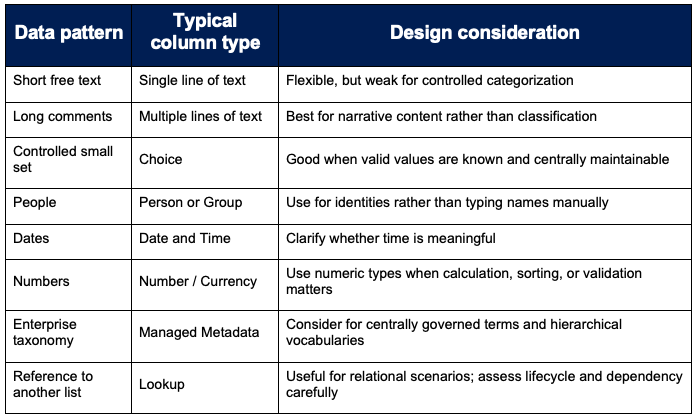
4.2 Choose the correct data type
4.3 Establish a naming convention
- Use business-friendly display names that users understand.
- Avoid abbreviations unless they are universally understood in the organization.
- Create a dedicated group such as “Contoso Document Metadata” or “SharePoint Mentor Columns” so administrators can find custom columns quickly.
- Document the intended owner, purpose, allowed values, and the lists/content types that depend on each governed column.
4.4 Avoid “metadata sprawl”
Reusable does not mean “create everything as a Site Column.” Too many poorly named fields create administrative clutter. Establish a small controlled vocabulary and expand it based on real business requirements.
5. How to Create a Site Column in SharePoint Online
- The exact labels in the SharePoint interface can evolve. The following is the standard site-level approach used in modern SharePoint Online administration; always confirm the current UI in your tenant before documenting screenshots or training users.
5.1 Create the definition
- Open the SharePoint site where the reusable column should be defined.
- Open Site settings. Under the Web Designer Galleries area, open Site columns. Depending on the current experience, you may navigate through site settings or related site-information/settings links.
- Choose Create.
- Enter a clear Column name.
- Select the information/data type that matches the business requirement.
- Configure type-specific settings such as description, required/optional behavior, choices, defaults, validation, or other available options.
- Place the Site Column in an existing group or create an intentionally named custom group.
- Save the Site Column.
5.2 Immediately test the definition
- Add it to a test list or library.
- Enter representative values, including edge cases.
- Verify sorting, filtering, views, forms, and required behavior.
- Confirm the field label and description make sense to a user who did not design it.
- If it will be used in a Content Type, test that pathway before broad deployment.
6. How to Use an Existing Site Column
6.1 Add it to a List or Document Library
- From the target list or library settings, use the option for adding a column from existing Site Columns, choose the appropriate Site Column group, select the desired field, and add it. This reuses the existing definition rather than creating an unrelated field with a similar name.
6.2 Add it to a Content Type
- Microsoft’s current SharePoint in Microsoft 365 guidance for the Content type gallery supports selecting a content type and using Add site column > Add from existing site columns. Administrators can narrow the available choices by category, select columns, and determine whether inherited site/list content types should be updated when applicable.
6.3 Example: a governed document architecture
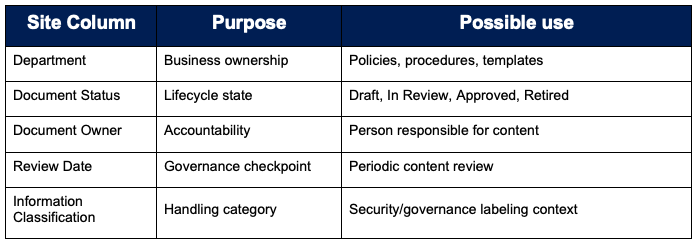
A “Policy” Content Type could combine these reusable fields. Libraries that manage policies can then use the content type instead of individually recreating the metadata design.
7. Site Columns and Content Types: The Strongest Pattern
7.1 Why combine them?
- A Site Column standardizes one metadata attribute. A Content Type assembles related metadata into a reusable content definition. Microsoft notes that content types can provide consistency and can include specific metadata; its administration guidance also supports adding Site Columns, reordering them, and setting them as required, optional, or hidden.
7.2 Example architecture
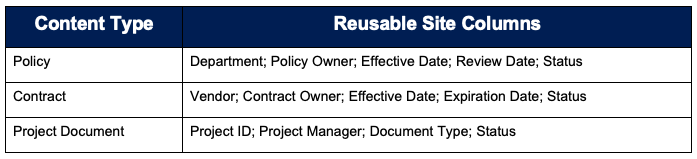
7.3 Local vs. centrally published content types
- For a single site, site-scoped Site Columns and Content Types may be sufficient. For broader organizational reuse, SharePoint provides a Content type gallery in the SharePoint admin center. Microsoft states that content types created there are saved to the SharePoint content type hub. Treat tenant-wide content-type publishing as an information-architecture decision that deserves change control and testing.
8. Managing Site Columns Over Time
8.1 Establish ownership
- Every governed Site Column should have a business or platform owner. The owner should understand the semantic definition, why the field exists, which content types use it, and the impact of changing available values or behavior.
8.2 Maintain a Site Column register
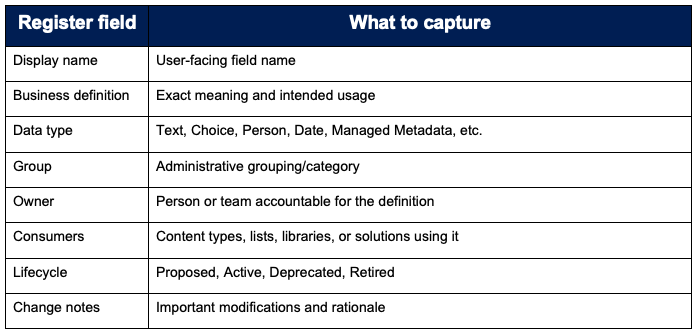
8.3 Treat changes as schema changes
- A field used in production has dependencies. Before changing its type, valid choices, requirement status, defaults, or taxonomy source, identify where the field is used and test the change. The safest approach is to assume that a reused column may affect multiple lists, libraries, content types, forms, views, flows, integrations, and reporting solutions until dependency review proves otherwise.
8.4 Required, optional, and hidden behavior
- Within content-type management, Microsoft supports configuring a column as required, optional, or hidden. Use “required” selectively. Required metadata can improve completeness, but excessive mandatory fields can frustrate users and create a barrier to uploading or saving content.
8.5 Deleting or retiring a Site Column
- Prefer a managed retirement process to immediate deletion. First identify consumers, stop new adoption, replace the field where necessary, migrate values if required, and validate affected processes. Delete only after dependencies have been addressed. This is a best-practice recommendation intended to reduce avoidable disruption.
9. Governance Best Practices
- Design before building: start with business concepts, not field names.
- Reuse intentionally: make a Site Column when reuse or governance is expected, not simply because the option exists.
- Group custom fields: keep custom Site Columns in clearly named groups.
- Prefer controlled values for classification: Choice or Managed Metadata can be more reliable than free text when vocabulary control matters.
- Write descriptions for users: explain what value is expected and, where useful, provide an example.
- Keep required metadata focused: require only what is truly necessary at the point users must provide it.
- Use Content Types for repeatable business objects: package the relevant Site Columns together.
- Test changes: validate forms, views, filters, content types, workflows/Power Automate, integrations, and search-dependent experiences.
- Document ownership and lifecycle: know who can approve a change and how a column will be deprecated.
- Avoid duplicates: check existing Site Columns and Content Types before creating a new one.
10. Common Mistakes and How to Avoid Them
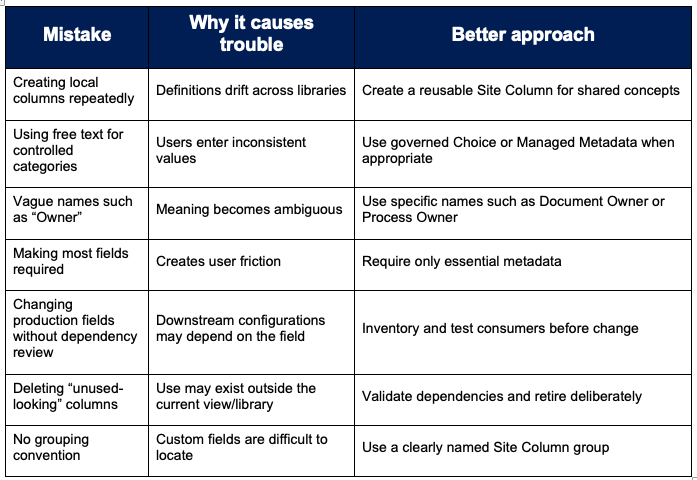
11. Troubleshooting Site Column Issues
Problem: I cannot find the Site Column when adding a field
- Confirm you are looking in the correct Site Column group/category.
- Confirm the column was created at the appropriate site scope.
- Check whether the target experience is asking for an existing Site Column or a new local column.
- If a Content Type is involved, verify that you are editing the intended Content Type and using the existing-site-column workflow.
Problem: The same-named fields behave differently
- They may be separate field definitions that happen to share a display name. Review how each field was created, its data type and settings, and whether the target list/library uses the intended reusable Site Column.
Problem: Users resist metadata
- Reduce unnecessary required fields.
- Use defaults or automation where reliable.
- Use clear field descriptions and controlled values.
- Create views that visibly reward good metadata with easier filtering and organization.
- Align metadata collection to a real business outcome rather than collecting fields “just in case.”
Problem: A change did not produce the expected behavior everywhere
- Review whether each consumer is actually using the same Site Column and whether Content Type inheritance/publishing is part of the design. Microsoft’s Content type gallery exposes an option that controls whether updates are applied to inheriting site/list content types in the relevant content-type workflow; test propagation rather than assuming it.
12. Site Owner Implementation Playbook
Phase 1: Discover
- Inventory current lists, libraries, Content Types, and commonly repeated fields.
- Collect synonyms and duplicates.
- Identify business owners and retention/security context.
Phase 2: Design
- Define authoritative business terms.
- Select field types and controlled vocabularies.
- Decide which fields warrant Site Column status.
- Design Content Types that group fields by business object.
Phase 3: Pilot
- Create Site Columns in a controlled site.
- Add them to pilot Content Types and libraries.
- Test entry, views, filtering, automation, search, and support scenarios.
- Gather user feedback on labels and required fields.
Phase 4: Govern and scale
- Publish standards and ownership.
- Create a change-control process.
- Monitor duplicate/local fields during site reviews.
- Retire obsolete metadata carefully.
- Review the model as business vocabulary changes.
13. Worked Example: Project Document Metadata
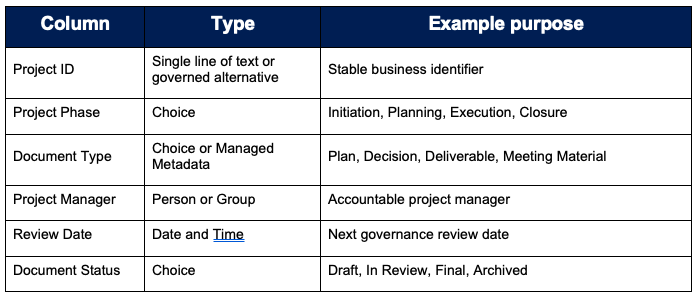
- Scenario: A project site contains separate libraries for project plans, meeting materials, deliverables, and archived project documentation. The organization wants a consistent way to categorize project content.
Recommended Site Columns
Design outcome
- Create the reusable definitions once, group them under a recognizable project-metadata group, and assemble the relevant subset into one or more Content Types. Libraries can then consume the governed model while still using local columns for truly library-specific needs.
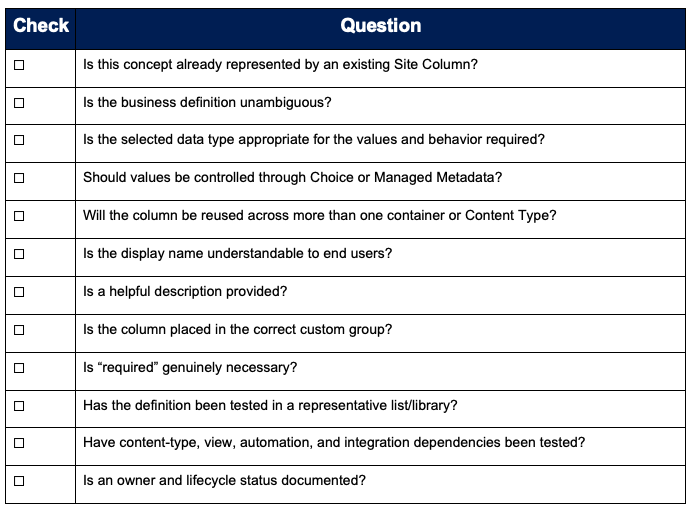
Site Column Review Checklist
15. Quick Reference: Architecture Principles
- Standardize business concepts that repeat.
- Reuse Site Columns instead of rebuilding equivalent local fields.
- Package related Site Columns in Content Types.
- Control vocabulary when consistency matters.
- Minimize mandatory metadata to what the process truly needs.
- Document ownership, purpose, dependencies, and lifecycle.
- Test all changes as schema changes.
- Retire deliberately instead of deleting impulsively.
16. References and Further Reading
The Microsoft sources below were used to ground the current product concepts in this guide. Some older developer-oriented pages illustrate underlying Site Column concepts but should not be treated as the preferred modern SharePoint Online provisioning path.
- Microsoft Learn – Add columns to a content type – SharePoint in Microsoft 365
https://learn.microsoft.com/en-us/sharepoint/add-columns-content-type - Microsoft Learn – Create or customize a content type – SharePoint in Microsoft 365
https://learn.microsoft.com/en-us/sharepoint/create-customize-content-type - Microsoft Learn – Create site columns, content types, and lists for SharePoint
https://learn.microsoft.com/en-us/visualstudio/sharepoint/creating-site-columns-content-types-and-lists-for-sharepoint?view=visualstudio - Microsoft Learn – Create autofill columns – SharePoint in Microsoft 365
https://learn.microsoft.com/en-us/sharepoint/copilot-in-sharepoint-create-autofill-columns - Microsoft Learn – Site columns and content types in the SharePoint Add-in model (historical guidance and retirement notice)
https://learn.microsoft.com/en-us/sharepoint/dev/solution-guidance/site-columns-and-content-types-sharepoint-add-in
Final Takeaway
- Site Columns are a foundational SharePoint information-architecture tool. Their value is not simply that they create another field. Their value is that they let a site owner define an important business attribute once, govern its meaning, and reuse that definition as part of a consistent metadata and Content Type strategy. Used selectively and managed carefully, Site Columns reduce duplication, improve user understanding, and create a stronger foundation for organization, discovery, automation, reporting, and future AI-assisted experiences.