

SharePoint Mentor Curated Articles
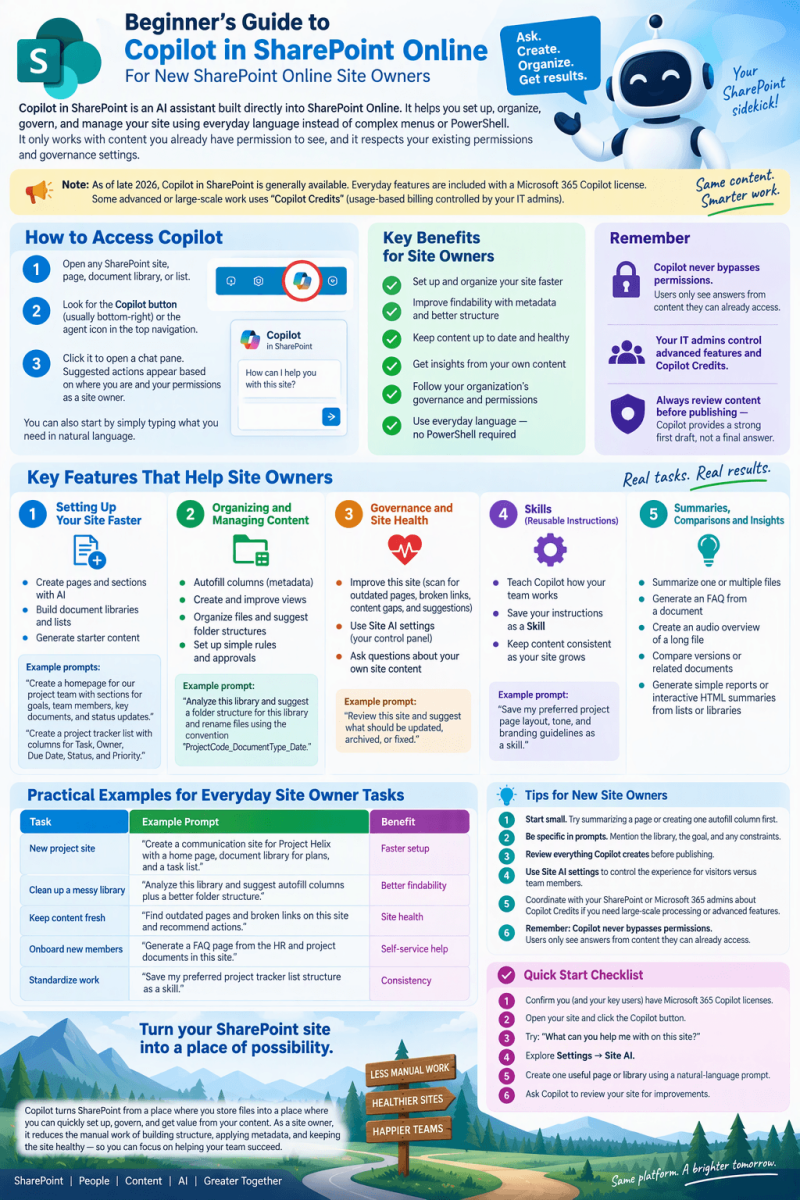
BEGINNER’S GUIDE TO COPILOT IN SHAREPOINT ONLINE
For New SharePoint Online Site Owners
Copilot in SharePoint is an AI assistant built directly into SharePoint Online. It helps you set up, organize, govern, and manage your site using everyday language instead of complex menus or PowerShell. It only works with content you already have permission to see, and it respects your existing permissions and governance settings.
Note: Everyday features are included with a Microsoft 365 Copilot license. Some advanced or large-scale work uses “Copilot Credits” (usage-based billing controlled by your IT admins).
How to Access Copilot
- Open any SharePoint site, page, document library, or list.
- Look for the floating Copilot button (usually bottom-right) or the agent icon in the top navigation.
- Click it to open a chat pane. Suggested actions appear based on where you are and your permissions as a site owner.
You can also start by simply typing what you need in natural language.
Key Features That Help Site Owners
Setting Up Your Site Faster
- Create pages and sections with AI
Prompt examples:- “Create a homepage for our project team with sections for goals, team members, key documents, and status updates.”
- “Add a FAQ section based on the onboarding documents in this library.”
-
Build document libraries and lists
Prompt examples:
- “Create a document library for contracts with columns for Vendor, Contract Value, Expiration Date, and Status. Add useful views.”
- “Create a project tracker list with columns for Task, Owner, Due Date, Status, and Priority. Include a view for items due this week.”
-
Generate starter content: Copilot can draft page text, suggest navigation, or create an FAQ web part from existing files.
Organizing and Managing Content
- Autofill columns (metadata)
Ask Copilot to analyze files and suggest (or create) columns that automatically extract information such as document type, project name, client, or review status. This makes libraries searchable and filterable without manual tagging. - Create and improve views
Example: “Create a view that shows only documents needing review, grouped by document type and sorted by last modified date.” - Organize files
Example: “Suggest a folder structure for this library and rename files using the convention ProjectCode_DocumentType_Date.” - Set up simple rules and approvals
Example: “Create a rule that notifies the site owners when a new contract is uploaded and sets the Status column to ‘Needs Review.’”
Governance and Site Health (Especially Valuable for Site Owners)
- Improve this site
Copilot can scan your site and flag:- Outdated pages
- Broken links
- Content gaps
- Suggested improvements
- Example prompt: “Review this site and suggest what should be updated, archived, or fixed.”
- Site AI settings (your control panel)
Go to Settings → Site AI. From here you can:- Choose which agent opens by default (Copilot in SharePoint or a custom agent).
- Hide the Copilot button from site visitors (while keeping it available for members/owners).
- Enable advanced document processing for the site (if your organization has enabled Copilot Credits).
- Ask questions about your own site content
Examples:- “What are the biggest risks mentioned across the project documents?”
- “Summarize the decisions made in the last three meeting notes.”
- “Compare these two policy documents and highlight the differences.”
Skills (Reusable Instructions)
You can teach Copilot how your team works and save the instructions as a Skill.
Example: Create a skill that always applies your preferred page layout, tone, and branding guidelines. Next time you say “use the standard team page skill,” it follows those rules automatically. Skills help keep content consistent as your site grows.
Summaries, Comparisons, and Insights
- Summarize one or multiple files.
- Generate an FAQ from a document.
- Create an audio overview of a long file.
- Compare versions or related documents.
- Generate simple reports or interactive HTML summaries from lists or libraries.
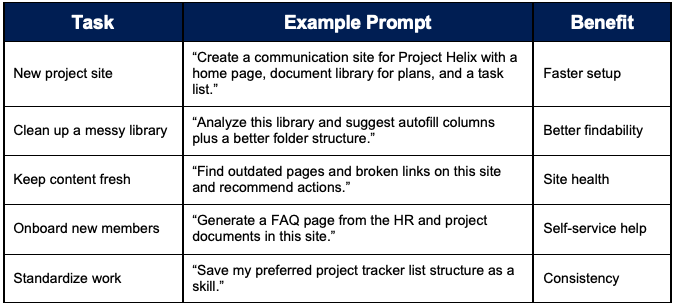
Practical Examples for Everyday Site Owner Tasks
Tips for New Site Owners
- Start small. Try summarizing a page or creating one autofill column first.
- Be specific in prompts. Mention the library, the goal, and any constraints.
- Review everything Copilot creates before publishing—treat it as a strong first draft.
- Use Site AI settings to control the experience for visitors versus team members.
- Coordinate with your SharePoint or Microsoft 365 admins about Copilot Credits if you need large-scale processing or advanced features.
- Remember: Copilot never bypasses permissions. Users only see answers from content they can already access.
Quick Start Checklist
- Confirm you (and your key users) have Microsoft 365 Copilot licenses.
- Open your site and click the Copilot button.
- Try: “What can you help me with on this site?”
- Explore Settings → Site AI.
- Create one useful page or library using a natural-language prompt.
- Ask Copilot to review your site for improvements.
Copilot turns SharePoint from a place where you store files into a place where you can quickly set up, govern, and get value from your content. As a site owner, it reduces the manual work of building structure, applying metadata, and keeping the site healthy—so you can focus on helping your team succeed.