

SharePoint Mentor Curated Articles
COPILOT IN SHAREPOINT
A Practical Guide to Value, Features & Usage
SharePoint Online • AI-powered knowledge discovery and site experiences
The big idea
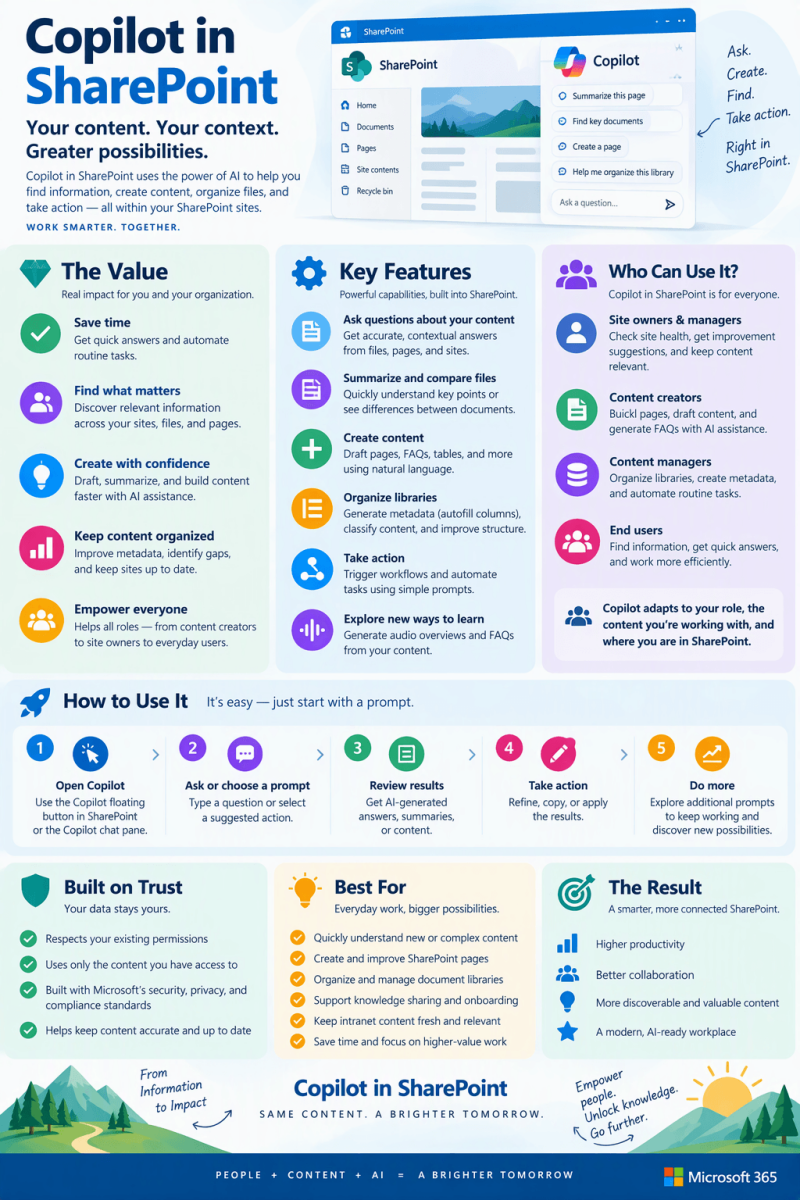
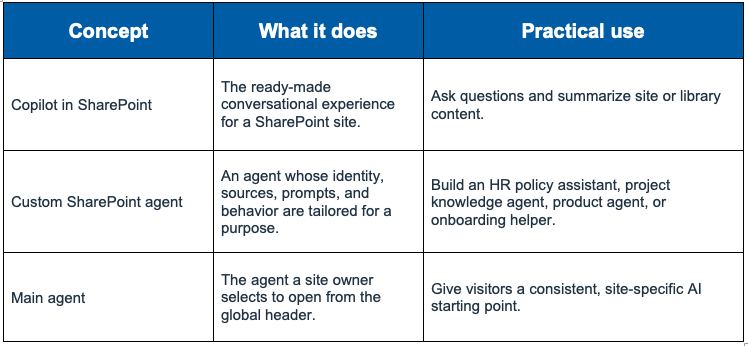
Copilot in SharePoint lets people interact conversationally with SharePoint content. Microsoft describes the experience as the upgrade to the ready-made site agent. Users can ask questions and summarize content, while editors can create purpose-built agents with selected knowledge sources, customized identity, prompts, and behavior.
This guide expands the infographic into practical scenarios for site owners, content managers, content creators, support teams, and everyday users.
1. Why Copilot in SharePoint matters
SharePoint contains an organization’s working knowledge, but value depends on whether people can locate, understand, and reuse that knowledge. Copilot in SharePoint provides a conversational layer over permitted SharePoint content, helping users ask questions about sites, pages, lists, libraries, and files and turn retrieved information into useful answers or drafts.
- Faster understanding: summarize documents and ask focused questions instead of manually reading every file.
- Better knowledge discovery: ask natural-language questions about topics, tasks, projects, and teams using the agent’s configured sources.
- Reusable expertise: create custom agents for a department, project, process, product, or knowledge area.
- Contextual experiences: editors can tune an agent’s name, purpose, sources, welcome message, starter prompts, and instructions.
- Permission-aware answers: an agent only returns information from included SharePoint content that the person already has permission to access.
2. What “Copilot in SharePoint” means
Microsoft’s current SharePoint documentation centers this experience on Copilot and agents in SharePoint. Every site has Copilot in SharePoint for eligible users, and a site owner can choose Copilot or a custom SharePoint agent as the site’s main agent. The main agent opens from the Agent icon in the SharePoint header.
3. Core features
Conversational Q&A
Users can ask questions about permitted content within the agent’s knowledge sources. Follow-up questions can refine the answer.
Example prompt: “What are the major requirements in these policy documents?”
Summarization and synthesis
Microsoft provides summarization as a core interaction. Users can also ask an agent to organize information into useful forms such as tables or outlines.
Example prompt: “Summarize these project files and create a table of the major themes.”
File-focused questions
Users can select files in a document library or attach a specific file in chat and ask questions about that content.
Example prompt: “Compare the selected proposals and identify the main differences.”
Custom knowledge scope
Editors can configure sources including SharePoint sites, libraries, folders, pages, lists, and files.
Example prompt: Create a safety agent that focuses on approved safety procedures and reference material.
Custom identity and behavior
Editors can configure an agent’s name, icon, purpose, welcome message, starter prompts, and instructions.
Example prompt: Create an “Employee Onboarding” agent with prompts for benefits, equipment, and first-week resources.
Site-level main agent
Site owners can choose Copilot or an eligible custom agent as the main agent for the site.
Example prompt: Make the department knowledge agent the default AI experience for a department site.
Sharing and broader access
A custom agent can be shared by link and can also be used in Microsoft Teams and Microsoft Copilot.
Example prompt: Allow a project team to use the same SharePoint-grounded agent while working in Teams.
Chat history
Users can revisit, rename, or delete their own agent chat history.
Example prompt: Return to a previous research thread without recreating the same conversation.
4. A simple usage pattern
- Open From a SharePoint site, page, or document library, open the Agent experience.
- Ask Choose a suggested prompt or enter a natural-language question.
- Focus When helpful, reference or select specific files so the question is grounded in the material you care about.
- Review Read the response and use follow-up questions to narrow, compare, summarize, or restructure the information.
- Reuse Use the resulting answer, summary, table, outline, or draft as a starting point for the next task, validating important details against source content.
5. Practical SharePoint Online use cases
The following examples combine Microsoft-documented interaction patterns with practical prompt ideas. The prompts are starting points and should be adapted to the content, terminology, and permissions of each site.

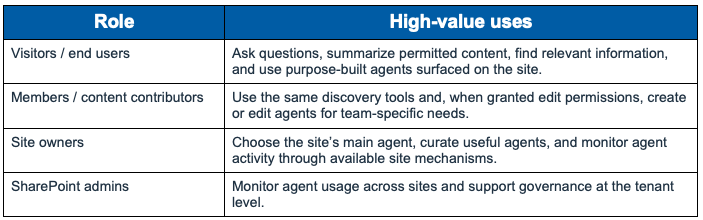
6. How different SharePoint roles can use it
7. Permissions, trust, and governance
Permission trimming is central to the SharePoint agent experience: an agent can use configured sources, but a user receives information only from sources the user already has permission to access. Agent configuration does not grant access to restricted SharePoint content.
- Create agents around clearly defined business purposes and controlled source sets.
- Use meaningful names and purpose statements so users understand what an agent is designed to answer.
- Test starter prompts and agent instructions before broadly sharing an agent.
- Continue applying normal SharePoint information architecture, permissions, content ownership, and lifecycle practices. AI makes high-quality content easier to consume, but it does not replace content governance.
- Validate consequential answers against authoritative source material before acting on them.
8. Licensing, prerequisites, and current considerations
- Microsoft states that interaction with agents in SharePoint requires a Microsoft Copilot license or an organization that has enabled pay-as-you-go billing for agents in SharePoint.
- Creating or editing an agent requires edit permissions on the SharePoint site, in addition to the applicable licensing/billing requirement.
- The agent creation/usage experience is for modern SharePoint Online sites. Microsoft notes that a modern-site agent can use another SharePoint site as a knowledge source, subject to access and supported configuration.
- Microsoft documents a limit of up to 20 source items for an agent; higher-level containers can be selected when broader content is needed.
- Microsoft documents supported file types including common Office documents, PDF, TXT, RTF, HTML, OpenDocument formats, FLUID, and LOOP. Support evolves, so administrators should check current Microsoft documentation when planning a rollout.
- Microsoft documentation also notes an upgrade to the SharePoint agent experience beginning in mid-November 2026, so UI labels and agent-management details may change as the upgrade rolls out.
9. Reusable prompt patterns

10. A practical adoption approach
Start with a bounded scenario
Choose a site with useful, reasonably well-maintained content and a clear audience. A focused pilot makes it easier to learn which questions users actually ask.
Improve the knowledge before the agent
Review permissions, ownership, duplication, obsolete content, naming, and information architecture. Better source material improves the usefulness of any AI-assisted experience.
Design starter prompts intentionally
Give users visible examples aligned to real work: finding a policy, comparing documents, creating an outline, or learning a process.
Teach verification
Encourage users to treat generated responses as assistance, not as a replacement for authoritative records or human judgment.
Review usage and iterate
Site owners and administrators should use available monitoring capabilities and user feedback to decide where agent scope, instructions, or source content should be improved.
11. Microsoft sources used for this guide
- Microsoft Support — Get started with agents in SharePoint: https://support.microsoft.com/en-us/sharepoint/copilot-in-sharepoint/get-started-with-agents-in-sharepoint
- Microsoft Support — Create an agent in SharePoint: https://support.microsoft.com/en-us/sharepoint/copilot-in-sharepoint/create-an-agent-in-sharepoint
- Microsoft Support — Interact with agents in SharePoint: https://support.microsoft.com/en-us/sharepoint/copilot-in-sharepoint/interact-with-agents-in-sharepoint
- Microsoft Support — Frequently asked questions about agents in SharePoint and the rich text editor: https://support.microsoft.com/en-us/sharepoint/copilot-in-sharepoint/frequently-asked-questions-about-copilot-in-sharepoint
- Microsoft Support — Manage agents in SharePoint: https://support.microsoft.com/en-us/sharepoint/copilot-in-sharepoint/manage-agents-in-sharepoint
- Microsoft Support — Edit an agent in SharePoint: https://support.microsoft.com/en-us/sharepoint/copilot-in-sharepoint/edit-an-agent-in-sharepoint
12. Creating and Pre-Populating Metadata in SharePoint Lists and Document Libraries
Metadata is one of the foundations of a well-managed SharePoint environment. Columns describe list items and documents with structured information that users can sort, group, filter, display in views, and use in downstream processes. Microsoft notes that the column type determines how information is stored and displayed, while the columns configured for a list or library determine the fields presented to users when items are added.
Why Site Owners should design metadata intentionally
- Make content easier to filter, group, browse, and manage in useful views.
- Capture consistent business context such as Department, Document Type, Status, Project, Fiscal Year, Owner, Effective Date, or Confidentiality Classification.
- Use controlled values where consistency matters instead of relying exclusively on filenames, folders, or free-form text.
- Give Copilot and automation richer structured information to work with. Microsoft specifically documents Autofill columns as a way for Copilot in SharePoint to extract metadata from file content and populate document-library columns.
Creating columns manually
Site Owners should begin by deciding what information needs to be captured and then select a column type that matches that information. Microsoft documents common column types such as Single line of text, Multiple lines of text, Choice, Number, Currency, Date and Time, Yes/No, Person or Group, Hyperlink, Calculated, and Managed Metadata, with available options varying by SharePoint experience and configuration.
- Open the list or library: Navigate to the SharePoint list or document library that will store the metadata.
- Add the column: Use the list or library column controls to add a column and select the appropriate data type.
- Configure the field: Give the column a clear business name and configure the options appropriate for that column type, such as available choices or whether a value is required.
- Add it to useful views: Expose the column in views where users need to sort, group, filter, or scan by that metadata.
- Test the experience: Add or edit sample items and verify that users understand what value should be entered and that the resulting views work as intended.
Choosing between Choice and Managed Metadata
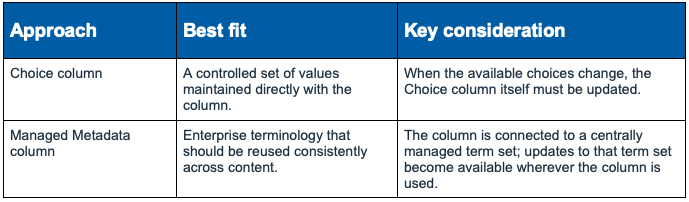
Microsoft describes Managed Metadata as a column type that lets users choose values from a specific managed term set. It supports consistent metadata reuse and features such as type-ahead, term descriptions, synonyms, disambiguation, multilingual values, and a hierarchical term picker.
Pre-populating metadata: three practical approaches
Approach 1: Configure predictable values in the column design
For fields where one value will commonly apply when an item is created, use the column configuration options available for that column type to reduce repetitive entry. Treat this as a design decision: a preselected value should represent the normal case and should not silently misclassify material that belongs elsewhere. Microsoft’s column guidance documents that column options vary by type, so the configuration available for a particular field should be verified when the column is created.
Approach 2: Use controlled terminology
For metadata that should be standardized across sites or libraries, connect a Managed Metadata column to a managed term set. Rather than asking contributors to invent labels, users select from governed terms. This is especially useful for shared classifications such as business function, service, product family, region, information type, or organizational taxonomy.
Approach 3: Use Copilot Autofill columns for document libraries
Microsoft documents Autofill columns in Copilot in SharePoint for document libraries. Copilot analyzes file content and can suggest or create columns, then populate those columns from information found in the files. The resulting metadata can be used to filter, group, or manage files.
- Go to the SharePoint document library you want to organize.
- Open Copilot in SharePoint from the floating button.
- Select Create autofill columns.
- Review Copilot’s suggested columns or request a column that fits the library’s business need.
- Apply the changes. Microsoft notes that processing may take time, and processing status can be checked after the changes are applied.
Important: Microsoft states that Autofill column suggestions are based on the content Copilot analyzes. Creating Autofill columns does not move, rename, or delete files, and existing permissions and access controls continue to apply.
Examples of metadata Site Owners can extract or maintain
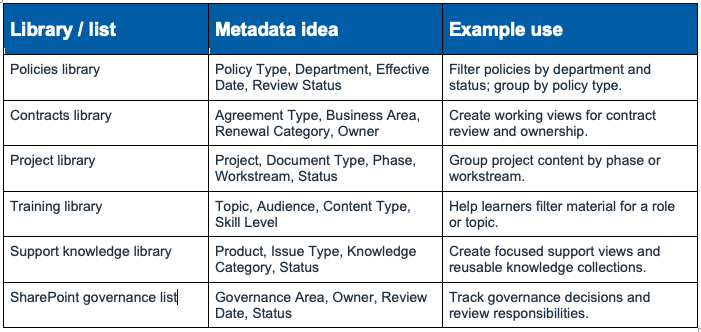
Using metadata with Copilot-assisted automation
Microsoft also documents a library automation scenario in which Copilot in SharePoint helps create or populate columns based on file content, and those metadata columns are then used when configuring library rules or workflows. Copilot does not run the workflow itself. Actions such as moving, renaming, or deleting files occur only when a configured workflow performs those actions.
Site Owner metadata design checklist
- Define the business question each column is intended to answer.
- Choose the correct data type before loading large amounts of content. Microsoft warns that changing a column type after data has been stored can affect the existing data.
- Prefer controlled values when consistent terminology is important.
- Use Managed Metadata when centrally governed, reusable terminology is the requirement.
- Keep the number of required fields reasonable so metadata improves the user experience rather than becoming a barrier to uploading content.
- Create views that visibly use the metadata for filtering, grouping, sorting, and discovery.
- For document libraries, evaluate Copilot Autofill columns when metadata can be derived reliably from file content.
- Review AI-populated metadata for business accuracy, particularly before the metadata drives automation or important decisions.
- Maintain permissions and content governance alongside the metadata model.
Example: AI-assisted policy library
- A Site Owner responsible for a policy library might create structured columns such as Department, Policy Type, Status, and Effective Date. Controlled values can standardize Department, Policy Type, and Status. Where supported and appropriate, Copilot Autofill columns can be configured to extract useful metadata from policy documents. Views can then organize the library around those fields, and selected metadata may be used in rules or workflows. The result is a library where documents are easier to browse and the metadata can support both human navigation and AI-assisted experiences.
Additional Microsoft references for metadata
- Microsoft Support — List and library column types and options: https://support.microsoft.com/en-us/sharepoint/lists/data-and-lists/list-and-library-column-types-and-options
- Microsoft Support — Create Autofill columns: https://support.microsoft.com/en-us/sharepoint/copilot-in-sharepoint/create-autofill-columns
- Microsoft Support — Create a Managed Metadata column: https://support.microsoft.com/en-us/sharepoint/data-and-lists/create-a-managed-metadata-column
- Microsoft Support — Set up metadata navigation for a list or library: https://support.microsoft.com/en-us/sharepoint/sites-in-sharepoint/set-up-metadata-navigation-for-a-list-or-library
- Microsoft Support — Automate workflows in a library: https://support.microsoft.com/en-us/sharepoint/copilot-in-sharepoint/automate-workflows-in-a-library