SharePoint Mentor Curated Articles
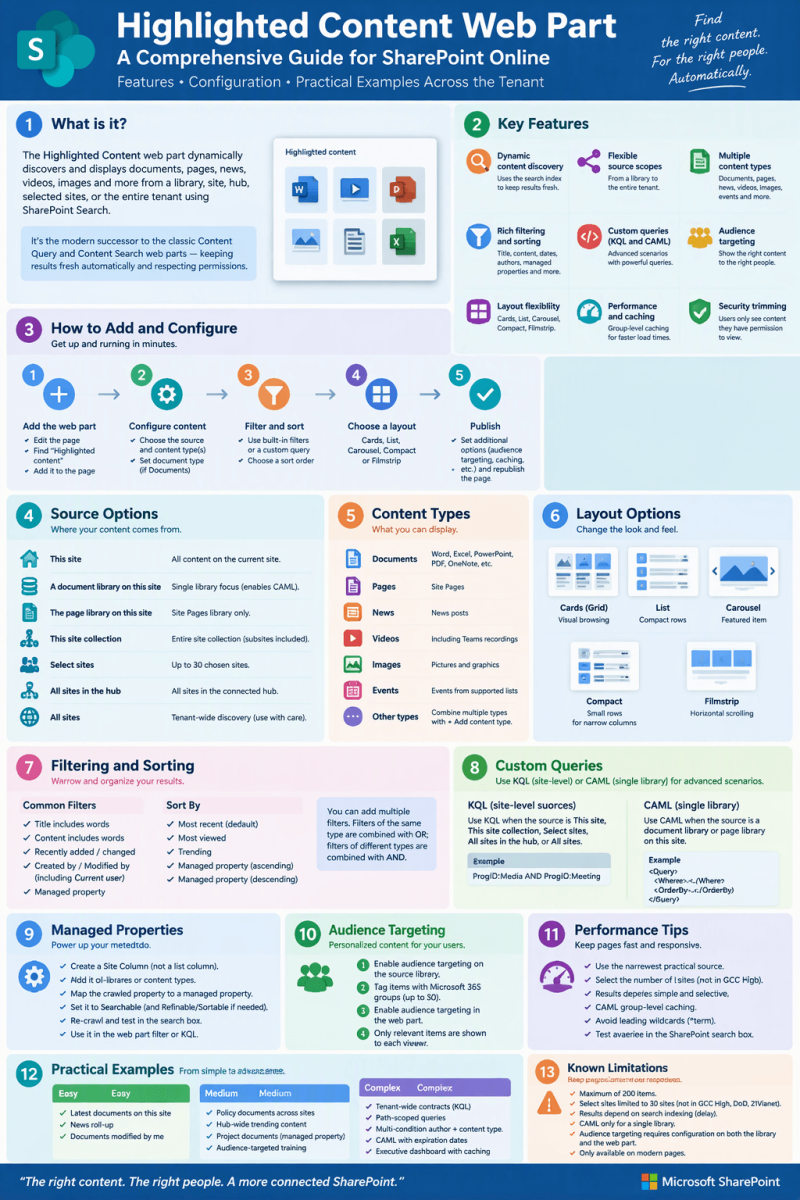
Features • Configuration • Practical Examples Across the Tenant
1. Introduction
- The Highlighted Content web part is one of the most powerful out-of-the-box tools in modern SharePoint Online. It dynamically discovers and displays content—documents, pages, news posts, videos, images, and more—from a single library, the current site, a hub, selected sites, or the entire tenant. Unlike static links or manually curated lists, the web part uses SharePoint Search to keep results fresh automatically as content is added, updated, or removed.
- It is the modern successor to the classic Content Query and Content Search web parts. Because results come from the search index, only items the current user has permission to view are returned, and newly uploaded content may take a few minutes to appear until it is indexed.
- This document provides a complete reference: valuable features, step-by-step configuration, layout options, filtering and sorting, a dedicated deep-dive into KQL queries and performance, managed properties, custom CAML queries, audience targeting, performance considerations, and a set of progressive examples (easy → medium → complex) that demonstrate real-world tenant-wide content discovery.
2. Valuable Features
2.1 Dynamic Content Discovery
The web part continuously queries the SharePoint search index. As soon as new documents or pages are crawled, they become eligible for display. This eliminates the need for site owners to manually maintain “latest documents” or “featured resources” lists.
2.2 Flexible Source Scopes
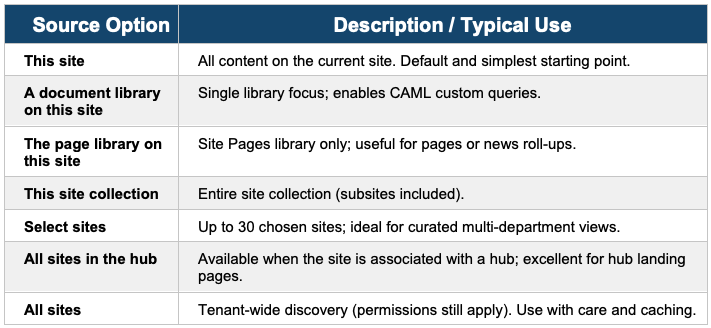
Content can be drawn from multiple scopes:
- This site – all libraries and pages on the current site
- A document library on this site – single library focus
- The page library on this site – Site Pages only
- This site collection – entire site collection
- Select sites – up to 30 individual sites
- All sites in the hub – when the current site is connected to a hub
- All sites – tenant-wide discovery (respecting permissions)
2.3 Multiple Content Types
- You can surface Documents, Pages, News, Videos, Images, Events, and other supported types. Multiple content types can be combined in a single web part instance by using the “+ Add content type” option.
2.4 Rich Filtering and Sorting
- Built-in filters include Title includes words, Content includes words, Recently added/changed, Created by / Modified by (including “Current user”), and Managed properties. Sorting options include Most recent, Most viewed, Trending, and Managed property ascending/descending.
2.5 Custom Queries (KQL and CAML)
- When basic filters are insufficient, switch to Custom query. Site-scoped sources use Keyword Query Language (KQL); single-library sources use CAML. This unlocks powerful scenarios such as filtering by custom metadata, file types, paths, date ranges, and complex Boolean logic.
2.6 Audience Targeting
- When audience targeting is enabled on the source library and in the web part, only items tagged for the viewer’s Azure AD / Microsoft 365 groups are shown. This enables personalized home pages and role-specific resource hubs without creating separate pages.
2.7 Layout Flexibility
Five modern layouts are available:
- Cards (Grid) – thumbnail tiles, ideal for visual browsing
- List – compact text rows for denser information
- Carousel – one large featured item at a time with navigation
- Compact – small rows with mini-thumbnails, excellent for narrow columns
- Filmstrip – horizontal scrollable row of cards
2.8 Performance and Caching
- Group-level caching of search results can be enabled. Results are cached per security group, dramatically improving load times on high-traffic pages such as organization home pages or hub landing pages.
2.9 Security Trimming
- Because the web part relies on search, every result is automatically security-trimmed. Users never see links to content they cannot open.
3. How to Add and Configure the Web Part
3.1 Adding the Web Part to a Page
- Open the modern SharePoint page and select Edit in the upper-right corner.
- In the toolbox on the right, select See all web parts (or the + icon).
- Search for “Highlighted content” and select or drag it onto the page.
- Optionally rename the default title “Most recent documents” by typing over it.
- Select the Edit properties (pencil) icon to open the property pane.
3.2 Content Section – Source and Type
In the property pane, expand Content (or the equivalent section):
- Source – choose the scope (This site, document library, page library, site collection, Select sites, All sites in the hub, or All sites).
- Type – select Documents, Pages, News, Videos, Images, etc. Use + Add content type to combine multiple types.
- Document type (when Documents is selected) – further restrict to Word, Excel, PowerPoint, PDF, OneNote, or Any.
3.3 Filter and Sort
Available basic filters depend on the content type but commonly include:
- Title includes the words
- Content includes the words
- Recently added / Recently changed (with time periods such as Today, Yesterday, This week, etc.)
- Created by / Modified by (Current user or a selected user)
- Managed property (searchable built-in or custom managed properties)
You may add multiple filters. Filters of the same type are combined with OR; filters of different types are combined with AND.
Sort by options: Most recent (default), Most viewed, Trending, Managed property ascending, Managed property descending.
3.4 Custom Query
Select Custom query instead of Filter when you need advanced logic.
- Sources This site / This site collection / Select sites → use KQL.
- A document library or page library on this site → use CAML.
When a site-level source is chosen, SharePoint automatically appends the appropriate site and web IDs to your query. Enter the query string and select Apply.
Example KQL for Teams meeting recordings: ProgID:Media AND ProgID:Meeting
3.5 Audience Targeting
Two steps are required:
- Enable audience targeting on the source library (Library settings → Audience targeting settings → Enable).
- Tag individual items with up to 50 Azure AD / Microsoft 365 groups in the item properties.
- In the Highlighted Content property pane, turn on Enable audience targeting.
3.6 Layout and Display Options
Choose Cards, List, Carousel, Compact, or Filmstrip. Additional options typically include:
- Number of items to show (maximum 200)
- Show title and commands
- Hide the web part when no items match the query (empty state behavior)
3.7 Group-Level Caching
- In the property pane, locate Group-level caching and enter one or more security group names or email addresses. Search results are then cached for members of those groups, improving performance on busy pages. Republish the page after enabling the setting.
4. Using KQL with the Highlighted Content Web Part
- Keyword Query Language (KQL) is the primary way to build powerful, precise queries when the built-in filters are not enough. KQL is available whenever the Source is set to This site, This site collection, Select sites, All sites in the hub, or All sites. (Single-library sources use CAML instead.)
4.1 When to Use KQL
Use a custom KQL query when you need any of the following:
- Complex Boolean logic (multiple AND / OR / NOT combinations)
- Filtering by file extension, content type, or path
- Date-range filtering with precise operators
- Querying custom managed properties created from Site Columns
- Excluding certain content (for example, drafts or specific folders)
- Combining author, title, and metadata conditions in a single expression
4.2 How to Enter a KQL Query
- Edit the Highlighted Content web part and open the property pane.
- Select Custom query (instead of the basic Filter option).
- Choose a site-level Source (This site, Select sites, All sites, etc.).
- Type or paste your KQL statement into the Query text box.
- Select Apply. SharePoint automatically appends the appropriate site and web identifiers.
4.3 Core KQL Syntax Rules
KQL is case-insensitive for operators and property names, but spacing and quoting matter:
- Property:value – no space after the colon is safest (Author:"Alex Morgan").
- Use double quotes for multi-word values or exact phrases.
- AND, OR, NOT must be uppercase.
- Parentheses control evaluation order: (A OR B) AND C.
- Wildcards (*) are supported at the end of terms in many properties.
- Date values use the format YYYY-MM-DD or the special tokens today, yesterday, etc., depending on the property.
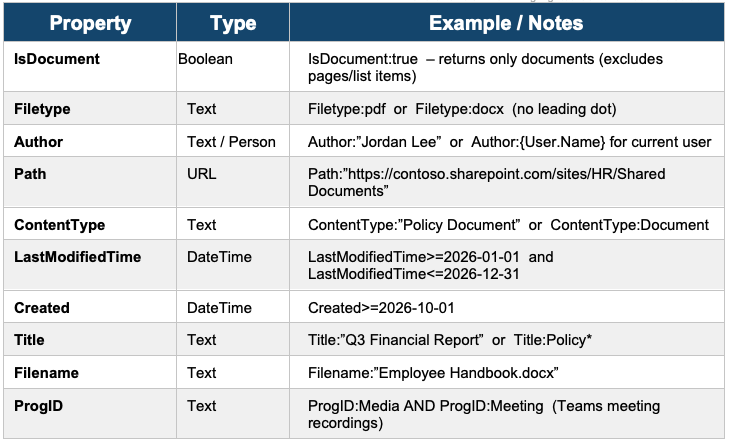
4.4 Frequently Used Built-in Managed Properties
These properties are available out of the box and require no search-schema configuration:
4.5 Using Custom Managed Properties in KQL
Custom managed properties (created from Site Columns) are fully available in KQL once they are mapped and marked searchable. See the dedicated Managed Properties section later in this document for the complete setup process. Common automatic naming patterns include:
- Text / Choice columns → ColumnNameOWSCHCS or ColumnNameOWSTEXT
- Number columns → ColumnNameOWSNMBR
- Date columns → ColumnNameOWSDATE
- Yes/No columns → ColumnNameOWSBOOL
Always test the managed property in the regular SharePoint search box first (for example, ContractsOWSCHCS:Legal). If it returns results there, it will work in the Highlighted Content web part.
4.6 Practical KQL Query Examples
Documents by a specific author
Author:"Alex Morgan"
Only PDF files modified in the last 90 days
Filetype:pdf AND LastModifiedTime>=2026-08-01
Content from a specific library path
Path:"https://contoso.sharepoint.com/sites/Legal/Shared Documents/Contracts"
Path + file type combination
Path:"https://contoso.sharepoint.com/sites/HR/Enrollment" AND Filetype:xlsx
Multiple authors and multiple file types
(Author:"Alex Morgan" OR Author:"Jordan Lee") AND (Filetype:docx OR Filetype:pdf)
Custom managed property (example: Contracts column)
isDocument:true AND (ContractsOWSCHCS:Legal OR ContractsOWSCHCS:Purchasing OR ContractsOWSCHCS:Qualification)
Teams meeting recordings
ProgID:Media AND ProgID:Meeting
Exclude a folder while searching a site
Path:"https://contoso.sharepoint.com/sites/Marketing" AND -Path:"https://contoso.sharepoint.com/sites/Marketing/Archive"
Title contains a phrase and created by current user
Title:"Project Status" AND Author:{User.Name}
4.7 KQL Tips and Common Pitfalls
- Spacing after the colon can change results — prefer no space (Author:"Name").
- Always wrap multi-word values in double quotes.
- Use parentheses liberally when combining several conditions so the intended logic is clear.
- If a custom managed property returns nothing, verify it is marked as Searchable in the search schema and that the content has been re-crawled.
- Path queries are powerful for scoping to a library or folder without switching the web-part Source to a single library (which would force CAML).
- Test complex queries in the SharePoint search box first; if they work there, they will work in the web part.
- Remember that results are still security-trimmed — users only see items they have permission to open.
4.8 KQL Query Performance
KQL queries in the Highlighted Content web part execute against the SharePoint Search index. Query design has a direct impact on page load time, especially on high-traffic pages or when the Source is set to All sites or a large hub.
Factors That Affect Performance
- Source scope – “All sites” or very large hubs return more candidate results and take longer to evaluate than a single site or a short Select sites list.
- Number of result items requested – The web part can return up to 200 items; requesting fewer items (8–20) is noticeably faster.
- Query complexity – Deeply nested Boolean expressions, many OR clauses, or multiple managed-property filters increase evaluation cost.
- Wildcards – Leading or mid-string wildcards are more expensive than trailing wildcards or exact matches.
- Security trimming – The search engine still has to evaluate permissions for every candidate; very broad queries that later discard most items waste work.
- Index freshness – Newly uploaded content is not immediately available; the query itself is fast once the index is up to date.
Performance Best Practices for KQL
- Prefer the narrowest practical Source. Use Select sites or a hub instead of All sites whenever possible.
- Start with high-selectivity conditions (Path, Filetype, ContentType, or a required managed property) before broader text or date filters.
- Limit the number of items displayed in the web-part settings (typically 8–20 for Cards/Filmstrip, 10–30 for List).
- Enable Group-level caching on pages that many users visit. Cached results are served per security group and avoid repeated search calls.
- Avoid leading wildcards (e.g., *report). Prefer Title:report* or exact matches when possible.
- Test the query in the SharePoint search center first. If it is slow there, it will be slow in the web part.
- Keep custom managed properties refinable or sortable only when needed; extra schema complexity can slightly increase index size and query cost.
Recommended Query Patterns for Speed
- Fast – Path + Filetype (highly selective):
- Path:"https://contoso.sharepoint.com/sites/HR/Policies" AND Filetype:pdf
- Good – Managed property first, then date range:
- ContractsOWSCHCS:Legal AND LastModifiedTime>=2026-01-01
- Slower – Broad tenant search with many ORs (use only when necessary and with caching):
- (Author:"Alex Morgan" OR Author:"Jordan Lee" OR Author:"Sam Rivera") AND (Filetype:docx OR Filetype:pdf OR Filetype:xlsx)
Monitoring and Troubleshooting Slow Queries
- Temporarily reduce the number of items returned; if the page becomes fast, the result-set size was the bottleneck.
- Switch the Source from All sites to Select sites (or a hub) and re-test.
- Simplify the KQL by removing the least selective clauses one at a time.
- Confirm that Group-level caching is enabled and that the security groups are correctly specified.
- In the SharePoint Admin Center, review Search usage analytics if available to identify expensive queries across the tenant.
5. Managed Properties for the Highlighted Content Web Part
- Managed properties are the bridge between the metadata stored on SharePoint content and the search queries used by the Highlighted Content web part. Understanding how they work is essential for reliable filtering, sorting, and custom KQL.
5.1 What Are Managed Properties?
SharePoint Search works with two related concepts:
- Crawled properties – Automatically discovered attributes of content (for example, the value of a Site Column, the file name, or the author). Every time content is crawled, these properties are extracted.
- Managed properties – The searchable, refinable, or sortable “views” of crawled properties that you (or SharePoint) expose to queries. The Highlighted Content web part, KQL, and the search box all query managed properties, never crawled properties directly.
Built-in managed properties (Author, Filetype, Path, Title, LastModifiedTime, IsDocument, ContentType, etc.) are already mapped and ready to use. Custom managed properties must be created when you want to filter on your own Site Columns.
5.2 Why Managed Properties Matter for Highlighted Content
- Basic filters in the web part can use managed properties directly (the “Managed property” filter option).
- Custom KQL queries rely on managed property names (for example, ContractsOWSCHCS:Legal).
- Sorting by a custom column requires the managed property to be marked Sortable.
- Without a properly mapped and searchable managed property, your custom metadata is invisible to the web part.
5.3 Creating a Custom Managed Property – Step by Step
- Follow these steps to make a Site Column available for filtering and KQL in the Highlighted Content web part:
Step 1 – Create a Site Column (not a list column)
- Always create the column as a Site Column (Site Settings → Site Columns → Create). List columns that are later promoted are harder to manage and may not surface cleanly in search. Publish the Site Column if you use a content type hub or want it available across many sites.
Step 2 – Add the column to the relevant libraries or content types
- Add the Site Column to the document libraries (or content types) that will hold the content you want to surface. Populate values on existing items.
Step 3 – Wait for a crawl (or request a re-index)
- SharePoint Online continuously crawls content. For faster results on a specific library, go to Library Settings → Advanced settings → Reindex Document Library. For a whole site, use Site Settings → Search and offline availability → Reindex site.
Step 4 – Map the crawled property to a managed property
In the SharePoint Admin Center:
- Go to More features → Search → Manage Search Schema.
- Under Managed Properties, search for an existing auto-created property or create a new one.
- Map the corresponding crawled property (often named ows_ColumnName or similar) to the managed property.
- Set the property to Searchable (required for KQL and the Managed property filter).
- Optionally set Refinable and/or Sortable if you need those capabilities.
- Save the managed property.
Step 5 – Wait for the mapping to become active and re-crawl
- After mapping, allow time for the change to propagate and for content to be re-crawled. Test availability by searching for the managed property in the regular SharePoint search box (for example, MyColumnOWSCHCS:Value).
Step 6 – Use the managed property in the web part
- Once the property appears in search results, you can use it in the Highlighted Content web part’s basic “Managed property” filter or in any custom KQL query.
5.4 Common Managed Property Naming Patterns
- SharePoint automatically creates crawled properties and often auto-creates managed properties with predictable suffixes:

Note: Exact names can vary. Always verify the actual managed property name in the Search Schema or by testing in the search box.
5.5 Using Managed Properties in the Web Part
There are two main ways to use a managed property:
- Basic Filter (no KQL required)
- In the property pane, choose Filter → Managed property, start typing the property name, select it from the list, and enter the value or comparison you need.
- Custom KQL
- In a Custom query, reference the managed property directly, for example: DepartmentOWSCHCS:Finance AND Filetype:pdf
5.6 Best Practices for Managed Properties
- Prefer Site Columns over list columns from the start.
- Use consistent naming and a content type strategy so the same managed property can be used across many sites.
- Mark a property Searchable only when you need it in queries; avoid making every column searchable.
- Set Sortable or Refinable only when those capabilities are required.
- Document the managed property names used by your Highlighted Content web parts so future site owners know how to tag content.
- After creating or changing a mapping, always verify with a simple search-box query before configuring the web part.
- Allow time for crawling; newly mapped properties will not appear instantly.
5.7 Troubleshooting Managed Properties
- Property does not appear in the Managed property filter list → Confirm it is Searchable and that a crawl has completed after the mapping.
- KQL returns no results → Test the exact same query in the SharePoint search box. Check spelling, colon placement, and quoting.
- Values are missing → Ensure items actually have the column populated and that the library has been re-indexed.
- Wrong data type behavior → Verify the managed property type matches the column type (text vs. number vs. date).
6. Practical Examples
The following examples progress from simple single-site configurations to sophisticated tenant-wide discovery patterns that leverage managed properties and custom queries.
6.1 Easy Examples
Example E1 – Most Recent Documents on the Current Site
Goal: Show the eight newest documents from any library on the current team or communication site.
- Source: This site
- Type: Documents (Any)
- Filter: leave blank or use Recently changed → This week
- Sort by: Most recent
- Layout: Cards or List; number of items = 8
Example E2 – News Roll-up from the Current Site
Goal: Display the latest news posts on a department home page.
- Source: This site (or The page library on this site)
- Type: News
- Sort by: Most recent
- Layout: Cards or Carousel; 4–6 items
Example E3 – Documents Modified by Me
Goal: Give each user a personal “My recent work” view on a shared page.
- Source: This site or All sites
- Type: Documents
- Filter: Modified by → Current user
- Sort by: Most recent
- Layout: Compact or List
6.2 Medium Examples
Example M1 – Policy Documents Across Selected Department Sites
Goal: Surface HR, Legal, and Finance policy PDFs from three different sites on a single “Policies” page.
- Source: Select sites → choose the three department sites (up to 30 allowed)
- Type: Documents; Document type: PDF
- Filter: Title includes the words → “Policy” (or add multiple title filters for OR logic)
- Sort by: Most recent or Title
- Layout: List or Cards; 12–20 items
Example M2 – Hub-Wide Trending Content
Goal: On a hub landing page, show content that is currently trending across all associated sites.
- Source: All sites in the hub
- Type: Documents + Pages (or News)
- Sort by: Trending
- Layout: Filmstrip or Cards; 8–12 items
Example M3 – Project Documents Tagged with a Managed Property
Goal: Show only documents whose custom Site Column “ProjectCode” equals a specific value (e.g., “PRJ-2026-Alpha”).
Prerequisite: Create the Site Column, add it to the relevant libraries, ensure it is crawled and mapped to a searchable Managed Property (for example ProjectCodeOWSCHCS).
- Source: This site collection or Select sites
- Type: Documents
- Filter: Managed property → ProjectCodeOWSCHCS → equals PRJ-2026-Alpha
- Layout: Cards or List
Example M4 – Audience-Targeted Training Materials
Goal: On a company learning hub, show different training packages to Managers versus Individual Contributors.
- Enable audience targeting on the Training library and tag documents with the appropriate Microsoft 365 groups.
- Source: A document library on this site (or Select sites)
- Type: Documents
- Enable audience targeting in the web part
- Layout: Cards; number of items as needed
6.3 Complex Examples
Example C1 – Tenant-Wide Contract Documents Using KQL and a Shared Site Column
Goal: Roll up all contract-related documents from Legal, Quality, and Purchasing sites that share a common “Contracts” Site Column value.
Prerequisites: Publish the same Site Column to the three sites (or use a content type hub), tag documents, and confirm the Managed Property (e.g., ContractsOWSCHCS) is searchable.
Configuration:
- Source: All sites (or Select sites for the three departments)
- Switch to Custom query
- KQL example: isDocument:true AND (ContractsOWSCHCS:Legal OR ContractsOWSCHCS:Purchasing OR ContractsOWSCHCS:Qualification)
- Layout: List or Cards; enable group-level caching for performance
Example C2 – Path-Scoped KQL for a Specific Library Across Sites
Goal: Show only Excel workbooks from a known “Enrollment” library path that have been modified in the last 90 days.
- KQL: Path:"https://contoso.sharepoint.com/sites/HR/Enrollment" AND Filetype:xlsx AND LastModifiedTime>=2026-08-01
Example C3 – Multi-Condition KQL with Author and Content Type
Goal: Display Word or PDF documents created by a specific set of authors that belong to a custom content type “PolicyDocument”.
- KQL: (Author:"Alex Morgan" OR Author:"Jordan Lee") AND (Filetype:docx OR Filetype:pdf) AND ContentType:PolicyDocument
Example C4 – CAML Query Against a Single Library (Expiration-Aware Documents)
Goal: From one document library, show only items whose “Expires” date is today or in the future, sorted by Modified date.
- Source: A document library on this site → Custom query → CAML:
- <Query><Where><Geq><FieldRef Name="Expires"/><Value Type="DateTime"><Today/></Value></Geq></Where><OrderBy><FieldRef Name="Modified"/></OrderBy></Query>
Example C5 – Combined Tenant Discovery with Audience Targeting and Caching
Goal: Create an executive dashboard page that shows the most viewed documents from the entire tenant that are tagged for the “Leadership” audience, while keeping page performance high.
- Source: All sites
- Type: Documents
- Enable audience targeting (items must be tagged with the Leadership group)
- Sort by: Most viewed
- Enable Group-level caching and specify the Leadership security group
- Layout: Cards; limit to 10–15 items for a clean executive view
7. Best Practices and Considerations
7.1 Search Index Dependency
- Results depend on the search crawl. New or recently renamed content can take several minutes (sometimes longer) to appear. If content is missing, verify that the library is searchable, that the item has been crawled, and that the user has permission.
7.2 Managed Properties (Quick Reference)
- For reliable filtering by custom metadata, always create Site Columns (not list columns) and map the corresponding crawled properties to managed properties that are searchable and, if needed, refinable or sortable. Test the managed property in regular SharePoint Search before using it in the web part.
7.3 Performance
- Prefer narrower sources (Select sites or hub) over “All sites” when possible. Enable group-level caching on high-traffic pages. Limit the number of items displayed; the absolute maximum is 200, but fewer items produce a better user experience.
7.4 Empty States and Titles
- Give every instance a clear, user-friendly title. Consider hiding the web part when no results are returned if an empty section would confuse visitors.
7.5 Governance
Document the Site Columns and Managed Properties used by Highlighted Content web parts. Include them in your information architecture and content type strategy so that content owners know how to tag items for discovery.
8. Known Limitations
- Maximum of 200 items returned.
- Select sites is limited to 30 sites and is unavailable in certain sovereign clouds (GCC High, DoD, 21Vianet).
- Results are subject to search indexing latency.
- CAML is only available when the source is a single document or page library on the current site.
- Audience targeting requires configuration both on the library and in the web part; newly created groups may take time to take effect.
- The web part is available only on modern pages.
9. Summary
The Highlighted Content web part is an essential building block for modern SharePoint intranets and knowledge hubs. By combining flexible source scopes, content-type filtering, managed properties, KQL/CAML custom queries, audience targeting, and multiple visual layouts, it enables site owners to surface the right content to the right people—automatically and at scale—across an entire SharePoint Online tenant.
Start with simple “most recent” or “news” configurations, then progressively introduce managed metadata, custom queries, and audience targeting as your information architecture matures. When used thoughtfully, the web part dramatically reduces manual curation effort while improving content discoverability and user engagement.
10. Quick Reference – Source Options