

SharePoint Mentor Curated Articles
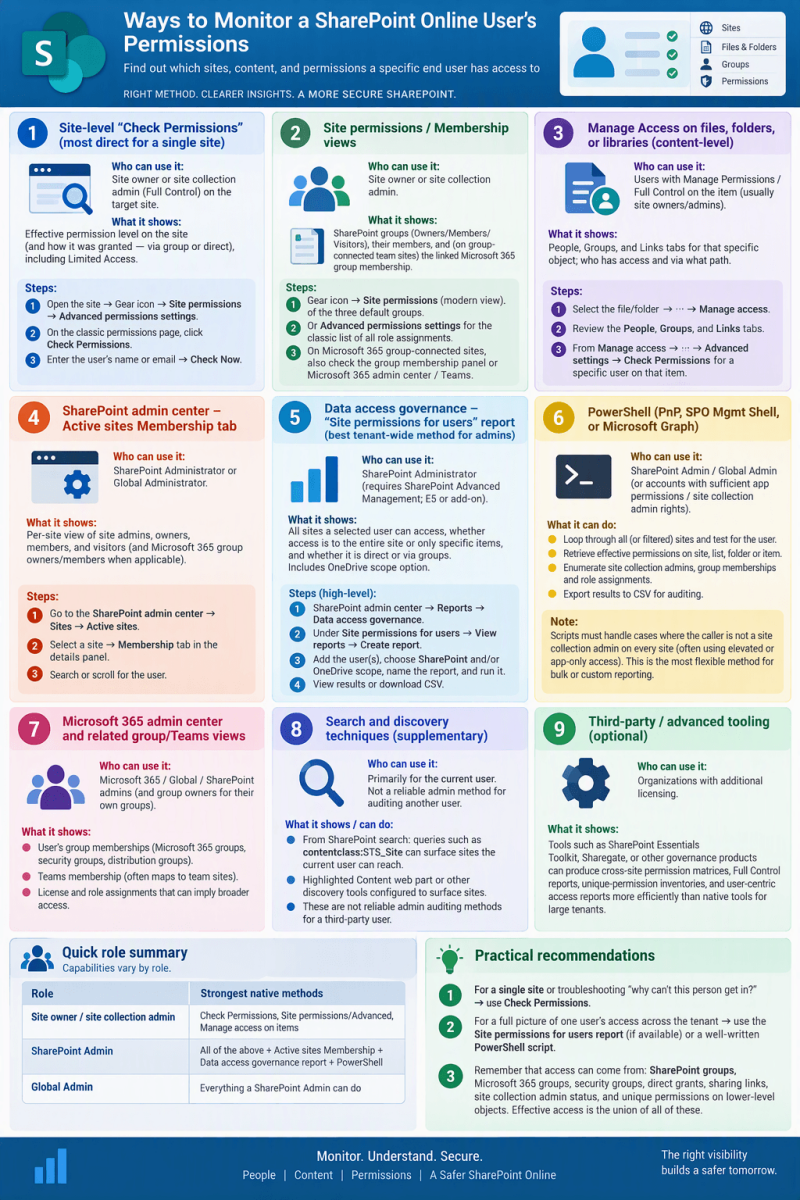
Here is a practical list of methods a SharePoint Online site owner, site admin, or SP Admin can use to determine the sites, content, and permissions a specific end user has access to in the tenant. Capabilities vary by role.
1. Site-level “Check Permissions” (most direct for a single site)
Who can use it: Site owner or site collection admin (Full Control) on the target site.
What it shows: Effective permission level on the site (and how it was granted—via group or direct), including Limited Access when the user only reaches specific content inside the site.
Steps:
- Open the site → Gear icon → Site permissions → Advanced permissions settings.
- On the classic permissions page, click Check Permissions.
- Enter the user’s name or email → Check Now.
This is the fastest way to troubleshoot access issues on one site. It does not automatically surface every uniquely permissioned file/folder deeper in the site.
2. Site permissions / Membership views (site owner or site admin)
Who can use it: Site owner or site collection admin.
What it shows: SharePoint groups (Owners/Members/Visitors), their members, and (on group-connected team sites) the linked Microsoft 365 group membership.
Steps:
- Gear icon → Site permissions (modern view of the three default groups).
- Or Advanced permissions settings for the classic list of all role assignments.
- On Microsoft 365 group-connected sites, also check the group membership panel or Microsoft 365 admin center / Teams for the underlying Owners/Members lists.
Direct grants and sharing links are easier to miss here than with Check Permissions.
3. Manage Access on files, folders, or libraries (content-level)
Who can use it: Users with Manage Permissions / Full Control on the item (usually site owners/admins).
What it shows: People, Groups, and Links tabs for that specific object; who has access and via what path.
Steps:
- Select the file/folder → … → Manage access.
- Review the three tabs.
- From Manage access → … → Advanced settings → Check Permissions for a specific user on that item.
Useful for verifying unique permissions or sharing-link access.
4. SharePoint admin center – Active sites Membership tab
Who can use it: SharePoint Administrator or Global Administrator.
What it shows: Per-site view of site admins, owners, members, and visitors (and Microsoft 365 group owners/members when applicable).
Steps:
- Go to the SharePoint admin center → Sites → Active sites.
- Select a site → Membership tab in the details panel.
- Search or scroll for the user.
You can repeat this across sites or export the Active sites list (primary admin only is shown in the list itself). This does not give a full cross-tenant “all sites this user can reach” view by itself.
5. Data access governance – “Site permissions for users” report (best tenant-wide method for admins)
Who can use it: SharePoint Administrator (requires SharePoint Advanced Management / appropriate licensing; E5 or the add-on).
What it shows: All sites a selected user can access, whether access is to the entire site or only specific items, and whether it is direct or via groups. Includes OneDrive scope option.
Steps (high-level):
- SharePoint admin center → Reports → Data access governance.
- Under Site permissions for users → View reports → Create report.
- Add the user(s), choose SharePoint and/or OneDrive scope, name the report, and run it.
- View results (sites + access extent) or download CSV.
This is the purpose-built report for answering “which sites does this user have access to?” across the tenant. Reports are snapshots (data can lag up to ~48 hours) and have limits on frequency and number of concurrent reports.
6. PowerShell (PnP PowerShell, SharePoint Online Management Shell, or Microsoft Graph)
Who can use it: SharePoint Admin / Global Admin (or accounts with sufficient app permissions / site collection admin rights on the sites being queried).
What it can do:
- Loop through all (or filtered) sites and test whether a user appears via Get-SPOUser, Get-PnPUser, or equivalent.
- Retrieve effective permissions on a site, list, folder, or item (GetUserEffectivePermissions / PnP equivalents).
- Enumerate site collection admins, group memberships, and role assignments.
- Export results to CSV for auditing.
Common pattern: get all sites → for each site check for the user or call effective-permission methods. Scripts must handle cases where the caller is not a site collection admin on every site (often by temporarily elevating or using app-only access). This is the most flexible method for bulk or custom reporting.
7. Microsoft 365 admin center and related group/Teams views
Who can use it: Microsoft 365 / Global / SharePoint admins (and group owners for their own groups).
What it shows:
- User’s group memberships (Microsoft 365 groups, security groups, distribution groups) that may grant SharePoint access.
- Teams membership (which often maps to group-connected team sites).
- License and role assignments that can imply broader access.
Indirect but important: many modern team sites inherit access from the Microsoft 365 group. Checking group membership often explains site access without opening every site.
8. Search and discovery techniques (supplementary)
- From SharePoint search: queries such as contentclass:STS_Site (or more refined queries) can surface sites the current user can reach; less useful for auditing another user.
- Highlighted Content web part or other discovery tools configured to surface sites.
- These are not reliable admin auditing methods for a third-party user.
9. Third-party / advanced tooling (optional)
- Tools such as SharePoint Essentials Toolkit, Sharegate, or other governance products can produce cross-site permission matrices, Full Control reports, unique-permission inventories, and user-centric access reports more efficiently than native tools for large tenants. These require additional licensing.
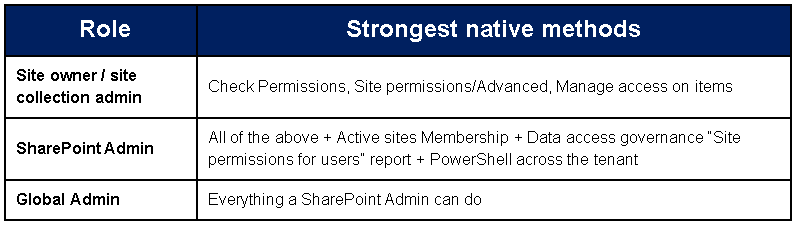
Quick role summary
Practical recommendations:
- For a single site or troubleshooting “why can’t this person get in?” → use Check Permissions.
- For a full picture of one user’s access across the tenant → use the Site permissions for users report (if available) or a well-written PowerShell script.
- Always remember that access can come from: SharePoint groups, Microsoft 365 groups, security groups, direct grants, sharing links, site collection admin status, and unique permissions on lower-level objects. Effective access is the union of all of these.