

SharePoint Mentor Curated Articles
CHANGE HOW PEOPLE SHARE - A PRACTICAL PERMISSIONS & GOVERNANCE GUIDE
Why this setting matters
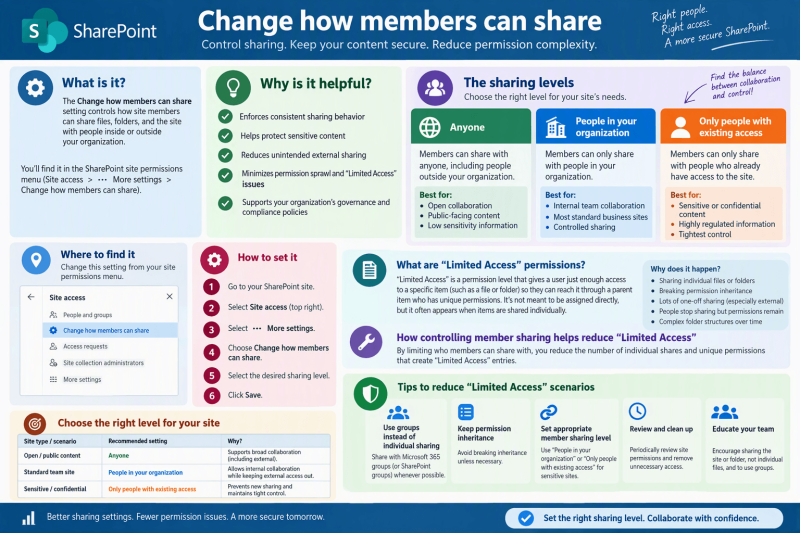
“Change how members can share” lets site owners decide whether members can share the site and/or individual files and folders, or whether sharing is reserved for site owners. Used deliberately, it can reduce ad-hoc permission grants, improve owner oversight, and make access patterns easier to govern.
1. What the feature controls
In modern SharePoint, site permissions and sharing are related but not identical. This control focuses on what site members are allowed to share. It is especially useful when an organization wants collaboration to remain easy while reducing uncontrolled direct permissions and one-off sharing decisions.
2. Why it is helpful
The setting gives site owners a governance lever between unrestricted member sharing and tightly controlled owner-managed sharing. It is useful for sensitive sites, project workspaces, migration clean-up, and environments preparing content permissions for Microsoft 365 Copilot or other AI experiences.
- Creates clearer accountability for sharing decisions.
- Helps discourage unnecessary item-level sharing and permission exceptions.
- Supports a group-first model using Owners, Members, Visitors, Microsoft 365 groups, or approved security groups.
- Can route access requests to site owners when members are not allowed to grant access directly.
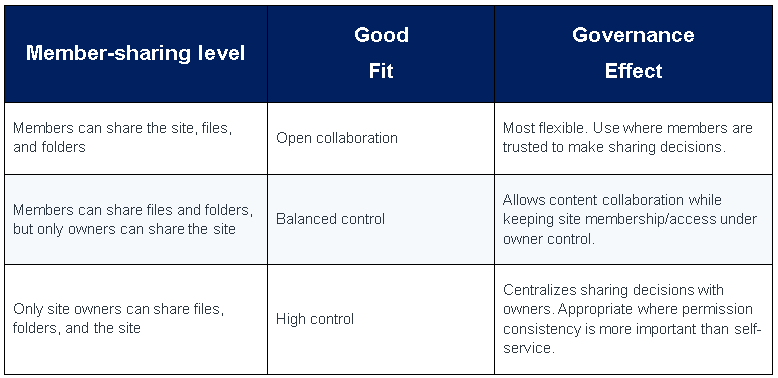
3. Sharing levels and when to use them
4. How to configure it
- Open Site permissions: From the SharePoint site, open Settings and choose Site permissions.
- Open the sharing control: Select “Change how members can share” (wording can vary slightly by experience).
- Choose the appropriate level: Select the level that matches the site’s collaboration and governance requirements.
- Configure access requests: If sharing is restricted, make sure access requests have a responsible site owner or mailbox to review them.
- Review regularly: Periodically review site membership, direct access, sharing links, and unique permissions, especially after projects or migrations.
5. Understanding “Limited Access”
- Limited Access is a SharePoint system permission used to let a person reach a specific item when they do not otherwise have access to the broader site, library, or folder hierarchy. It commonly appears when content has unique permissions or when a specific file or folder has been shared. The presence of Limited Access is not, by itself, an error; frequent appearances can be a signal that permissions have become fragmented.
- Important: Changing member-sharing behavior does not automatically remove existing Limited Access entries or unique permissions. It is a preventive governance control. Existing exceptions should be reviewed and, where appropriate, consolidated.
6. Reducing Limited Access scenarios
- Prefer group-based access — Add people to the appropriate site or Microsoft 365 group instead of repeatedly granting direct permissions to individual files, folders, or libraries.
- Reduce unique permissions — Where practical, restore inheritance and manage access at the site, library, or logical folder boundary rather than item by item.
- Choose a more restrictive member-sharing level — For tightly governed sites, allow only owners to share. For collaborative sites, consider allowing members to share files/folders while reserving site sharing for owners.
- Use access requests rather than workarounds — When users need additional access, have owners evaluate whether the person belongs in a standard group instead of creating another isolated permission grant.
- Review before and after migrations — Box-to-SharePoint or file-share migrations can reproduce legacy permission complexity. Normalize groups, ownership, and inheritance before adding new sharing exceptions.
- Audit sharing links and direct access — Periodically inspect who has access, remove obsolete links or individual grants, and keep the site’s permission model understandable.
7. Recommended decision model
- Open team workspace: Members may share broadly when collaboration speed is the priority and content is not highly sensitive.
- Typical governed team/project site: Members share files and folders; owners control site-level sharing and membership.
- Sensitive or tightly controlled site: Only owners share, with a documented access-request process and periodic permission review.
8. Practical governance checklist
- Define who owns the site and who approves access.
- Use standard groups before direct user permissions.
- Select the member-sharing level based on the site’s sensitivity and collaboration model.
- Avoid breaking inheritance unless there is a clear business requirement.
- Review unique permissions, direct access, and sharing links periodically.
- Document exceptions and remove them when the business need ends.
Microsoft guidance
This guide aligns with Microsoft’s current guidance that team-site permissions are best managed through the associated Microsoft 365 group or Team, while communication sites use SharePoint Owners, Members, and Visitors groups. Microsoft also documents that site sharing can be restricted so only site owners can share the site, and that administrators can set organization- and site-level sharing restrictions.
- Sharing and permissions in the SharePoint modern experience — https://learn.microsoft.com/en-us/sharepoint/modern-experience-sharing-permissions
- Customize SharePoint site permissions — https://learn.microsoft.com/en-us/sharepoint/customize-sharepoint-site-permissions
- Change the sharing settings for a site — https://learn.microsoft.com/en-us/sharepoint/change-external-sharing-site