

SharePoint Mentor Curated Articles
SharePoint Online Audience Targeting Deep Dive
What it is • Where it works • How to configure it • What users experience
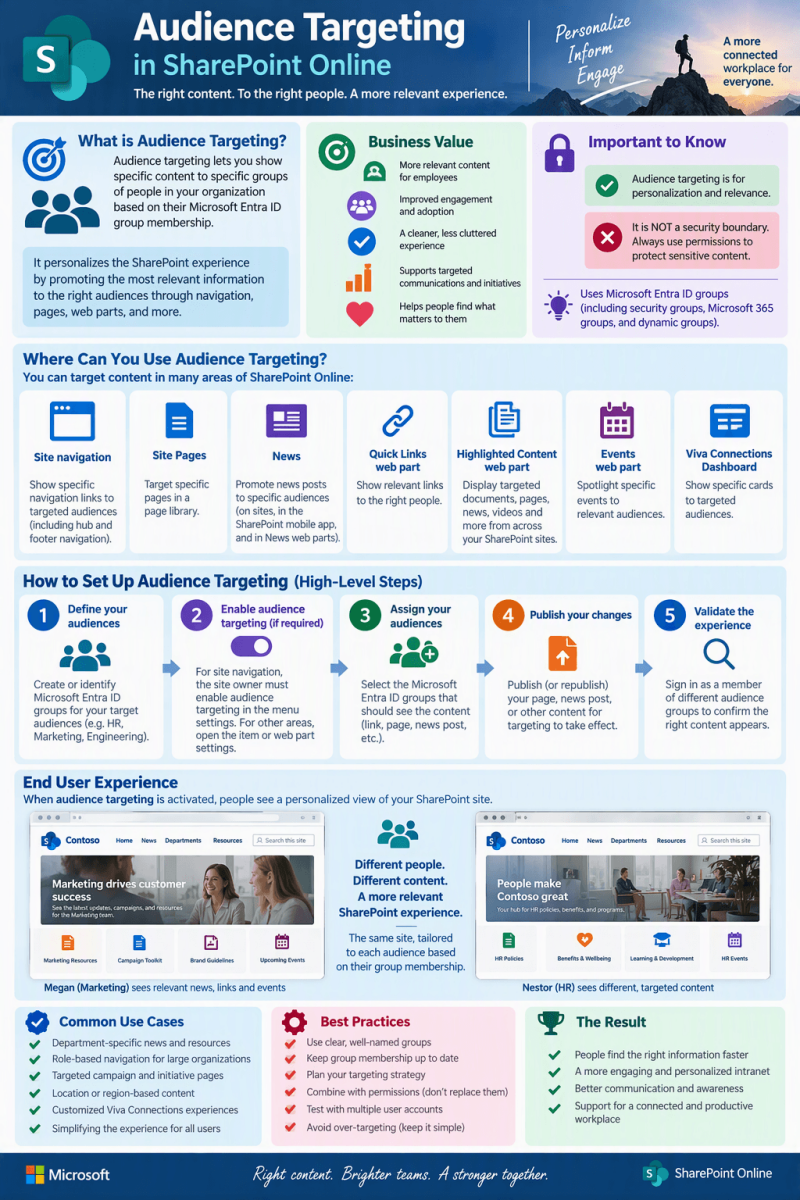
Audience targeting makes a shared SharePoint experience more relevant by prioritizing content, links, news, events, and other supported experiences for defined groups. It is a presentation and relevance capability, not a replacement for permissions.
1. Summary
Audience Targeting in SharePoint Online lets site owners and editors tailor supported content and navigation to defined audiences. Microsoft describes the feature as a way to help the most relevant content reach the right audiences, with targeted items prioritized through SharePoint web parts, page libraries, and navigation. This can make broad intranets, department portals, project sites, and communication sites feel more relevant without requiring a separate site for every audience.
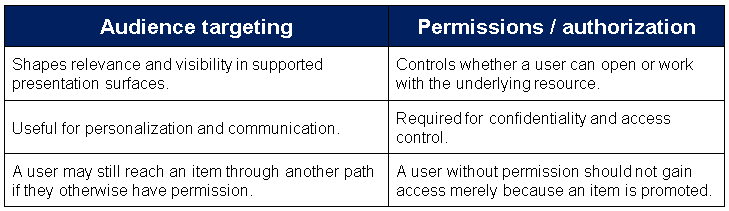
Important distinction: Audience targeting controls what is promoted or surfaced in supported experiences. It should not be treated as a security boundary. Use SharePoint and Microsoft 365 permissions to control whether someone is authorized to access content.
Business value
- Relevance: people can be presented with links, news, events, pages, or content that is intended for their role, department, location, or community.
- Cleaner experiences: a common navigation or landing page can serve several audiences without showing every promoted choice to everyone.
- Communication focus: important news can be aimed at the employees for whom it matters most.
- Scalability: organizations can reuse Microsoft Entra ID-backed groups rather than maintaining audience logic separately in each page experience.
- Governance: when paired with clear group ownership and content-owner responsibilities, targeting can support a more intentional information architecture.
2. What Audience Targeting Is
Audience targeting is a personalization mechanism in the modern SharePoint experience. An editor associates supported items with one or more groups, and supported SharePoint experiences use those audience assignments to prioritize or display relevant items for a signed-in user. Microsoft documents support for Microsoft 365 groups, security groups, and Microsoft Entra ID dynamic groups, with notes that dynamic-group support may vary in some scenarios or tenants.
What it is not
3. Where Audience Targeting Can Be Used
Microsoft currently documents audience targeting across several modern SharePoint and Viva experiences:

Design principle: Use targeting where the same site or portal legitimately serves multiple populations. If content must be confidential, solve access with permissions first, then use targeting to improve presentation.
4. How to Set It Up
- The exact control differs by experience, but the implementation pattern is consistent: define reliable groups, enable audience targeting in the relevant SharePoint surface, assign audiences to items, configure the consuming web part or navigation when necessary, and publish or republish changes.
Step 1: Define audiences
- Use well-governed Microsoft 365 groups, security groups, or supported Microsoft Entra ID dynamic groups.
- Give groups meaningful names and owners so editors understand who is actually included.
- Prefer reusable business audiences such as departments, regions, roles, or programs over one-off groups created only for a single link.
Step 2: Enable targeting in the content source or navigation
- For navigation, a site owner edits the menu and enables the site navigation audience-targeting option, saves it, then edits individual links and identifies the intended groups. Microsoft notes that after targeting is enabled for navigation, site editors can target menu links.
- For libraries or pages, a site owner enables audience targeting for the library. Once the relevant audience field is available, editors assign audiences to the appropriate pages or items. Microsoft notes that the site owner must enable audience targeting for a library for the first time.
Step 3: Configure supported web parts
- For supported web parts such as News, Quick Links, Highlighted Content, and Events, edit the web part and enable its audience-targeting option where provided. This tells the web part to use the audience metadata when presenting items.
Step 4: Assign the audience
- Edit the supported item or link and select the group or groups that represent the intended audience. Microsoft documents that a targeted navigation link can be associated with up to 10 Microsoft 365 groups or security groups.
Step 5: Publish and validate
- Publish or republish pages after changing page content, metadata, or audience-targeting settings so the changes can take effect. Microsoft also notes that newly created or changed groups may take some time before targeting is reflected.
5. Practical Configuration Scenarios
Scenario A: Corporate intranet navigation
- A company has one shared intranet but different departmental resources. The site owner enables targeting on the navigation, then associates Finance resources with the Finance group, HR resources with the HR group, and field-service resources with the appropriate operations group. The result is a less cluttered navigation experience while keeping common corporate links available to everyone.
Scenario B: Department-specific news
- A communications team publishes news for the entire organization alongside posts intended for narrower groups. Audience metadata is applied to the targeted posts and the News web part is configured to use audience targeting. Employees see the general communications plus the targeted news relevant to their group context.
Scenario C: Role-based resource landing page
- A single landing page can use Quick Links and other supported experiences to promote different tools or guidance to managers, site owners, project teams, or regional groups. The page itself remains common, while selected promoted elements are personalized.
6. End-User Experience
For end users, audience targeting is designed to feel like relevance rather than a filtering task. Users do not normally choose an audience each time they visit. Instead, SharePoint evaluates the targeting configured by editors and the user’s group context, then supported surfaces prioritize or display the appropriate targeted items.
- Navigation can appear simpler because targeted links are promoted to the intended audiences.
- News experiences can emphasize posts intended for the current user’s audience.
- Quick Links, Highlighted Content, Events, and Viva Connections cards can present different promoted choices to different groups when those experiences are configured for targeting.
- Users still need appropriate permissions to open protected resources. Targeting does not grant access.
- Changes in group membership or newly created groups may not appear immediately.
What users should notice: Less noise, more relevant choices, and fewer “which link applies to me?” decisions. Ideally, the targeting logic is invisible and the portal simply feels better curated.
7. Governance and Design Recommendations
- Security first: never use audience targeting as the sole mechanism for protecting sensitive information.
- Keep audience taxonomy understandable: define a small set of reusable, business-owned groups whenever possible.
- Assign group owners: targeting quality depends on group membership quality.
- Test with representative accounts: validate how common, targeted, and non-targeted content behaves for several audience combinations.
- Plan for overlap: employees may belong to several audiences, so avoid duplicate or contradictory promoted content.
- Document ownership: identify who can enable targeting, who manages groups, and who maintains targeted content.
- Review periodically: obsolete links and stale audience assignments can undermine the value of personalization.
Targeting decision checklist
- Does this content need security restrictions, personalization, or both?
- Is there an existing authoritative group that represents the audience?
- Is the chosen SharePoint surface documented to support audience targeting?
- Will the experience still make sense for users who belong to multiple groups?
- Have we published/republished the relevant changes and tested with representative users?
8. Common Issues and Troubleshooting

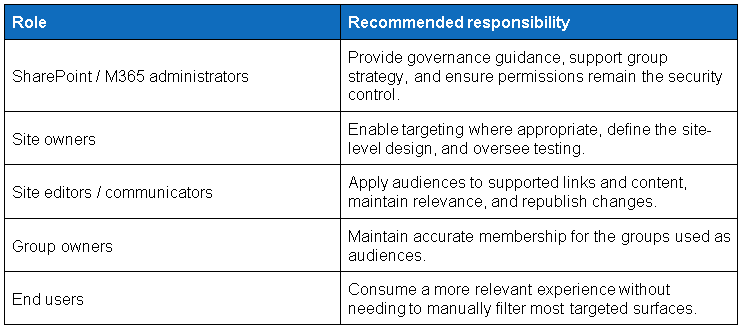
9. Role-Based Responsibilities
10. Suggested Adoption Approach
A practical rollout starts small. Pick a high-value landing page or navigation where several distinct employee groups currently see too much irrelevant content. Establish two or three well-understood audiences, target a limited set of links or news, test with representative users, and measure whether navigation choices and communication relevance improve. Expand only after the governance model and group ownership are reliable.
Best use of the feature: Audience targeting is most valuable when it reduces information overload while preserving a coherent shared portal. It works best as a presentation layer on top of sound information architecture, group management, permissions, and content governance.
11. Microsoft References
Target content to a specific audience on a SharePoint site — https://support.microsoft.com/en-us/sharepoint/sites-pages/target-content-to-a-specific-audience-on-a-sharepoint-site
Target navigation, news, files, links, and web parts to specific audiences — https://support.microsoft.com/en-us/sharepoint/data-and-lists/target-navigation-news-files-links-and-web-parts-to-specific-audiences
Use the Highlighted content web part — https://support.microsoft.com/en-us/sharepoint/pages-in-sharepoint/use-the-highlighted-content-web-part
Use the News web part on a SharePoint page — https://support.microsoft.com/en-us/sharepoint/pages-in-sharepoint/use-the-news-web-part-on-a-sharepoint-page
Customize the navigation on your SharePoint site — https://support.microsoft.com/en-us/sharepoint/sites-in-sharepoint/customize-the-navigation-on-your-sharepoint-site