SharePoint Mentor Curated Articles
FAQ for SharePoint site owners, page authors, and end users.
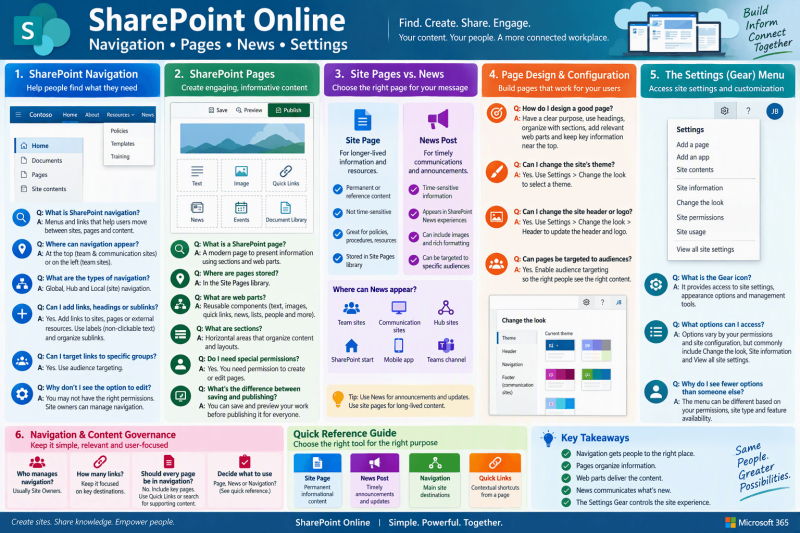
This FAQ focuses on modern SharePoint Online navigation, pages, News, and the Settings (Gear) menu.
SharePoint Navigation
1. What is SharePoint site navigation?
- Site navigation is the collection of menus and links that helps users move between important sites, pages, resources, and content. SharePoint supports global, hub, and local/site navigation. [support.mi...rosoft.com]
2. Where can site navigation appear?
- Depending on the type and configuration of the site, navigation can appear across the top of a Team or Communication site or along the left side of a Team site. [support.mi...rosoft.com]
3. What is the difference between global, hub, and site navigation?
- Global navigation provides broader navigation across the SharePoint experience.
- Hub navigation provides common navigation across sites associated with a hub.
- Local/site navigation helps users navigate within an individual Team or Communication site. [support.mi...rosoft.com]
4. Can I add links to SharePoint navigation?
Yes. Site navigation can contain links to sites, pages, and other resources. Site owners can add, edit, remove, and organize navigation links. [support.mi...rosoft.com]
5. Can navigation contain headings instead of clickable links?
Yes. SharePoint provides a Label option that adds non-clickable text to a navigation menu, which is useful for organizing links into logical categories. [support.mi...rosoft.com]
6. Can I create sublinks or hierarchical navigation?
Yes. Navigation links can be organized so that related links appear beneath another navigation item. Microsoft also provides navigation editing capabilities for repositioning links and making sublinks. [support.mi...rosoft.com]
7. Can navigation links be targeted to different groups of users?
Yes. SharePoint supports audience targeting for navigation links. When enabled by the site owner, menu links can be targeted to specified audiences so relevant links are prioritized for those users. [support.mi...rosoft.com], [support.mi...rosoft.com]
8. Why don't I see the option to edit navigation?
Your permissions or the site's configuration may prevent navigation editing. Microsoft notes that users who do not see Edit may not have permission to customize the navigation. [support.mi...rosoft.com]
9. Can navigation look different between Team sites and Communication sites?
Yes. Team sites can use navigation on the left or top, while Communication sites use top navigation. Available editing and display options can therefore differ. [support.mi...rosoft.com]
SharePoint Pages
10. What is a SharePoint Site Page?
A Site Page is a modern SharePoint page used to present information and resources. Pages provide a canvas where authors can arrange sections and add web parts to build the user experience.
11. Where are modern SharePoint pages stored?
Modern site pages are normally maintained in the site's Site Pages library.
12. What is a SharePoint web part?
A web part is a reusable page component that presents content or functionality. Page authors combine web parts to create useful page experiences.
Examples include:
- Text
- Image
- Quick Links
- News
- Events
- Document Library
- List
- People
- Highlighted Content
13. What are sections on a SharePoint page?
Sections divide a page into logical horizontal areas. They allow the page author to create layouts and position web parts within them.
14. What is the difference between a section and a web part?
- Think of a section as the container/layout and the web part as the content or functionality placed inside it.
- For example: Section → Two-column layout → Text web part + Quick Links web part
15. Do I need special permissions to create or modify pages?
- Yes. A user must have appropriate permissions to create or edit content on the site. What a user can do depends on the permissions granted to that user.
16. What is the difference between saving a page and publishing it?
- During page development, an author can work on changes before making those changes available to the intended audience. Publishing or republishing is important when changes need to take effect for users, including changes involving page metadata and audience targeting. [support.mi...rosoft.com]
17. Can SharePoint pages be targeted to particular audiences?
- Yes. Audience targeting can be enabled for pages so that specific pages are prioritized for particular audiences through appropriate SharePoint experiences.
3. Site Pages vs. News Pages
18. What is a News post in SharePoint?
- A News post is a page specifically intended for communicating timely information such as announcements, organizational news, status updates, and other stories. News posts can include graphics and rich formatting.
19. What is the primary difference between a Site Page and a News post?
A useful rule of thumb is:
- Site Page → longer-lived informational or resource content.
- News post → timely communication that you want distributed through SharePoint's News experience.
This is a recommended content-design distinction rather than a requirement.
20. Where can SharePoint News appear?
- News can appear on Team sites, Communication sites, hub sites, the SharePoint start experience, the SharePoint mobile experience, and through the News web part. Microsoft also documents the ability to surface News in a Teams channel.
21. Can a News post contain pictures and formatted content?
- Yes. News posts support graphics and rich formatting.
22. Can News be targeted to particular audiences?
- Yes. SharePoint audience targeting can be used with News so that relevant posts are prioritized for specific audiences.
23. Should every announcement be a News post?
- Not necessarily. As a content-management best practice, use News for information that is timely and communication-oriented, while using normal pages for long-lived reference and resource content.
4. Page Design and Configuration
24. How should I design a good SharePoint page?
A practical approach is to:
- Give the page a clear purpose.
- Use meaningful headings.
- Break information into logical sections.
- Use web parts intentionally.
- Keep important information near the top.
- Avoid overcrowding the page.
- Provide obvious navigation or Quick Links to related resources.
25. Can I change the site's theme and appearance?
- Yes. SharePoint provides Settings → Change the look options for site customization. Microsoft documents options for changing elements such as the site theme and header. [support.mi...rosoft.com]
26. Can I change the site header?
- Yes. Microsoft documents the site header under Settings → Change the look → Header. Available options can vary based on the environment and site configuration. [support.mi...rosoft.com]
27. Can I change the site's logo?
- Yes. The site logo can be managed through the site's appearance settings. Microsoft documents logo configuration under Settings → Change the look → Header. [support.mi...rosoft.com]
5. The SharePoint Settings "Gear" Menu
28. What is the Gear icon in SharePoint?
- The Settings/Gear icon provides access to administrative, appearance, configuration, and site-management options available to the current user.
- What appears in this menu can vary depending on the site and the user's permissions.
29. What kinds of options might I access from the Gear menu?
- Depending on your permissions and site configuration, Settings can provide access to areas such as site appearance, site information, and additional site settings. For example, Microsoft documents Settings → Change the look for customizing themes and headers and Settings → Site information → View all site settings in certain configuration scenarios. [support.mi...rosoft.com], [support.mi...rosoft.com]
30. What is "Change the look"?
- Change the look provides site appearance customization. Microsoft documents options including themes and site header configuration. [support.mi...rosoft.com]
31. What is "Site information"?
- Site information is an administrative entry point for site-related configuration. It can also provide access to View all site settings for users who have the appropriate permissions and where those settings apply. [support.mi...rosoft.com]
32. What is "View all site settings"?
- This opens the broader SharePoint Site Settings experience, where additional configuration options may be available depending on the site's capabilities, features, and the user's administrative permissions. Microsoft documentation, for example, uses this area to access navigation configuration on publishing-enabled sites. [support.mi...rosoft.com]
33. Why does my Gear menu have fewer options than another user's?
- The SharePoint interface can differ based on factors such as permissions, site configuration, site type, and feature availability. Microsoft also notes that some functionality is introduced gradually, which can result in different experiences across Microsoft 365 environments. [support.mi...rosoft.com], [support.mi...rosoft.com]
6. Navigation and Content Governance
34. Who should manage site navigation?
- As a practical governance recommendation, navigation should usually be controlled by designated Site Owners so the structure remains predictable and manageable. Microsoft states that you need to be a site owner to make changes to site navigation, although specific navigation permissions can depend on configuration. [support.mi...rosoft.com]
35. How many navigation links should a site contain?
- There isn't one universal number. A better practice is to keep the primary navigation focused on the destinations users need most frequently and group related resources logically.
36. Should every SharePoint page appear in navigation?
- No. Navigation should represent the site's information architecture, not simply become a list of every page.
- Important destination pages belong in navigation. Supporting/detail pages can be reached through Quick Links, contextual links, search, or other page components.
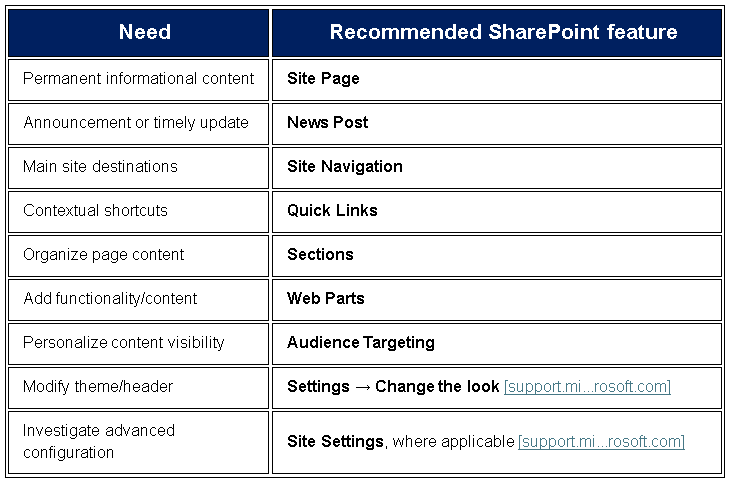
37. What's a good rule for deciding between a Page, News post, or navigation link?
- Use a Site Page when:
The information is a relatively permanent resource or destination. - Use a News post when:
The information represents timely communication, an announcement, update, or story. - Use a Navigation link when:
Users need a predictable pathway to an important destination. - Use Quick Links when:
Users need contextual shortcuts from a specific page.
Quick Reference for Site Owners