

SharePoint Mentor Curated Articles
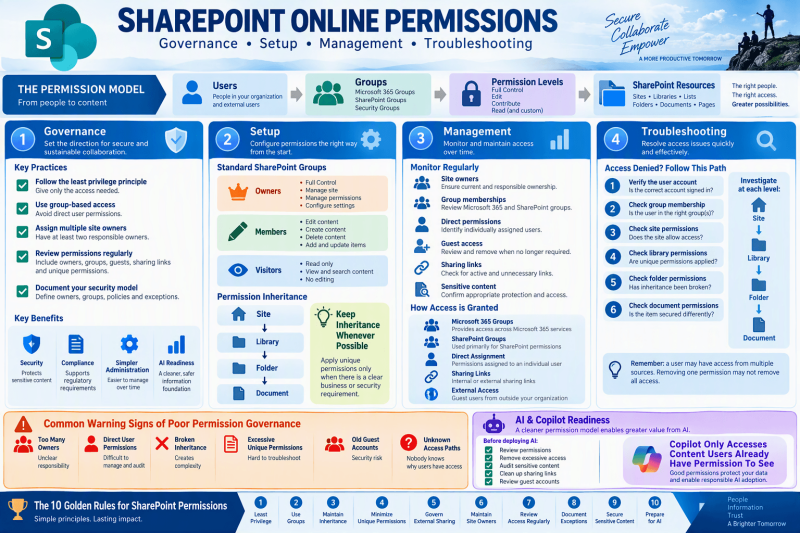
FAQ for SharePoint Online permissions training, governance documentation and site-owner guidance.
Permissions Governance
1. What are SharePoint Online permissions?
- SharePoint Online permissions control who can access a site, library, list, folder, document, page, or other securable content and what actions those users are allowed to perform.
2. What is the most important principle for governing SharePoint permissions?
- Follow the least-privilege principle: give users only the access they need to perform their responsibilities, and no more.
3. Should permissions be assigned directly to individual users?
- Generally, avoid extensive use of direct user permissions. Where practical, manage access through Microsoft 365 Groups, SharePoint groups, or other appropriate security groups. Group-based access is normally easier to understand, review, and maintain.
4. What are the standard SharePoint groups?
A typical SharePoint site uses:
- Owners: generally associated with Full Control.
- Members: generally associated with Edit access.
- Visitors: generally associated with Read access.
However, administrators should verify the actual permissions assigned because sites can be customized.
5. Who should be responsible for managing site permissions?
- The organization should establish clear ownership. Typically, SharePoint administrators establish tenant-level controls and governance, while designated site owners manage access to their sites according to organizational policies.
6. How many Site Owners should a site have?
- A good governance practice is to have at least two responsible owners for an actively managed business site, helping avoid dependence on a single individual.
7. How often should permissions be reviewed?
- Establish a recurring review schedule based on the sensitivity of the content. High-risk or confidential sites should generally receive more frequent reviews than low-risk collaboration sites.
8. What should be included in a permissions review?
Review:
- Site Owners
- Site Members and Visitors
- Microsoft 365 or security group membership
- Direct user permissions
- Broken permission inheritance
- Sharing links
- External/guest access
- Users who have changed roles or left
- Sites or content containing sensitive information
9. Why is permissions governance especially important when using Microsoft 365 Copilot?
- AI increases the importance of good information governance. From an operational perspective, organizations should treat excessive or outdated access as a content-governance and permissions-cleanup priority before expanding AI adoption.
10. Should highly confidential information be stored in the same locations as general collaboration content?
- Organizations should intentionally design their information architecture and security model so sensitive information receives the appropriate protection rather than relying on complicated exceptions throughout a broadly accessible site.
Setting Up Permissions
11. What are permission levels?
- Permission levels are collections of individual permissions that determine what users can do. Common examples include Full Control, Edit, Contribute, and Read.
12. What is permission inheritance?
- By default, securable content can inherit permissions from its parent. For example, content within a site can use the access model established higher in the hierarchy instead of maintaining a completely separate set of permissions.
13. What does "Stop Inheriting Permissions" mean?
- It means an item such as a library, list, folder, or document stops automatically receiving permissions from its parent and can maintain its own access assignments.
14. When should permission inheritance be broken?
- Only when there is a clear business or security requirement. Excessive unique permissions make SharePoint considerably harder to govern and troubleshoot.
15. Should I create unique permissions for every folder?
- Usually not. If many folders require different audiences, consider whether separate libraries or sites would provide a cleaner security and information architecture.
16. What is the difference between a Microsoft 365 Group and a SharePoint group?
- A Microsoft 365 Group can provide membership across connected Microsoft 365 services, while a SharePoint group is primarily used to manage permissions within SharePoint.
17. Should users be placed in the Owners group just so they can edit content?
- No. Ownership should be reserved for people responsible for administering or managing the site. Normal contributors should receive an appropriate member/contributor level of access.
18. Can permissions be configured differently for a document library than for the overall site?
- Yes. A library can have unique permissions. However, use this capability deliberately because it introduces additional administrative complexity.
19. Can an individual folder or document have unique permissions?
- Yes. SharePoint supports permissions at multiple levels, but item-level security should be used carefully. Large numbers of exceptions can become difficult for site owners and support teams to understand.
20. What is the best place to apply unique permissions?
- As a governance guideline, apply security at the highest practical level. Prefer a site or library boundary when possible rather than creating large numbers of individually secured folders and documents.
Managing Permissions
21. How do I determine who has access to a site or document?
- Review the site's permissions and sharing information. When investigating an individual file or folder, also examine that item's access information because it may differ from the overall site.
22. What does "Check Permissions" help determine?
- Where available in the relevant permissions experience, checking a user's permissions can help administrators or site owners investigate the access that a particular user has.
23. What's the difference between direct permissions and group-based permissions?
- Direct permissions are assigned specifically to an individual. Group-based permissions result from membership in a group that has been granted access. Group-based management is generally preferable for scalable administration.
24. Can a user receive permissions from multiple sources?
- Yes. A person's effective access can be influenced by multiple permission assignments and group memberships, which is why troubleshooting should consider all applicable access paths rather than examining only one group.
25. What happens if someone is removed from one SharePoint group?
- Removing someone from one group does not necessarily eliminate all access. The person may still have access through another group, a direct assignment, or another applicable sharing mechanism.
26. What are unique permissions?
- Unique permissions exist when a securable object no longer uses the same permissions as its parent and instead maintains its own permission assignments.
27. How should external users be governed?
- External access should follow organizational sharing policies. Site owners should periodically review guest access and remove access that is no longer required.
28. Should everyone be allowed to share SharePoint content?
- That decision should be governed by the organization's sharing policy and the sensitivity of the content. Sharing capabilities should balance collaboration requirements with information-protection requirements.
29. Should permissions be documented?
- For important sites, yes. Documenting the intended security model makes it much easier to identify unexpected access and supports future site-owner transitions.
30. What should a SharePoint permissions governance document contain?
Consider documenting:
- Site ownership
- Standard groups and their purpose
- Approved permission levels
- External-sharing rules
- Procedures for requesting access
- Rules for unique permissions
- Review responsibilities
- Review frequency
- Escalation procedures
Troubleshooting Permissions
31. A user says "Access Denied." What should I check first?
Start with the basics:
- Confirm the user is accessing the correct site/content.
- Confirm the correct user account.
- Review the user's group memberships and direct access.
- Determine whether inheritance has been broken.
- Examine the specific library, folder, or item involved.
- Check whether organizational sharing or security policies could affect access.
32. A user is a site member but cannot access a particular library. Why?
- The library may have unique permissions rather than inheriting access from the site. Troubleshooting should therefore compare the site permissions with the library permissions.
33. Why can a user open a site but not a particular document?
- The document, its folder, or its library may use different permissions from the site. Another possibility is that an information-protection or organizational control affects access.
34. Why can someone access content after I removed them from a group?
- They may have another path to the content, such as membership in another authorized group, a direct permission assignment, or an applicable sharing link.
35. Why does SharePoint permissions troubleshooting sometimes become complicated?
- Problems often arise when permissions accumulate over time through different groups, direct assignments, sharing links, external users, and broken inheritance. This is why a simple, group-oriented permissions model is easier to support.
36. How do I troubleshoot unexpected access?
Work from broad to specific:
Site → Library/List → Folder → Item
- At each level, determine whether permissions are inherited or unique and identify every mechanism that could provide the user access.
37. What should I do when I discover many unique permissions?
- Don't immediately remove them. First identify their business purpose. Then determine whether access can be simplified using groups, libraries, or separate sites without disrupting legitimate business access.
38. What should I do if nobody understands why a user has access?
- Treat that as a governance issue as well as a technical problem. Identify all sources of access, document the intended audience, validate that intent with the appropriate content owner, and then simplify the permissions model where appropriate.
39. What are common warning signs of poor SharePoint permissions governance?
Watch for:
- Too many Site Owners
- Many directly assigned users
- Excessive broken inheritance
- Numerous uniquely secured folders or documents
- Unreviewed sharing links
- Old guest accounts
- Sites without responsible owners
- Users retaining access after changing roles
- Nobody knowing why particular users have access
40. What is a good troubleshooting rule to remember?
- Never assume that removing one permission removes all access. Determine the user's complete access path before concluding that the issue has been resolved.
Permissions Best Practices
41. What is the simplest permissions model?
- A strong starting model is: Users → Groups → Permission Levels → SharePoint Resources
This generally provides a cleaner model than repeatedly assigning permissions directly to individuals.
42. Should I create custom permission levels?
- Only when standard permission levels do not satisfy a legitimate business requirement. Keep custom permission levels limited and document why they exist.
43. When should I use another site rather than unique permissions?
- Consider a separate site when the content has a significantly different audience, ownership model, sensitivity level, business purpose, or lifecycle. A separate security boundary can be easier to govern than extensive permission exceptions.
44. What permissions practices should Site Owners avoid?
Site Owners should generally avoid:
- Giving Full Control unnecessarily
- Granting direct permissions everywhere
- Creating excessive unique permissions
- Using folder-level security as the default architecture
- Allowing uncontrolled external sharing
- Keeping former users or obsolete groups indefinitely
- Making permission changes without understanding their impact
45. What should an organization do before rolling out Copilot broadly?
- As a practical Copilot-readiness governance exercise, organizations should review site ownership, broad access, sharing practices, sensitive-content locations, stale content, and permissions exceptions. The objective is to make certain that access to SharePoint information reflects current business requirements.
SharePoint Permissions Golden Rules
- Use least privilege.
- Prefer groups over direct user permissions.
- Keep inheritance whenever practical.
- Minimize uniquely secured folders and documents.
- Control and review external sharing.
- Maintain responsible Site Owners.
- Review access periodically.
- Document important exceptions.
- Design security around business audiences.
- Clean up permissions as part of Copilot and AI readiness.