

SharePoint Mentor Curated Articles
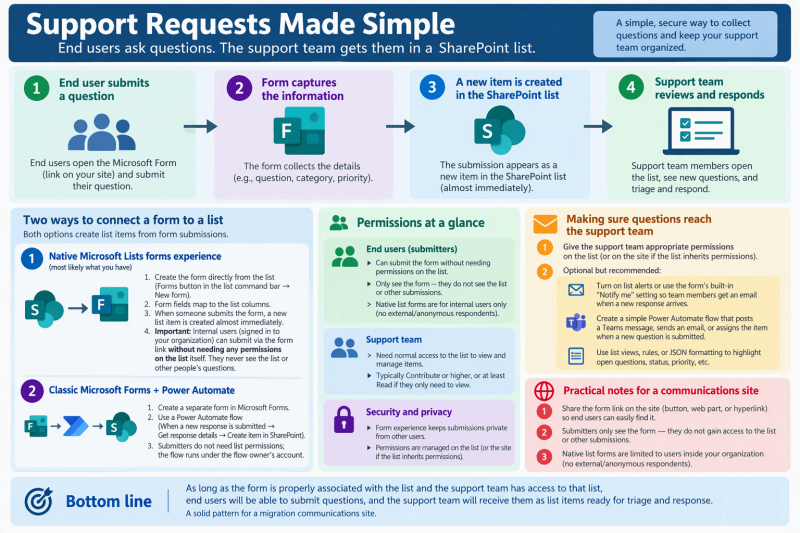
End users can submit questions through an MS Form associated with a SharePoint List and those submissions will appear as new items in the SharePoint list.
How this works
There are two common ways a Microsoft Form becomes associated with a SharePoint list:
- Native Microsoft Lists forms experience (most likely what you have)
- You create the form directly from the list (Forms button in the list command bar → New form).
- The form fields map to the list columns.
- When someone submits the form, a new list item is created almost immediately.
- Important permission point: Internal users (people in your organization who are signed in) can submit via the form link without needing any permissions on the list itself. They never see the list or other people’s questions.
- Classic Microsoft Forms + Power Automate
- A separate form is created in Microsoft Forms.
- A flow (When a new response is submitted → Get response details → Create item in SharePoint) writes each response into the list.
- Submitters also do not need list permissions; the flow runs under the flow owner’s account.
In both cases, support resources simply need normal access to the list (typically Contribute or higher, or at least Read if they only need to view) so they can open the list, see the new question items,
Making the questions reach the support team
- Give the support team appropriate permissions on the list (or on the site if the list inherits permissions).
- Optional but recommended:
- Turn on list alerts or use the form’s built-in “Notify me” setting so team members get an email when a new response arrives.
- Create a simple Power Automate flow that posts a Teams message, sends an email, or assigns the item when a new question is submitted.
- Use list views, rules, or JSON formatting to highlight open questions, status, priority, etc.
Practical notes for a communications site
- Share the form link on the site (button, web part, or hyperlink) so end users can easily find it.
- The form experience is designed so submitters only see the form—they do not gain access to the list or other submissions.
- Native list forms are limited to users inside your organization (no external/anonymous respondents).
Bottom line: As long as the form is properly associated with the list and the support team has access to that list, end users will be able to submit questions, and the support team will receive them as list items ready for triage and response. This is a solid pattern for a migration communications site.