SharePoint Mentor Curated Articles
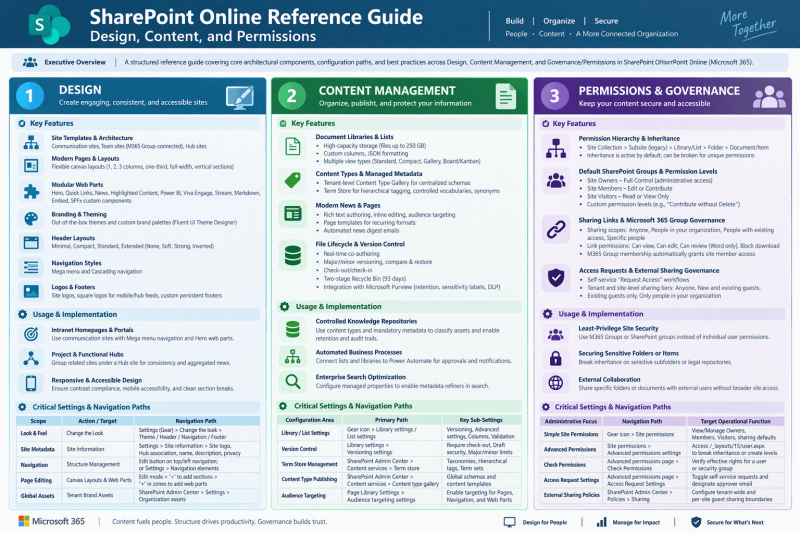
SharePoint Online Design, Content, and Permissions
Configuration paths, and best practices across Design, Content Management, and Governance/Permissions in SharePoint Online.
1. Design
Key Features
Site Templates & Architecture
-
Communication Sites: Designed for broad organizational reach (1-to-many communication), offering responsive layouts, minimal navigation overhead, and prominent visual storytelling.
-
Team Sites (Microsoft 365 Group-connected): Optimized for internal team collaboration (many-to-many), linked to Microsoft Teams, shared calendar, and Planner.
-
Hub Sites: Organizational anchors that connect related sites, unifying navigation, branding, search rollup, and news syndication.
Modern Pages & Layouts
-
Flexible Canvas Layouts: Options include 1-column, 2-column, 3-column, one-third left/right, full-width section (for Hero or banner images), and persistent vertical sections.
-
Modular Web Parts: Hero, Quick Links, News, Highlighted Content, Power BI, Yammer/Viva Engage, Stream, Markdown, Embed, and SharePoint Framework (SPFx) custom components.
-
Branding & Theming ("Change the Look")
-
Out-of-the-box themes and custom tenant-deployed color palettes using Fluent UI Theme Designer.
-
Header Layouts: Minimal, Compact, Standard, and Extended, with background shading options (None, Soft, Strong, Inverted).
-
Navigation Styles: Mega menu (multi-level panel) and Cascading (traditional drop-down flyouts).
-
Site logos, square logos for mobile/hub feeds, and custom persistent footers with navigation links.
- Usage & Implementation
- Intranet Homepages & Portals: Utilize communication sites with Mega menu navigation and Hero web parts to guide employees to critical resources, tools, and company announcements.
- Project & Functional Hubs: Group related departmental sites under a central Hub site to maintain visual consistency and aggregate news and task highlights automatically.
- Responsive & Accessible Design: Ensure contrast compliance, mobile accessibility via the SharePoint mobile app, and clean section breaks for screen readers.
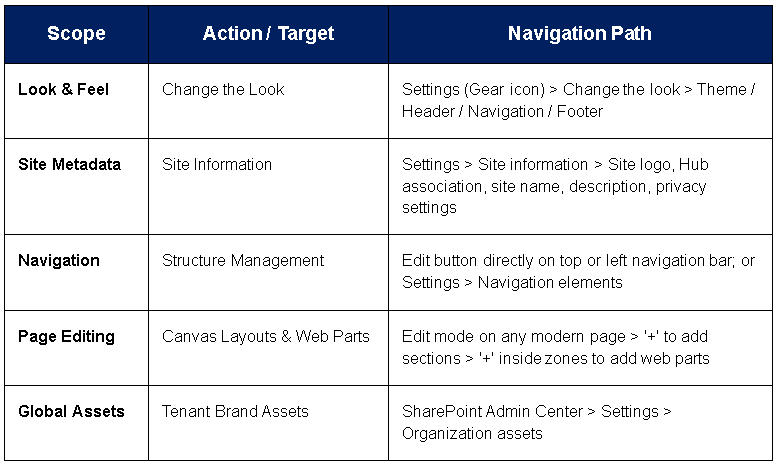
Critical Settings & Navigation Paths
2. Content Management
Key Features
- Document Libraries & Lists
- High-capacity storage supporting individual files up to 250 GB.
- Custom columns (Choice, Managed Metadata, Lookup, Person, Calculated, Date/Time, Currency, Boolean) and JSON column/view formatting.
- Public and personal custom views (Standard, Compact, Gallery/Tiles, Board/Kanban).
- Content Types & Managed Metadata
- Tenant-level Content Type Gallery for centralized schema definitions (e.g., standard "Contract" or "Invoice" schemas with predefined metadata, templates, and workflows).
- Term Store (Taxonomy / Managed Metadata Service) for enterprise hierarchical tagging, controlled vocabularies, and synonyms.
- Modern News & Pages
- Rich text authoring, inline image editing, audience targeting (showing content based on Microsoft Entra ID security groups).
- Page templates for standardizing recurring publishing formats like employee spotlights or technical articles.
- Automated news digest emails to summarize and push content to subscribers.
- File Lifecycle & Version Control
- Real-time co-authoring in Office for the web and desktop clients.
- Major and minor (draft) versioning, version history comparison, and restore capabilities.
- Document check-out/check-in to lock files during revisions.
- Two-stage Recycle Bin (First-stage user recycle bin and Second-stage site collection admin recycle bin, retaining files for 93 days).
- Integration with Microsoft Purview retention labels, sensitivity labels, and Data Loss Prevention (DLP).
Usage & Implementation
- Controlled Knowledge Repositories: Using content types and mandatory metadata to classify organizational assets systematically, enabling automated retention policies and audit trails.
- Automated Business Processes: Connecting lists and libraries to Power Automate for document approval workflows, automated status notifications, and archival triggers.
- Enterprise Search Optimization: Configuring managed properties in the search schema to allow users to filter files and items using custom metadata refiners.
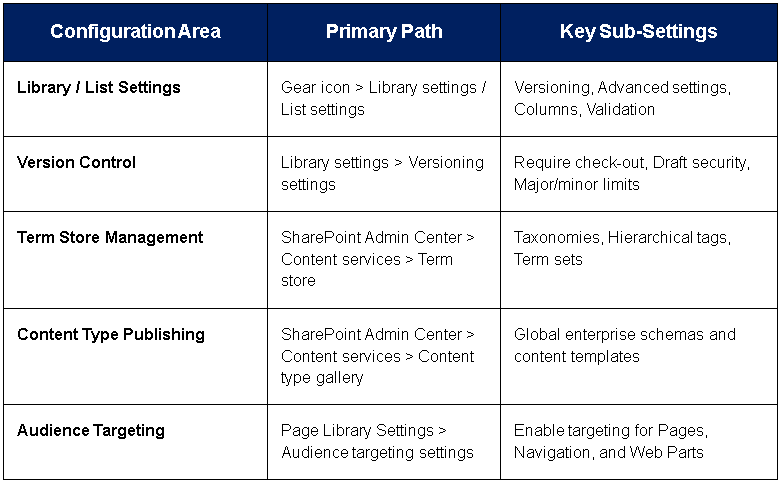
Critical Settings & Navigation Paths
3. Permissions & Governance
Key Features
-
Permission Hierarchy & Inheritance
- Hierarchical Structure: Site Collection > Subsite (legacy) > Document Library/List > Folder > Document/Item.
- Inheritance is active by default; can be broken ("Stop Inheriting Permissions") to configure granular, unique permissions at the library, folder, or item level.
-
Default SharePoint Groups & Permission Levels
- Site Owners: Full Control (administrative access, template changing, permissions management).
- Site Members: Edit or Contribute (add, edit, delete documents and list items).
- Site Visitors: Read or View Only (browse content and download documents without modification rights).
- Custom Permission Levels: Fine-grained permissions created by combining specific list, site, and personal permission rights (e.g., "Contribute without Delete").
-
Sharing Links & Microsoft 365 Group Governance
- Modern Sharing Link Scopes: Anyone (anonymous, expiration mandatory by admin policy), People in your organization, People with existing access, Specific people.
- Link Permissions: Can view, Can edit, Can review (Word only), Block download.
-
Microsoft 365 Group Alignment: Membership in the M365 Group automatically grants Site Member access across Teams, Outlook, and SharePoint.
- Access Requests & External Sharing Governance
- Self-service "Request Access" workflows routed to site owners.
- Tenant and site-level sharing tiers: Anyone, New and existing guests, Existing guests only, Only people in your organization.
Usage & Implementation
- Least-Privilege Site Security: Structure permissions around standard M365 Groups or SharePoint groups rather than assigning individual user permissions directly.
- Securing Sensitive Folders or Items: Break inheritance selectively on sensitive subfolders or legal repositories while maintaining top-level site visibility.
- External Collaboration: Safely share specific project folders or documents with external vendor emails without granting access to the broader departmental site.
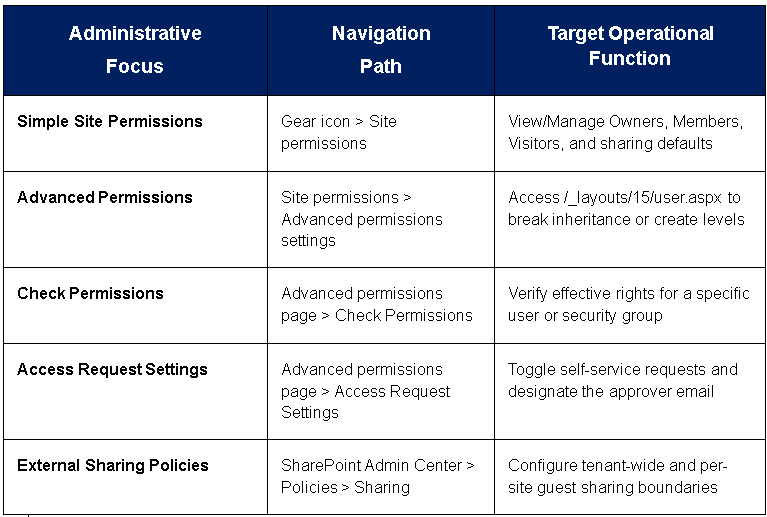
Critical Settings & Navigation Paths