

SharePoint Mentor Curated Articles
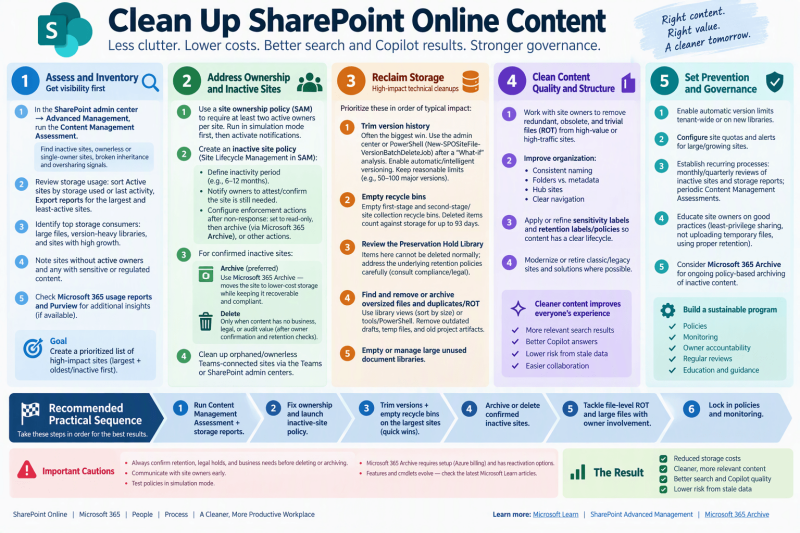
Practical steps for cleaning up SharePoint Online content.
Focused on reducing clutter (ROT—Redundant, Obsolete, Trivial content), reclaiming storage, improving search/Copilot quality, and establishing ongoing governance.
These align with Microsoft’s recommended tools, especially SharePoint Advanced Management (SAM) and Microsoft 365 Archive.
1. Assess and inventory (get visibility first)
- In the SharePoint admin center → Advanced Management, run the Content Management Assessment. This surfaces inactive sites (e.g., no activity in 180 days), ownerless or single-owner sites, broken inheritance, and oversharing signals in one place.
- Review storage usage: Sort Active sites by storage used or last activity. Export reports for the largest sites and least-active sites.
- Identify top storage consumers: large files, version-heavy libraries, and sites with high growth.
- Note sites without active owners and any that contain sensitive or regulated content.
- Check Microsoft 365 usage reports and Purview for additional insights if available.
Goal: Create a prioritized list of high-impact sites (largest + oldest/inactive first).
2. Address site ownership and inactive sites
- Use a site ownership policy (SAM) to require at least two active owners per site. Run in simulation mode first, then activate notifications.
- Create an inactive site policy (Site Lifecycle Management in SAM):
- Define inactivity period (e.g., 6–12 months with no activity).
- Notify owners to attest/confirm the site is still needed.
- Configure enforcement actions after non-response: set to read-only, then archive (via Microsoft 365 Archive), or other actions.
- For confirmed inactive sites:
- Archive (preferred for content with residual value) using Microsoft 365 Archive — moves the site to lower-cost storage while keeping it recoverable and compliant.
- Delete only when content has no business, legal, or audit value (after owner confirmation and retention checks).
- Clean up orphaned/ownerless Teams-connected sites via the Teams or SharePoint admin centers.
3. Reclaim storage with high-impact technical cleanups
Prioritize these in order of typical impact:
- Trim version history — Often the biggest win. Keep reasonable limits (e.g., 50–100 major versions for standard docs).
- Empty recycle bins (first stage and second stage/site collection recycle bin). Deleted items still count against storage for up to 93 days.
- Review the Preservation Hold Library (hidden library created by retention/holds). Items here cannot be deleted normally; address underlying retention policies carefully (consult compliance/legal).
- Find and remove or archive oversized files and obvious duplicates/ROT content (outdated drafts, temp files, old project artifacts). Use library views sorted by size or tools/PowerShell for bulk identification.
- Empty or manage large unused document libraries.
4. Clean content quality and structure
- Work with site owners on high-value or high-traffic sites to remove redundant/obsolete/trivial files.
- Improve organization: consistent naming, folders vs. metadata, hub sites, and navigation.
- Apply or refine sensitivity labels and retention labels/policies so content has a clear lifecycle.
- Modernize or retire classic/legacy sites and solutions where possible.
5. Set prevention and ongoing governance
- Enable automatic version limits tenant-wide or on new libraries.
- Configure site quotas and alerts for large/growing sites.
- Establish recurring processes: monthly/quarterly reviews of inactive sites and storage reports; periodic Content Management Assessments.
- Educate site owners on good practices (least-privilege sharing, not uploading temporary files, using proper retention).
- Consider Microsoft 365 Archive for ongoing policy-based archiving of inactive content.
Recommended practical sequence
- Run Content Management Assessment + storage reports.
- Fix ownership and launch inactive-site policy.
- Trim versions + empty recycle bins on the largest sites (quick wins).
- Archive or delete confirmed inactive sites.
- Tackle file-level ROT and large files with owner involvement.
- Lock in policies and monitoring.
Important cautions: Always confirm retention, legal holds, and business needs before deleting or archiving. Communicate with site owners early. Test policies in simulation mode. Microsoft 365 Archive requires setup (Azure billing) and has reactivation options.
These steps reduce storage costs, improve content relevance for users and AI features like Copilot, and lower risk from stale data.