

SharePoint Mentor Curated Articles

CONFIGURING SEARCH PROPERTIES IN SHAREPOINT ONLINE
Controlling What End Users Can Surface with SharePoint Search - Guidance Document & Configuration Checklist
1. Introduction
SharePoint Online search is one of the most powerful discovery tools available to users in Microsoft 365. However, the quality and relevance of what users can find—and what they cannot see—depends heavily on how search properties are configured. By carefully managing the search schema (crawled properties, managed properties, and their mappings), administrators control the precision, security, and usability of search results across the organization.
This document explains the value of configuring search properties and provides a practical checklist for implementing and maintaining an effective search configuration in SharePoint Online.
2. Understanding Search Properties
2.1 Crawled Properties
During a crawl, SharePoint extracts content and metadata from items (documents, list items, pages, etc.). These extracted pieces of information become crawled properties. Examples include Title, Author, a custom column such as ProjectStatus, or even detected language. Crawled properties are automatically generated; administrators cannot create them directly. They are essentially raw data discovered by the crawler.
2.2 Managed Properties
Managed properties are the refined, administrator-defined properties that are actually written to the search index. Only managed properties can be searched, queried, retrieved, refined, or sorted by end users. By mapping one or more crawled properties to a managed property, you decide which metadata becomes useful for search.
Key attributes that control behavior of a managed property include:
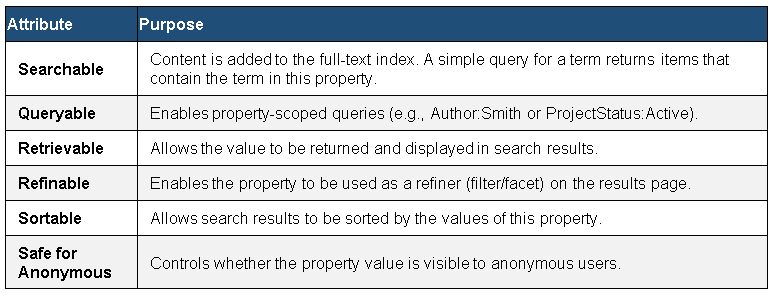
Important note for SharePoint Online: Custom managed properties you create can only be of type Text or Yes/No and cannot be made refinable or sortable. To enable refinable/sortable behavior for custom metadata, map crawled properties to the pre-created pool of unused managed properties (e.g., RefinableString00–RefinableString99, RefinableDate00–RefinableDate19) and assign an alias.
3. The Value of Configuring Search Properties
Configuring search properties is not merely a technical exercise—it directly shapes what end users can discover, how precisely they can find content, and whether sensitive information is exposed. The following benefits illustrate why deliberate configuration is essential.
3.1 Precise Control Over What Is Searchable
By choosing which crawled properties are mapped to managed properties and which attributes are enabled, you determine:
- Whether free-text search includes a particular field
- Whether users can perform targeted property queries (e.g., ContractNumber:ABC-123)
- Whether a value appears in the results display or can be used for filtering and sorting
Without proper mapping, valuable metadata remains invisible to search even if it exists on documents and list items.
3.2 Improved Relevance and User Experience
Well-configured managed properties enable:
- Accurate refiners and facets that let users narrow large result sets by department, project status, document type, date ranges, or taxonomy terms
- Custom search experiences (PnP Modern Search web parts, result types, display templates) that surface the right metadata
- Property restrictions in Keyword Query Language (KQL) that return precise, high-confidence matches instead of broad full-text hits
3.3 Security and Compliance Boundaries
Search respects item-level permissions (security trimming), but configuration still matters:
- Disabling Retrievable prevents sensitive values from appearing in result cards even when the item itself is visible
- Disabling Safe for Anonymous keeps author or other metadata hidden from anonymous users
- Thoughtful mapping avoids inadvertently indexing fields that should remain internal-only
3.4 Consistency Across Microsoft 365
Because Microsoft Search is unified across SharePoint, OneDrive, Teams, and Outlook, a well-designed search schema benefits the entire Microsoft 365 experience. The same managed properties power verticals, bookmarks, Q&A answers, and even aspects of Microsoft 365 Copilot grounding when content is properly indexed.
3.5 Performance and Maintainability
Property-scoped queries are more efficient than pure full-text scans. Using the pre-created Refinable* properties instead of inventing new ones reduces schema sprawl and avoids the limitations of custom managed properties. Mapping at the tenant level (rather than only at individual site collections) creates a consistent experience and is easier to govern over time.
4. Key Concepts for Effective Configuration
4.1 Site Columns vs. List Columns
Site columns that contain values automatically generate both a crawled property and a corresponding managed property (following a predictable naming convention such as ColumnNameOWSTEXT). List/library columns generate only crawled properties and require manual mapping to a managed property if you want them searchable in a controlled way. Prefer site columns (or content types that use them) for important metadata.
4.2 Using the Refinable Property Pool
SharePoint Online provides a large set of unused managed properties already configured as refinable and sortable (RefinableString00–99, RefinableDate00–19, RefinableInt00–49, etc.). Best practice is to map your crawled property to one of these, set a meaningful Alias (e.g., ProjectStatus), and then use that alias in queries and refiners. This approach is required for full refiner support on custom metadata.
4.3 Tenant-Level vs. Site-Collection-Level Schema
You can manage the search schema at the tenant level (SharePoint Admin Center) or at individual site-collection level. Microsoft recommends mapping the built-in refinable properties at tenant level for consistency and performance. Site-collection overrides are useful for exceptions but should be used sparingly.
4.4 Reindexing After Changes
After creating or changing managed property mappings or attributes, the affected content must be reindexed before the changes take effect. In SharePoint Online this is typically done by requesting a reindex of the specific list or library (or waiting for the continuous crawl to pick up the change). Full re-crawls of large tenants can take significant time.
5. Keyword Query Language (KQL)
Keyword Query Language (KQL) is the query syntax that SharePoint Search and Microsoft Search use to interpret what users type (or what developers and administrators configure in result sources, web parts, and search verticals). Understanding KQL is essential because managed properties become truly powerful only when they can be referenced in property restrictions.
5.1 Core Building Blocks
A KQL query can contain:
- Free-text keywords and phrases — words or exact phrases (use quotation marks for phrases).
- Property restrictions — ManagedProperty:value (no spaces around the colon).
- Operators — AND, OR, NOT (must be uppercase), plus comparison operators and parentheses for grouping.
Critical rule: You can only use managed properties that are marked Queryable. Crawled properties cannot be queried directly.
5.2 Property Restriction Syntax
The most important pattern for precise search is the property restriction: ManagedPropertyName:value
There must be no whitespace between the property name, the colon, and the value. If spaces are introduced, the query is treated as free-text instead of a property restriction.
5.3 Common KQL Examples
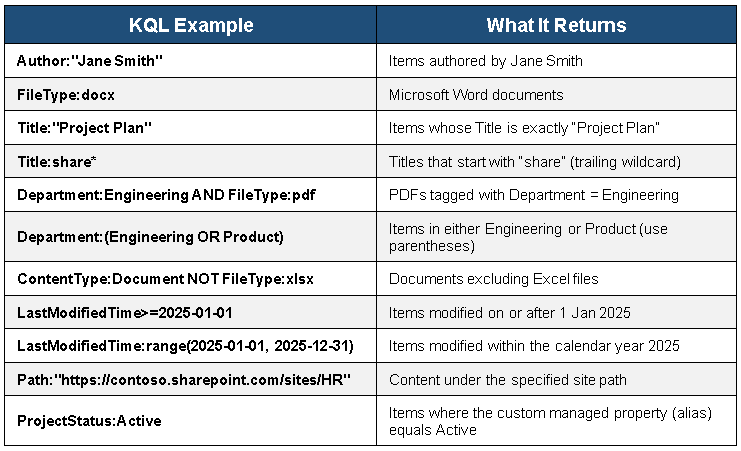
When you map a crawled property to a RefinableStringXX (or similar) property and give it an alias such as ProjectStatus, users and developers can write ProjectStatus:Active in any search box or query configuration.
5.4 Operators and Precedence
Boolean operators must be written in uppercase:
- AND — both conditions must be true (default between terms)
- OR — either condition may be true
- NOT — excludes matching items
AND has higher precedence than OR. Always use parentheses when mixing operators to avoid unexpected results, for example: Department:(Engineering OR Product) AND FileType:docx.
5.5 Where KQL Is Used
- Any SharePoint search box (site, hub, or organization scope)
- Result sources and query transforms
- PnP Modern Search web parts and custom search experiences
- Microsoft Search verticals and bookmarks
- Highlighted Content web part filters and retention label auto-application rules
5.6 Practical Tips
- Always test property restrictions in a normal search box first to confirm the managed property is queryable and populated.
- Trailing wildcards (*) are supported; leading wildcards are not.
- For multi-word values, wrap the value in quotation marks.
- Use the alias you assigned to a Refinable* property rather than the internal name (RefinableString05).
- Document the aliases and sample KQL queries for your content owners and power users.
6. Configuration Checklist for SharePoint Online Search
Use the following checklist when planning, implementing, or reviewing search configuration in a SharePoint Online environment.
6.1 Preparation & Governance
- Identify key content types, metadata columns, and business-critical search scenarios with stakeholders.
- Document which properties need to be searchable, queryable, retrievable, refinable, and/or sortable.
- Establish ownership (Search Center of Excellence or designated admins) for ongoing schema management.
- Decide tenant-level vs. site-collection-level mapping strategy; prefer tenant-level for common properties.
- Inventory existing site columns and content types that already generate managed properties automatically.
6.2 Schema Configuration
- Open SharePoint Admin Center → More features → Search → Manage Search Schema.
- Locate crawled properties for important custom columns (search for ows_ColumnName or similar).
- For each required refinable/sortable custom field:
- Select an unused RefinableStringXX / RefinableDateXX / RefinableIntXX property.
- Set a clear Alias that matches the business name (e.g., Department, ContractExpiry).
- Map the relevant crawled property (or properties) to it.
- Confirm Queryable and Refinable settings are enabled (they usually are by default on these properties).
- For simple Text/Yes-No properties that only need to be searchable/queryable/retrievable, create a new managed property if needed and map the crawled property.
- Review and adjust attributes (Searchable, Queryable, Retrievable, Safe for Anonymous) on both default and custom managed properties.
- Avoid unnecessary mappings that would expose sensitive or low-value metadata.
6.3 Content & Metadata Readiness
- Ensure important metadata is stored in site columns (or content types) rather than ad-hoc list columns where possible.
- Populate sample values in the columns so crawled properties are generated after the next crawl.
- Request reindex of affected lists/libraries (or wait for continuous crawl) after mapping changes.
- Verify that content has meaningful titles, descriptions, and consistent metadata tagging.
6.4 Result Experience Configuration
- Configure refiners on search results pages or modern search web parts using the aliased managed properties.
- Create or update result sources if scoped searches (by department, content type, or security level) are required.
- Review query rules / promoted results / Microsoft Search bookmarks and Q&A for high-value queries (note: many classic query rules are limited in modern experiences).
- Test KQL property restrictions (e.g., ProjectStatus:Active) and confirm expected results.
- Validate that result display templates or PnP Modern Search layouts retrieve the intended managed properties.
6.5 Security, Privacy & Compliance
- Confirm security trimming is working (users only see results they have permission to access).
- Disable Retrievable or Safe for Anonymous on any managed properties that should not surface values.
- Review Microsoft Restricted SharePoint Search settings if Copilot or broad Microsoft Search exposure is a concern.
- Align search configuration with sensitivity labels and Purview policies where applicable.
6.6 Validation & Ongoing Maintenance
- Perform end-to-end user testing with representative search scenarios.
- Monitor search analytics (popular queries, abandoned queries, zero-result queries) to identify gaps.
- Document all custom managed property aliases and mappings for future administrators.
- Schedule periodic reviews of the search schema as new content types or columns are introduced.
- Communicate available property restrictions and refiners to power users and content owners.
7. Summary
Configuring search properties in SharePoint Online gives administrators precise control over what metadata enters the index, how users can query and refine results, and which values are exposed in the interface. Keyword Query Language (KQL) is the practical language that turns those managed properties into powerful, targeted search experiences. The combination of careful mapping (especially to the pre-built Refinable* properties), consistent use of site columns, solid KQL patterns, and ongoing governance produces a search experience that is both powerful and secure.
Treat the search schema as a living part of your information architecture. When metadata changes or new business scenarios arise, update the schema deliberately, reindex the affected content, and validate the end-user experience with real KQL queries. Doing so ensures that SharePoint search continues to surface the right content to the right people at the right time