

SharePoint Mentor Curated Articles

SharePoint Online Content Types: Architecture, Benefits, and Implementation Guide
Executive Summary
Content Types in SharePoint Online serve as the foundational building blocks for enterprise content architecture. A Content Type is a reusable collection of metadata definitions (site columns), document templates, behaviors, and policy settings applied to a specific category of content.
Rather than treating documents and list items as arbitrary files, Content Types establish a standardized data contract across the Microsoft 365 ecosystem. They enable organizations to enforce corporate compliance, streamline metadata entry, unify search capabilities, and automate business processes across disparate sites and libraries. By decoupling content structure from the physical location of libraries, Content Types form the backbone of scalable Information Architecture (IA) and Enterprise Content Management (ECM).
What is a SharePoint Content Type?
Definition & Inheritance Hierarchy
At its core, a Content Type encapsulates the schema and business logic for a functional business document or item (such as an Invoice, Contract, or Risk Log).
Content Types operate on an object-oriented parent-child inheritance model. Every content type inherits properties, columns, and settings from its base parent. The root parent for all document-based content types is the System Document content type.
- Inheritance Cascade: When a site administrator updates a parent Content Type (e.g., adding a new site column or updating a document template), those changes can automatically push down (cascade) to all derived child Content Types and attached document libraries across the tenant.
- Specialization: Child Content Types inherit all parent attributes while allowing additional specialized site columns or logic to be appended without altering the base architecture.
System Base: Item
└── System Base: Document
└── Enterprise: Corporate Agreement
├── Departmental: Vendor Agreement (Inherits Agreement attributes + Vendor Metadata)
└── Departmental: Non-Disclosure Agreement (Inherits Agreement attributes + NDA Metadata)
Key Components
A fully configured Content Type is a package composed of four primary operational layers:
- Columns / Metadata: Site columns that define the data properties captured with the content. These are distinct from list-level columns because they are globally scoped and reusable across all web parts, lists, and libraries.
- Document Templates: Pre-formatted corporate files (.dotx, .xlsx, .pptx) associated directly with the Content Type. Clicking the "+ New" button in a library directly launches the correct branded file template with bound metadata properties.
- Information Management & Compliance Policies: Direct integration with Microsoft Purview retention labels, sensitivity labels, and records management flags tied specifically to the item context.
- Workflows & Automation: Schema triggers that drive Microsoft Power Automate flows based on the classification and lifecycle state of the content type.
Core Benefits of Using Content Types
1. Standardized Metadata Across Sites & Libraries
Without Content Types, site owners create localized library columns, leading to attribute fragmentation—such as one team using "Vendor Name", another using "Supplier", and a third using "Company". Content Types eliminate metadata silos by leveraging central Site Columns published through the Content Type Gallery (Hub). This ensures standard data types, lookup definitions, and choice lists tenant-wide.
2. Template Standardization & Consistency
Managing templates manually across dozens of departmental sites creates version control risk and brand inconsistency. Content Types deliver standardized templates straight to the user's workspace via the library's "+ New" dropdown. Updating the template file within the central Content Type instantly updates the document creation workflow for all end users enterprise-wide.
3. Multi-Type Document Libraries
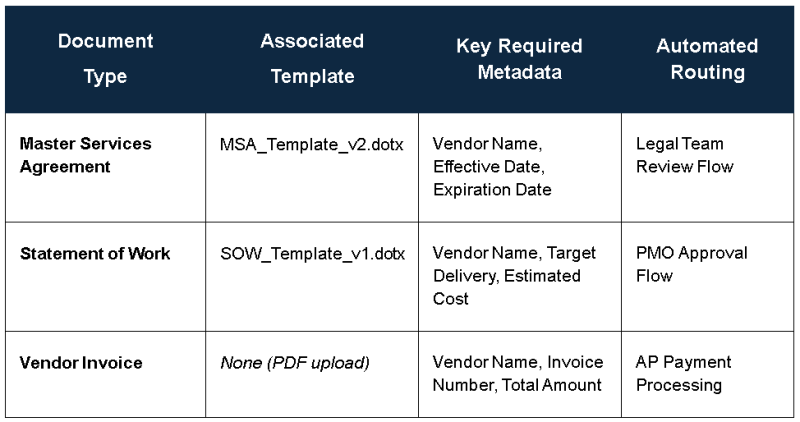
Traditional file systems require distinct folders or separate libraries to segregate file types. SharePoint Content Types allow a single document library to store multiple heterogeneous file types (e.g., Contracts, SOWs, Invoices, and Purchase Orders) within the same flat view. Each Content Type enforces its own required metadata, input validation, and document template while sharing a central view.
4. Enhanced Searchability & Findability
SharePoint Enterprise Search indexes Site Columns as Crawled Properties, which map cleanly to Managed Properties. Content Types enable targeted, high-precision search queries (e.g., ContentType:"Vendor Agreement" AND ContractValue>100000). This unifies search-driven dashboards, powers the Highlighted Content Web Part, and improves discoverability across Microsoft 365.
5. Automated Lifecycle, Governance & Compliance
By classifying items at the Content Type level, compliance policies can be applied programmatically:
- Microsoft Purview: Auto-apply retention policies or record declarations based on the ContentType attribute.
- Power Automate: Trigger lifecycle events (e.g., triggering an expiration workflow 60 days before a contract's Expiration Date).
Real-World Implementation Examples
Example 1: Procurement & Legal — "Vendor Agreement"
- Scenario: The Legal department requires standardized intake and lifecycle management for Master Service Agreements (MSAs) and Statements of Work (SOWs), complete with contract value tracking and automatic expiration alerts.
- Parent Type: Document
Configured Site Columns
Vendor Name — Single line of text / Managed Metadata
- Contract Type — Choice (MSA, NDA, SOW, Amendment)
- Contract Value — Currency (USD)
- Effective Date — Date and time
- Expiration Date — Date and time
- Contract Owner — Person or Group
- Agreement Status — Choice (Draft, Under Review, Active, Expired, Terminated)
Document Template & Governance Integration
- Document Template: Corporate_Vendor_Agreement_v3.dotx (includes pre-formatted headers, bound document properties, and legal boilerplate).
- Automated Workflow: Power Automate daily scheduled check; triggers an email notification to the Contract Owner 60 days prior to reaching Expiration Date.
- Purview Compliance: Auto-apply retention rule retaining documents for 7 years after Expiration Date, followed by disposition review.
Example 2: Financial & Project Management — "Project Charter"
- Scenario: The PMO team requires uniform project initiation documentation with budget tracking, executive sponsor alignment, and standard baseline metadata across all business units.
- Parent Type: Document
Configured Site Columns
- Project Code — Single line of text (Enforced pattern validation)
- Business Unit — Choice (IT, HR, Finance, Operations, Legal)
- Project Sponsor — Person or Group
- Project Manager — Person or Group
- Target Go-Live Date — Date
- Estimated Budget — Currency
Document Template & Governance Integration
- Document Template: PMO_Standard_Project_Charter.dotx
- Automated Workflow: On creation, a Power Automate flow reads the Estimated Budget column. If the budget exceeds $250,000, it automatically adds an approval step for the Project Sponsor.
Step-by-Step Configuration Guide
Phase 1: Creating Custom Site Columns
- Open the SharePoint Admin Center (https://admin.microsoft.com/sharepoint).
- Expand Content services in the left navigation and select Content type gallery.
- Click Site columns > Create site column.
- Configure the column parameters:
- Column Name: Enter Vendor Name.
- Data Type: Select Single line of text or Managed Metadata.
- Put this column in: Select Custom Group and type _Enterprise Legal & Procurement (using an underscore prefix keeps custom groups at the top of selection lists).
- Repeat the process for all required metadata fields (Contract Value, Expiration Date, Contract Owner).
Phase 2: Creating the Content Type
-
In the Content type gallery, click Create content type.
-
Configure the core definition:
-
Name: Vendor Agreement
-
Description: Standardized legal vendor contract definition.
-
Category: Select Create a new category and enter Enterprise Legal.
-
Parent Content Type: Select Document Content Types from the parent category list, then select Document as the Parent Content Type.
-
Click Create.
-
Phase 3: Attaching Columns & Document Templates
- Under the newly created Vendor Agreement content type, select Add site columns > Add existing site columns.
- Filter by group _Enterprise Legal & Procurement.
- Select Vendor Name, Contract Type, Contract Value, Effective Date, Expiration Date, Contract Owner, and Agreement Status. Click Save.
- Adjust column settings: Click on Vendor Name and Expiration Date to set their column requirement status to Required.
- Configure the Template:
- Navigate to Advanced settings.
- Select Upload a new document template.
- Browse and upload Corporate_Vendor_Agreement_v3.dotx.
- Click Save.
Phase 4: Publishing & Adding to Document Libraries
- On the Vendor Agreement Content Type details page, click Publish. Select Publish in the panel to syndicate the schema across all site collections in the tenant. (Note: Central publishing may take 15–30 minutes to propagate tenant-wide).
- Navigate to the target SharePoint site and open the destination Document Library.
- Select the gear icon (⚙️) > Library settings > More library settings.
- Select Advanced settings:
- Set Allow management of content types? to Yes.
- Click OK at the bottom of the page.
- Under the newly visible Content Types section on the settings page:
- Select Add from existing site content types.
- Select the group Enterprise Legal, choose Vendor Agreement, click Add, and click OK.
- (Optional) Click Change new button order and default content type to hide the base "Document" type or make "Vendor Agreement" the primary default option.
Best Practices & Common Pitfalls
Architectural Best Practices
- Always Inherit Wisely: Base document-centric content types on the core Document parent content type. Avoid creating root-level content types without an established parent unless architecting custom list schemas.
- Use Enterprise Hub Syndication: Never create local content types directly within individual lists or subsites. Always author content types in the central Content Type Gallery to allow tenant-wide reuse and prevent metadata divergence.
- Organize with Custom Groups: Always place custom Site Columns and Content Types into dedicated custom groups prefixed with a clear identifier (e.g., _Enterprise PMO, _Legal Services).
- Map Metadata to Quick Parts: Open Word templates in Microsoft Word desktop, navigate to Insert > Quick Parts > Document Property, and place site column fields directly inside the document layout. When a user fills out metadata in SharePoint, the document body updates automatically.
Common Pitfalls to Avoid
❌ DO NOT: Create local library columns directly in the library view.
✔ DO: Create global Site Columns in the Content Type Gallery first.
❌ DO NOT: Edit shared Content Types locally within site collection settings.
✔ DO: Update Content Types at the central Hub level and re-publish updates.
❌ DO NOT: Delete a Site Column directly from a published Content Type in production.
✔ DO: Mark the column as 'Hidden' or deprecate via a planned schema release.