

SharePoint Mentor Curated Articles
SUPPORT REQUEST GUIDE FOR GENERAL USERS
Who to contact, what to report, and how to request help
1. Introduction
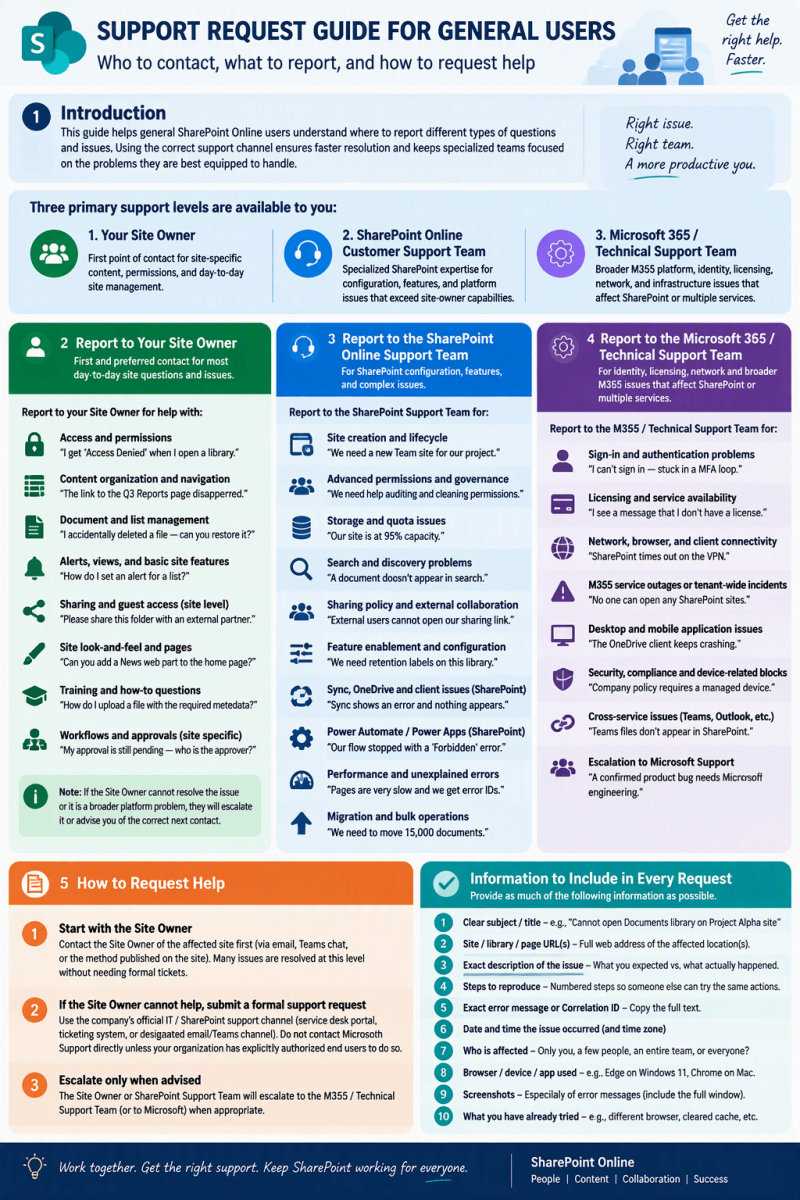
This guide helps general SharePoint Online users understand where to report different types of questions and issues. Using the correct support channel ensures faster resolution and keeps specialized teams focused on the problems they are best equipped to handle.
There are three primary support levels available to you:
- Your Site Owner — first point of contact for site-specific content, permissions, and day-to-day site management.
- Company SharePoint Online Customer Support Team — specialized SharePoint expertise for configuration, features, and platform issues that exceed site-owner capabilities.
- Company Microsoft 365 / Technical Support Team — broader M365 platform, identity, licensing, network, and infrastructure issues that affect SharePoint or multiple services.
2. Report to the Site Owner of Your SharePoint Online Site
Your Site Owner (or Site Collection Administrator for that site) is the first and preferred contact for most day-to-day questions and issues related to a specific site. They understand the purpose of the site, its content, and its permission model.
Types of questions and issues to report to the Site Owner
- Access and permissions — You cannot open a site, library, folder, or document; you need additional people added or removed; permission levels appear incorrect.
- Example: “I can see the Marketing site but get ‘Access Denied’ when I open the Campaign Assets library.”
- Example: “Please add Jane Smith as a Member so she can edit documents in the Project Alpha site.”
- Content organization and navigation — Pages, libraries, lists, or navigation links are missing, outdated, or poorly organized; you need help finding content; requests to create or restructure libraries/lists/pages.
- Example: “The link to the Q3 Reports page disappeared from the left navigation — can you restore it?”
- Example: “Can we create a new document library called ‘Client Contracts’ on the Legal site?”
- Document and list management — Checked-out documents that need to be checked in or overridden; version history questions; requests to restore deleted items (from the site Recycle Bin); metadata or column questions specific to a library/list.
- Example: “A colleague left and their document is still checked out — can you force the check-in?”
- Example: “I accidentally deleted the ‘Budget 2026’ spreadsheet yesterday — can you restore it from the Recycle Bin?”
- Alerts, views, and basic site features — Setting up or managing personal or team alerts; creating or modifying public views; calendar or task list questions on that site.
- Example: “How do I set an alert so I’m notified when a new item is added to the Issues list?”
- Example: “Can you create a public view on the Tasks list that shows only items assigned to me and sorted by due date?”
- Sharing and guest access (site level) — Requests to share a site, library, or folder with internal colleagues or external guests (within existing company sharing policies).
- Example: “Please share the ‘Vendor Proposals’ folder with our external partner at partner@vendor.com (view only).”
- Example: “I need to give the Finance team Contribute access to the Budget library on the Project site.”
- Site look-and-feel and pages — Requests to update the site home page, add web parts, change the site theme or logo (if allowed), or improve navigation.
- Example: “Can you add a News web part to the home page so team announcements appear automatically?”
- Example: “The site logo is outdated — can we replace it with the new department logo?”
- Training and how-to questions specific to the site — How to upload files, use a particular library or list, create a page, or follow the site’s agreed processes.
- Example: “How do I upload a large PowerPoint file and add the required metadata columns on this library?”
- Example: “What’s the correct process for submitting a new policy document on this site?”
- Workflows and approvals owned by the site — Questions about site-specific approval processes, Power Automate flows attached to lists/libraries on that site, or content approval settings.
- Example: “I submitted a document for approval two days ago and it’s still pending — who is the approver?”
- Example: “The approval flow on the Expense Claims list isn’t sending me an email when a new claim is submitted.”
Note: If the Site Owner cannot resolve the issue or it turns out to be a broader platform problem, they will escalate it on your behalf or advise you of the correct next contact.
3. Report to the Company SharePoint Online Customer Support Team
Contact the dedicated SharePoint Online Customer Support Team when the issue is beyond the Site Owner’s permissions or expertise, or when it involves SharePoint configuration, features, or behavior that affects multiple sites or requires specialized knowledge.
Types of questions and issues to report to the SharePoint Online Customer Support Team
- Site creation and lifecycle requests — Requests for new team sites, communication sites, hub sites, or site deletions/archiving that require admin-level action.
- Example: “Our department needs a new Team site for the 2027 Product Launch project with a connected Microsoft 365 Group.”
- Example: “The old ‘2023 Archive’ site is no longer needed — please delete or archive it.”
- Advanced permissions and governance — Complex permission models, broken inheritance across many objects, site collection administrator changes, or requests that exceed what a Site Owner can do.
- Example: “Hundreds of folders in our Documents library have unique permissions and no one knows who has access — can you help audit and clean this up?”
- Example: “Our Site Owner left the company and we need a new Site Collection Administrator assigned.”
- Storage and quota issues — Site or library approaching storage limits, requests for additional quota, or unexpected “storage full / read-only” behavior on a site.
- Example: “Our team site is showing a storage warning at 95% capacity — can we increase the quota or help us clean up old files?”
- Example: “The entire site went read-only this morning with a ‘storage full’ message even though we thought we had space left.”
- Search and discovery problems — Content not appearing in search results, incorrect search results, managed properties, or search configuration questions.
- Example: “I uploaded a policy document three days ago but it still doesn’t appear when I search for it, even though I have access.”
- Example: “Search results are showing outdated versions of documents or documents from sites I shouldn’t see.”
- Sharing policy and external collaboration — Issues with external sharing links, guest access that does not work as expected, or questions about company-wide sharing settings that Site Owners cannot change.
- Example: “I created an ‘Anyone with the link’ sharing link but external users still get an error when they try to open it.”
- Example: “Guest users can open the shared folder but cannot download files — is this a policy restriction?”
- Feature enablement and configuration — Enabling or troubleshooting site features, content types, retention labels, sensitivity labels on SharePoint content, or SharePoint-specific settings.
- Example: “We need retention labels applied to the Contracts library so documents are kept for seven years.”
- Example: “Sensitivity labels are not appearing when we try to classify documents in this library.”
- Sync, OneDrive for Business, and client issues specific to SharePoint — Document library sync problems, “Files On-Demand” behavior, or SharePoint-related OneDrive sync client issues.
- Example: “When I click ‘Sync’ on the Shared Documents library, the OneDrive client shows an error and nothing appears in File Explorer.”
- Example: “Files show as available online-only but won’t download when I double-click them.”
- Power Automate / Power Apps tied to SharePoint — Flows or apps that interact with SharePoint lists/libraries and are not working correctly (when the issue is SharePoint-side).
- Example: “Our Power Automate flow that copies new list items to another library stopped running last week with a ‘Forbidden’ error.”
- Example: “The Power App connected to our SharePoint list can’t create new items even though the user has Contribute permission.”
- Performance and unexplained errors on SharePoint sites — Slow page loads, intermittent errors, correlation IDs from SharePoint error pages, or behavior that Site Owners cannot diagnose.
- Example: “The home page of our hub site takes 20+ seconds to load for everyone, and the Site Owner can’t find the cause.”
- Example: “I’m getting a SharePoint error page with Correlation ID 3a7f9c2e-8b41-4d12-9e55-1c2a3b4d5e6f when I open any list on the site.”
- Migration, bulk operations, and advanced requests — Large-scale content moves, structure changes, or other work that requires SharePoint specialist tools or coordination.
- Example: “We need to move 15,000 documents from an old team site into a new hub site structure while preserving permissions and version history.”
- Example: “Can you help us reorganize three department sites under a new hub and update all navigation links?”
4. Report to the Company Microsoft 365 / Technical Support Team
Escalate to the broader Microsoft 365 / Technical Support Team when the problem involves identity, licensing, network connectivity, client applications, or other M365 services that affect SharePoint (or multiple services). These teams typically own the tenant-level platform and can engage Microsoft Support when needed.
Types of questions and issues to report to the M365 / Technical Support Team
- Sign-in and authentication problems — Unable to sign in to Microsoft 365 / SharePoint, multi-factor authentication (MFA) issues, conditional access blocks, or account lockouts.
- Example: “I can’t sign in to SharePoint — after entering my password I’m stuck in a loop asking for MFA, and the authenticator app isn’t receiving codes.”
- Example: “I’m getting a Conditional Access error saying my device is not compliant when I try to open any SharePoint site.”
- Licensing and service availability — Missing SharePoint or OneDrive license, service not available under your account, or license assignment questions.
- Example: “When I go to SharePoint I see a message that I don’t have a license — but my colleagues in the same team can access it fine.”
- Example: “OneDrive is missing from my Office apps and I can’t sync any libraries.”
- Network, browser, and client connectivity — SharePoint or OneDrive inaccessible due to network, proxy, VPN, firewall, or browser compatibility issues; certificate or TLS problems.
- Example: “SharePoint works on my home Wi-Fi but times out or shows blank pages when I’m connected to the company VPN.”
- Example: “In Chrome everything loads, but in Edge I get certificate warnings and pages fail to open.”
- Microsoft 365 service outages or tenant-wide incidents — Widespread inability to access SharePoint or other M365 services; service health dashboard alerts; suspected Microsoft platform issues.
- Example: “No one in the company can open any SharePoint site this morning — is there a known Microsoft outage?”
- Example: “Teams, Outlook, and SharePoint are all slow or unavailable for multiple departments right now.”
- Desktop and mobile application issues — Problems with the OneDrive sync client, Office applications integrating with SharePoint, or mobile SharePoint / OneDrive apps that are not site-specific.
- Example: “The OneDrive sync client on my laptop keeps crashing and shows ‘Processing changes’ forever.”
- Example: “On my iPhone the SharePoint app won’t open any sites and just spins, while the browser works fine.”
- Security, compliance, and device-related blocks — Device compliance, Intune, or security policies preventing access to SharePoint; data loss prevention (DLP) or sensitivity label enforcement issues at the tenant level.
- Example: “I can’t open SharePoint from my personal laptop because the company policy requires a managed device.”
- Example: “When I try to share a document externally, a DLP policy blocks it and I don’t know how to request an exception.”
- Cross-service issues — Problems that span SharePoint, Teams, Exchange, or other M365 services (for example, Teams files not syncing correctly with SharePoint, or calendar integration issues).
- Example: “Files uploaded in a Teams channel don’t appear in the linked SharePoint document library, and vice versa.”
- Example: “Meeting recordings stored in SharePoint are not showing up in the Teams meeting chat for anyone.”
- Escalation to Microsoft Support — Confirmed product bugs, unexplained platform behavior after internal troubleshooting, or issues that require Microsoft engineering involvement (opened by authorized admins).
- Example: “After our internal teams exhausted troubleshooting, SharePoint search still returns no results tenant-wide and Service Health shows no incident.”
- Example: “A confirmed bug with version history on large libraries needs to be raised with Microsoft engineering.”
5. How General SharePoint Online Users Should Request Help
Following a consistent method when requesting help dramatically improves response time and accuracy. Use the steps below for every request.
Preferred method
- Start with the Site Owner
Contact the Site Owner of the affected site first (via email, Teams chat, or the method published on the site). Many issues are resolved at this level without needing formal tickets.
- If the Site Owner cannot help or the issue is clearly platform-wide, submit a formal support request
Use the company’s official IT / SharePoint support channel (service desk portal, ticketing system, or designated email/Teams channel). Do not contact Microsoft Support directly unless your organization has explicitly authorized end users to do so.
- Escalate only when advised — The Site Owner or SharePoint Support Team will escalate to the M365 / Technical Support Team (or to Microsoft) when appropriate.
Information to include in every request
Provide as much of the following information as possible. Incomplete requests often require follow-up questions and delay resolution.
- Clear subject / title — e.g., “Cannot open Documents library on Project Alpha site” rather than “SharePoint problem”.
- Site / library / page URL(s) — Full web address of the affected location(s).
- Exact description of the issue — What you expected to happen vs. what actually happened.
- Steps to reproduce — Numbered steps so someone else can try the same actions.
- Exact error message or Correlation ID — Copy the full text; the long hyphenated Correlation ID on SharePoint error pages is especially valuable.
- Date and time the issue occurred (and time zone)
- Who is affected — Only you, a few people, an entire team, or everyone?
- Browser / device / app used — e.g., Edge on Windows 11, Chrome on Mac, OneDrive sync client, mobile app.
- Screenshots — Especially of error messages or unexpected screens (include the full browser window when possible).
- What you have already tried — e.g., different browser, cleared cache, asked a colleague, contacted the Site Owner.
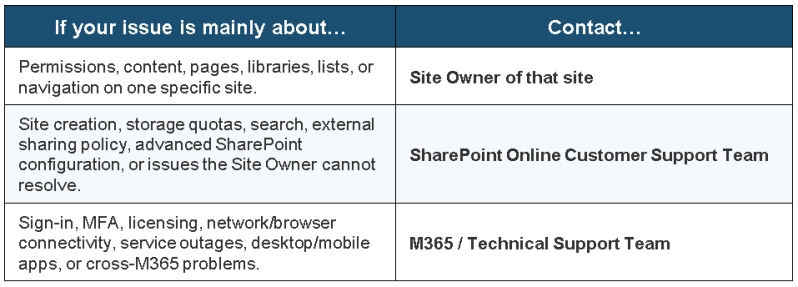
Quick decision guide
6. Summary
Always begin with the Site Owner for anything related to a particular SharePoint site. Move to the SharePoint Online Customer Support Team for SharePoint-specific configuration and advanced issues. Involve the Microsoft 365 / Technical Support Team for identity, licensing, connectivity, outages, and broader platform problems.
When you request help, supply a clear description, the relevant URL(s), steps to reproduce, exact error text or Correlation ID, screenshots, and details about who is affected and what you have already tried. This gives support teams the best chance of resolving your issue quickly on the first contact.
Document prepared as a general reference for SharePoint Online end users. Adapt contact methods and team names to match your organization’s actual support structure.