

SharePoint Mentor Curated Articles

User Guide: Mastering Forms in SharePoint Online Lists
This comprehensive user guide explores the practical application, configuration, and strategic value of the native "Forms" feature within SharePoint Online lists. Designed for site owners, list administrators, and support professionals, this document establishes a standard framework for streamlined data collection and governance.
1. Introduction to SharePoint List Forms
The native Forms feature in SharePoint Online modern lists allows users to create clean, dedicated input interfaces tailored for external or internal contributors without granting them full visibility into the underlying list architecture. This ensures high data integrity while simplifying the user experience.
Key Value Propositions
- Data Trust & Hygiene: Standardizing inputs minimizes formatting errors, supports required field compliance, and ensures data versioning accuracy.
- Enhanced Governance: Restricts unnecessary user exposure to full datasets, minimizing the risk of accidental exposure or oversharing.
- Mobile Optimization: Forms automatically scale across devices, allowing seamless data capture from the field.
2. Creating and Customizing Forms
Building a form takes place directly within the SharePoint Online list experience, pulling schema attributes from pre-defined site or list columns.
Step-by-Step Configuration
- Navigate to your designated SharePoint Online list.
- In the top command bar, click on Forms and select New Form.
- The Form Designer panel will open on the right side of the screen.
- Use the field options to toggle visibility, reorder fields, or add conditional logic formulas.
Applying Conditional Formatting Logic
You can use simple expressions to show or hide fields based on other selections. For example, to show an "Explanation" field only if "Status" is set to "Rejected", utilize the conditional expression format inside the field settings:
=if([$Status] == 'Rejected', 'true', 'false')
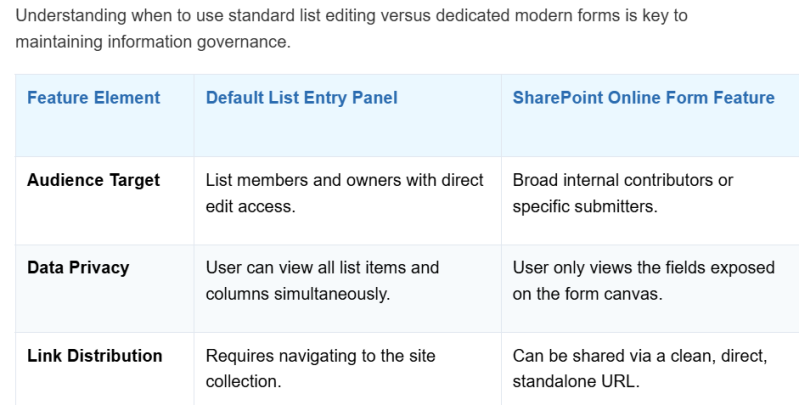
3. Direct Comparison: Default List Entry vs. Custom Forms
4. Governance & Single Source of Truth
By channeling entry through localized forms, an organization can maintain strict naming conventions and robust audit trails. Data lands immediately within the secure M365 boundary, ensuring compliance and setting a strong foundation for future technical integrations or AI processing.