

SharePoint Mentor Curated Articles
Deep Dive into the 5 Key SharePoint Online Libraries: An Expanded Guide
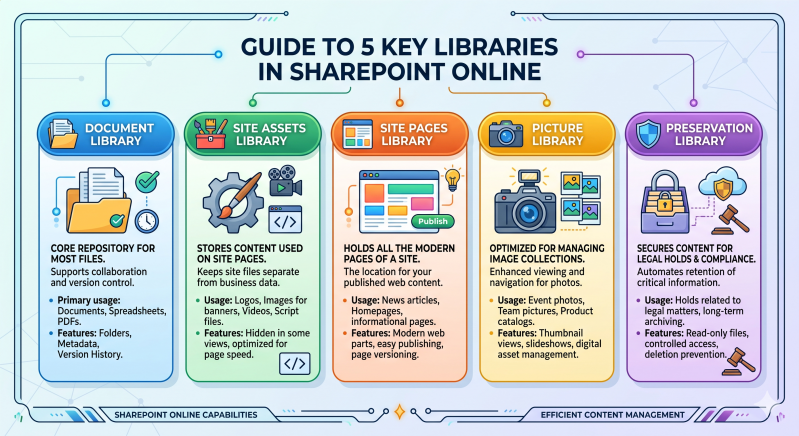
This guide expands upon the visual information presented in our "Guide to 5 Key Libraries in SharePoint Online" infographic. While the infographic provides a high-level overview, this document will delve deeper into the features, practical examples, and management strategies for each of the five essential library types.
Introduction to SharePoint Libraries
A SharePoint library is a specific location on a SharePoint site where you can create, collect, update, and manage files with your team. Unlike a simple file folder on a network drive, a SharePoint library adds a layer of metadata, versioning, and collaborative features that are essential for modern document management.
The five libraries covered here—Document, Site Assets, Site Pages, Picture, and Preservation—are the pillars of content organization in SharePoint Online. Understanding their unique roles ensures your content is secure, discoverable, and managed efficiently.
1. Document Library: The Core Repository
This is the standard and most frequently used library type. When you create a new SharePoint team site, a default "Documents" library is automatically provisioned for you.
-
Primary Function: To serve as the central hub for storing and collaborating on business files. It is where most everyday work occurs.
-
Best For: All general files, including:
-
Documents: Word files, proposals, reports.
-
Spreadsheets: Excel workbooks, budget plans.
-
PDFs: Contracts, white papers, product manuals.
-
Presentations: PowerPoint decks.
-
-
Expanded Features & Features:
-
Version History: Every edit creates a new, numbered version. This allows you to view, restore, or compare previous versions of a document, a critical feature for compliance and teamwork.
-
Check-Out/Check-In: For sensitive documents, you can "check out" a file, preventing other users from editing it until you are finished. This eliminates conflicting edits.
-
Metadata: You are not restricted to just file names. You can add custom columns (metadata) to categorize files, such as "Project Name," "Status" (e.g., Draft, Review, Final), or "Document Type." This powerful feature enables advanced filtering, grouping, and sorting, far superior to nested folders.
-
Approval Workflows: You can set up workflows that require a specific user or group to approve a document before it is published or made visible to a wider audience.
-
Integration with Microsoft 365: Seamlessly integrates with Teams, Word, Excel, and other Microsoft 365 applications, allowing direct editing within the browser or the application.
-
2. Site Assets Library: The Behind-the-Scenes Toolbox
The Site Assets library is automatically created when you provision a new site. Its purpose is to store files that are used specifically for the structure and aesthetics of the site itself, rather than business data.
-
Primary Function: To store images, script files, and other branding elements used across your SharePoint site pages.
-
Best For:
-
Logos: The primary organization or site logo used in the header.
-
Banner/Hero Images: Images designed specifically for page headers or major promotional sections.
-
CSS and JavaScript Files: Files that define the visual styling and behavior of site elements.
-
Quick Links Icons: Small icons used to customize navigation menus.
-
-
Expanded Features & Considerations:
-
Optimization: The Site Assets library is often optimized by SharePoint to load the content more efficiently than other libraries, as these elements are crucial for page rendering.
-
Hidden Status: In some views or navigation menus, this library might be deliberately hidden from end-users to prevent accidental modification of critical site files.
-
Access Control: Access to this library is typically restricted to site owners, designers, or administrators who are responsible for site management and customization.
-
3. Site Pages Library: The Web Content Hub
This is the central library where all modern SharePoint pages are stored. It acts as the database for your site's web-based content.
-
Primary Function: To hold and manage all the modern, responsive web pages that make up your site’s interface.
-
Best For:
-
News Articles: Corporate news, internal announcements, or blog posts.
-
Informational Pages: About Us pages, product information pages, or team directories.
-
Site Homepages: The main entry point for the site.
-
-
Expanded Features & Functionality:
-
Modern Web Parts: You don't create pages with code; you build them using a canvas and "web parts." This drag-and-drop system makes it easy to integrate text, images, videos, Microsoft Stream videos, Twitter feeds, or even dynamic charts from other libraries.
-
Publishing Workflow: A page can be in "Draft" mode while being worked on, invisible to most users. Once finalized, it is "Published." You can also implement an approval workflow before publication.
-
Page Versioning: Like documents, you can track changes to pages and restore previous configurations if an update goes awry.
-
Page Metadata: You can categorize pages using metadata (e.g., "Category: IT Update") to create dynamic page rolls or filtered displays of content.
-
4. Picture Library: The Digital Photo Album
While you can upload images to a regular Document Library, the Picture Library is a specialized library type specifically optimized for visual media management.
-
Primary Function: To store, manage, and view collections of digital photographs and graphics.
-
Best For:
-
Event Photos: Images from company parties, retreats, or trade shows.
-
Product Catalogs: High-resolution product images.
-
Team Photos: Employee directory images or group shots.
-
-
Expanded Features & Visual Capabilities:
-
Optimized Views: This library offers thumbnail views as a default, making it much easier to browse and identify images than a list of file names.
-
Metadata for Images: Built-in columns are designed for photos, automatically extracting data (if available) like Date Taken, Camera Model, and providing fields for keywords or descriptions.
-
Slideshow and Web Part: You can easily add a "Picture Library" web part to a Site Page, which can display the images in a configurable slideshow format.
-
Basic Editing: Features like crop and rotate may be available within the browser.
-
5. Preservation Library: The Legal & Compliance Safeguard
The Preservation Library is not a place users upload files to; it is part of SharePoint Online's core compliance and security architecture, typically managed through the Microsoft Purview Compliance Portal. It is designed to preserve content in place.
-
Primary Function: To ensure the retention of content subject to a legal hold, eDiscovery, or specific compliance policy.
-
Best For: Protecting critical records or any document that may be needed as evidence in a legal dispute.
-
Expanded Features & Principles:
-
The In-Place Preservation Model: When a retention policy or legal hold is applied, the system doesn't move the file to a different location. The content is preserved where it is. If a user tries to edit or delete the preserved file, the system intercepts the action and creates a copy of the file (including its original metadata) in the hidden Preservation Library. The user can continue editing their work, while the original file (from the moment the hold was applied) remains secure.
-
Legal Hold/eDiscovery: When an organization is involved in a legal matter, they use eDiscovery to identify, hold, and retrieve relevant electronic data. The Preservation Library is the mechanism that ensures the integrity of this data.
-
Retention Policies: Compliance officers can set automated retention policies (e.g., "Retain all finance documents for 7 years"). During this period, if a file is deleted, it is effectively held and protected.
-
Access Control: Access is highly restricted, often limited to legal and compliance personnel with appropriate roles (like eDiscovery Manager) in the Compliance Center. Regular users (even site owners) do not have access to this library.
-
Immutable and Searchable: Content in the Preservation Library is read-only and indexed, making it fully searchable for legal discovery purposes.
-