

SharePoint Mentor Curated Articles
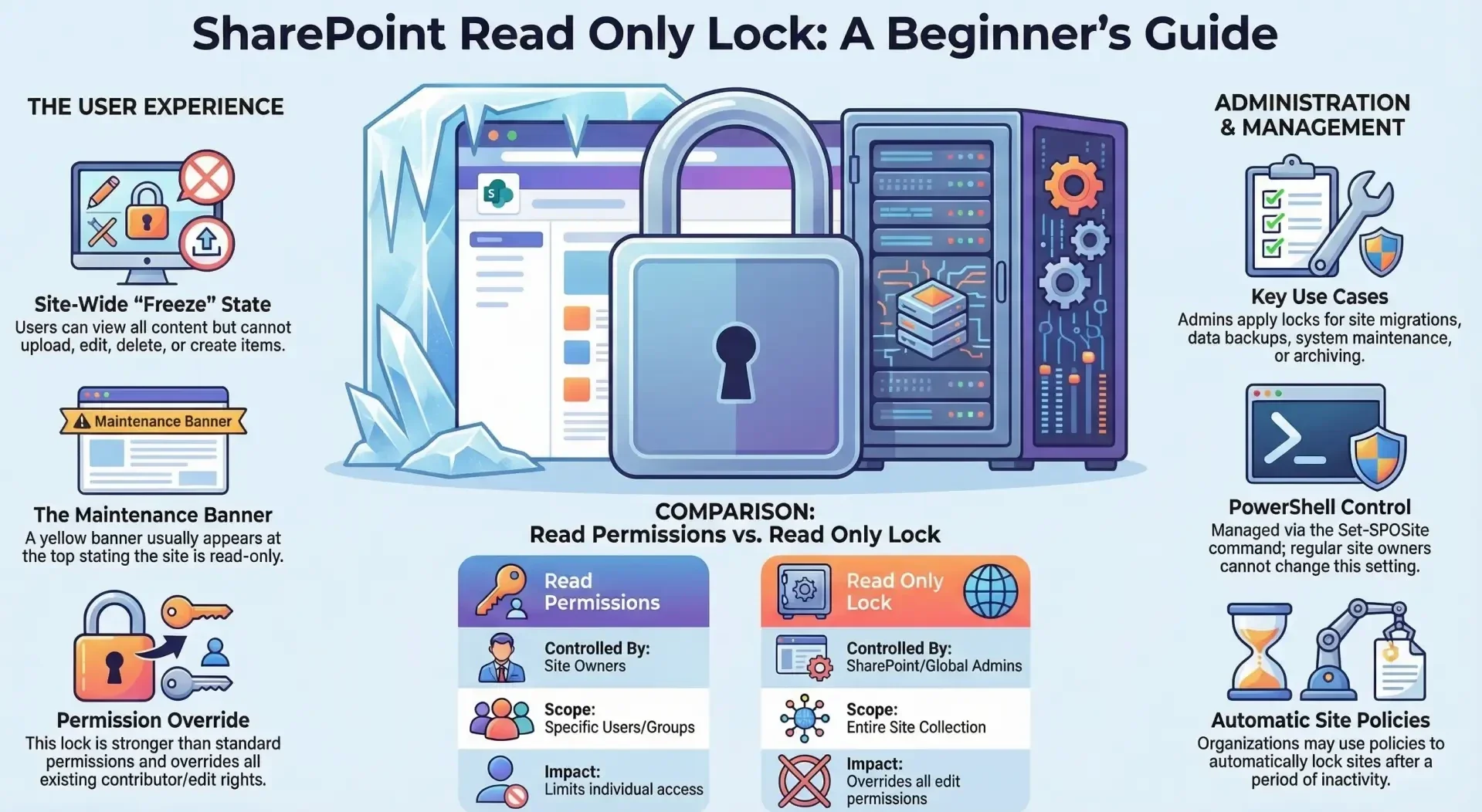
Guide to the “Read Only Lock” in SharePoint Online
This guide explains what the Read Only Lock (also called Read-Only mode or Read Only lock state) means in SharePoint Online, why it happens, what users experience, and how it differs from regular permissions.
1. What is the Read Only Lock?
The Read Only Lock is a special site-level setting that administrators can apply to an entire SharePoint site (site collection).
When a site is placed in Read Only mode:
- Users can still view almost everything (pages, documents, lists, libraries, metadata, etc.).
- Users cannot:
- Upload new files or create new items
- Edit / modify existing files or list items
- Delete anything
- Add comments (in some cases)
- Create new lists or libraries
- Change site navigation or structure (in most cases)
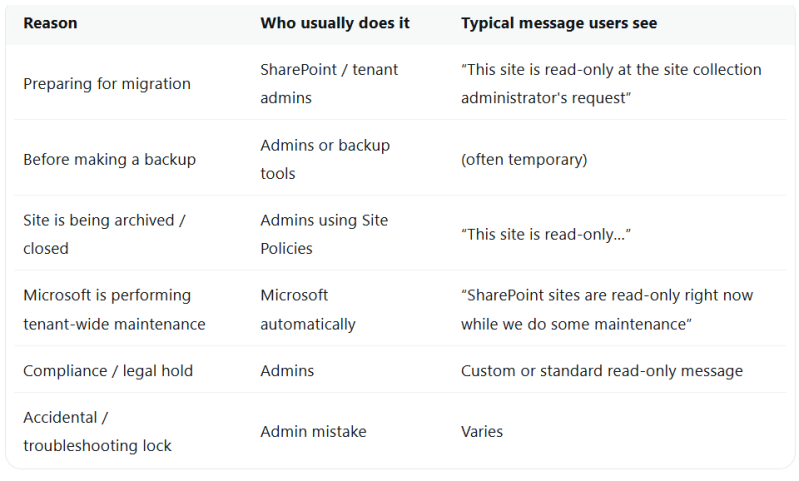
- A banner usually appears at the top of the site saying something like: “This site is read-only” or “SharePoint sites are read-only right now while we do some maintenance.
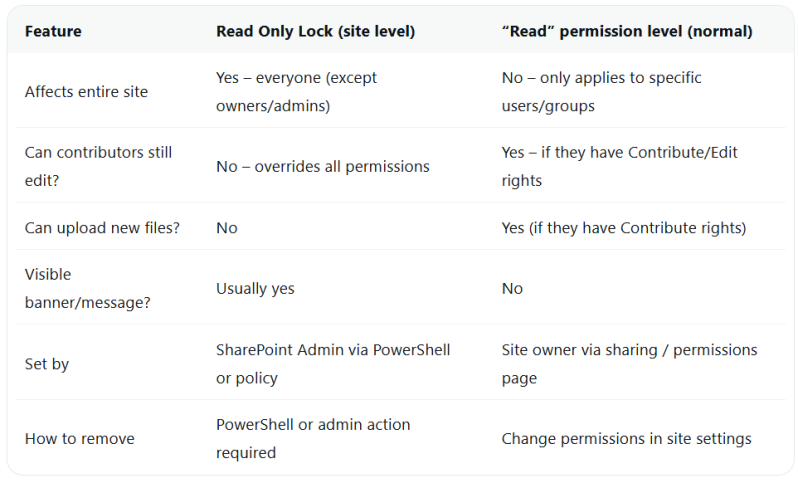
This lock is much stronger than just giving someone “Read” permissions — it overrides normal contributor/edit permissions.
2. Main Reasons a Site Gets Put into Read Only Lock
Administrators (or sometimes automatic processes) set this lock for specific purposes:
3. How Users Experience It
- You can open and read documents → but when you try to edit → Word / Excel / PowerPoint usually opens the file as read-only
- You cannot upload new files (upload button is grayed out or gives error)
- You cannot create new folders
- “Add new” buttons in lists/libraries are missing or give “access denied” errors
- You can still search, view versions (if versioning is on), download files, and share links (if you already had permission to share)
4. Read Only Lock vs. Regular “Read” Permissions
- Very common confusion — here's the difference:
5. How Do Admins Turn Read Only Lock On or Off?
Regular site owners cannot change this setting — it requires SharePoint Administrator or Global Administrator rights.
The most common way is using PowerShell:
powershell
- # Connect first
- Connect-SPOService -Url https://yourtenant-admin.sharepoint.com
- # Set site to Read Only
- Set-SPOSite -Identity "https://yourtenant.sharepoint.com/sites/YourSiteName" -LockState ReadOnly
- # Unlock it later
- Set-SPOSite -Identity "https://yourtenant.sharepoint.com/sites/YourSiteName" -LockState Unlock
Some organizations also use Site Policies (classic feature) to automatically close sites and make them read-only after a certain time.
6. Quick Troubleshooting Tips (for Users)If your site suddenly became read-only and you're not expecting it:
- Look for a yellow banner at the top of the site — it usually explains why.
- Ask your SharePoint / Microsoft 365 administrator — they are the only ones who can remove the lock.
- Check if the whole tenant is undergoing maintenance (rare, but happens).
- If only some files are read-only → that's usually a different issue (Required Check Out, validation columns, file already checked out by someone else, sync client settings, etc.) — not the site Read Only Lock.
Summary – Key Takeaways for Beginners
- Read Only Lock = entire site is frozen for changes (view only)
- It's an admin-level action, not a normal permission setting
- Used mostly for migrations, backups, archiving, or maintenance
- Users see a banner and cannot edit/upload/delete anything
- Only SharePoint Admins can turn it on/off (usually via PowerShell)
If you're a site owner and think your site was locked by mistake → contact your Microsoft 365 / SharePoint administrator.