

SharePoint Mentor Curated Articles
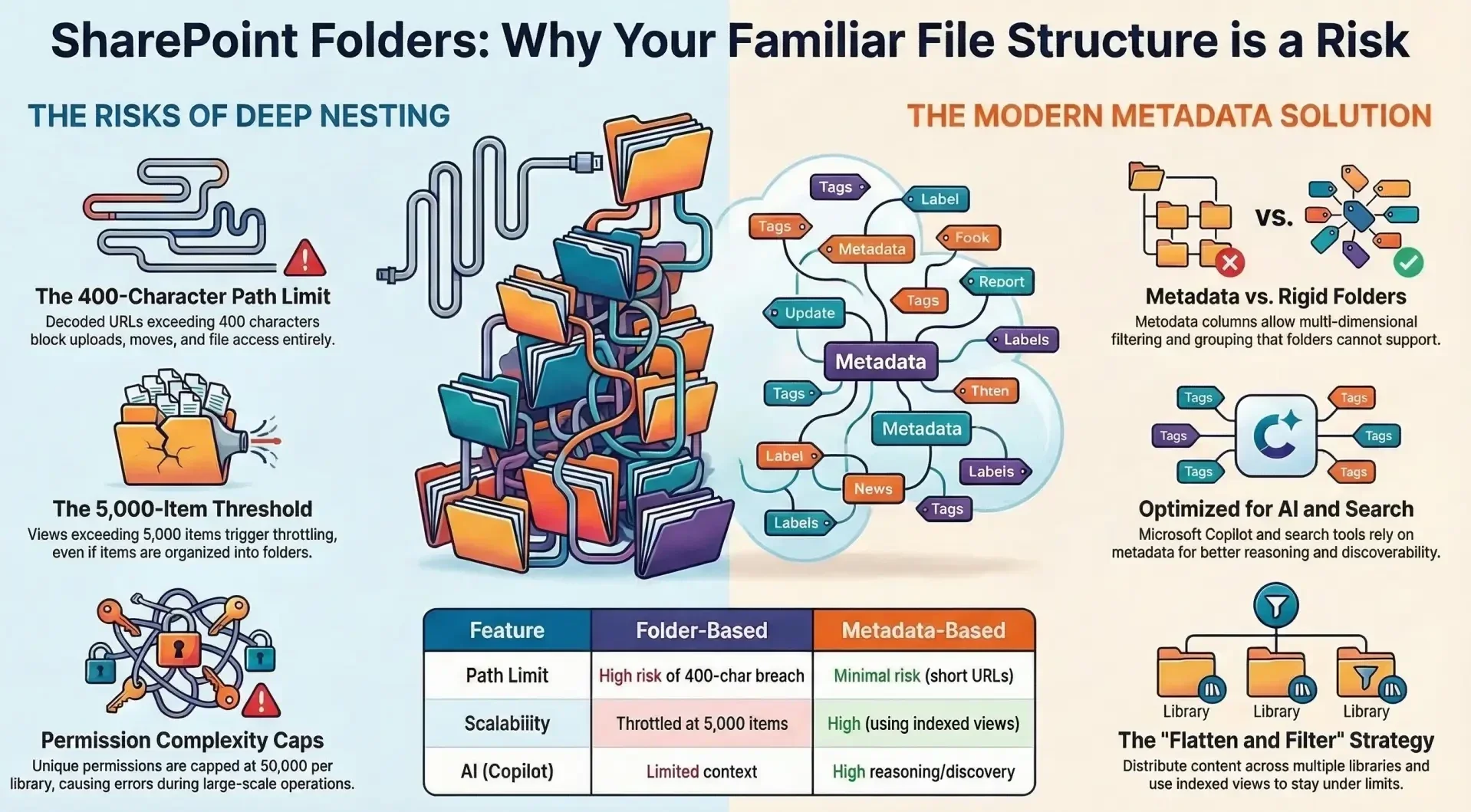
Folders and subfolders have long been a familiar way to organize content in SharePoint Online document libraries and lists, mimicking traditional file shares.
However, they introduce significant drawbacks and risks that can degrade performance, limit scalability, create security and compliance issues, and hinder modern collaboration features like search and AI such as Microsoft Copilot). Microsoft’s emphasizes these constraints through hard limits on path lengths, view thresholds, permissions, and sync behavior. Exceeding them leads to errors, throttling, failed operations, or even tenant-level restrictions such as read-only mode for storage overages)
Folders and subfolders have long been a familiar way to organize content in SharePoint Online document libraries and lists, mimicking traditional file shares.
However, they introduce significant drawbacks and risks that can degrade performance, limit scalability, create security and compliance issues, and hinder modern collaboration features like search and AI such as Microsoft Copilot). Microsoft’s official documentation emphasizes these constraints through hard limits on path lengths, view thresholds, permissions, and sync behavior. Exceeding them leads to errors, throttling, failed operations, or even tenant-level restrictions such as read-only mode for storage overages)
Key risks include:
- URL/path length violations (400-character decoded limit) preventing uploads, moves, or access.
- List View Threshold (5,000 items) throttling views and queries, even with folders.
- Unique permissions caps (50,000 supported; 5,000 recommended) and inheritance blocks (>100,000 items per folder/library).
- OneDrive sync failures with deep nesting (path limits, slow processing >300,000 items).
- Poor discoverability for search, filtering, and AI tools compared to metadata-driven approaches.
- Microsoft recommends metadata columns, indexed views, multiple libraries/sites, and hub structures as superior alternatives for most scenarios. Folders are not “evil” in small-scale use but become problematic in enterprise environments with thousands of items or users. This document details each risk with official limits, real-world impacts, and mitigation notes.
- SharePoint Online supports folders in both document libraries (primary use case) and lists (less common but available). Folders provide hierarchical organization but tie content to a single rigid structure.
Unlike metadata (custom columns like “Project,” “Department,” or “Status”), folders:
- Do not support multi-dimensional filtering or grouping.
- Accumulate path length quickly.
- Complicate permission inheritance and large-scale operations.
Official Microsoft guidance highlights these as performance and usability trade-offs. Deep nesting exacerbates issues, especially in modern experiences, Teams-integrated libraries, and AI-assisted search. The following sections break down the risks category by category.
1. URL and File Path Length Limitations
The most immediate and common risk with nested folders is exceeding SharePoint’s strict path length rules.
- Official Limits (decoded path, excluding tenant domain):
- Entire folder path + filename: 400 characters maximum.
- Individual segment (folder or file name): 255 characters (OS limit).
- When synced to OneDrive: Local path (OneDrive root + relative path) cannot exceed 520 characters.
- Risks and Impacts:
- Files/folders become inaccessible: Uploads, moves, renames, or downloads fail with errors like “The specified path is too long.”
- Common in migrations from file shares or when users create descriptive, nested structures (e.g., /Department/Year/Month/Project/Subproject/ClientName/DocumentType/FileName.docx).
- Sync client fails silently or partially (empty folders appear).
- Affects sharing, versioning, and Power Automate flows that reference URLs.
- No workaround once exceeded except shortening names/paths or flattening structure—often requiring mass migration tools.
- Example Scenario: A 10-level deep folder tree with moderately long names easily hits 400 characters, blocking even basic operations.
2. List View Threshold (LVT) and Performance Impacts
SharePoint enforces a 5,000-item List View Threshold to protect database performance. Folders are sometimes suggested as a workaround, but they introduce limitations and do not fully resolve the issue.
- Key Limits:
- Any view, query, sort, group, or filter returning >5,000 items triggers throttling (errors like “This list exceeds the list view threshold”).
- Total capacity: 30 million items/files/folders per library (not the issue—views are).
- How Folders Interact (and Fail):
- Subfolders can keep individual folder contents under 5,000, allowing some views to work.
- However:
- “Show all items without folders” views or library-wide queries still hit the threshold.
- Folders count as items toward the total.
- Aggregated views, grouping, or indexing requirements persist.
- Performance degrades in large folders (slow loading, timeouts).
- Additional Performance Risks:
- Large-scale operations (bulk upload/move/delete) slow dramatically.
- Throttling affects PowerShell, APIs, and integrations.
- Modern UI views and Copilot queries suffer if not filtered/indexed properly.
- Folders provide partial relief but encourage poor design that masks underlying scalability problems.
3. Unique Permissions and Security Management Challenges
Folder-level permissions are a frequent source of complexity and risk.
- Official Limits:
- Unique security scopes per list/library: 50,000 supported (recommended: 5,000).
- Inheritance break/re-inherit block: Impossible on a list, library, or folder containing >100,000 items. Individual items can still have unique permissions (up to the scope limit).
- Risks and Impacts:
- Deep folder trees with unique permissions per subfolder quickly consume the 50,000 scope limit → errors when adding new unique items.
- Cannot adjust permissions on very large folders (>100k items), locking in inheritance or forcing item-level workarounds (error-prone).
- Performance hit: Fine-grained permissions slow queries and increase administrative overhead.
- Security/compliance risks: Accidental over-exposure, inheritance breaks causing data leaks, or inability to audit/fix permissions at scale.
- Sharing folders inherits these issues; sub-item limits apply in some scenarios.
- Result: Folder-based security models become unmanageable in growing libraries, violating governance policies.
4. OneDrive Sync and Offline Access Issues
Syncing libraries with folders to the OneDrive client amplifies risks dramatically.
- Key Limits and Behaviors:
- Recommended sync: ≤300,000 items total across all synced libraries (soft limit; performance degrades beyond).
- Path length restrictions compound locally (Windows/macOS file system limits).
- Differential sync works for Office files but not always for deep structures.
- Risks and Impacts:
- Sync failures: Deep nesting causes stuck “processing,” empty folders, incomplete syncs, or high CPU/network usage.
- Long delays for uploads/downloads of thousands of items.
- Local path length errors prevent opening/saving files.
- Conflicts in Teams-integrated or shared libraries.
- Users experience “online-only” icons unexpectedly or broken shortcuts.
- Deep folders turn a productivity tool into a frustration source, especially for mobile/offline workers.
5. Search, Discovery, and AI Integration Limitations
Folders tie content to a single hierarchy, which modern tools do not handle well.
- Impacts:
- Search and filtering: Cannot filter or group by folder name easily; global search ignores deep context.
- Metadata superiority: Columns enable multi-faceted views, dynamic filtering, and consistent tagging. Folders force users to “know where to look.”
- Copilot and AI: Relies heavily on metadata for reasoning; folder names provide minimal context, leading to poor results (e.g., missed documents in folder-only libraries).
- Discoverability suffers at scale—users waste time navigating hierarchies instead of using views/search.
- Microsoft promotes managed metadata for improved content discoverability and consistency across sites.
6. Scalability, Governance, and Operational Risks
- Sprawl and user behavior: End-users naturally create excessive nesting, leading to governance nightmares.
- Migration/export: Tools struggle with path limits and permission inheritance; ZIP downloads capped at 20 GB.
- Automation: Power Automate, Graph API, and flows become complex or throttled when traversing deep trees.
- Storage/tenant risks: Indirect contribution to overages (folders + items count toward 25 TB per site; tenant read-only mode possible).
- Modern vs. Classic differences: Modern libraries enforce stricter view behaviors and highlight folder limitations.
7. Comparison: Folders vs. Metadata
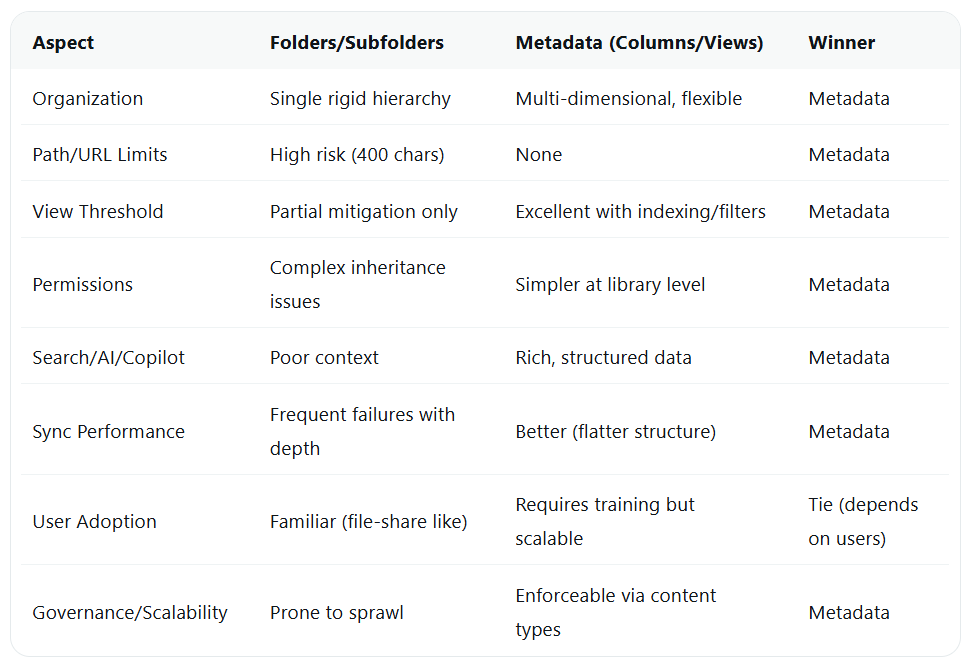
Recommendations and Alternatives
- Minimize folders: Use at most 1–2 levels for high-level categorization if needed.
- Adopt metadata-first: Create columns, content types, and indexed views. Use grouping/filtering in modern views.
- Flatten structure: Distribute content across multiple libraries or sites/hubs (2,000 subsites limit per collection; hubs recommended).
- Index columns and create filtered views to stay under 5,000 items.
- Use Document Sets or modern features for grouped content without deep nesting.
- For sync-heavy users: OneDrive shortcuts instead of full library sync.
- Governance: Enforce naming conventions, training, and retention policies. Monitor via SharePoint admin center.
- Migration strategy: Flatten during migration; use tools like ShareGate for metadata mapping.
- Test designs in a pilot library before scaling.
Conclusion
- While folders offer familiarity, their drawbacks in SharePoint Online—rooted in hard technical limits on paths, views, permissions, and sync—outweigh benefits in anything beyond small libraries.
- Deep subfolder structures amplify every risk, leading to errors, poor performance, security gaps, and frustrated users.
- Microsoft’s direction is clear: Shift to metadata-driven architectures combined with strategic site/library design for scalability, discoverability, and future-proofing (including AI).
- Organizations ignoring these risks face escalating maintenance costs and compliance issues as content volumes grow.