

SharePoint Mentor Curated Articles
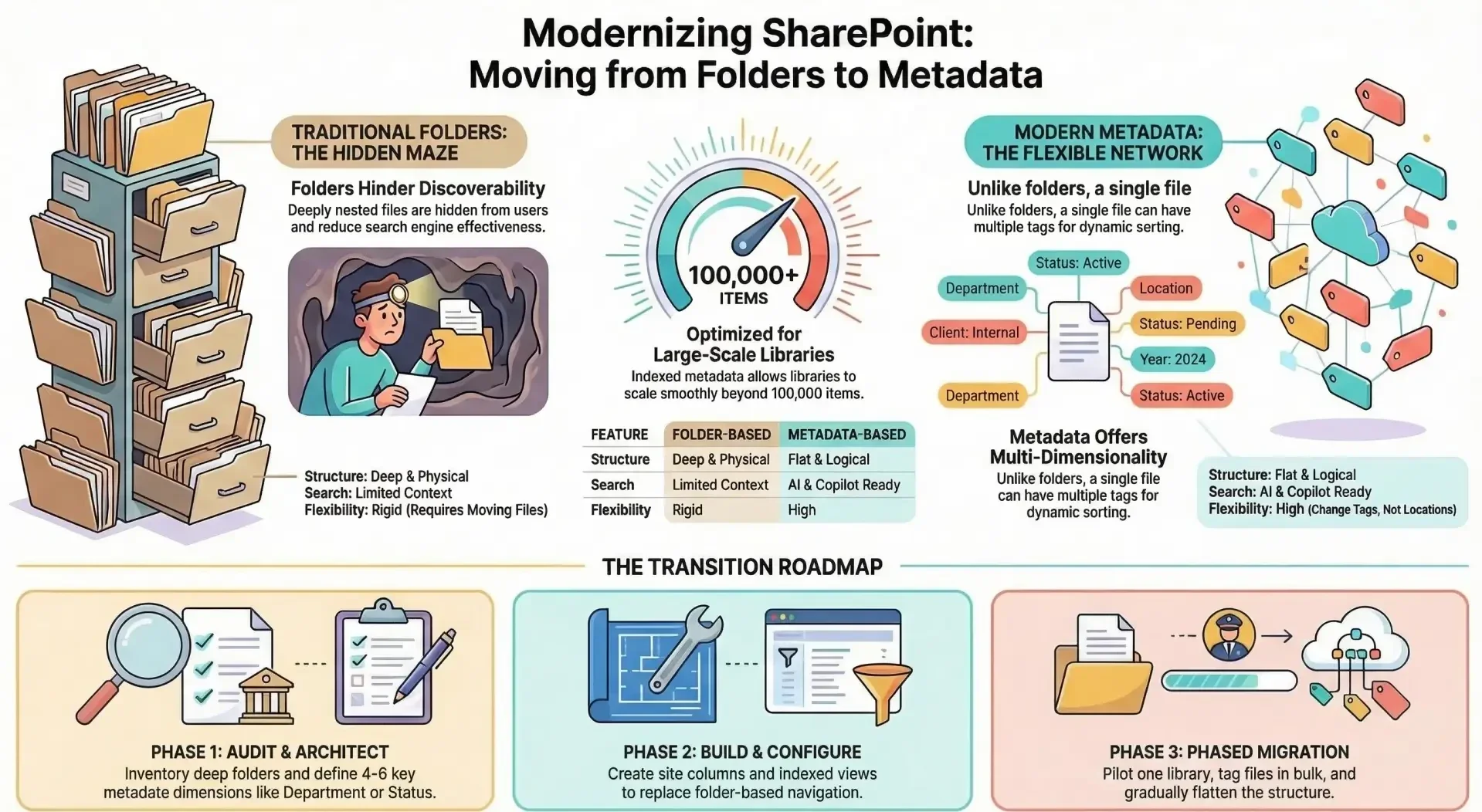
Here is a comprehensive guide for transitioning away from reliance on folders and nested subfolders in libraries and lists.
This approach aligns with modern SharePoint best practices, emphasizing metadata, views, content types, and flatter structures for better discoverability, search, governance, scalability, and AI readiness.
Why Move Away from Folders? Traditional folder hierarchies mimic file shares but create problems in SharePoint:
- Deep nesting hides content and hurts discoverability → users must drill down many levels.
- Reorganization requires physically moving files (risky, time-consuming, breaks links).
- Search and filtering become less effective; folders don't carry semantic meaning.
- Performance suffers in large libraries (especially >5,000–30,000 items per view).
- Governance is harder (inconsistent naming, no enforced rules).
- Limited flexibility for new views, reports, or compliance needs.
- Modern features (highlighted content web parts, dynamic filtering, AI-driven insights) work far better with metadata than folders.
Microsoft recommends minimizing nested folders and favoring metadata + views instead. Folders still have some uses but they should not be the primary organization method.
Benefits of a Metadata-Driven (Folder-less / Flat) Approach
- Files stay in one place; organization happens via tags → no moving files when categories change.
- Dynamic views, grouping, sorting, and filtering → users see exactly what they need.
- Better search relevance and Microsoft Search / Copilot results.
- Easier compliance (retention labels, sensitivity labels, eDiscovery tied to metadata).
- Scalability for large libraries (100,000+ items possible with indexed columns + filtered views).
- Multi-dimensional classification (a document can have many tags at once).
Step-by-Step Planning and Execution Guide
Phase 1: Assessment & Planning (2–6 weeks)
- Inventory current state
- Use SharePoint search or Power Automate / PnP PowerShell to list libraries with deep folders (>2–3 levels).
- Identify high value / high-volume libraries (look for >10,000 items or frequent complaints).
- Map existing folder paths → what concepts do they represent? (e.g., Department → Year → Project → Status).
- Define information architecture
- Identify 4–8 key metadata dimensions (avoid >10–12 per library to prevent overload).
Common examples:- Document Type / Category (Choice or Managed Metadata)
- Project / Matter / Client
- Department / Function
- Status (Draft, Approved, Archived)
- Year / Period
- Owner / Responsible Person (Person column)
- Region / Location
- Confidentiality Level
- Decide: site columns (reusable across site) vs. list columns (local).
- Identify 4–8 key metadata dimensions (avoid >10–12 per library to prevent overload).
- Choose managed metadata vs. simple choice columns
- Use Managed Metadata (term sets) when: values need hierarchy, central governance, synonyms, or reuse across sites.
- Use Choice columns when: simple list, no need for central control.
- Avoid too many required fields at upload (start with 3–5 mandatory; others optional or defaulted).
- Plan content types (optional but powerful)
- Create content types for major document classes (e.g., Contract, Invoice, Policy, Meeting Notes).
- Assign specific metadata columns to each content type.
- This enables different metadata per document kind in the same library.
- Permissions strategy
- Avoid breaking inheritance on folders → use library-level or item-level security sparingly.
- If folders were used for permissions, replace with separate libraries or Microsoft 365 Groups.
Phase 2: Preparation in SharePoint (1–4 weeks)
- Create / refine metadata columns
- Go to Library Settings → Create column (or better: Site Settings → Site columns for reuse).
- Index important columns (Library Settings → Indexed columns) — mandatory for large libraries.
- Build content types (if using)
- Site Settings → Site content types → Create.
- Add columns → enable “Allow management of content types” in library settings → add content types to library.
- Create modern views
- Create multiple views:
- “All Documents” (flat, no folders)
- Grouped views (e.g., Group by Department, then by Status)
- Filtered views (e.g., My Documents = [Owner] = [Me])
- Dynamic / personalized views using audience targeting or JSON formatting.
- Set default view to a flat, useful one.
- Create multiple views:
- Configure defaults & rules
- Column default values.
- Power Automate flows to auto-tag on upload (e.g., extract year from filename).
- Quick Edit / Grid view for bulk tagging.
Phase 3: Migration / Transition (phased, 4–12+ weeks)Recommended safe sequence (avoid big bang):
- Start small — pilot one library or team.
- Add metadata columns to existing library (won’t break anything).
- Tag in place (do not move files yet):
- Use Quick Edit for bulk updates.
- Use Power Automate or third-party tools (ShareGate or AvePoint for bulk tagging.
- Use views grouped by old folder paths temporarily to help tag.
- Create flat views and promote them (hide old folder-based views).
- Gradually flatten — move files out of deep folders once tagged (use “Move to” in batches <2,000 items).
- Delete empty folders afterward.
- Automate ongoing — flows to prevent folder creation (if desired) or auto-tag.
- Train & communicate — show before/after examples; emphasize views over folders.
Phase 4: Governance & Sustainment
- Training — short videos / guides: “How to tag instead of folder”.
- Naming conventions — still important for files (no folders to hide bad names).
- Default views — enforce flat views as default.
- Monitor — use SharePoint analytics or reports for metadata completion.
- Policies — consider Power Automate to enforce tagging before sharing.
- When to still use folders — coarse separation (e.g., Active vs. Archive), permission boundaries, or >100k items needing separate sync scopes.
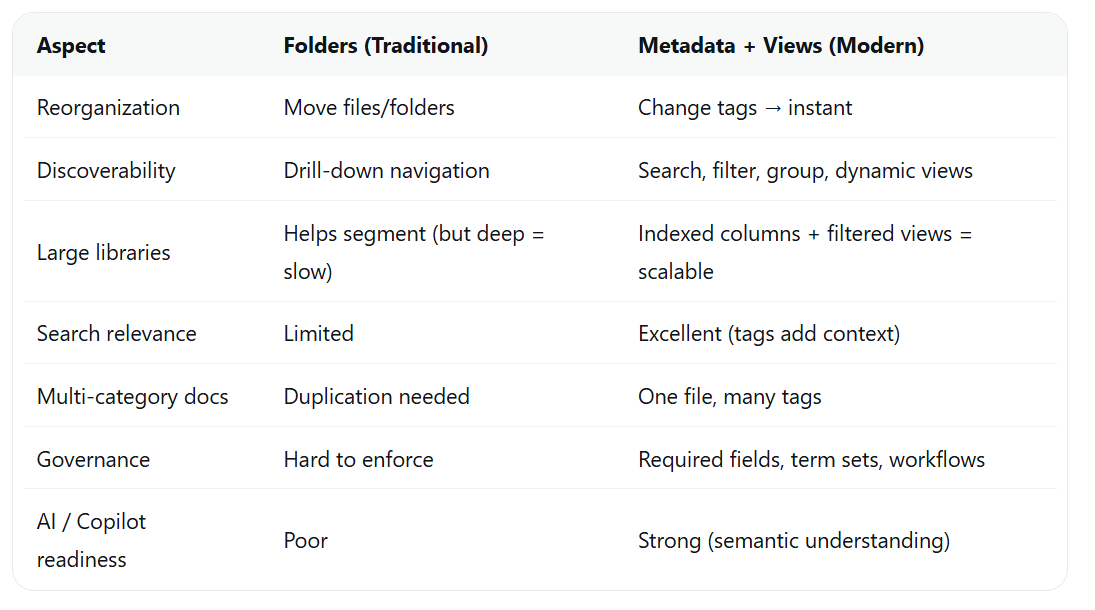
Quick Reference Table: Folders vs. Metadata
Final Recommendations (2026 Perspective)
- Aim for flat libraries with <2 folder levels as the norm.
- Treat folders as an exception (permissions, very large archives).
- Invest upfront in good metadata design — it pays off for years.
- Combine with Microsoft Search, Copilot, and retention policies for maximum value.
- Use tools like ShareGate, PnP PowerShell, or Power Automate to accelerate tagging and flattening.
This transition is not just cosmetic — it's foundational for modern, intelligent document management in SharePoint Online. Start with one painful library, measure success (search time, user feedback, metadata fill rate), then scale.