

SharePoint Mentor Curated Articles
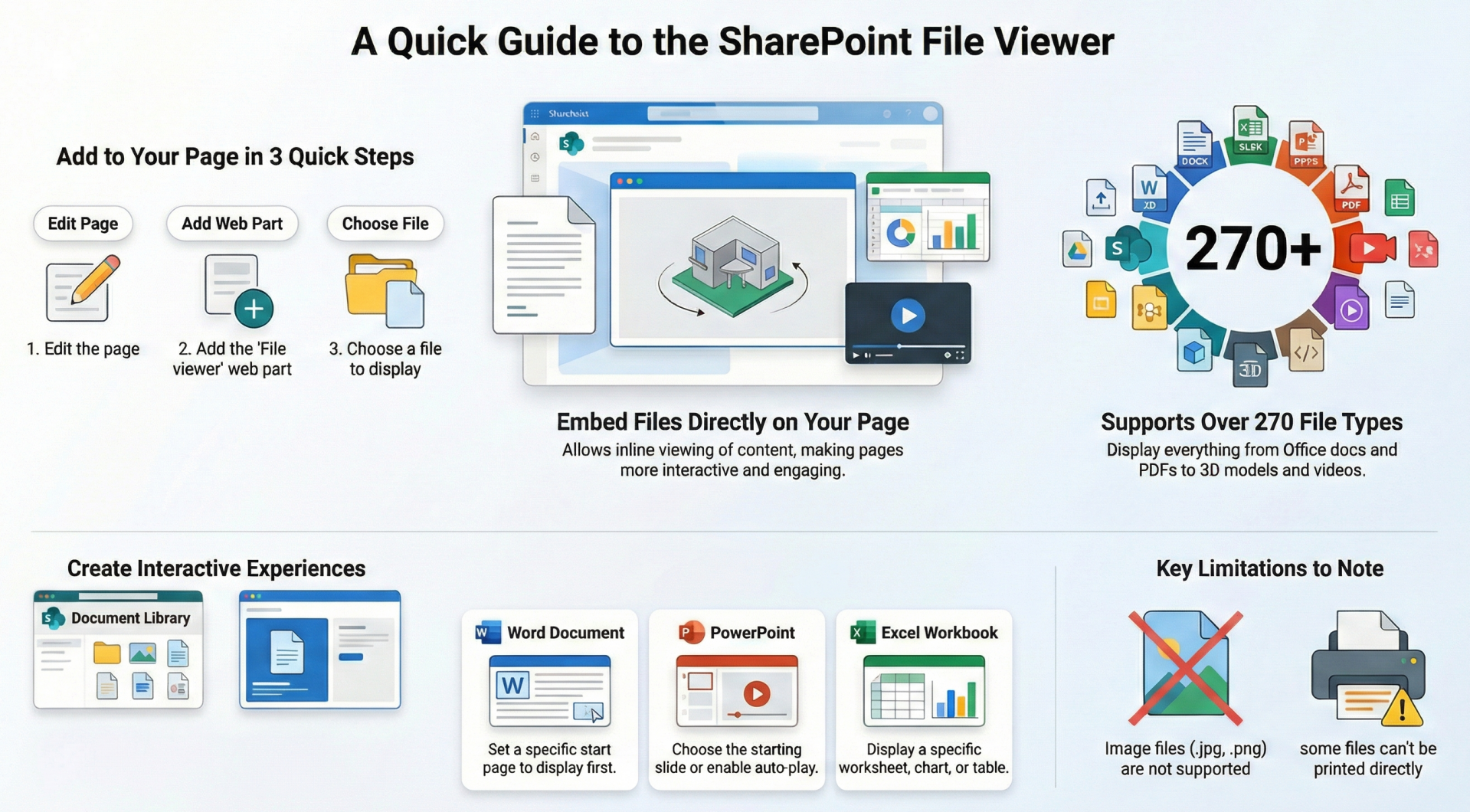
The File Viewer Web Part (also referred to as the File and Media Web Part) is a versatile component in SharePoint Online that allows users to embed and display various file types directly on modern SharePoint pages.
The File Viewer Web Part supports a wide range of formats, enabling inline viewing without requiring users to download files.
This web part is particularly useful for creating interactive pages, such as dashboards, knowledge bases, or collaborative hubs.
This document provides a comprehensive guide to all features, settings, and best practices for using the File Viewer Web Part, based on official Microsoft documentation and practical insights.
To incorporate the File Viewer Web Part into a SharePoint Online page:
- Navigate to the page where you want to add the web part.
- If the page is not in edit mode, click Edit in the top-right corner.
- Hover over an existing section or click the + icon to add a new web part.
- In the web part toolbox that appears on the right, click See all web parts to view the full list.
- Search for or scroll to File viewer (it may appear under the "File and Media" category in some interfaces).
- Select the web part or drag and drop it onto the page canvas.
Once added, the web part will prompt you to select a file. You can resize or reposition it like any other web part.Selecting and Inserting a FileAfter adding the web part, you need to choose the file to display:
- In the web part placeholder, click Choose a file.
- Options for sourcing the file include:
- Recent files: Displays files you've recently accessed in Microsoft 365.
- From your site: Browse libraries within the current SharePoint site.
- Upload from your computer: Upload a new file directly. Uploaded files are stored in the site's Site Assets library, typically in a subfolder named after the page (e.g., under Site Pages).
- From a link: Paste a URL to a file stored in OneDrive, SharePoint, or another accessible location.
- Your organization: If your organization has predefined approved assets (e.g., branded images or templates), select from this curated set.
- After selecting, the file renders inline. You can add an optional caption or description below the web part for context.
The File Viewer Web Part supports over 270 file types, including but not limited to:
- Office Documents: Excel (.xls, .xlsx), Word (.doc, .docx), PowerPoint (.ppt, .pptx, .pot, .potx), Visio (.vsd, .vsdx).
- PDFs: Standard PDF files for viewing and navigation.
- 3D Models: Formats like .glb, .fbx, and others for interactive 3D rendering (especially useful for medical or engineering models).
- Videos: Local videos from SharePoint sites, such as .MOV, .MP4, .WMV. (For videos like YouTube, use the Embed or YouTube Web Part instead.)
- Other Formats: Medical images (e.g., DICOM), code files, and more advanced types.
Limitations on File Types:
- Image files (e.g., .jpg, .png) are not supported; they will not render properly.
- Some specialized formats may require specific browser support or extensions.
Configuration Settings
- Configuration occurs via the Edit web part pencil icon, which opens the property pane on the right. General settings include:
- File Selection: Change the embedded file using the same sourcing options as when adding.
- Description/Caption: Add text below the viewer for accessibility or context.
- Alternative Text (Alt Text): For accessibility, describe the file's content (e.g., "Quarterly sales report chart").
- Dynamic Connection: See the "Connecting to Other Web Parts" section below.
Settings vary by file type and are available under Edit properties (or the ellipses [...] in the property pane). Here are type-specific options:
- Word Documents (.docx):
- Start Page: Specify the page number to display initially.
- View Mode: Choose between read-only preview or interactive editing (if permissions allow).
- Zoom Level: Adjust default zoom for better readability.
- PDF Files:
- Start Page: Set the initial page to load.
- Toolbar Options: Enable/disable navigation tools like page thumbnails or search.
- Printing: PDFs cannot be printed directly from the inline viewer; users must click Open in new window (appears on hover) and print from the browser.
- PowerPoint Presentations (.pptx):
- Starting Slide: Select which slide appears first.
- Slide Show Mode: Enable auto-advance or loop options for presentation-like viewing.
- Speaker Notes: Toggle visibility of notes if applicable.
- Excel Workbooks (.xlsx):
- Worksheet Selection: Choose a specific sheet to display.
- Named Item: Focus on a particular chart, table, or range (e.g., "Chart1").
- Display Options: Hide gridlines, headers, or formulas; set default view (e.g., full sheet or specific cells).
- Interactivity: Allow users to sort/filter data inline if the file permits.
- Videos:
- Autoplay: Enable automatic playback on page load.
- Loop: Set the video to repeat.
- Mute on Start: Start without sound.
- Captions: Upload or link to subtitle files (.vtt) for accessibility.
- Playback Controls: Customize visibility of play/pause, volume, and full-screen buttons.
- 3D Models:
- Rotation and Zoom: Set default orientation, lighting, and camera angle.
- Interaction Mode: Enable free rotation or guided views.
- Background: Customize the model's background color or transparency.
For all types, you can enable More actions (e.g., Save for later, Share, Download) in the viewer toolbar, which appears on hover in view mode.
Advanced Settings:
- Size and Layout: Adjust the web part's height/width via drag handles or property pane (e.g., fixed pixels or auto-fit).
- Chrome (Title Bar): Show or hide the web part title.
- Permissions Integration: The viewer respects SharePoint file permissions—users without access see an error.
Once published, the File Viewer provides an interactive experience:
- Inline Navigation: Scroll, zoom in/out, or page through documents.
- Toolbar (on Hover): Options like Download, Print, Share, Open in App/New Window, or Full Screen.
- Collaboration: If the file is in OneDrive or SharePoint, users can co-author in real-time via Open in app.
- Accessibility: Supports screen readers with alt text; videos include caption support.
- Viewers Tracking: If the site-level SharePoint Viewers feature is enabled (via Site Settings > Manage site features > Activate "SharePoint Viewers"), site owners can see who viewed the file.
The File Viewer can dynamically connect to sources like the Document Library Web Part for interactive previews:
- Add a Document Library Web Part to the page, configured to show a library or folder.
- In the File Viewer property pane, click the ellipses [...] > Connect to source.
- Select the Document Library Web Part from the dropdown.
- Publish the page—selecting a file in the library will display it in the viewer.
Limitations and Considerations
- Browser Dependencies: Some features (e.g., 3D models) require modern browsers like Edge or Chrome.
- File Size: Large files may load slowly; optimize before uploading.
- Classic vs. Modern: This web part is for modern pages; use Page Viewer for classic sites.
- No Editing in Viewer: Inline edits are limited; full editing requires opening in the app.
- Printing Issues: Direct printing is not supported for some types (e.g., PDFs); use Open in new window.
- Mobile Experience: Optimized for desktop; mobile may have reduced interactivity.
- Security: Files must be accessible via SharePoint permissions; external links may require authentication.
Best Practices and Tips
- Organize Files: Store files in dedicated libraries for easy sourcing.
- Test Compatibility: Preview files in different browsers and devices.
- Enhance with Connections: Pair with Document Library for dynamic content.
- Accessibility Compliance: Always add alt text and captions.
- Performance: Avoid embedding very large files; link instead if needed.
- Updates: If the source file changes, the viewer updates automatically.
- Troubleshooting: If the "More options" (...) is missing, check site permissions or clear cache.