

SharePoint Mentor Curated Articles
SharePoint Online Team Sites vs. Communication Sites
- SharePoint Online offers two primary modern site templates: Team Sites and Communication Sites. These templates serve distinct purposes within an organization's collaboration and information-sharing ecosystem.
- Team Sites are designed for interactive teamwork, while Communication Sites focus on one-way dissemination of content.
- Understanding their differences is crucial for selecting the right template to optimize productivity, security, and user experience.
This instructional document provides a comprehensive comparison based on official Microsoft documentation and expert insights. It covers purpose, features, permissions, integrations, and more, with practical guidance on when to use each. By the end, you'll be equipped to create and manage these sites effectively.
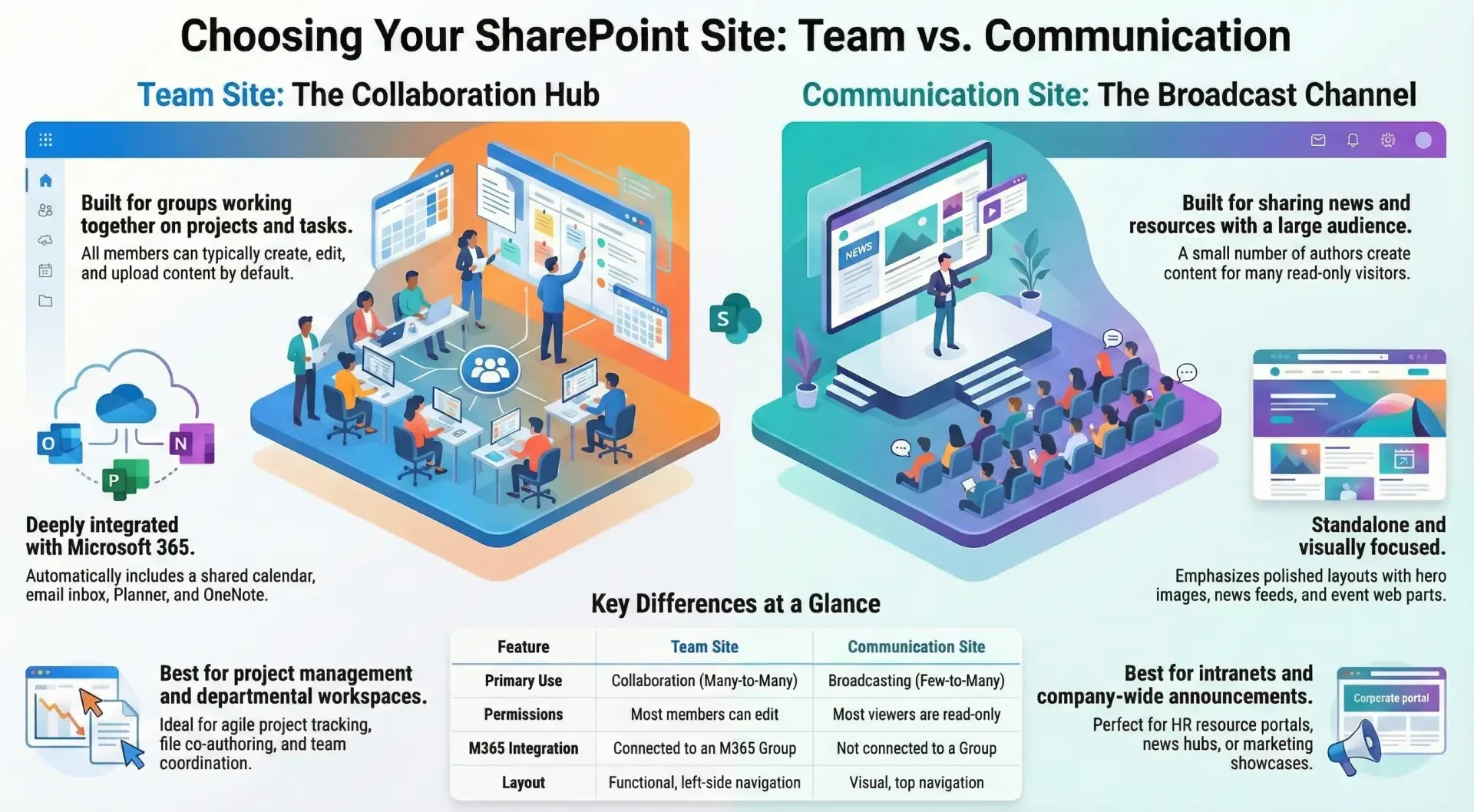
Team Sites are collaboration hubs built for groups working together on projects, tasks, or shared goals.
They emphasize real-time interaction, document co-authoring, and integration with other Microsoft 365 tools. When you create a modern Team Site, it's typically connected to a Microsoft 365 Group, which automatically provisions additional resources like a shared email inbox and calendar.
This makes them ideal for departments, project teams, or cross-functional groups needing a centralized space for ongoing work.
Key characteristics:
- Collaborative Focus: All members can create, edit, and upload content by default.
- Dynamic Tools: Includes built-in lists, libraries, and apps for task management.
- Scalability: Suitable for small to medium-sized teams (e.g., 5-50 members).
Communication Sites are designed for broadcasting information to a wide audience, such as company news, policies, or resources.
- They prioritize visual appeal and readability, with features like hero web parts, news feeds, and image galleries to engage viewers.
- Unlike Team Sites, they are standalone and not tied to a Microsoft 365 Group, allowing for more controlled content authoring.
Key characteristics:
- Broadcast Focus: A small group of authors creates content, while a larger audience consumes it.
- Visual Tools: Emphasizes polished layouts for events, reports, and multimedia.
- Scalability: Ideal for organization-wide or departmental announcements reaching hundreds or thousands of users.
Detailed Comparison: The following sections break down the key differences across multiple dimensions.
1. Purpose and Use Cases
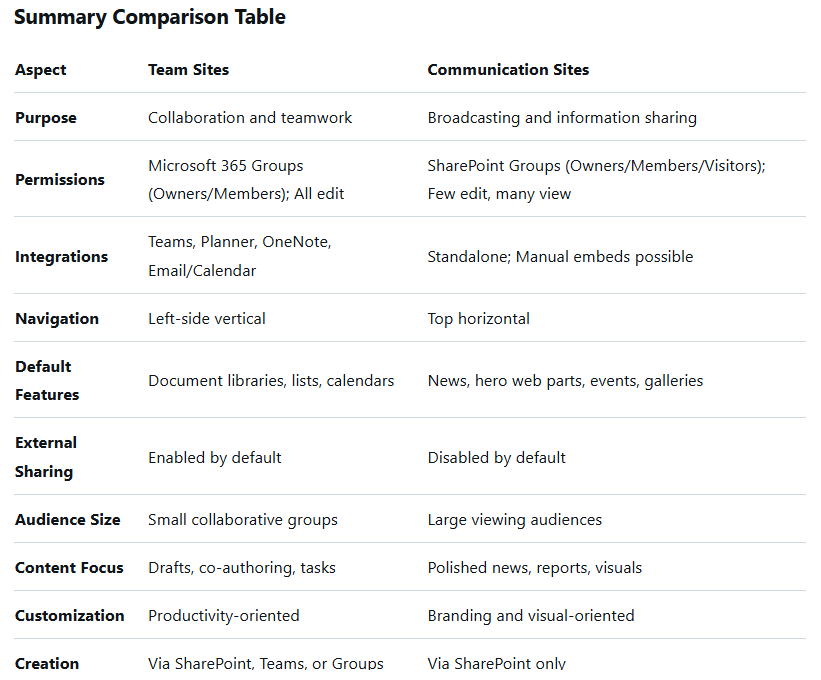
- Team Sites: Built for collaboration and productivity. Use them for project management, file sharing, brainstorming, and team coordination. Examples include departmental workspaces, agile project tracking, or remote team hubs where everyone contributes.
- Communication Sites: Focused on information sharing and broadcasting. Use them for intranets, news portals, event pages, or knowledge bases where content is primarily viewed, not edited. Examples include company-wide announcements, HR resources, or marketing showcases.
2. Permissions and Security
- Team Sites: Rely on Microsoft 365 Groups for permissions. This includes Owners (full control) and Members (edit access). All members are typically content authors, promoting equal collaboration. External sharing is enabled by default but can be disabled by admins.
- You can also create non-group-connected Team Sites using SharePoint groups for more granular control, though modern best practices favor group-connected sites.
- Communication Sites Use SharePoint groups exclusively: Owners (full control), Members (edit access for authors), and Visitors (read-only). This setup supports a small number of authors and a large number of viewers. External sharing is disabled by default but can be enabled.
- Permissions are more flexible for read-only access, making it easier to share with broad audiences without risking unintended edits.
3. Integrations and Included Features
- Team Sites: Deeply integrated with Microsoft 365.
- A group email address and shared calendar.
- Microsoft Planner for task boards.
- OneNote notebook for shared notes.
- Option to connect to Microsoft Teams for chat, meetings, and channels.
- Default web parts for document libraries, lists, and group calendars.
- Communication Sites: Standalone with no automatic integrations.
- News posts, hero web parts, events, and image galleries.
- No group email, Planner, or OneNote by default.
- Cannot be directly connected to Microsoft Teams (though you can embed Teams elements manually).
- Both support custom web parts, but Team Sites lean toward productivity tools, while Communication Sites emphasize display-oriented ones.
4. Navigation and Layout
- Team Sites: Feature left-hand side navigation for quick access to libraries, lists, and subsites. The layout is functional and work-focused, with quick links to recent documents and team updates.
- Communication Sites: Use top (horizontal) navigation, which remains fixed and suits broader, less hierarchical content. Layouts are visually appealing, with templates like Topic, Showcase, or Blank for storytelling and branding.
5. Content Creation and Management
- Team Sites: All members can upload, edit, and co-author documents in real-time. Emphasizes drafts, versioning, and collaborative editing.
- Communication Sites: Limited to designated authors (Members group). Content is polished and final, with features for scheduling news posts and embedding multimedia. Viewers can interact via likes or comments but not edit.
6. External Sharing and Accessibility
- Team Sites: Default external sharing enabled, suitable for collaborating with partners or vendors. However, this requires careful management to avoid data exposure.
- Communication Sites: Default external sharing disabled, ideal for sensitive internal communications. Easier to share read-only links publicly if needed.
7. Customization and Templates
- Team Sites: Start with a basic template focused on collaboration. Customization includes adding apps, workflows, and Power Automate flows for automation. Branding is possible but secondary to functionality.
- Communication Sites: Offer multiple templates (e.g., Topic for knowledge bases, Showcase for visuals). Strong emphasis on themes, colors, and layouts for branding. More options for embedding videos, forms, and interactive elements.
8. Performance and Scalability
- Team Sites: Optimized for active, frequent use by smaller groups. Can handle large file libraries but may become cluttered if not organized.
- Communication Sites: Better for high-traffic viewing, with performance tuned for rendering rich content. Scales well for enterprise-wide use without collaboration overhead.
9. Creation Process
- Team Sites: Can be created directly in SharePoint, via Microsoft Teams (which auto-creates a connected site), or through Microsoft 365 Groups. Requires admin permissions for group creation.
- Communication Sites: Created directly in SharePoint Admin Center or site creation page. No group association, so quicker setup for standalone needs.
10. Migration and Conversion
- Neither site type can be directly converted to the other without recreation or third-party tools, due to underlying group connections. Plan ahead to avoid rework.
Use Cases and Best Practices
When to Choose a Team Site
- For a marketing team collaborating on campaign assets.
- A project group tracking milestones with integrated Planner.
- Best Practice: Use folders or metadata for organization; enable versioning for edits; integrate with Teams for seamless chat.
When to Choose a Communication Site
- For an internal newsletter or company portal.
- Sharing training resources with read-only access.
- Best Practice: Designate 2-5 authors; use audience targeting for personalized views; leverage analytics to track engagement.
Hybrid Approaches
- Link a Communication Site to a Team Site for combined workflows (e.g., draft in Team Site, publish to Comm Site).
- Use hub sites to connect multiple sites for navigation unity.
Common Pitfalls to Avoid
- Don't use Team Sites for broad broadcasting to avoid clutter and unauthorized edits.
- Avoid Communication Sites for active collaboration as it lacks integrated tools.
- Always review tenant settings for sharing and permissions before creation.
Conclusion
- Team Sites and Communication Sites complement each other in SharePoint Online, addressing collaboration vs. communication needs. By aligning your choice with the intended purpose, audience, and features, you can enhance efficiency and user satisfaction.