

SharePoint Mentor Curated Articles
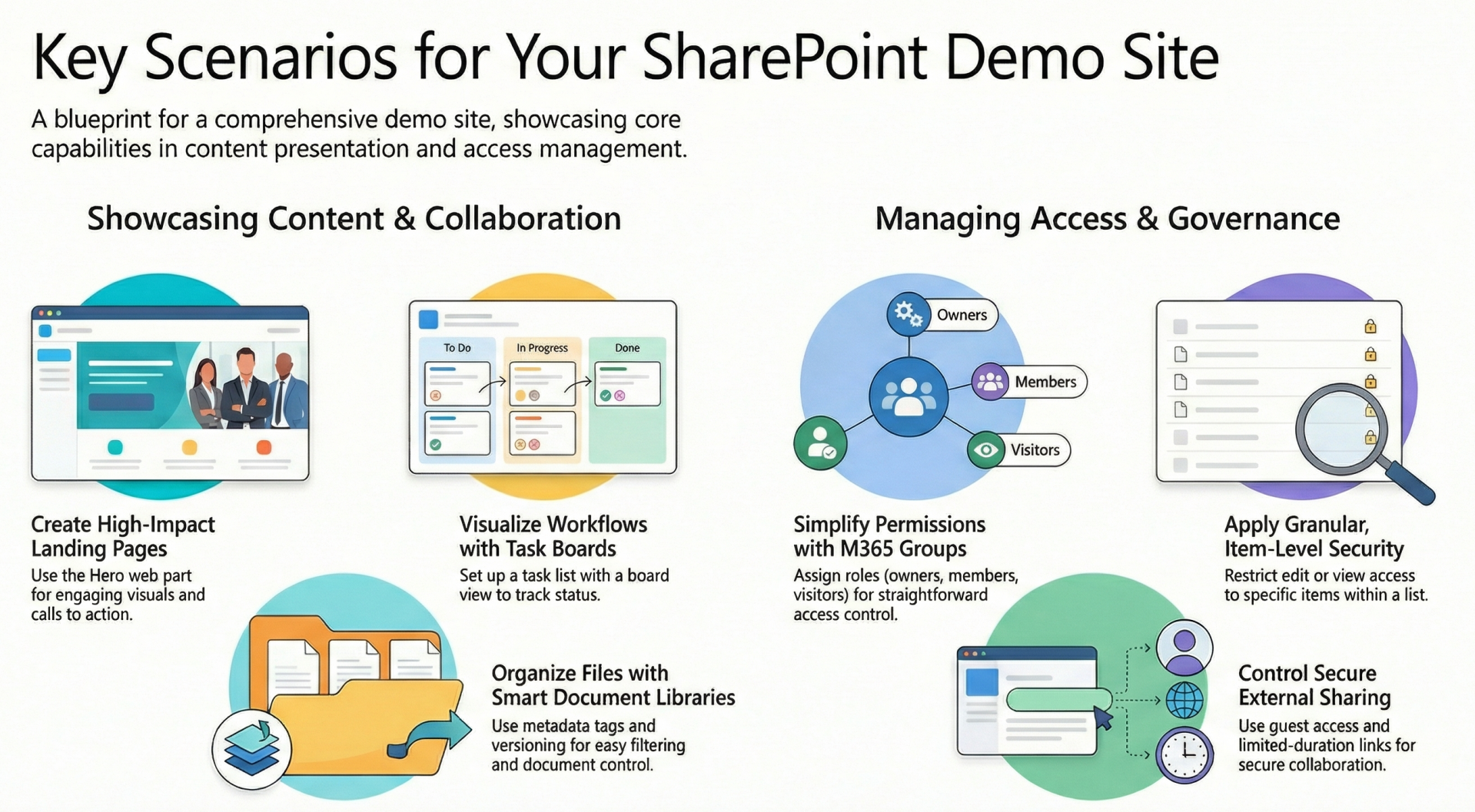
Scenarios for your SharePoint Online "DEMONSTRATION" Site
To effectively showcase the capabilities of SharePoint Online in creating visually appealing pages, organizing and displaying content in lists and libraries, and managing site permissions, consider incorporating the following scenarios. These are scenarios are organized into categories for clarity, with each scenario including a brief description of its purpose, key features demonstrated, and potential implementation notes.
1. Page Creation and Design Scenarios
These scenarios focus on building modern, engaging pages using SharePoint's page authoring tools, web parts, and branding options.
- Hero Layout for Landing Pages: Demonstrate a homepage with a Hero web part featuring high-impact images, calls to action, and overlaid text. This highlights responsive design and accessibility features. Implementation: Use site pages to add web parts, apply custom themes, and integrate with site navigation.
- News and Announcements Hub: Create a dedicated page for publishing news articles with the News web part, including rollups from subsites. This illustrates content aggregation, audience targeting, and mobile-friendly rendering. Implementation: Enable the News feature, configure filters, and use metadata for categorization.
- Image Gallery and Media Showcase: Build a page displaying photo galleries or embedded videos using the Image Gallery and Embed web parts. This showcases multimedia integration and layout customization. Implementation: Upload assets to a document library, apply alt text for accessibility, and use sections for responsive grids.
- Form Integration Page: Design a page incorporating Microsoft Forms or Power Apps forms for user input, embedded via web parts. This demonstrates interactive elements and data collection. Implementation: Link to external forms, style with site branding, and connect to lists for submission storage.
2. List and Library Organization and Display Scenarios
These scenarios emphasize structuring data in lists and libraries, applying views, and enhancing usability through metadata and integrations.
- Task Management List: Set up a custom list for tracking tasks with columns for status, priority, and due dates, displayed in board view (like Kanban). This highlights metadata navigation, conditional formatting, and workflow triggers. Implementation: Use JSON formatting for columns, integrate with Planner or Power Automate for notifications.
- Document Library with Versioning and Metadata: Create a library for storing documents, organized by metadata tags (e.g., department, type), with views for filtered displays. This illustrates content organization, versioning history, and search enhancements. Implementation: Enable content types, set up retention policies, and use the Highlighted Content web part for dynamic displays.
- Event Calendar List: Develop a list for events, viewed as a calendar with overlays for categories. This demonstrates temporal data organization and integration with Outlook. Implementation: Add custom columns for location and attendees, apply color-coding via formatting, and embed on pages.
- Inventory Tracking Library: Build a list or library for inventory items, with calculated columns for stock levels and gallery views for visual representation. This showcases data validation, formulas, and export options. Implementation: Use lookup columns to related lists, enable alerts for low stock, and integrate with Excel for reporting.
3. Site Permissions Management Scenarios
These scenarios address security configurations, access controls, and collaboration settings to ensure proper governance.
- Group-Based Access Control: Demonstrate assigning permissions via Microsoft 365 groups, with roles for owners, members, and visitors. This highlights inheritance breaking and auditing. Implementation: Create groups in the site settings, assign to lists/libraries, and use the Permissions page to verify access.
- Item-Level Permissions: Set up a list where individual items have unique permissions, such as restricting edits to assigned users. This illustrates fine-grained security and sharing links. Implementation: Use Power Automate to automate permission assignments based on item metadata.
- External Sharing Demo: Configure site settings for external sharing, including limited-duration links and guest access. This showcases compliance features like sensitivity labels. Implementation: Enable external sharing in admin center, generate shareable links, and monitor via activity logs.
- Hub Site Association and Navigation: Link the Demonstration site to a hub for centralized navigation and permissions propagation. This demonstrates enterprise-scale organization and search scoping. Implementation: Associate sites in the SharePoint admin center, customize global navigation, and apply permission templates.
These scenarios provide a comprehensive foundation for your Demonstration site, allowing visitors to explore practical applications of SharePoint features. Each can be implemented as a subsite, page, or dedicated section, with accompanying documentation or quick-start guides to facilitate learning. If specific technical constraints or additional integrations (e.g., with Power BI) are relevant, they can be adapted accordingly.