

SharePoint Mentor Curated Articles
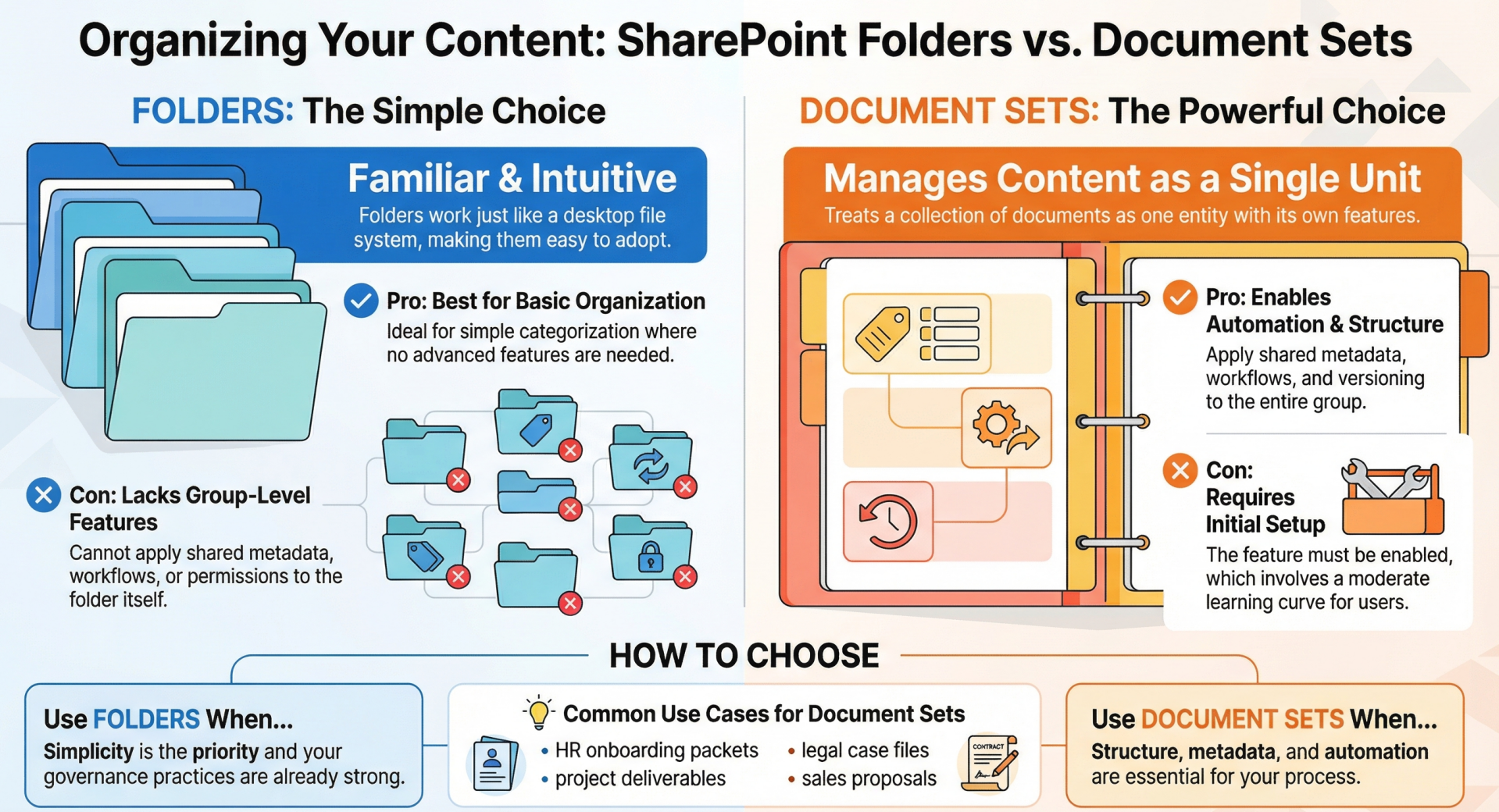
Choosing Between Document Sets and Folders
This document compares Document Sets and Folders in SharePoint Online to help users decide the best method for organizing content. Folders are simple and familiar, suitable for basic organization, while Document Sets offer advanced features like shared metadata, workflows, and automation, making them ideal for complex scenarios. The choice depends on the need for structure, metadata, and automation in content management.
Overview of Folders
Folders in SharePoint Online function as hierarchical containers within document libraries, allowing users to group related files in a manner similar to traditional file systems. They enable the creation of nested structures to categorize documents by topics, projects, or departments.
Advantages
- Folders are intuitive and familiar, resembling file shares in desktop environments, which facilitates adoption for users accustomed to such systems.
- They integrate seamlessly with the modern SharePoint user interface and the OneDrive sync client, supporting straightforward navigation and synchronization.
- Folders promote simplicity, making them suitable for basic organization without requiring advanced configuration.
Disadvantages
- They can result in inconsistent naming conventions and overly nested hierarchies, which complicate navigation and maintenance.
- Folders do not inherently support metadata at the container level, limiting capabilities for advanced filtering, searching, or classification.
- Deep folder structures may hinder effective content governance and increase the risk of content silos.
Overview of Document Sets
Document Sets are a specialized content type in SharePoint Online that groups related documents into a single manageable entity. Unlike simple folders, they treat the collection as a unified unit, enabling features such as shared metadata and workflows.
Key Features
- Customizable Welcome Page: A dedicated page displays project information, resources, and a list of included documents.
- Default Content and Templates: Automatically includes predefined documents or templates upon creation, ensuring consistency.
- Shared Metadata: Columns defined at the set level apply to all contained documents, with automatic inheritance.
- Workflows and Automation: Supports assigning workflows to the entire set, such as approval processes, and integration with tools like Power Automate.
- Versioning and Permissions: Captures snapshots of the set’s properties and documents, and allows unique permissions for the set.
- Content Routing: Routes the set to specific locations using the Content Organizer.
Advantages
- Document Sets enhance scalability by allowing metadata application at the group level, facilitating better filtering, views, and searches.
- They support automation and compliance through features like bulk updates, version control for the set, and retention rules.
- As a content type, they provide a structured approach to managing collections of documents in various formats, improving productivity in collaborative scenarios.
Disadvantages
- Document Sets require initial configuration, such as enabling the feature in the library and setting up content types, which may involve a learning curve for users.
- They are most effective in modern SharePoint interfaces and may occasionally revert to classic views for certain actions, potentially disrupting user experience.
- Mixing Document Sets with folders in the same library can lead to confusion and is generally discouraged.
Comparison
Folders and Document Sets both serve to organize content within SharePoint Online document libraries, but they differ significantly in functionality and application. Folders emphasize hierarchical location-based grouping without advanced features, making them akin to basic directories. In contrast, Document Sets function as enhanced containers that manage documents as a cohesive unit, incorporating metadata inheritance, workflows, and customizable elements that folders lack. This allows Document Sets to handle complex scenarios where folders might fall short, such as applying permissions or automation to a group rather than individual files. However, folders offer greater simplicity for users who do not require these additional capabilities.
Decision Criteria: When to Use Each
To determine whether to use Document Sets or Folders, consider the following criteria:
Use Folders When:
- Simplicity and familiarity are paramount, and the organization has robust governance practices, including standardized naming and training.
- Content organization is basic and does not require metadata, workflows, or set-level management.
- Scenarios involve straightforward categorization, such as departmental file storage without advanced search or compliance needs.
Use Document Sets When:
- Structure, metadata, and automation are essential, such as in metadata-rich environments supporting compliance, intelligent search, or processes like HR onboarding, procurement, or case management.
- Grouping related documents with shared attributes is needed, as in contracts (with vendor details and status), sales proposals, employee records, board meetings, or project stages.
- Scalability and treating the group as a single entity for workflows, versioning, or routing are required, making them preferable over folders in most grouping scenarios.
In general, opt for Document Sets over folders whenever possible for enhanced features and long-term manageability, but enable them only after assessing library settings and user readiness.
Conclusion
Selecting between Document Sets and Folders in SharePoint Online should be guided by the specific demands of content organization and management. Folders provide a simple, accessible option for basic needs, while Document Sets offer advanced capabilities for structured, metadata-driven workflows. By aligning the choice with organizational goals, users can optimize efficiency, compliance, and collaboration in their SharePoint environments. For implementation details, consult SharePoint library settings and content type configurations.