

SharePoint Mentor Curated Articles
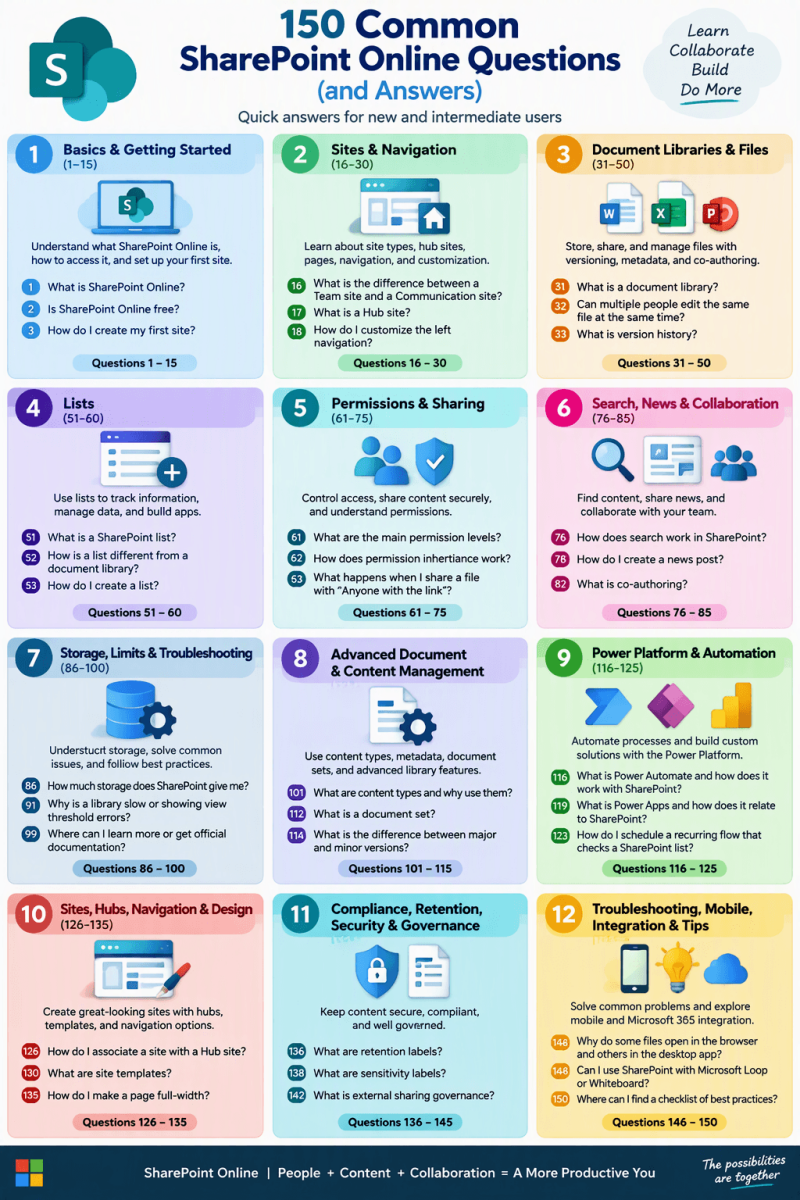
Q&A List of 150 Common Questions New and Intermediate SharePoint Online Users Ask:
Basics & Getting Started (1–15)
- What is SharePoint Online?
- SharePoint Online is Microsoft’s cloud-based collaboration and content management platform (part of Microsoft 365). It lets teams create sites, store and share documents, manage lists, build pages/intranets, and collaborate securely from any device.
- Is SharePoint Online free?
- It is included in most Microsoft 365 Business and Enterprise plans. A standalone SharePoint Online Plan 1 is available for a per-user monthly fee.
- What is the difference between SharePoint Online and SharePoint Server (on-premises)?
- SharePoint Online is cloud-hosted by Microsoft (automatic updates, no server maintenance). SharePoint Server runs on your own infrastructure with full control but requires more management and manual updates.
- How do I access SharePoint Online?
- Go to office.com or your organization’s SharePoint URL (usually something.sharepoint.com), sign in with your Microsoft 365 account, and open the SharePoint app or start page.
- What browsers work best with SharePoint Online?
- Microsoft Edge, Google Chrome, and the current versions of Firefox and Safari are fully supported. Internet Explorer is no longer recommended.
- Is there a SharePoint mobile app?
- Yes. The free SharePoint mobile app is available for iOS and Android and lets you access sites, files, and news on the go.
- What is the SharePoint start page?
- It is the landing page (sharepoint.com or yourtenant.sharepoint.com) that shows sites you follow, frequent sites, news, and a search box.
- How do I find sites I have access to?
- Use the SharePoint start page search, the “Following” or “Frequent” sections, or the Microsoft 365 app launcher.
- What is the difference between a site and a page?
- A site is the overall container (with navigation, libraries, lists, permissions). A page is a content canvas inside the site that you edit with web parts.
- Do I need coding skills to use SharePoint Online?
- No. Most everyday tasks (sites, libraries, lists, pages, sharing) are done through the modern browser interface with no code required.
- How do I create my first site?
- From the SharePoint start page click “+ Create site,” choose Team site or Communication site, give it a name and description, and add members.
- What is a Microsoft 365 Group and how does it relate to SharePoint?
- Creating a Team site usually creates a Microsoft 365 Group. The group owns the site and provides a shared mailbox, calendar, Planner, etc.
- Can I use SharePoint without Microsoft Teams?
- Yes. You can create and use SharePoint sites independently of Teams.
- Where are the files stored when I use Microsoft Teams?
- Files in a Teams channel live in the connected SharePoint site’s document library.
- How do I get help or training inside SharePoint?
- Use the Help icon (?), Microsoft Learn training modules, or your organization’s help desk / SharePoint champions.
Sites & Navigation (16–30)
What is the difference between a Team site and a Communication site?
Team sites are for collaboration among a group (usually private, with a Microsoft 365 Group). Communication sites are for broadcasting information to a wide audience (news, pages, intranet-style).
- What is a Hub site?
- A Hub site links related sites together, so they share navigation, branding, and aggregated news/search.
- How do I follow a site?
- Open the site and click the star / “Follow” button. Followed sites appear on your SharePoint start page.
- How do I change the site name or URL?
- Site owners can change the display name in Site information. Changing the URL is possible but limited and should be done carefully via Site settings or admin tools.
- How do I customize the left navigation (Quick Launch)?
- Site owners/editors can edit the navigation links under Site settings → Navigation or by using the Edit button on the navigation pane.
- How do I add a logo or change the theme of a site?
- Go to Settings (gear) → Change the look → Theme or Header. Upload a logo in Site information.
- What are site pages vs. news posts?
- Both are pages. News posts are designed to appear in the News web part and are highlighted as announcements.
- How do I create a new page?
- From the site home page or Pages library click “+ New” → Page (or News post), choose a template, and add web parts.
- What are web parts?
- Reusable building blocks you add to modern pages (Text, Image, Document library, News, Quick links, etc.).
- Can I make a page the home page of the site?
- Yes. Open the page, click the Promote / Make homepage option (or set it in Site pages library).
- How do I delete a site?
- Site owners can delete a site from Site settings → Site information → Delete site (it goes to the recycle bin for a period).
- What is the difference between modern and classic SharePoint?
- Modern is the current default experience (cleaner UI, faster, responsive). Classic is the older look; most new work should use modern.
- How do I restore a deleted site or page?
- Check the site recycle bin (or the second-stage recycle bin for site collections) within the retention period (usually 93 days).
- Can external users access my SharePoint site?
- Yes, if your organization allows external sharing and you share with specific people or create guest links (subject to admin policies).
- How do I see who has access to a site?
- Site owners: Settings → Site permissions (or Manage access on the site).
Document Libraries & Files (31–50)
- What is a document library?
- A special list designed to store files with version history, metadata, check-out, and co-authoring.
- How do I upload files?
- Drag and drop into the library, use the Upload button, or sync the library with the OneDrive sync client.
- Can multiple people edit the same Word/Excel/PowerPoint file at the same time?
- Yes — real-time co-authoring works when files are opened in the browser or desktop apps connected to SharePoint/OneDrive.
- What is version history and how do I use it?
- SharePoint automatically keeps previous versions. Right-click a file → Version history to view, restore, or delete versions.
- How do I restore a previous version of a file?
- Open Version history and click Restore on the desired version.
- What is the difference between SharePoint and OneDrive?
- OneDrive is personal storage. SharePoint is team/organization storage with shared ownership, permissions, and collaboration features.
- How do I sync a SharePoint library to my computer?
- Open the library and click Sync. The OneDrive sync client will keep the files available offline and in File Explorer.
- Why can’t I see a file I just uploaded in search?
- Search indexing can take a few minutes to several hours. Try a direct library search first.
- How do I create folders in a library?
- Use the New → Folder button. Best practice is to prefer metadata and views over deep folder structures.
- What are columns (metadata) in a library?
- Custom properties you add (Status, Department, Project, etc.) so you can filter, sort, and view files more powerfully than with folders alone.
- How do I create a custom view?
- In the library click the view dropdown → Create new view, then choose columns, filters, sorting, and grouping.
- What is the list view threshold?
- SharePoint Online limits views to 5,000 items unless indexed columns or filtered views are used. Plan metadata and indexed columns for large libraries.
- How do I check out / check in a file?
- Right-click → More → Check out (locks the file for editing). Check in when finished so others can edit.
- Can I require check-out for a library?
- Yes — Library settings → Versioning settings → Require check out.
- How do I set alerts on a library or file?
- Select the item or go to Library settings → Alert me, and choose when and how you want to be notified.
- How do I move or copy files between libraries or sites?
- Use the Move to / Copy to commands in the modern interface, or open in File Explorer via Sync.
- What file types are supported?
- Almost all common office, PDF, image, video, and many other formats. Some executable or blocked types may be restricted by admin policy.
- How do I share a single file or folder?
- Select it → Share, then choose people, permission level (View/Edit), and whether to allow downloading or set an expiration.
- What is the difference between “Anyone with the link,” “People in your organization,” and “Specific people”?
- “Anyone” is anonymous (if allowed), “People in organization” requires sign-in with a company account, “Specific people” limits access to named users (including guests).
- How do I stop sharing or change permissions on a file?
- Select the file → Manage access → remove people or change their permission level.
Lists (51–60)
- What is a SharePoint list?
- A structured table of data (similar to a simple database or Excel table) used for tracking items, tasks, contacts, issues, etc.
- How is a list different from a document library?
- Libraries are optimized for files; lists are optimized for structured data/items (though lists can also have attachments).
- How do I create a list?
- From the site home page or Site contents → New → List. You can start from blank, Excel, or a template.
- Can I import data from Excel into a list?
- Yes — create a list from Excel or use the Import spreadsheet option.
- How do I add columns to a list?
- List settings → Create column, or use the + Add column button in the modern view.
- What are the common column types?
- Single line of text, Multiple lines, Choice, Number, Currency, Date and Time, Person or Group, Yes/No, Lookup, Hyperlink, etc.
- How do I create calculated columns?
- In column settings choose Calculated and enter a formula (similar to Excel).
- Can I connect a list to Power Apps or Power Automate?
- Yes — modern lists have built-in integration buttons for both.
- How do I set permissions on a list separately from the site?
- List settings → Permissions for this list → Stop inheriting permissions, then set unique permissions.
- What is Microsoft Lists?
- Microsoft Lists is the modern experience built on SharePoint lists, available as a standalone app as well as inside SharePoint and Teams.
Permissions & Sharing (61–75)
- What are the main permission levels?
- Full Control, Design, Edit, Contribute, Read, Restricted View, and custom levels. Site owners usually have Full Control.
- How does permission inheritance work?
- By default, items, folders, libraries, and subsites inherit permissions from their parent. You can break inheritance to set unique permissions.
- How do I break permission inheritance?
- Go to the object’s permissions page → Stop Inheriting Permissions.
- What is the difference between Owners, Members, and Visitors?
- Owners = Full Control, Members = Edit, Visitors = Read. These map to the default SharePoint groups.
- How do I add or remove people from a site?
- Settings → Site permissions → Invite people or Manage members (or use the Microsoft 365 Group membership for Team sites).
- Can I give permissions to a security group or Microsoft 365 Group?
- Yes — this is the recommended approach for easier management.
- How do I check someone’s effective permissions?
- Use “Check permissions” on the permissions page and enter the user’s name.
- What happens when I share a file with “Anyone with the link”?
- Anyone who has the link can access it without signing in (if your organization allows anonymous links).
- How long do sharing links last?
- You can set an expiration date when creating the link (or leave it permanent, subject to admin policy).
- Can I require password protection on sharing links?
- Yes, for certain link types when the feature is enabled by your admin.
- How do I see all sharing links for a file or site?
- Manage access panel shows existing links and people with access.
- What should I do if I accidentally shared something too widely?
- Immediately go to Manage access, remove the unwanted links or people, and consider using sensitivity labels or DLP policies for prevention.
- Do external guests need a Microsoft account?
- Guests can often use any email address; Microsoft creates a guest account in your Azure AD / Entra ID.
- How do I remove an external guest completely?
- Remove them from the sharing list / group and, if needed, ask an admin to remove the guest user from the directory.
- What is “Limited-access” permission?
- A special system permission that appears when someone has access only to a specific item inside a container they otherwise cannot see.
Search, News & Collaboration (76–85)
- How does search work in SharePoint Online?
- Search indexes content across sites you have access to. Use the search box on the start page, site, or library. Results respect permissions.
- Why doesn’t search find my new document immediately?
- Indexing is not instantaneous; allow some time (minutes to hours).
- How do I create a news post?
- From the site home page or News web part click “+ New” → News post.
- Can news appear on multiple sites?
- Yes — use Hub sites or the News web part configured to roll up from other sites.
- How do I @mention someone?
- In comments, pages, or some modern experiences type @ followed by the person’s name.
- How do I comment on a file or page?
- Open the file or page and use the Comments pane.
- What is co-authoring?
- Multiple people editing the same Office document simultaneously with live updates.
- How do I see who is currently editing a file?
- In the browser or desktop app you will see presence indicators / avatars of other editors.
- Can I set up approvals for documents?
- Yes — use content approval in library settings or, more flexibly, Power Automate flows.
- How do I create a simple approval workflow?
- Use Power Automate → Templates → “Start approval when a new file is added” or similar, connected to your library.
Storage, Limits, Troubleshooting & Best Practices (86–100)
- How much storage does SharePoint Online give me?
- Base storage is pooled across the tenant (typically 1 TB + additional per licensed user). Admins can allocate per site.
- What is the maximum file size I can upload?
- Currently 250 GB per file (subject to change; check Microsoft documentation for the latest limit).
- What happens when I delete a file?
- It goes to the site recycle bin (and then the second-stage recycle bin) and can be restored within the retention period (usually 93 days).
- How do I empty or restore from the recycle bin?
- Site contents → Recycle bin. Site collection admins can also access the second-stage recycle bin.
- Why do I get “Access Denied”?
- You lack the necessary permissions. Contact a site owner or admin to request access (there is usually a “Request access” button).
- Why is a library or list slow or showing an error about the view threshold?
- Too many items are being returned. Create filtered views that use indexed columns and stay under 5,000 items per view.
- How do I index a column?
- List/Library settings → Indexed columns → Create a new index.
- Can I use SharePoint Offline?
- Yes — via the OneDrive sync client. Files marked “Always keep on this device” are available offline.
- What causes sync conflicts?
- Simultaneous edits while offline, renaming/moving files during sync, or file-name restrictions. Resolve by choosing the correct version or renaming.
- How do I rename a file or folder?
- Select it → Rename (or right-click → Rename). Avoid special characters that can cause sync issues.
- Best practice: folders vs. metadata?
- Prefer metadata + views for scalability and searchability. Use folders sparingly for high-level organization.
- How do I keep my site organized as it grows?
- Use clear navigation, consistent naming, metadata, views, hub sites, and regular content reviews / governance.
- Can I recover a site that was permanently deleted?
- After the recycle-bin retention period, recovery usually requires Microsoft Support and is not guaranteed.
- Where can I learn more or get official documentation?
- Microsoft Learn (learn.microsoft.com), the SharePoint tech community, and support.microsoft.com/SharePoint.
- Who should I contact if something is broken or I need higher permissions?
- Start with your site owners, then your organization’s Microsoft 365 / SharePoint administrators or help desk.
Advanced Document & Content Management (101–115)
- What are content types and why would I use them?
- Content types are reusable collections of columns (metadata), workflows, and settings that you can apply to lists or libraries. They help standardize documents (e.g., “Contract,” “Policy,” “Invoice”) across sites.
- How do I create a content type?
- Go to Site settings → Site content types → Create. Define the parent type, add columns, and then add the content type to the libraries where you want to use it.
- What is the difference between site columns and list/library columns?
- Site columns are defined at the site (or site collection) level and can be reused across multiple lists and libraries. List/library columns exist only in that one list or library.
- How do I enable content type management on a library?
- Library settings → Advanced settings → Allow management of content types → Yes. Then you can add existing content types to the library.
- What is metadata navigation?
- A feature that lets users filter a library using metadata fields (columns) instead of (or in addition to) folders. It improves findability in large libraries.
- How do I set a default value for a column?
- When creating or editing a column, look for the “Default value” setting. You can use a static value, a calculated value, or (for some types) today’s date or the current user.
- Can I make a column required?
- Yes. In the column settings, set “Require that this column contains information” to Yes. Users will not be able to save an item without filling it in.
- What is column validation?
- A formula you can add to a column (or the entire list) that checks whether the entered data meets certain rules (e.g., end date must be after start date).
- How do I create a lookup column?
- Create a column of type Lookup and point it to another list on the same site. Users can then select values from that other list.
- What are cascading lookups / dependent columns?
- These are not available out-of-the-box in modern SharePoint lists. People usually build them with Power Apps or third-party tools.
- How do I format a column with colors or icons (JSON formatting)?
- In the modern list/library view, click the column header → Column settings → Format this column. You can use the visual designer or paste custom JSON.
- What is a document set?
- A special content type that treats a group of related documents as a single unit (with shared metadata and versioning). Useful for projects or cases.
- How do I enable major and minor (draft) versions?
- Library settings → Versioning settings. Choose “Create major and minor (draft) versions” and decide who can see draft items.
- What is the difference between major and minor versions?
- Major versions (1.0, 2.0…) are published versions. Minor versions (0.1, 0.2, 1.1…) are drafts. You control who can see drafts.
- How many versions does SharePoint keep?
- You can set a limit (or keep unlimited). Many organizations limit major versions to 50–100 and minor versions to a lower number to control storage.
Power Platform & Automation (116–125)
- What is Power Automate and how does it work with SharePoint?
- Power Automate (formerly Microsoft Flow) lets you create automated workflows. Common triggers include “When a file is created or modified” in a SharePoint library or list.
- How do I start a simple approval flow from a library?
- Open the library → Automate → Power Automate → Create a flow or start from a template such as “Request approval for a file.”
- Can I send an email when a new item is added to a list?
- Yes. Create a Power Automate flow with the trigger “When an item is created” and an “Send an email” (or “Send an email from a shared mailbox”) action.
- What is Power Apps and how does it relate to SharePoint?
- Power Apps lets you build custom forms and apps. You can replace the default SharePoint list form with a Power Apps form for a much richer experience.
- How do I customize the list form with Power Apps?
- In a modern list, click Integrate → Power Apps → Customize forms. The form opens in Power Apps Studio.
- Can I create a mobile-friendly app on top of a SharePoint list?
- Yes. Power Apps can generate a three-screen mobile app from a SharePoint list with very little effort.
- What is Microsoft Forms and can it write to SharePoint?
- Microsoft Forms is a simple survey/quiz tool. You can use Power Automate to take Form responses and create items in a SharePoint list.
- How do I schedule a recurring flow that checks a SharePoint list?
- In Power Automate, use a “Recurrence” trigger and then add SharePoint actions (Get items, Condition, etc.).
- Are there limits on Power Automate flows that use SharePoint?
- Yes. There are daily request limits, concurrent runs, and throttling depending on your Microsoft 365 license. Heavy usage may require a higher license.
- Can I call a SharePoint REST API from Power Automate?
- Yes. Use the “Send an HTTP request to SharePoint” action for advanced operations that the standard SharePoint connector does not cover.
Sites, Hubs, Navigation & Design (126–135)
- How do I associate a site with a Hub site?
- Site owners (or admins) go to Site information → Hub site association and choose the Hub. Admins can also do this from the SharePoint admin center.
- What benefits do I get from a Hub site?
- Shared navigation, consistent branding, aggregated news and events, and improved search scoping across associated sites.
- Can a site belong to more than one Hub?
- No. A site can be associated with only one Hub at a time.
- How do I change the global navigation on a Hub?
- Edit the Hub site’s navigation (the top bar). Changes automatically appear on all associated sites.
- What are site templates and how do I use them?
- Microsoft provides ready-made templates (Crisis Management, Onboarding, Event Management, etc.). When creating a site, you can choose a template or apply one later from Site templates in settings.
- Can I save my own site as a template?
- In modern SharePoint the classic “Save site as template” is limited. Most organizations now use site scripts and site designs (or PnP provisioning) for repeatable site creation.
- How do I add a custom header or footer to a site?
- Use the “Change the look” → Header options, or add a Footer web part / custom SPFx extension (the latter usually requires a developer or admin).
- What is the difference between the top navigation and the left (Quick Launch) navigation?
- Top navigation is often used for Hub or global links. Left navigation (Quick Launch) is local to the current site and is the most common place for library and page links.
- Can I hide the left navigation?
- Yes. Site owners can turn it off under Change the look → Navigation, or by editing the navigation settings.
- How do I make a page full-width?
- When editing a modern page, choose a full-width section. Some web parts (Hero, Image, etc.) support full-width display.
Compliance, Retention, Security & Governance (136–145)
- What are retention labels / retention policies?
- They control how long content is kept and what happens when that time expires (delete, review, etc.). They are managed in the Microsoft Purview compliance portal.
- Can I apply a retention label manually to a document?
- Yes, if your organization has published labels. Users can apply them from the details pane of a file.
- What are sensitivity labels?
- Labels that classify and protect content (e.g., Confidential, Internal). They can encrypt files, add watermarks, and restrict sharing.
- How do I see if a file has a sensitivity or retention label?
- Open the details pane of the file; labels appear near the top if applied.
- What is the difference between SharePoint recycle bins and retention?
- The recycle bin is a short-term recovery feature (≈93 days). Retention policies can keep content for years even after deletion.
- Can an administrator recover a file after the recycle bin period?
- Only if a retention policy or eDiscovery hold is in place. Otherwise, the content is permanently gone.
- What is external sharing governance?
- Your organization’s policies that control whether users can share with anyone, only existing guests, or only people inside the organization. These settings are managed in the SharePoint admin center.
- How do I see who has shared what externally?
- Site owners can review the Manage access panels. Admins can run sharing reports from the SharePoint admin center or Microsoft 365 reports.
- What is a sensitivity label tip or policy tip?
- A message that appears when a user is about to share content that violates a policy (e.g., “This file is labeled Confidential – are you sure you want to share it externally?”).
- Should every site have the same permissions model?
- No. Best practice is to use Microsoft 365 Groups for Team sites, keep inheritance where possible, and only break inheritance when there is a clear business need.
Troubleshooting, Mobile, Integration & Tips (146–150)
- Why do some files open in the browser and others in the desktop app?
- This is controlled by library settings (Advanced settings → Opening documents in the browser) and by the user’s Office / OneDrive settings.
- How do I force a file to open in the desktop app?
- Select the file → Open → Open in app. You can also change the default behavior in the library settings or in your Office applications.
- Can I use SharePoint with Microsoft Loop or Whiteboard?
- Loop components can be stored in SharePoint/OneDrive. Whiteboard boards can be shared and linked from SharePoint pages. Integration continues to expand.
- What should I do if the OneDrive sync client shows “Processing changes” for a long time?
- Pause sync, restart the OneDrive client, check for filename or path-length problems, and ensure you are not syncing a library that exceeds recommended limits (generally keep synced libraries under 300,000 files).
- Where can I find a checklist of best practices for a healthy SharePoint site?
- Common recommendations include:
- Use metadata instead of deep folders
- Keep permission inheritance whenever possible
- Apply retention and sensitivity labels
- Use Hub sites for related content
- Review sharing links and external access regularly
- Train users on co-authoring and version history
- Monitor storage and large lists
- Common recommendations include: