

SharePoint Mentor Curated Articles
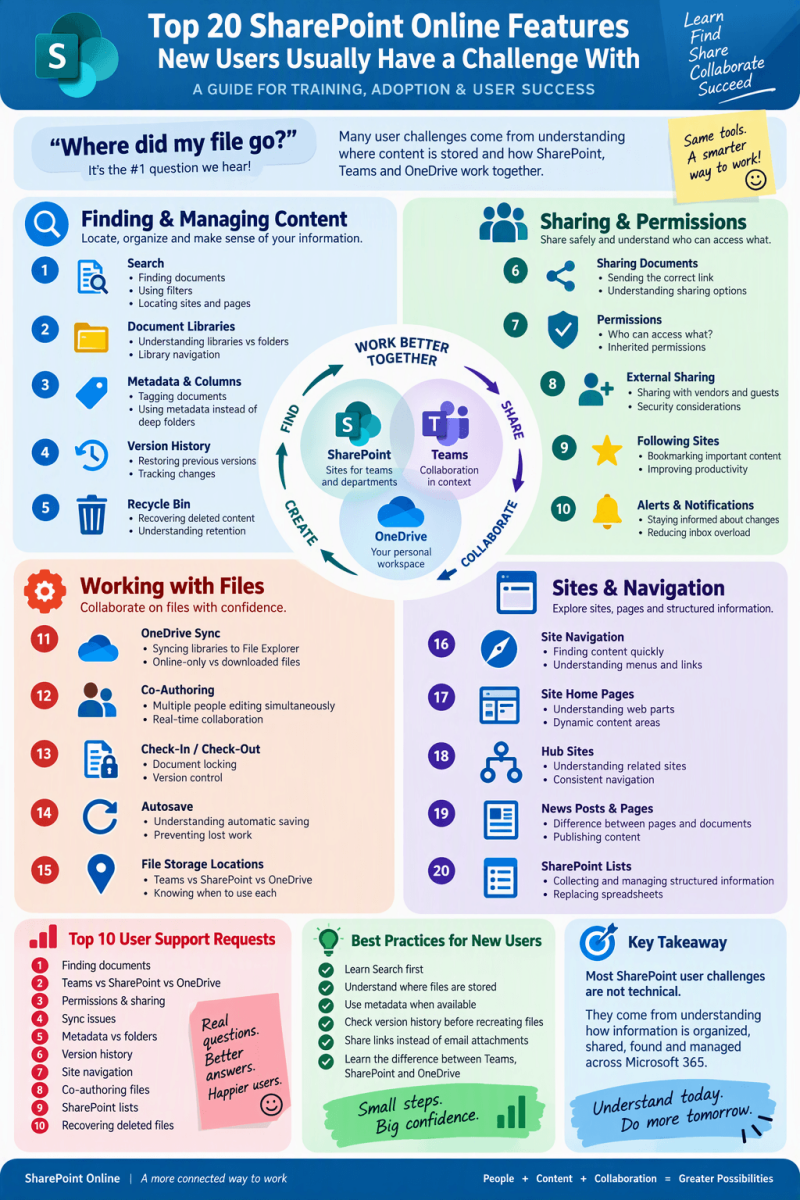
Top 20 SharePoint Online Features New Users Struggle With
A Guide for Training, Adoption & User Success
🔵 BIGGEST CHALLENGE "Where did my file go?" Many user issues stem from understanding where content is stored and how SharePoint, Teams, and OneDrive work together.
📁 Finding & Managing Content
1. Search
- Finding documents
- Using filters
- Locating sites and pages
2. Document Libraries
- Understanding libraries vs folders
- Library navigation
3. Metadata & Columns
- Tagging documents
- Using metadata instead of deep folders
4. Version History
- Restoring previous versions
- Tracking changes
5. Recycle Bin
- Recovering deleted content
- Understanding retention
🤝 Sharing & Permissions
6. Sharing Documents
- Sending the correct link
- Understanding sharing options
7. Permissions
- Who can access what?
- Inherited permissions
8. External Sharing
- Sharing with vendors and guests
- Security considerations
9. Following Sites
- Bookmarking important content
- Improving productivity
10. Alerts & Notifications
- Staying informed about changes
- Reducing inbox overload
💻 Working with Files
11. OneDrive Sync
- Syncing libraries to File Explorer
- Online-only vs downloaded files
12. Co-Authoring
- Multiple people editing simultaneously
- Real-time collaboration
13. Check-In / Check-Out
- Document locking
- Version control
14. Autosave
- Understanding automatic saving
- Preventing lost work
15. File Storage Locations
- Teams vs SharePoint vs OneDrive
🏗 Sites & Navigation
16. Site Navigation
- Finding content quickly
- Understanding menus and links
17. Site Home Pages
- Understanding web parts
- Dynamic content areas
18. Hub Sites
- Understanding related sites
- Consistent navigation
19. News Posts & Pages
- Difference between pages and documents
- Publishing content
20. SharePoint Lists
- Collecting and managing structured information
- Replacing spreadsheets
🚨 Top 10 User Support Requests
🥇 Finding Documents
🥈 Teams vs SharePoint vs OneDrive
🥉 Permissions & Sharing
4️⃣ Sync Issues
5️⃣ Metadata vs Folders
6️⃣ Version History
7️⃣ Site Navigation
8️⃣ Co-Authoring Files
9️⃣ SharePoint Lists
🔟 Recovering Deleted Files
✅ Best Practices for New Users
🎯 Learn Search First
🎯 Understand Where Files Are Stored
🎯 Use Metadata When Available
🎯 Check Version History Before Recreating Files
🎯 Share Links Instead of Email Attachments
🎯 Learn the Difference Between Teams, SharePoint, and OneDrive
Key Takeaway
Most SharePoint user challenges are not technical. They come from understanding how information is organized, shared, found, and managed across Microsoft 365.
This layout works well as a colorful infographic with four sections: Find Content • Share Content • Work with Files • Navigate Sites, with SharePoint, Teams, and OneDrive icons in the center.