

SharePoint Mentor Curated Articles

SharePoint Online External Access Request & Governance
1. Purpose & Scope
This guide establishes a standardized, auditable, and secure workflow for internal employees, business sponsors, and Site Owners to request, approve, provision, and govern SharePoint Online access for external partners, vendors, consultants, and clients.
Centralized Workspaces vs. Personal Storage
All external collaboration must occur within dedicated, purpose-built SharePoint Online sites rather than personal OneDrive for Business accounts. Using dedicated SharePoint sites guarantees:
- Business Continuity: Content remains fully accessible and governed when project personnel or internal employees leave the organization.
- Centralized Permissions: Site Owners retain full visibility over who has access to specific assets without relying on personal sharing links.
- Automated Data Protection: Microsoft Purview Information Protection labels, Data Loss Prevention (DLP) rules, and retention schedules apply uniformly across the workspace.
- Unified Auditability: Administrative logs, sign-in events, and file access activity are consolidated within corporate compliance centers.
Microsoft Entra B2B Integration Architecture
All external access to SharePoint Online relies strictly on the Microsoft Entra B2B (Business-to-Business) collaboration framework.Important Architecture Notice: Following Microsoft's deprecation roadmap, legacy SharePoint-only One-Time Passcode (OTP) authentication for external sharing in commercial tenants is retired as of October 2026. All external collaborators must authenticate using Microsoft Entra B2B guest identities. This ensures that every guest user is provisioned as a managed object within the corporate Microsoft Entra ID directory, subject to organizational Conditional Access policies, Multi-Factor Authentication (MFA), and identity lifecycle reviews.
2. Pre-Request Legal & Compliance Checklist
Before initiating an external access request, the internal Business Sponsor must complete and document the following legal and security checks:
- Executed Agreements: Confirm that an active Non-Disclosure Agreement (NDA), Master Services Agreement (MSA), Statement of Work (SOW), or Data Processing Addendum (DPA) covering the external organization is fully signed and registered in the corporate contract portal.
- Data Classification & Regulatory Scope: Verify the highest sensitivity tier of data to be shared (Public, Internal, Confidential, or Highly Confidential). Ensure no prohibited regulatory data—such as Export Control/ITAR, HIPAA/PHI, PCI-DSS, or unencrypted sensitive PII—will be hosted without explicit Legal and Chief Information Security Officer (CISO) sign-off.
- Export Control & Data Residency: Confirm that the external organization's geographic location and remote access points comply with national export control regulations, corporate data sovereignty commitments, and geo-blocking policies.
- Business Ownership & Duration: Assign a named internal employee as the accountable Business Owner for the entire lifecycle of the external relationship. Define a fixed access window not exceeding 90 to 180 days prior to mandatory re-certification.
- Acceptable Use & Terms: Ensure external users are prepared to accept corporate computing Terms of Use (presented automatically via Microsoft Entra ID during initial authentication).
3. Step-by-Step End-User Walkthrough: Requesting External Access
Step 1: Determine the Right Workspace & Access Scope
Assess the scope of access needed by the external team:
- Single File or Folder: Shareable via restricted links directly from an existing externally enabled site.
- Document Library or Project Workspace: Requires adding external users to a dedicated SharePoint team or communication site.
- Intranet & Departmental Hubs: External sharing is strictly disabled on internal intranet hubs, general departmental sites, and all-hands portals. If an external workspace does not exist, submit a request for a new Dedicated External Collaboration Site.
Step 2: Gather Required Request Details
Collect all required metadata before opening a service request ticket:
- External Company Legal Name & Primary Business Address.
- Verified Corporate Email Domain(s) (Note: Personal accounts such as @gmail.com, @yahoo.com, or @outlook.com are blocked).
- Guest Users: Full Names, Business Email Addresses, and Job Titles.
- Requested Permission Level: Read / View Only or Edit / Contribute.
- Business Justification and project summary.
- Active NDA/Contract Reference Identifier.
- Targeted Access Expiration Date (maximum 180 days).
Step 3: Submit the Formal Access Request Ticket
Submit an access request through the corporate IT Service Desk Portal or via the Microsoft Entra Entitlement Management portal by selecting the appropriate Access Package.
Step 4: Legal, Security & Site Owner Approval
Once submitted, the request triggers an automated sequential approval routing workflow:
- Site Owner Approval: Validates the workspace choice and ensures the requested access level adheres to the principle of least privilege.
- Legal & Compliance Review: Confirms active NDA/MSA coverage and validates data handling terms for confidential data types.
- IT Security Review: Conducts domain trust verification, checks external domain DNS/SPF records, and approves Microsoft Entra B2B guest provisioning.
Step 5: Provisioning & Sending the Invitation
Upon final approval:
- The IT Administrator or Site Owner adds the external guest account to the designated SharePoint permissions group (e.g., [Site Name] External Visitors for Read, or [Site Name] External Members for Edit).
- For item-level requests, the authorized user generates a Specific people sharing link. Anyone (anonymous) sharing links are globally disabled.
- The external user receives an automated Microsoft Entra B2B invitation email. Upon clicking the link, the user authenticates using their organization's native identity provider (or a Microsoft Entra B2B email one-time passcode) and accepts the organizational Terms of Use.
Step 6: Verify Access & Confirm Least-Privilege Boundaries
The internal Business Sponsor must complete a post-provisioning review:
- Confirm the external user can access only the designated library or site.
- Verify that the external user cannot view unlinked internal sites, directory search results, or global organization charts.
- Check that automatic lifecycle expiration dates are populated in Microsoft Entra ID Governance.
4. Security & Governance Best Practices

5. Technical Configuration Reference (Site Owners & IT Admins)

6. Quick-Reference RACI & Lifecycle Summary Table
The following RACI matrix defines responsibility across all key phases of the external access lifecycle:
- R - Responsible: The role that performs the task.
- A - Accountable: The role with final approval and accountability.
- C - Consulted: The role providing advisory, legal, or technical input.
- I - Informed: The role notified of progress and decisions.

SharePoint Online External Access Request Form
Form ID: [EXT-SPO-YYYY-XXX] | Submission Date: Date | Target SLA: 3–5 Business Days
|---|OPERATIONAL INSTRUCTIONS & GOVERNANCE RULES
- Submission Process: Complete all required sections below and submit via the IT Service Desk Portal or Identity Governance Portal.
- Ineligible Accounts: Personal email domains (e.g., @gmail.com, @yahoo.com, @outlook.com) are strictly prohibited. Only verified corporate domains are permitted.
- Ineligible Workspaces: External sharing is disabled by default on internal intranet hubs, HR portals, and core operational sites.
- Authentication: All external guests must authenticate using Microsoft Entra B2B guest accounts subject to MFA and Conditional Access policies.
Section 1: Internal Requester & Business Sponsor Details

Section 2: Legal, Compliance & Data Classification Verification

Section 3: Workspace & Access Scope Details

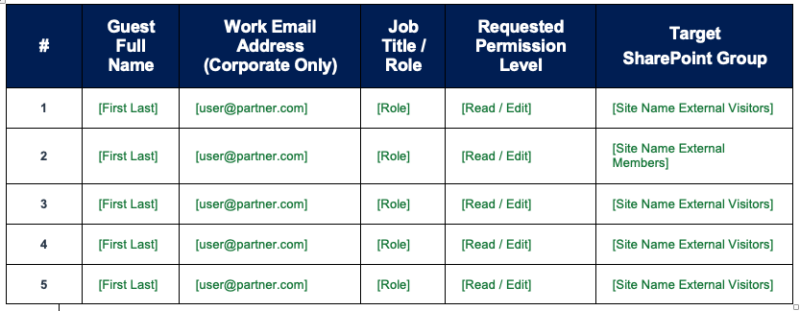
Section 4: External Partner Domain & Guest User Roster
Domain Verification
- Verified External Corporate Email Domain(s): [e.g., @partnercompany.com]
- Tenant Allow-List Status: [ ] Yes [ ] No (Requires IT Security Domain Review) [ ] Unsure
Guest User Roster
Note: If more than 5 guest accounts are required, attach an Excel roster following this identical column structure to the ticket.
Section 5: Requester & Business Sponsor Attestation
By submitting this form, the Requester and Business Sponsor certify the following governance controls:
- I confirm that all listed external users require access strictly for authorized business purposes and adhere to the principle of least privilege.
- I confirm that no anonymous ("Anyone") links will be requested or used, and no external users will be added to internal-only intranet or hub sites.
- I understand that external users will be subject to Microsoft Entra B2B Multi-Factor Authentication (MFA), Conditional Access, and unmanaged device restrictions (browser-only view / no download).
- I accept responsibility as Business Sponsor for completing mandatory quarterly Microsoft Entra Access Reviews and notifying IT immediately if the external engagement ends early.
Signatures & Sign-Off
- Requester Signature: __________________________________ Date: Date
- Business Sponsor Signature: ___________________________ Date: Date
Section 6: Governance & Approval Sign-Off (Internal Approvers Only)
