

SharePoint Mentor Curated Articles
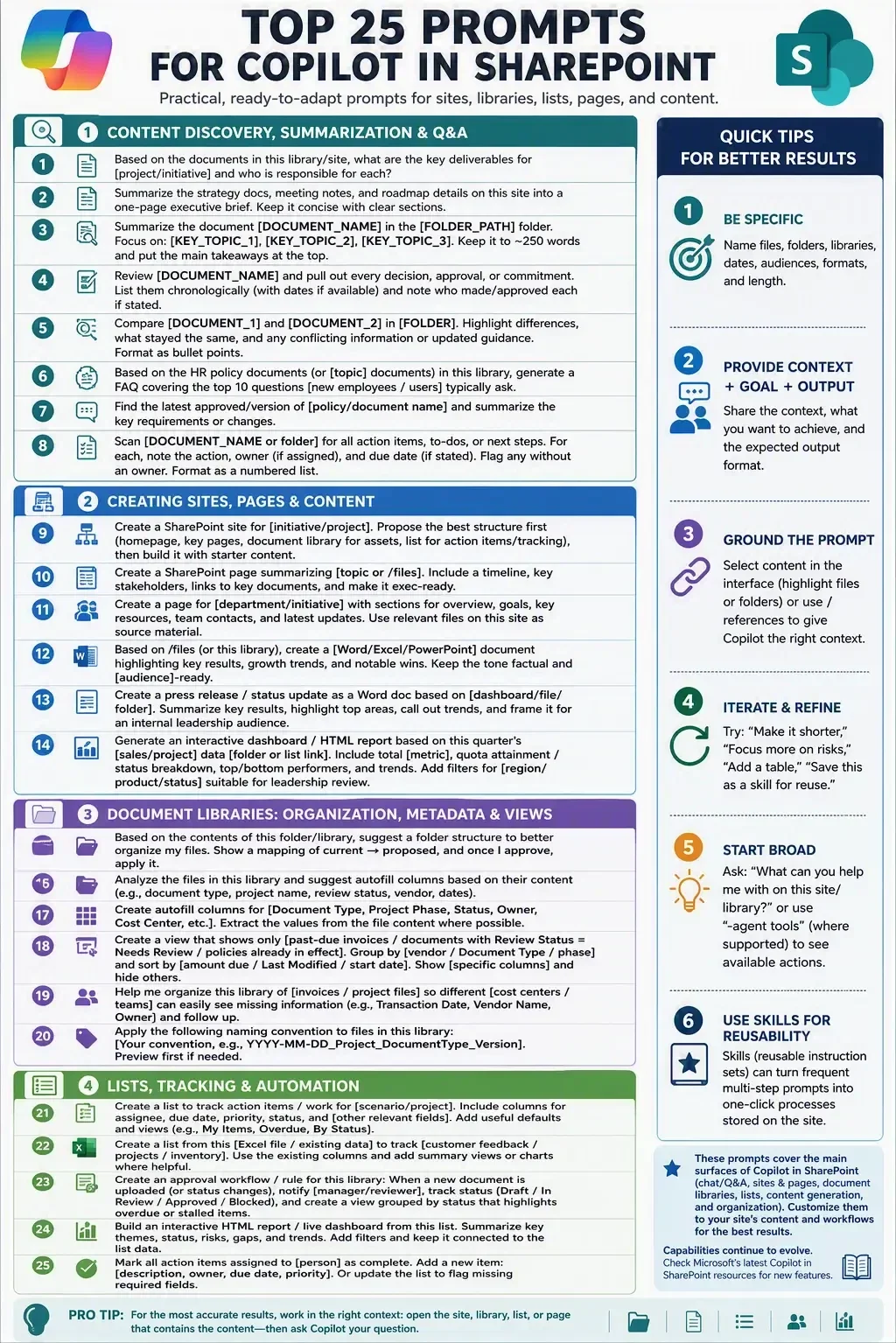
Top 25 prompts for Copilot in SharePoint (focused on a SharePoint site, document libraries, lists, pages, and site content).
These are practical, ready-to-adapt templates drawn from Microsoft guidance and effective community patterns.
Replace placeholders (in [brackets]) with your specifics, and ground prompts by selecting files/folders or using / references where available for better accuracy.
Content Discovery, Summarization & Q&A
- Based on the documents in this library/site, what are the key deliverables for [project/initiative] and who is responsible for each?
- Summarize the strategy docs, meeting notes, and roadmap details on this site into a one-page executive brief. Keep it concise with clear sections.
- Summarize the document [DOCUMENT_NAME] in the [FOLDER_PATH] folder. Focus on: [KEY_TOPIC_1], [KEY_TOPIC_2], [KEY_TOPIC_3]. Keep it to ~250 words and put the main takeaways at the top.
- Review [DOCUMENT_NAME] and pull out every decision, approval, or commitment. List them chronologically (with dates if available) and note who made/approved each if stated.
- Compare [DOCUMENT_1] and [DOCUMENT_2] in [FOLDER]. Highlight differences, what stayed the same, and any conflicting information or updated guidance. Format as bullet points.
- Based on the HR policy documents (or [topic] documents) in this library, generate a FAQ covering the top 10 questions [new employees / users] typically ask.
- Find the latest approved/version of [policy/document name] and summarize the key requirements or changes.
- Scan [DOCUMENT_NAME or folder] for all action items, to-dos, or next steps. For each, note the action, owner (if assigned), and due date (if stated). Flag any without an owner. Format as a numbered list.
Creating Sites, Pages & Content
- Create a SharePoint site for [initiative/project]. Propose the best structure first (homepage, key pages, document library for assets, list for action items/tracking), then build it with starter content.
- Create a SharePoint page summarizing [topic or /files]. Include a timeline, key stakeholders, links to key documents, and make it exec-ready.
- Create a page for [department/initiative] with sections for overview, goals, key resources, team contacts, and latest updates. Use relevant files on this site as source material.
- Based on /files (or this library), create a [Word/Excel/PowerPoint] document highlighting key results, growth trends, and notable wins. Keep the tone factual and [audience]-ready.
- Create a press release / status update as a Word doc based on [dashboard/file/folder]. Summarize key results, highlight top areas, call out trends, and frame it for an internal leadership audience.
- Generate an interactive dashboard / HTML report based on this quarter’s [sales/project] data [folder or list link]. Include total [metric], quota attainment / status breakdown, top/bottom performers, and trends. Add filters for [region/product/status] suitable for leadership review.
Document Libraries: Organization, Metadata & Views
- Based on the contents of this folder/library, suggest a folder structure to better organize my files. Show a mapping of current → proposed, and once I approve, apply it.
- Analyze the files in this library and suggest autofill columns based on their content (e.g., document type, project name, review status, vendor, dates).
- Create autofill columns for [Document Type, Project Phase, Status, Owner, Cost Center, etc.]. Extract the values from the file content where possible.
- Create a view that shows only [past-due invoices / documents with Review Status = Needs Review / policies already in effect]. Group by [vendor / Document Type / phase] and sort by [amount due / Last Modified / start date]. Show [specific columns] and hide others.
- Help me organize this library of [invoices / project files] so different [cost centers / teams] can easily see missing information (e.g., Transaction Date, Vendor Name, Owner) and follow up.
- Apply the following naming convention to files in this library: [Your convention, e.g., YYYY-MM-DD_Project_DocumentType_Version]. Preview first if needed.
Lists, Tracking & Automation
- Create a list to track action items / work for [scenario/project]. Include columns for assignee, due date, priority, status, and [other relevant fields]. Add useful defaults and views (e.g., My Items, Overdue, By Status).
- Create a list from this [Excel file / existing data] to track [customer feedback / projects / inventory]. Use the existing columns and add summary views or charts where helpful.
- Create an approval workflow / rule for this library: When a new document is uploaded (or status changes), notify [manager/reviewer], track status (Draft / In Review / Approved / Blocked), and create a view grouped by status that highlights overdue or stalled items.
- Build an interactive HTML report / live dashboard from this list. Summarize key themes, status, risks, gaps, and trends. Add filters and keep it connected to the list data.
- Mark all action items assigned to [person] as complete. Add a new item: [description, owner, due date, priority]. Or update the list to flag missing required fields.
Quick Tips for Better Results
- Be specific: Name files, folders, libraries, dates, audiences, formats, and length.
- Provide context + goal + expected output format.
- Ground the prompt (select content or use / references).
- Iterate: “Make it shorter,” “Focus more on risks,” “Add a table,” “Save this as a skill for reuse.”
- Start broad if needed: “What can you help me with on this site/library?” or “–agent tools” (where supported) to see available actions.
- Skills (reusable instruction sets) can turn frequent multi-step prompts into one-click processes stored on the site.
These cover the main surfaces of Copilot in SharePoint (chat/Q&A, sites & pages, document libraries, lists, content generation, and organization). Customize them to your site’s content and workflows for the best results. Capabilities continue to evolve, so check Microsoft’s latest Copilot in SharePoint resources for new features.