

SharePoint Mentor Curated Articles
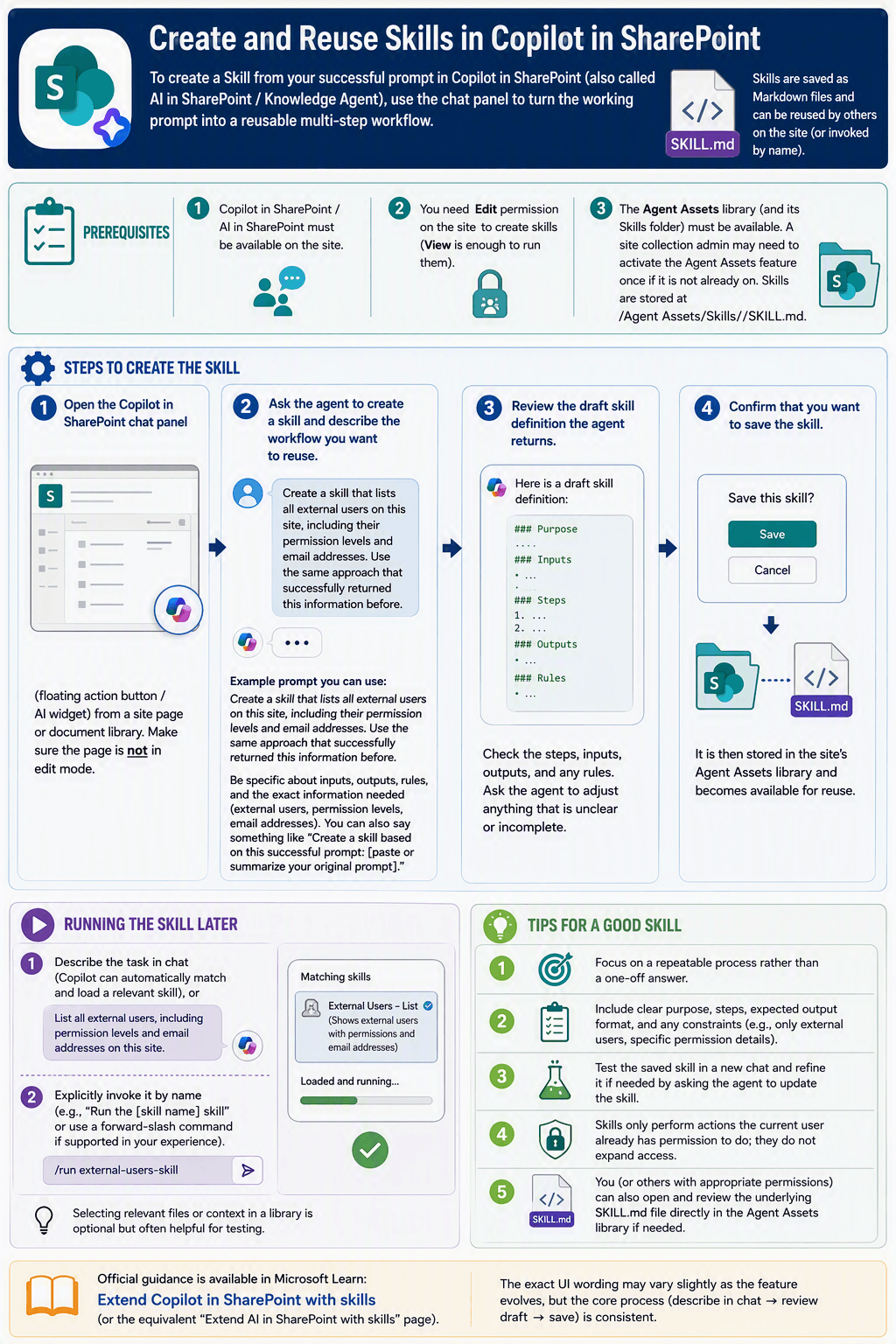
To create a Skill from your successful prompt in Copilot in SharePoint, use the chat panel to turn the working prompt into a reusable multi-step workflow. Skills are saved as Markdown files and can be reused by others on the site (or invoked by name).
Prerequisites
- Copilot in SharePoint / AI in SharePoint must be available on the site.
- You need Edit permission on the site to create skills (View is enough to run them).
- The Agent Assets library (and its Skills folder) must be available. A site collection admin may need to activate the Agent Assets feature once if it is not already on. Skills are stored at /Agent Assets/Skills//SKILL.md.
Steps to create the Skill
- Open the Copilot in SharePoint chat panel (floating action button / AI widget) from a site page or document library. Make sure the page is not in edit mode.
- Ask the agent to create a skill and describe the workflow you want to reuse. Reference your successful prompt or restate it clearly.
- Example prompt you can use:
- Create a skill that lists all external users on this site, including their permission levels and email addresses. Use the same approach that successfully returned this information before.
- Be specific about inputs, outputs, rules, and the exact information needed (external users, permission levels, email addresses). You can also say something like “Create a skill based on this successful prompt: [paste or summarize your original prompt].”
- Example prompt you can use:
- Review the draft skill definition the agent returns. Check the steps, inputs, outputs, and any rules. Ask the agent to adjust anything that is unclear or incomplete.
- Confirm that you want to save the skill. It is then stored in the site’s Agent Assets library and becomes available for reuse.
Running the Skill later
- Describe the task in chat (Copilot can automatically match and load a relevant skill), or
- Explicitly invoke it by name (e.g., “Run the [skill name] skill” or use a forward-slash command if supported in your experience).
Selecting relevant files or context in a library is optional but often helpful for testing.
Tips for a good skill
- Focus on a repeatable process rather than a one-off answer.
- Include clear purpose, steps, expected output format, and any constraints (e.g., only external users, specific permission details).
- Test the saved skill in a new chat and refine it if needed by asking the agent to update the skill.
- Skills only perform actions the current user already has permission to do; they do not expand access.
- You (or others with appropriate permissions) can also open and review the underlying SKILL.md file directly in the Agent Assets library if needed.
Official guidance is available in Microsoft Learn: Extend Copilot in SharePoint with skills (or the equivalent “Extend AI in SharePoint with skills” page). The exact UI wording may vary slightly as the feature evolves, but the core process (describe in chat → review draft → save) is consistent.