

SharePoint Mentor Curated Articles
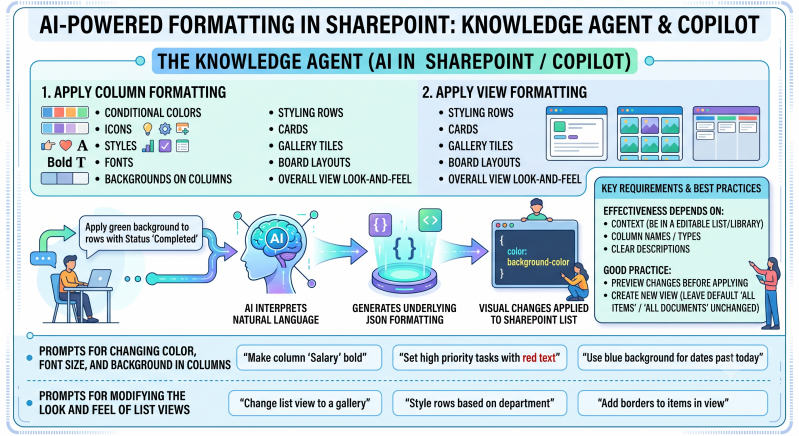
The Knowledge Agent (now integrated as AI in SharePoint / Copilot in SharePoint) supports natural language prompts that leverage tools such as "apply column formatting" (for conditional colors, icons, styles, fonts, and backgrounds on columns) and "apply view formatting" for styling rows, cards, gallery tiles, board layouts, and overall view look-and-feel).
AI interprets natural language and generates the underlying JSON formatting. Effectiveness depends on context (being in a list/library you can edit), column names/types, and clear descriptions. It's a good practice to preview changes before applying and consider creating a new view so the default “All Items”/“All Documents” view remains unchanged.
Prompts for Changing Color, Font Size, and Background in Columns
Use these (or variations) while viewing a list or library. Be specific about the column name, conditions, and desired styles.
- “Format the Status column so that ‘Completed’ has a green background, ‘In Progress’ has a yellow background, and ‘Not Started’ has a red background.”
- “Apply conditional formatting to the Priority column: High = red background with white bold text, Medium = orange background, Low = green background.”
- “Make the Due Date column show a red background and bold text when the date is in the past.”
- “Change the font size of the Title column to larger and make it bold.”
- “Set a light blue background color on the Category column and increase the font size.”
- “Format the Progress column as a progress bar with green fill for values over 75%, yellow for 40-75%, and red below 40%.”
- “Add icons and colored backgrounds to the Status column based on the value (checkmark for Done, warning for At Risk, etc.).”
- “Apply a pastel background color to the Department column and use a larger font.”
- “Color-code the Approval Status column with green for Approved, red for Rejected, and gray for Pending; make the text bold and centered.”
- “Format the Amount column so values over 10,000 have a green background and larger font, and values under 1,000 have a light red background.”
- “Make the Owner column display with a rounded badge style, colored background based on the person, and medium font size.”
- “Apply column formatting to [Column Name] with a dark background, white text, and increased font size.”
Tips for column formatting prompts:
- Reference exact column internal or display names.
- Specify conditions clearly (e.g., “if value equals…”, “if date is past due”).
- Mention styles explicitly: background color, text color, font size/weight, borders, icons, alignment, or badges.
- You can ask the AI to “show me the JSON” or “preview the formatting” first.
Prompts for Modifying the Look and Feel of List Views
These target overall view appearance (row styling, card/gallery/board layouts, alternating rows, etc.) via view formatting or related view changes.
- “Style this list” / “Style this library” / “Theme this list.”
- “Apply the [neobrutalism / bento / pastel / terminal / modern / corporate] style to this library.”
- “Visually transform this list” / “Art-direct this view” / “Make this list look like [desired style or description].”
- “Format the current view as a card layout with colored status badges and larger titles.”
- “Apply view formatting so rows alternate light gray and white backgrounds.”
- “Create a gallery view with large tiles, colored backgrounds based on Status, and prominent Title and Due Date.”
- “Style the rows so high-priority items have a red left border and bold text.”
- “Make the view look more modern with rounded cards, shadows, and colored headers.”
- “Apply board layout formatting grouped by Status with colored columns.”
- “Format the view to show compact rows with status icons and conditional row background colors.”
- “Transform this view into a dashboard-style layout with progress indicators and color-coded priority.”
- “Update the current view formatting to use a clean minimalist look with increased spacing and subtle backgrounds.”
- “Create a new view called ‘Styled Cards’ that uses card formatting with the Status column as a colored badge.”
Tips for view look-and-feel prompts:
- Combine with view creation: “Create a new view that groups by Category and applies card formatting with colored backgrounds.”
- Reference specific styles or describe the desired outcome in detail (colors, layout type—list/grid/gallery/board, row height, etc.).
- Pair with community skills (e.g., the PnP “list-styling” skill) by saying things like “apply the list styling skill” or “style this list using the pastel style” after installing the skill in the site’s Agent Assets library.
- Ask to “preview the view changes” before saving.
General Best Practices
- Start simple and iterate: “Make the Status column green for Complete” → refine further.
- Work in a test list/library or always save as a new view.
- The AI can also help inspect existing formatting (“What formatting is currently applied to the Status column?”) or clear it (“Remove the formatting from the Priority column”).
- Capabilities evolve; you can ask the AI itself: “What tools are available in your toolset?” or “How can I format columns and views?” while in a list/library context.