

SharePoint Mentor Curated Articles
Using the Highlighted Content Web Part for Information Dashboards
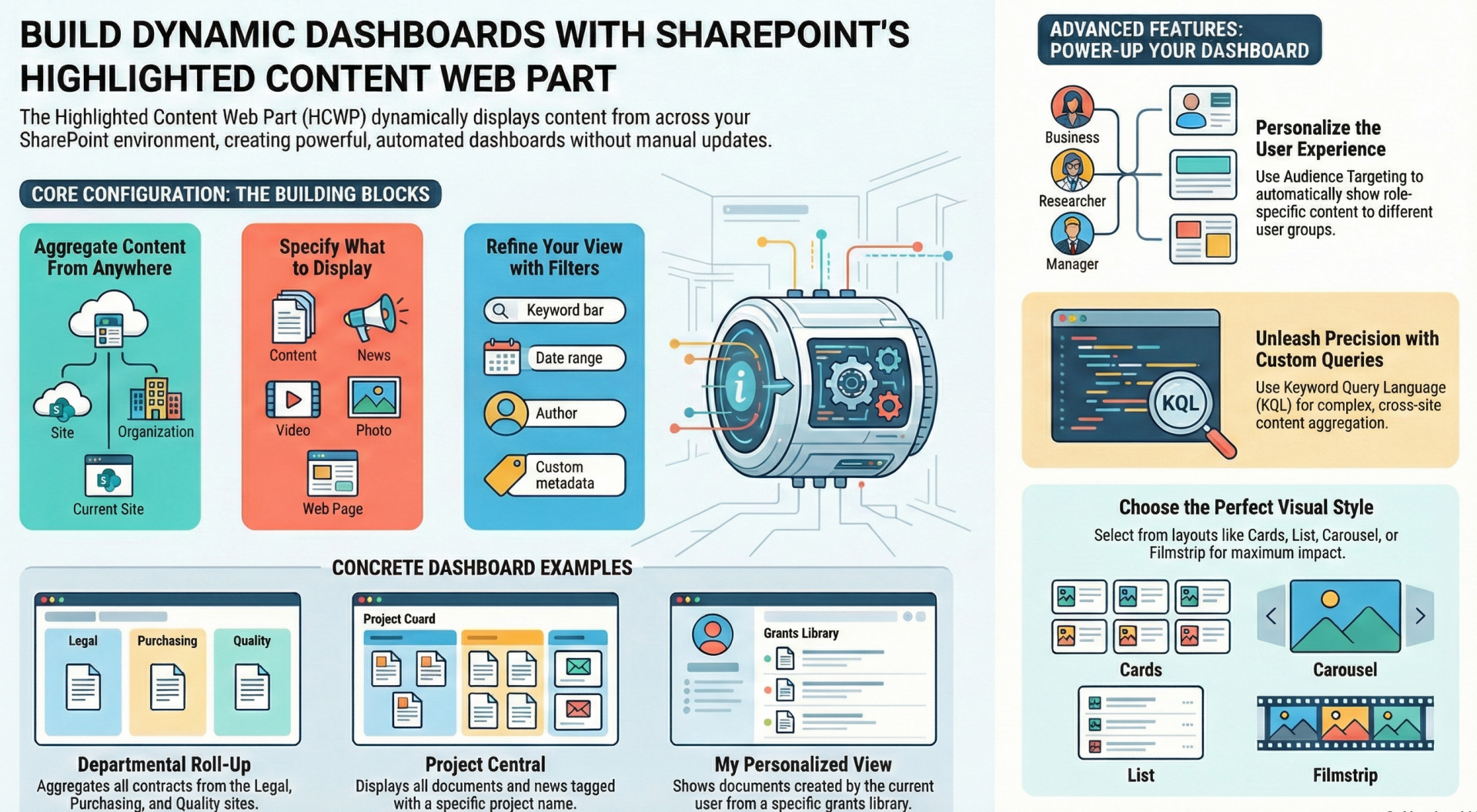
The Highlighted Content web part (HCWP) in SharePoint Online is a versatile tool for dynamically displaying content such as documents, pages, news, videos, and images. It pulls content from various sources based on configurable queries, making it ideal for building information dashboards that aggregate and present key data without manual updates.
Dashboards created with HCWP can surface recent updates, trending items, or targeted content across sites, enhancing user engagement and information accessibility in a SharePoint site. This deep dive explores its features, configuration, and application for dashboards, drawing on official documentation and advanced techniques.
The Content Query Web Part offers simplified yet powerful querying capabilities.
- It can display up to 200 items dynamically, updating automatically as content changes.
- For dashboards, it excels at aggregating data from multiple libraries or sites, such as rolling up department-specific documents or personalized views based on user context.
Key benefits include:
-
Dynamic content retrieval without duplication.
-
Support for metadata-driven filtering using managed properties.
-
Integration with SharePoint's search infrastructure for real-time relevance.
Adding the Web Part to a Page - Incorporate HCWP into a dashboard page:
- Navigate to your SharePoint site and edit a modern page by selecting Edit in the top right.
- Click the + icon in a section to open the toolbox.
- Select See all web parts, then choose or drag Highlighted content.
- Optionally, edit the default title (e.g., change "Most recent documents" to "Dashboard Updates").
- Click the pencil icon to open the properties pane for further configuration.
This web part can be added multiple times on a single page to create modular dashboard sections, such as one for recent news and another for trending documents.
- Configuring Content Sources
- Sources determine where HCWP pulls content from, crucial for dashboard aggregation:
- This site: Content from the current site (default).
- A document library on this site: Specific library selection.
- This site collection: All sites in the collection.
- The page library on this site: For site pages.
- Select sites: Up to 30 sites; search for frequent or recent ones.
- All sites: Tenant-wide content.
- All sites in the hub: If the site is hub-associated.
- For dashboards, use "Select sites" or "All sites" to aggregate from multiple departments.
- Note: Some options like "Select sites" are unavailable in certain environments (e.g., SharePoint Server, GCC High).
- Selecting Content Types - Specify what to display via the Type dropdown:
- Options include Documents, Pages, News, Videos, Images, etc.
- Add multiple types with + Add content type.
Applying Filters and Sorting
- Filters refine content for relevance:
- Title/Content includes words: Keyword-based.
- Recently added/changed: Time-based (e.g., Today, This week).
- Created/Modified by: Current user or specific user.
- Managed property: Use searchable properties (e.g., custom columns); select operator and value.
- Logic: Same-type filters use OR and different types use AND.
- Sorting options:
- Most recent (default).
- Most viewed.
- Trending (via Microsoft Graph insights).
- Managed property (ascending/descending).
- For dashboards, sort by Trending to highlight popular items, or use managed properties for custom metrics like priority levels.
Enable Custom query in properties.
- KQL (Keyword Query Language):
- For multi-site sources (e.g., "Select sites"). Syntax includes operators like AND/OR, properties like Path, Filetype, Author.
- Example: Path:"https://tenant.sharepoint.com/sites/HR/*" AND Filetype:xlsx for Excel files in HR sites.
- Date ranges: LastModifiedTime>=2021-01-01 AND LastModifiedTime<=2021-12-31.
- CAML (Collaborative Application Markup Language): For single-library sources; more structured but limited to one site.
- Use KQL for cross-site dashboard queries, such as aggregating contracts:
- isDocument=true AND (ContractsOWSCHCS:Legal OR ContractsOWSCHCS:Purchasing).
- Audience Targeting - Personalize dashboards:
- Enable in source library: Library settings > Audience targeting > Enable.
- Tag items with audiences (up to 50 per item).
- In HCWP: Toggle Enable audience targeting in filters.
- This ensures role-based views, like showing HR docs only to HR users.
- Layout Options - Visual styles enhance dashboard usability:
- Cards: Grid view.
- List: Tabular.
- Carousel: Rotating slides.
- Compact: Space-saving.
- Filmstrip: Horizontal scroll. Set item count and show-if-empty option.
- For dashboards, Carousel or Filmstrip works well for featured content.
- Performance Optimization with Caching - For high-traffic dashboards:
- Enable Group-level caching in properties.
- Enter a security group; results cache per group, reducing load times.
- Best Practices for Creating Information Dashboards
- Metadata Management: Use site columns mapped to managed properties for consistent filtering across sources.
- Dynamic Aggregation: Roll up from multiple sites to avoid silos, e.g., display all active documents with a status filter.
- Personalization: Combine Trending sort with audience targeting for user-specific views.
- Testing: Verify queries in SharePoint Search first; account for crawl delays.
- Combination with Other Web Parts:
- Pair HCWP with Hero or News web parts for a full dashboard layout.
- Automatic Updates: Leverage keywords in files for real-time relevance.
Examples and Use Cases
- Departmental Dashboard: Query contracts from Legal, Purchasing, and Quality sites using KQL: isDocument=true AND ContractsOWSCHCS:(Legal OR Purchasing OR Qualification).
- Benefits Enrollment Dashboard: Filter by year and type: ContentType:"Enrollment" AND EnrollmentType:(Vision OR Dental OR Medical) AND Year=2026.
- Personalized Grants View: Path:https://tenant.sharepoint.com/sites/Grants/Lists/Grants AND "Idaho" AND Author:{User.Name} for user-specific items.
- Publish Once, Display Everywhere: Use content types to show documents from one library across sites.
- Teams Meeting Recordings Dashboard: ProgID:Media AND ProgID:Meeting to aggregate recordings.
Limitations
- CAML limited to single-site sources; KQL for multi-site.
- Managed property propagation delays.
- No custom code; relies on out-of-box features.
- Audience targeting requires library setup and may lag.
- Filter logic is fixed (OR within types, AND across).
Conclusion
The Highlighted Content web part empowers users to build robust, dynamic information dashboards in SharePoint Online by aggregating and filtering content intelligently. By leveraging its querying, filtering, and layout options, organizations can create centralized views that adapt to changing data, improving collaboration and decision-making. For hands-on exploration, start with simple configurations and scale to advanced KQL queries.