

SharePoint Mentor Curated Articles
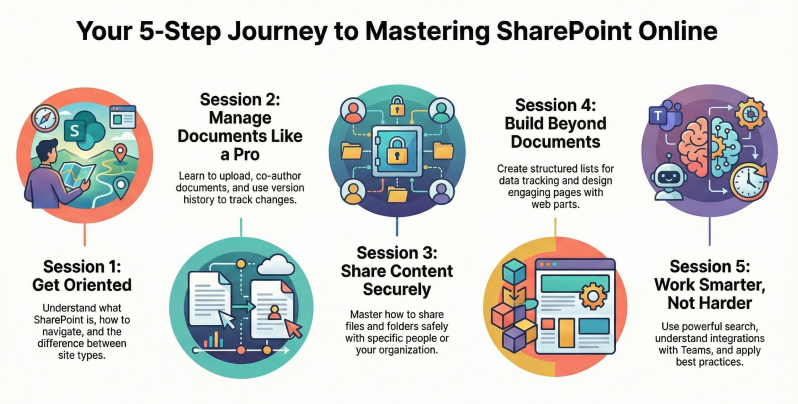
Beginner Training Sessions for SharePoint Online Users Overview. This document outlines a structured training program for beginners new to SharePoint Online (part of Microsoft 365).
The program consists of five sessions, each lasting 1-2 hours, designed to build skills progressively. Sessions include hands-on exercises, discussions, and Microsoft references.
Beginner Training Sessions for SharePoint Online Users Overview. This document outlines a structured training program for beginners new to SharePoint Online (part of Microsoft 365). The program consists of five sessions, each lasting 1-2 hours, designed to build foundational skills progressively. Sessions include hands-on exercises, discussions, and references to Microsoft resources.
- Target Audience: End-users with little or no prior experience in SharePoint.
- Prerequisites: Access to Microsoft 365/SharePoint Online account.
- Format: Instructor-led (virtual or in-person), with screen sharing and practice sites.
- Total Duration: Approximately 8-10 hours over multiple days/weeks.
- Resources:
- Microsoft SharePoint video training: support.microsoft.com/en-us/office/sharepoint-video-training
- Get started with SharePoint: support.microsoft.com/en-us/office/get-started-with-sharepoint
Session 1: Introduction to SharePoint Online - Duration: 1 hour - Objectives: Understand what SharePoint is and how to navigate the interface.
- What is SharePoint Online? (Collaboration platform for sites, document management, and teamwork; integration with Teams, OneDrive, etc.)
- Accessing SharePoint (via Microsoft 365 app launcher, sharepoint.com, or Teams)
- Home page overview: Frequent sites, followed sites, recent files, news
- Site types: Team sites (collaboration) vs. Communication sites (broadcasting information)
- Basic navigation: Left menu, top bar, search box
- Following sites and news
Hands-On Exercises:
- Log in to SharePoint and explore the home page
- Search for existing sites or content
Key Takeaways: SharePoint is more than a file share—it's a hub for team collaboration.
Session 2: Working with Document Libraries - Duration: 1.5-2 hours - Objectives: Learn core document management features.
- Understanding document libraries (folders vs. metadata)
- Uploading files/folders (drag-and-drop, New button)
- Creating new documents (Office Online integration)
- Editing documents (co-authoring, check-out if enabled)
- Version history: Viewing and restoring previous versions
- Deleting and restoring files (Recycle Bin – 93 days retention)
- Syncing libraries to your computer (OneDrive sync client)
Hands-On Exercises:
- Upload files to a practice library
- Edit a document online with a colleague (simulate co-authoring)
- View version history and restore a version
- Sync a library and add files locally
Key Takeaways: Use metadata and views instead of deep folders; always check version history for changes.
Session 3: Sharing and Permissions - Duration: 1.5 hours - Objectives: Safely share content internally and externally.
- Sharing files/folders/sites (Anyone, People in organization, Specific people)
- Sharing links: View vs. Edit permissions, expiration, passwords
- Stopping sharing and managing access
- Best practices: Share with individuals/groups, avoid "Anyone" links for sensitive data
- Understanding permissions inheritance (site > library > folder/file)
- Requesting access if needed
Hands-On Exercises:
- Share a file with a colleague and test access
- Share externally (if allowed in your organization)
- Revoke sharing and verify
Key Takeaways: Sharing is flexible but requires caution—use organization defaults for security.
Session 4: Lists, Pages, and Basic Customization - Duration: 1.5-2 hours - Objectives: Create and manage non-document content.
- What are Lists? (Tasks, calendars, issues vs. Excel)
- Creating and editing lists/items
- Views: Sorting, filtering, grouping
- Creating and editing modern pages (adding text, images, web parts)
- Adding web parts (Document library, News, Quick links, etc.)
- Basic site navigation customization
Hands-On Exercises:
- Create a simple task list and add items
- Customize a view (e.g., filter by assignee)
- Edit the home page of a site: Add sections and web parts
Key Takeaways: Lists are great for structured data; pages make sites engaging.
Session 5: Search, Integration, and Best Practices - Duration: 1-2 hours - Objectives: Find information efficiently and apply real-world tips.
- Using Search (site-wide, organization-wide)
- Integration with Teams (files in channels are in SharePoint), OneDrive, Outlook
- Mobile app overview
- Best practices:
- Avoid deep folder structures (use metadata)
- Naming conventions
- When to use SharePoint vs. OneDrive vs. Teams
- Common pitfalls (path length limits, sync limits)
- Q&A and troubleshooting
Hands-On Exercises:
- Perform advanced searches
- Explore a Team site's connection to Microsoft Teams
Key Takeaways: Effective search saves time; follow organizational governance for consistency.
Additional Recommendations
- Follow-Up: Provide a practice site for ongoing exercises.
- Advanced Topics (for future sessions): Workflows/Power Automate, Permissions management for site owners.
- Self-Paced Learning: Encourage Microsoft Learn paths or LinkedIn Learning courses.
- Evaluation: End each session with feedback; quiz key concepts.
This outline ensures users gain confidence quickly while promoting best practices for collaboration. Adjust based on organizational policies (e.g., external sharing restrictions).