

SharePoint Mentor Curated Articles
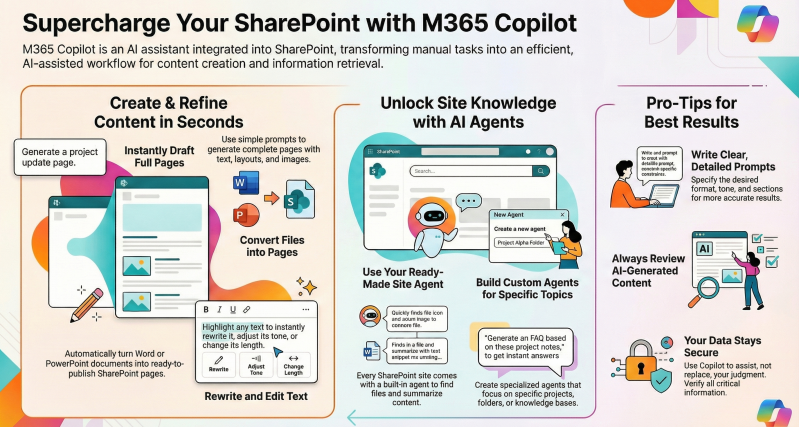
Microsoft 365 Copilot is an AI-powered assistant integrated into SharePoint Online, helping end users create content, manage sites, interact with documents, and gain insights more efficiently.
Current Copilot features in SharePoint include page creation, rich text editing, agents for querying site content, and more.
This tutorial focuses on practical, step-by-step guidance for end users.
Prerequisites:
- You need a Microsoft 365 Copilot license (included in plans like E3/E5 with Copilot add-on).
- Access to SharePoint Online sites where you have at least edit permissions for advanced features like creating agents.
- If your organization uses Pay-As-You-Go for agents, unlicensed users may access some features with billing enabled.
- Always review AI-generated content for accuracy, as Copilot is a tool to assist, not replace, human judgment.
Accessing Copilot in SharePoint - Copilot appears in several places within SharePoint:
- Copilot Pane (for Agents and Queries): On any modern SharePoint site, page, or document library, look for the Copilot icon in the top-right corner of the suite bar (next to your profile). Click it to open the side pane.
- This opens the default "ready-made agent" scoped to the current site's content.
- Use it to ask natural language questions like "Summarize the latest project updates" or "What are the key points in this document library?"
- During Page Creation: When creating new pages or news posts.
- In Rich Text Editor: When editing text on pages.
Creating Pages with Copilot - Copilot excels at generating professional SharePoint pages quickly.Step-by-Step: Create a New Page
- Navigate to your SharePoint site.
- Click + New > Page (or News post) from the command bar.
- Choose one of two approaches:
- From Templates: Select a built-in template (e.g., Project Status, Team Spotlight). Copilot will prompt you for details like topic, audience, and tone.
- From Scratch with Open Prompts: Enter a descriptive prompt, e.g., "Create a page for our Q1 sales review including sections for achievements, challenges, and next steps. Use a professional tone and include placeholders for charts."
- Copilot generates a draft page with sections, text, images, and layout suggestions.
- Review and edit: Add web parts, adjust layout, or use Design ideas for further refinements.
- Click Publish or Republish when ready.
- Tips:
- Be specific in prompts for better results (e.g., include desired sections or branding).
- Copilot can convert existing files (Word docs, PowerPoint) into pages.
- Tips:
Refining Existing Pages
- Edit a page and use Copilot suggestions for layout or content enhancements.
Writing and Editing Text with Copilot (Rich Text Editor) - Copilot helps refine text directly in pages and news posts.Step-by-Step:
- Edit a SharePoint page or news post.
- Highlight text in a Text web part.
- Click the Copilot icon that appears (or right-click for options).
- Choose actions:
- Rewrite: Rephrase selected text.
- Adjust tone: Make it more formal, casual, enthusiastic, etc.
- Make shorter/longer: Condense or expand content.
- Generate ideas: Suggest new content based on context.
- Select a suggestion and insert it.
Example Prompt: Highlight a paragraph and ask Copilot to "Make this more concise and professional." Note: This feature is available to all Copilot-licensed users in Text web parts.
Using SharePoint Agents - Agents are specialized AI assistants grounded in your site's content. Every modern site has a ready-made agent automatically. You can create custom agents for tailored needs.
- Using the Ready-Made Agent
- Open the Copilot pane (top-right icon).
- The default agent is selected.
- Ask questions like:
- "Summarize documents about budget approvals."
- "Find files related to the 2026 roadmap."
- "Generate a FAQ from these project notes."
- Responses include citations to sources.
- Creating a Custom Agent - You need edit permissions on the site.
- Options to Start:
- From Site Homepage: Click New > Agent.
- From Document Library: Select files/folders > Right-click (or ellipsis) > Create an agent.
- From Copilot Pane: Open pane > Click arrow next to agent name > Create new agent.
- Options to Start:
- Configuration Steps:
- Overview Tab: Set title, logo, and purpose (e.g., "HR Policies Expert – Answers questions on benefits and leave").
- Sources Tab: Add knowledge sources:
- Default: Current site.
- Add more: SharePoint sites, libraries, folders, or specific files (via URLs or selection).
- Behavior Tab: Customize:
- Welcome message.
- Starter prompts (suggested questions).
- Instructions (system prompt for tone/behavior, e.g., "Always respond professionally and cite sources").
- Click Create or Save.
- The agent file (.agent) saves to Site Assets or the current library.
- Advanced Option:
- Click Add advanced customization to extend in Copilot Studio (for actions, workflows, or external data).
- Managing and Sharing Agents
- Edit: Open pane > Select agent > Edit.
- Share: Like any file – Copy link, invite users, or add to Teams chats/channels.
- Set as Default (site owners): Promote a custom agent to replace the ready-made one.
- Interact: Open Copilot pane and select your agent from the dropdown.
Other Copilot Features in SharePoint
- Document Insights: Upload or select files; ask Copilot to summarize, extract data, or answer questions.
- Search Enhancement: Copilot makes searches more conversational.
- Integration with Teams: Share agents directly in chats for collaborative queries.
Best Practices and Tips
- Prompt Engineering:
- Use clear, detailed prompts (e.g., specify format: "Respond in bullet points with citations").
- Privacy and Security:
- Copilot respects SharePoint permissions – it only accesses what you can see.
- Review Outputs:
- Always verify facts, especially for sensitive content.
- Feedback:
- Thumbs up/down on responses to improve the model.
- Clear History:
- In Microsoft Copilot settings > Privacy > Copilot activity history.
- Training Resources:
- Visit Microsoft's support hub: Microsoft 365 Copilot in SharePoint help & learning.
By mastering these features, you'll transform how you work in SharePoint – from manual drafting to AI-assisted creation and insights. Experiment on a test site first! For the latest updates, check the Microsoft 365 Roadmap.