

SharePoint Mentor Curated Articles
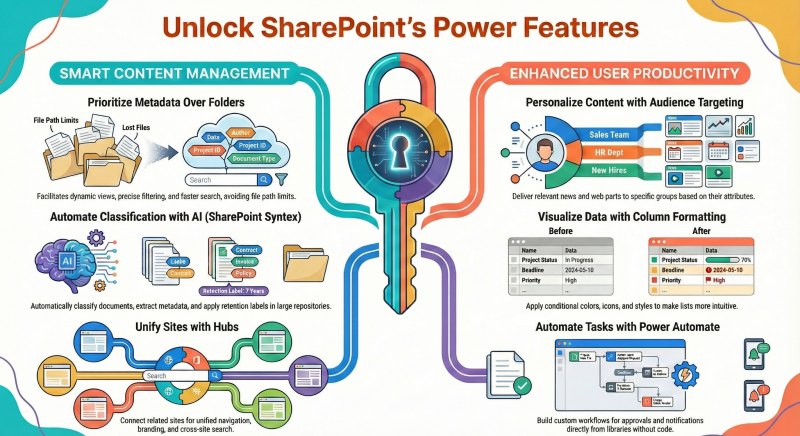
SharePoint Online offers numerous advanced features and capabilities that enhance productivity, collaboration, and content management.
Below is a curated list of essential "gems"—that power users can master for optimal utilization.
- Audience Targeting: Personalize content delivery, such as news or web parts, based on user attributes like department or location to ensure relevance and improve engagement.
- Document ID Service: Assign unique, persistent identifiers to documents that remain constant even if files are moved, simplifying tracking and preventing broken links.
- Column Formatting: Customize the appearance of list or library columns using JSON expressions for conditional styling, enhancing data visualization and usability.
- SharePoint Syntex Integration: Leverage AI to automatically classify documents, extract metadata, and apply labels, streamlining organization in large repositories.
- Site Scripts and Designs: Create custom templates for automated site provisioning, including predefined lists, branding, and configurations to maintain consistency across deployments.
- Roll-Up Calendars and Events: Aggregate multiple calendars into a single view with color-coding and filters, centralizing events without altering underlying structures.
- Roll-Up News and Announcements: Consolidate updates from various sites into one hub using web parts, ensuring users access all relevant information efficiently.
- Collapsible Sections: Organize text-heavy pages by allowing sections to expand or collapse, improving readability and navigation on complex sites.
- Pinning Important Items: Highlight key documents or folders at the top of libraries for immediate access, reducing search time in extensive collections.
- Automated Metadata Application: Use workflows or templates to apply metadata automatically, ensuring consistency and enhancing search accuracy across documents.
- Document Locking: Secure files during editing to avoid conflicts from simultaneous changes, preserving version integrity in collaborative environments.
- Permission Inheritance Management: Understand and strategically break inheritance from parent sites to control access precisely for sensitive content.
- Content Types for Standardization: Define reusable content types to enforce uniform metadata, templates, and workflows across libraries.
- Integration with Microsoft Teams: Embed SharePoint sites as tabs in Teams channels for seamless access to documents and resources without app switching.
- Vertical Sections in Layouts: Add additional vertical sections below banners to expand content space without cluttering the main page area.
- Power Automate for Automation: Integrate to automate repetitive tasks like approvals and notifications, boosting efficiency without custom coding.
- Metadata-Driven Search Optimization: Tag files with metadata to enable advanced filtering and dynamic views, making information retrieval faster and more precise.
- Real-Time Co-Authoring: Enable simultaneous editing in Office files with automatic saves and conflict resolution, facilitating seamless team collaboration.
- Retention and Archival Policies: Configure policies to manage document lifecycles, automating archiving or deletion for compliance and storage optimization.
- Hub Sites for Grouping: Connect related sites under a hub for unified navigation, themes, and permissions, simplifying management of interconnected content.
- Document Sets: Treat related documents as a single entity, applying shared metadata, workflows, and templates automatically. This is particularly useful for managing projects or cases, providing a "smart folder" alternative to multiple libraries.
- Content Types: Define reusable templates for documents or list items with specific columns, workflows, and policies. Applying content types to libraries enables consistent metadata across sites, improving search and organization.
- Metadata Over Folders: Prioritize columns and metadata for categorization instead of deep folder structures. This facilitates dynamic views, filtering, and search, while avoiding file path limitations.
- Grid View Editing: In document libraries and lists, switch to Grid view for rapid bulk editing of metadata, akin to an Excel spreadsheet, enhancing efficiency for large datasets.
- Alerts and Notifications: Configure alerts on libraries, folders, or individual items to receive updates on changes, additions, or deletions. This ensures timely awareness without constant manual checks.
- Version History and Co-Authoring: Leverage automatic versioning for change tracking and real-time simultaneous editing in Office files. Restore previous versions easily to mitigate errors.
- Sync with OneDrive: Synchronize libraries to local devices via OneDrive for offline access and seamless file explorer integration, ideal for mobile or remote work.
- Column Formatting and View Formatting: Apply JSON formatting to columns or views for conditional coloring, icons, or custom displays, making data more intuitive and visually informative.
- Integration with Power Automate: Automate workflows directly from libraries or lists, such as approvals, notifications, or data routing, without requiring advanced development skills.
- Hub Sites: Associate related sites into hubs for unified navigation, search, and branding. This creates a cohesive intranet experience across departmental or project sites.
- Ratings and Image Tagging: Enable ratings on items for feedback and use image tags for visual identification, aiding quick discovery in media-heavy libraries.
- Permissions Management: Break inheritance selectively on libraries or items for granular control, while regularly auditing access to maintain security and compliance.
- Modern Page Sections and Web Parts: Utilize vertical sections, collapsible areas, and web parts like File Viewer or Quick Links to build engaging, responsive pages without custom coding.
- Search Refinements: Employ advanced search with refiners, keywords, or property queries (e.g., metadata filters) for precise results across vast content repositories.
- Integration with Microsoft Teams: Recognize that Teams files are stored in SharePoint, enabling advanced management (e.g., metadata, workflows) directly from the underlying library.