

SharePoint Mentor Curated Articles
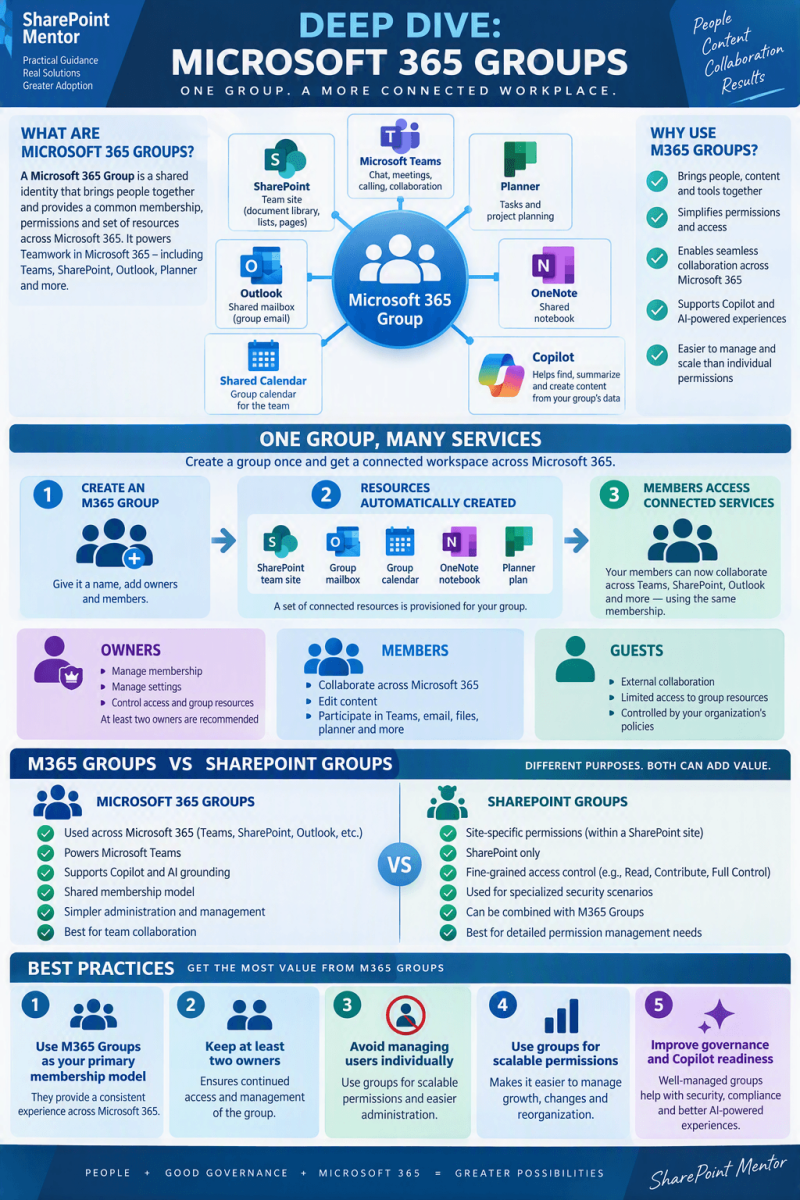
M365 Groups are the foundational cross-application membership engine in Microsoft 365.
Rather than serving as just another static distribution list, an M365 Group functions as a central identity object in Microsoft Entra ID that orchestrates permissions and auto-provisions a shared workspace across multiple integrated tools.
Value and Core Usage
Managing permissions individually across separate tools—such as a file repository, task board, group calendar, and chat space—creates significant administrative overhead and security risks.
-
Unified Identity and Access: Adding or removing a user from the M365 Group automatically grants or revokes their access across every connected tool simultaneously.
-
Self-Service Collaboration: Users can form teams, projects, or committees quickly without relying on IT tickets for provisioning each discrete asset.
-
Clean Access Governance: M365 Groups support Public (open to all internal users) and Private (access strictly via owner approval) visibility tiers, as well as dynamic attribute-based rules and external guest access.
-
AI and Search Readiness: By establishing clear ownership and automated membership boundaries, M365 Groups define proper security trimming for Microsoft Copilot, enterprise search, and knowledge agents, ensuring sensitive content does not leak to unauthorized employees.
Connected Microsoft 365 Services
When a Microsoft 365 Group is provisioned, it automatically links to a suite of purpose-built collaboration tools.
- SharePoint Online: Provisions a full SharePoint Team Site with document libraries for structured co-authoring, file storage, and intranet pages.
- Microsoft Teams: Powers real-time persistent channel conversations, video meetings, and tab integrations (when provisioned with or connected to a Team).
- Exchange Online: Creates a shared group mailbox and shared group calendar for scheduling meetings and handling group email.
- Microsoft Planner: Auto-provisions a shared Kanban task board for workflow assignment and deadline tracking.
- OneNote: Creates a shared notebook stored inside the group's SharePoint site for shared meeting minutes and project documentation.
- Power BI: Serves as the security boundary for dedicated Power BI Workspaces to share dashboards and reports.
- Viva Engage: Manages community-wide discussions and announcement spaces when a community is group-backed.
Depending on whether you are an end user or a tenant administrator, you can create a group through several entry points:
Method 1: Outlook on the Web
-
Open Outlook on the Web (outlook.office.com).
-
In the left navigation pane, expand or select the Groups folder/icon.
-
Click New Group.
-
Enter the Group Name, Group ID (email alias), and a concise Description.
-
Select the privacy setting: Public or Private.
-
Click Create.
Method 2: Microsoft Teams
-
In the Teams desktop or web client, select Teams on the left rail.
-
Click the + (Join or create a team) button.
-
Select Create team > From scratch (or use an existing template).
-
Choose Public or Private, name the team, and click Create.
This provisions an underlying Microsoft 365 Group along with a group-connected SharePoint Team Site and shared mailbox.)
Method 3: Microsoft 365 Admin Center (Admins Only)
-
Go to the Microsoft 365 Admin Center.
-
In the navigation menu, select Teams & groups > Active teams & groups.
-
Click Add a Microsoft 365 group.
-
Provide the basic details (Name, Description), assign at least two Owners, select Members, set the group email address, and define the privacy tier.
-
Review settings and select Create group.
How to Add Members to an M365 Group
Membership updates can be made directly by group owners in any connected application:
In Outlook (Web or Desktop)
-
Select the group in the folder pane under Groups.
-
Click the group name at the top of the reading pane to open the group information card.
-
Click Members > Add members.
-
Search for the user’s name or email address, select them, and click Add.
In Microsoft Teams
-
Locate the team connected to the group in your Teams list.
-
Click the More options (...) menu next to the team name.
-
Select Add member.
-
Type the name or email address of the employee or external guest, then select Add.
This automatically syncs back to the underlying M365 Group, granting that user access to the linked SharePoint site, Planner, and calendar.
In the SharePoint Team Site
-
Navigate to the homepage of the group-connected SharePoint site.
-
Look at the top-right corner where the member count is displayed (e.g., "Members").
-
Click the member count, select Add members, enter the user's name, and click Save.
In the M365 Admin Center (Admins Only)
-
In the Active teams & groups page, locate and click the group name.
-
Switch to the Members tab.
-
Click View all and manage members or Add members.
-
Search for the user, check their name, and save the changes.
Use Microsoft 365 Groups as the enterprise collaboration membership layer, then surround it with a documented provisioning model, identity-quality controls, owner accountability, service-aware operations, and lifecycle governance.
Additional Resources
- Microsoft 365 Groups overview for administrators
https://learn.microsoft.com/en-us/microsoft-365/admin/create-groups/office-365-groups?view=o365-worldwide - Manage Microsoft 365 groups
https://learn.microsoft.com/en-us/microsoft-365/enterprise/manage-microsoft-365-groups?view=o365-worldwide - Microsoft 365 Groups and Microsoft Teams
https://learn.microsoft.com/en-us/microsoftteams/office-365-groups - Compare types of groups in Microsoft 365
https://learn.microsoft.com/en-us/microsoft-365/admin/create-groups/compare-groups?view=o365-worldwide - Explaining Microsoft 365 Groups to your users
https://learn.microsoft.com/en-us/microsoft-365/admin/create-groups/explain-groups-knowledge-worker?view=o365-worldwide - Groups in Microsoft 365 for IT Architects
https://learn.microsoft.com/en-us/Office365/Enterprise/downloads/msft-m365-groups.pdf - Common management tasks for Microsoft 365 Groups
https://learn.microsoft.com/en-us/exchange/troubleshoot/groups-and-distribution-lists/o365-group-tasks - SharePoint governance overview
https://learn.microsoft.com/en-us/sharepoint/governance-overview